
Calling Multiple Numbers for the Same Lead on Calley
This guide will walk you through how to manage and call multiple numbers for the same lead using the Calley Pro and Calley Teams panel. There are two primary methods to achieve this: Calling from the Browser and Calling from the Mobile App. Additionally, we’ll cover how Teams Admins and Agents work together in handling these calls.
For this guide, we are using the Calley Teams Subscription as a reference. In Calley Teams, the importing of data is handled through the Team Admin Panel, while the calls are made exclusively through the Team Agent Panel.
In contrast, with Calley Pro, both importing data and making calls can be managed from the same panel, making it more streamlined for individual users or smaller teams.
- 1.Calling Multiple Numbers for the Same Lead on Calley
- 1.1.Importing Multiple Numbers for the Same Lead
- 1.2.Importing Multiple Numbers in Calley Pro
- 1.3.Making Calls to Multiple Numbers for the Same Lead
- 1.4.Calling Multiple Numbers from the Browser
- 1.5.Calling Multiple Numbers from the Mobile App
- 1.6.Benefits of Calling Multiple Numbers for the Same Lead
- 1.7.Best Practices
- 2.WE KNOW YOU WILL HAVE QUESTIONS.
Importing Multiple Numbers for the Same Lead
To ensure that you can call all the numbers associated with a single lead, follow these steps:
Importing Multiple Numbers in Calley Pro
Login to Web Panel.
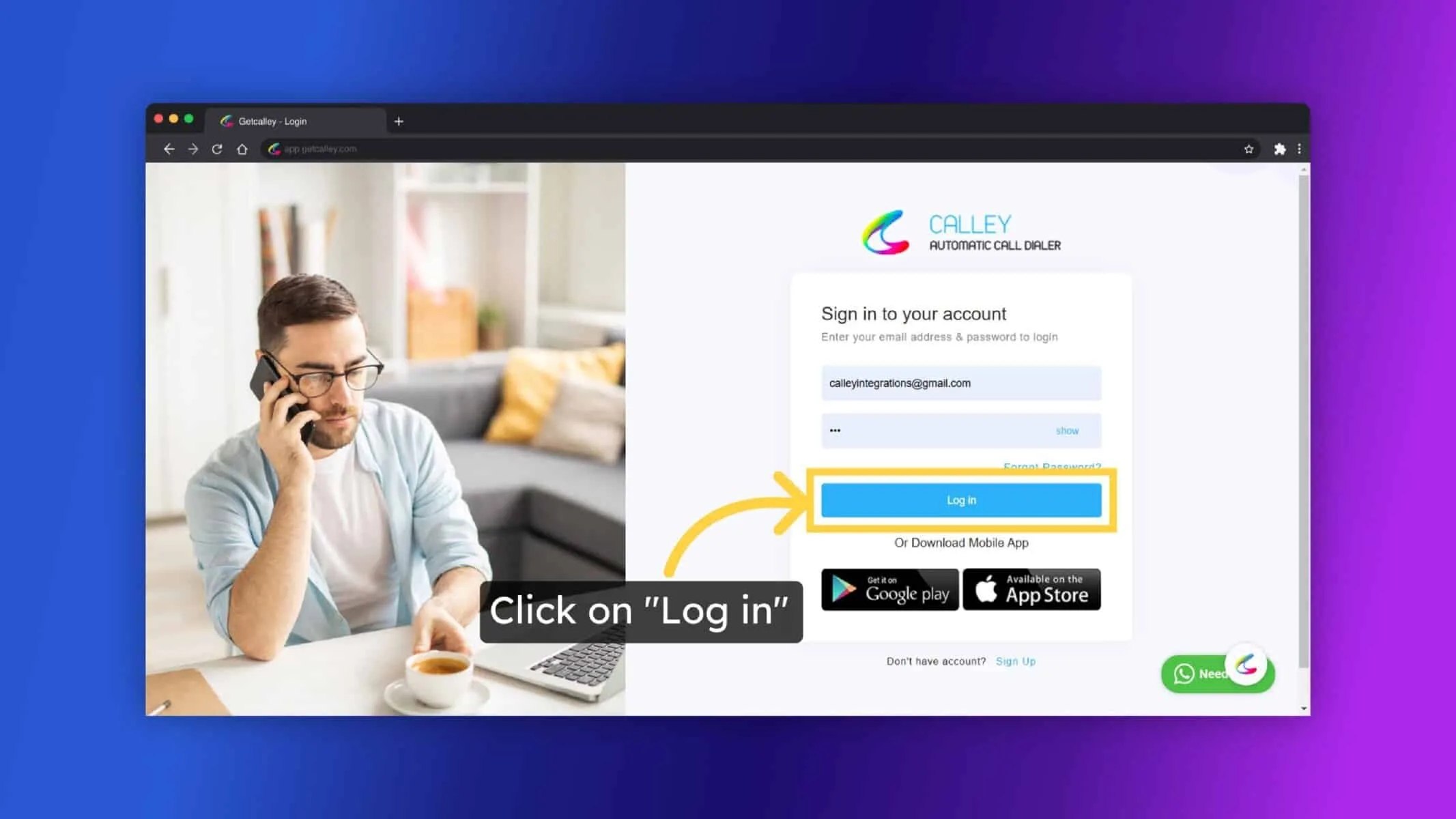
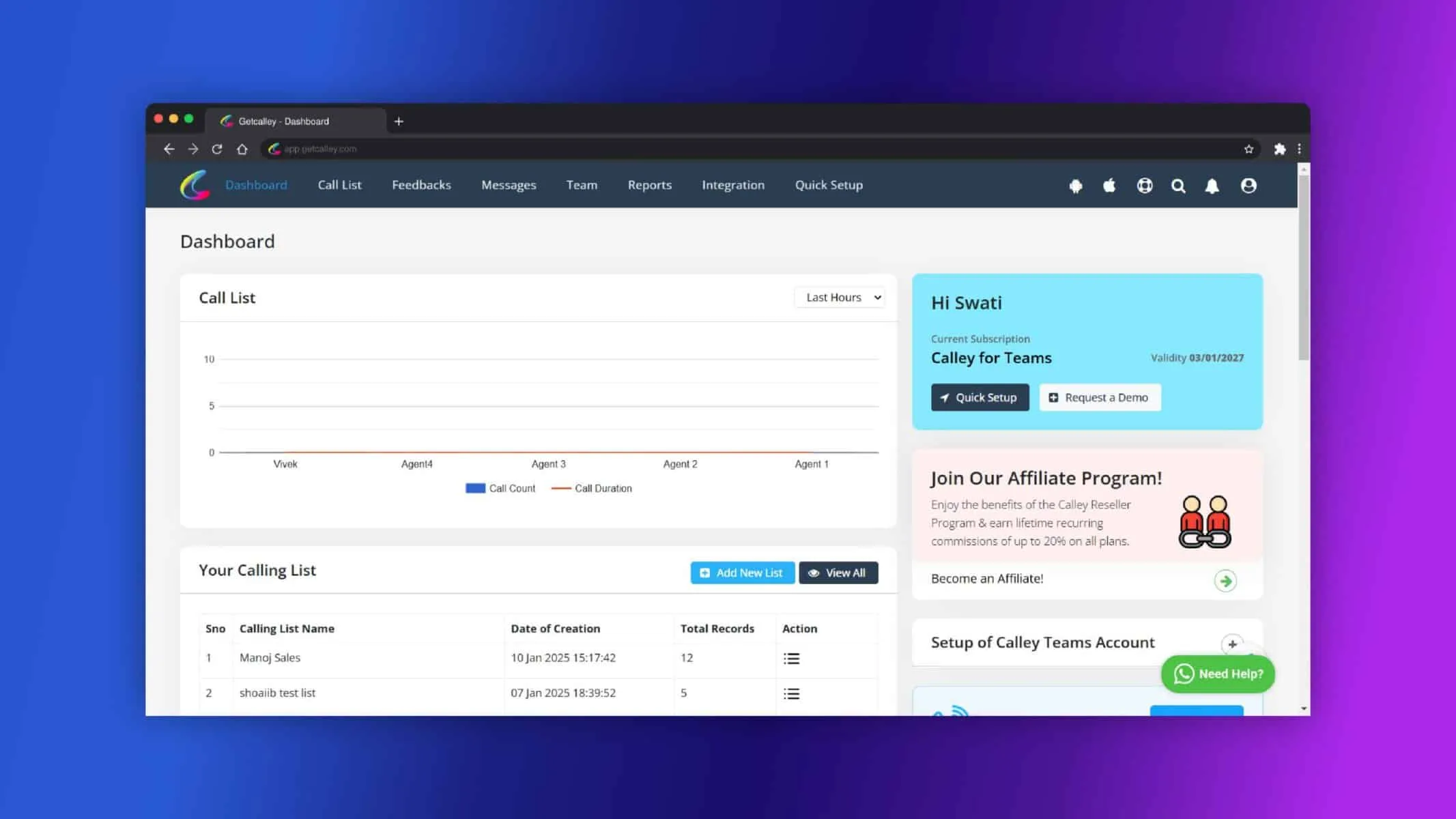
As you Login, you are redirected to dashboard
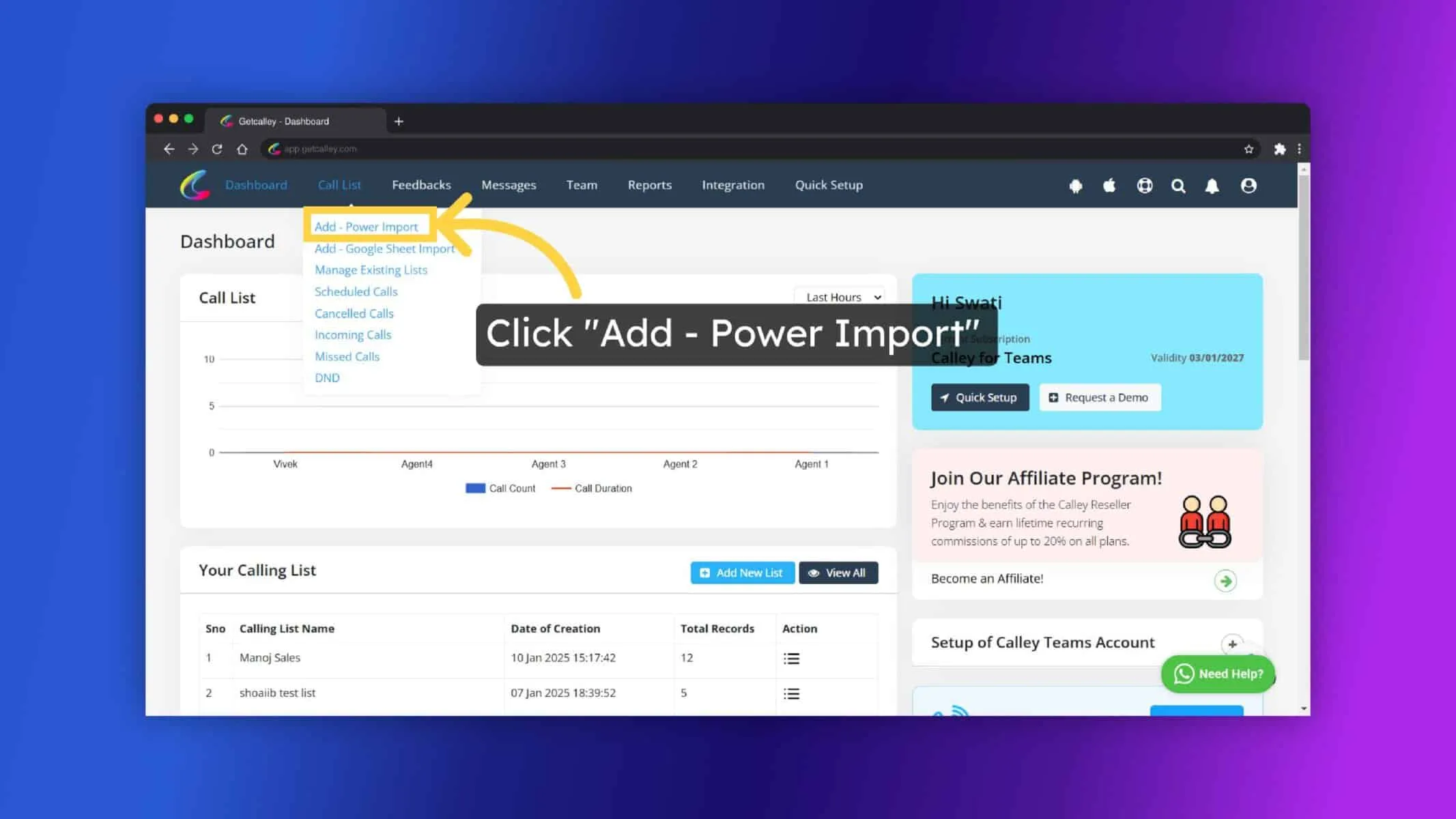
To Import the Leads Go to Call List and Click on Power Import.
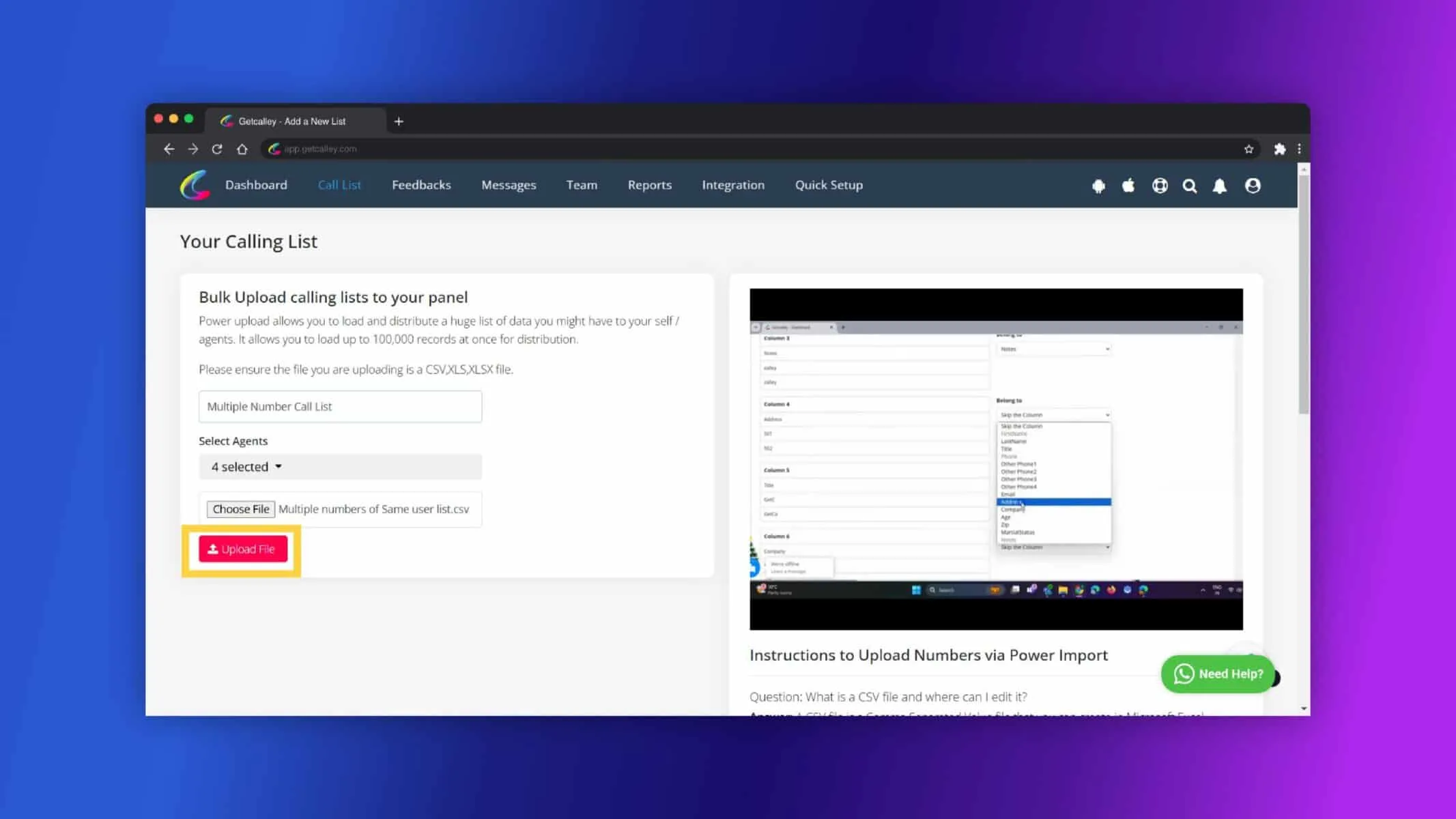
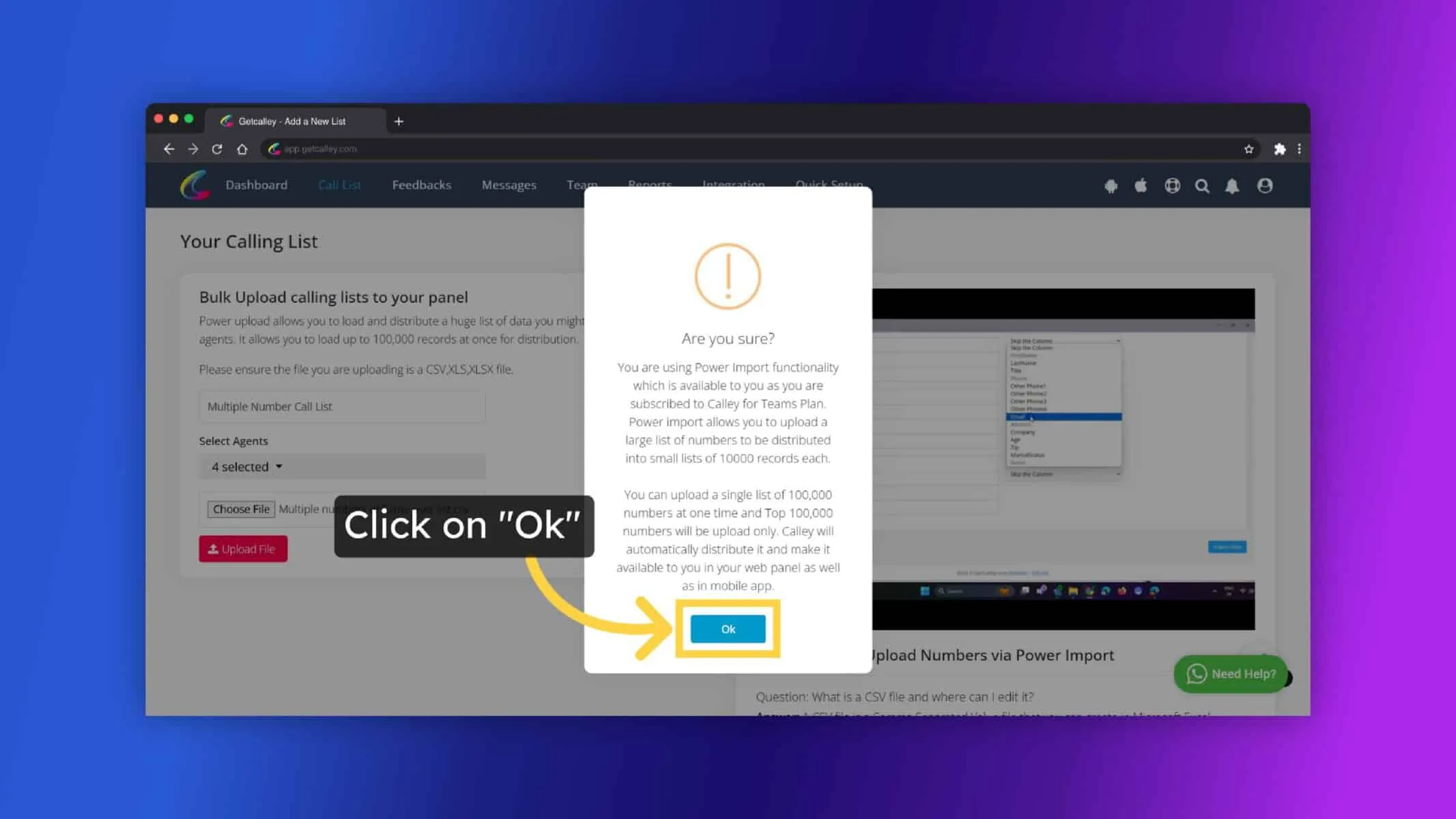
Enter the List Name and Upload CSV file, if its Teams then Select the agents you want to assign the Leads. Click on Upload File.
Click on OK.
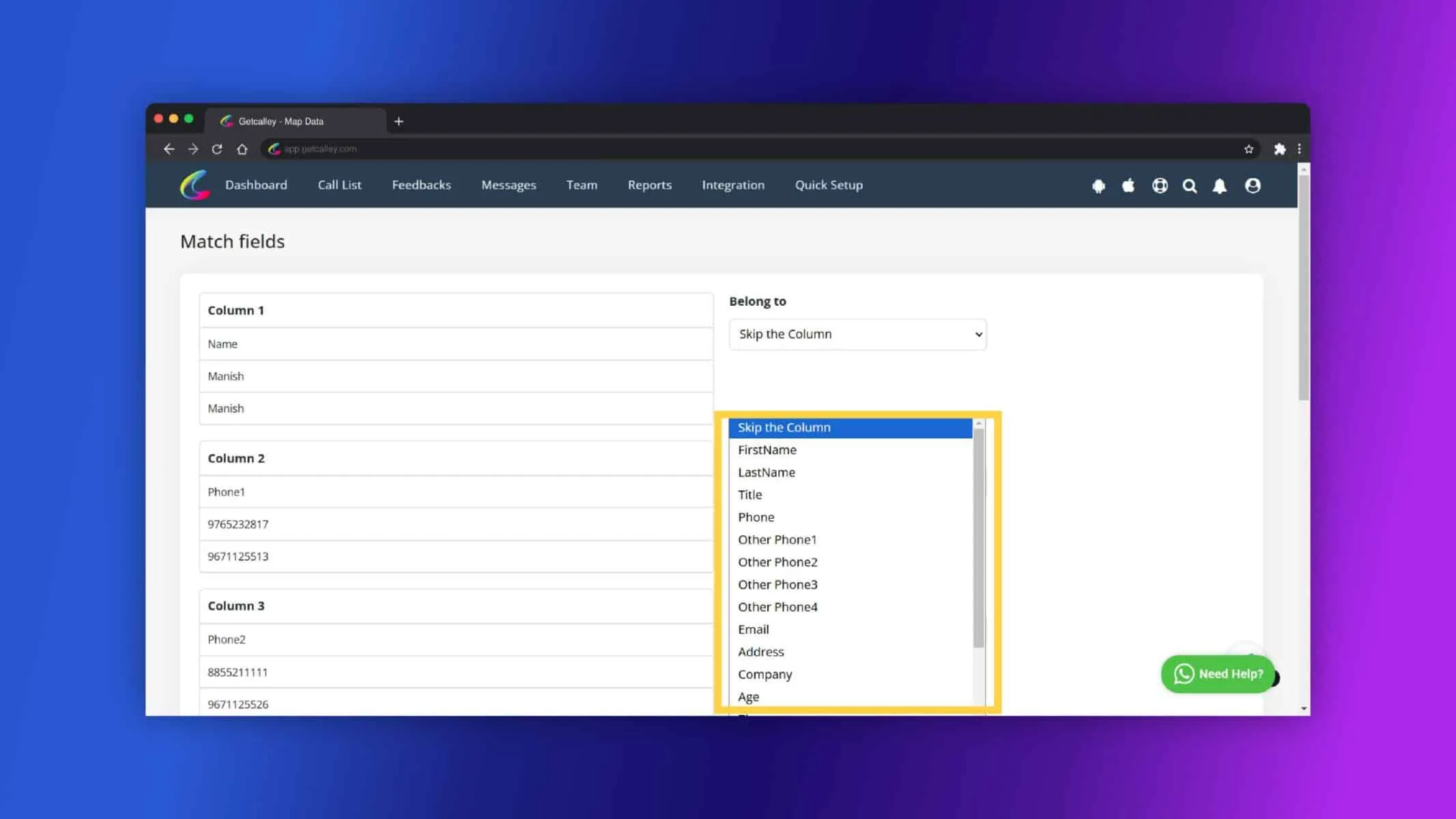
Map the fields. First Name , Phone and Notes. Map the Other numbers of Same Lead with the Fields available like Other Phone1, Other Phone2 etc.
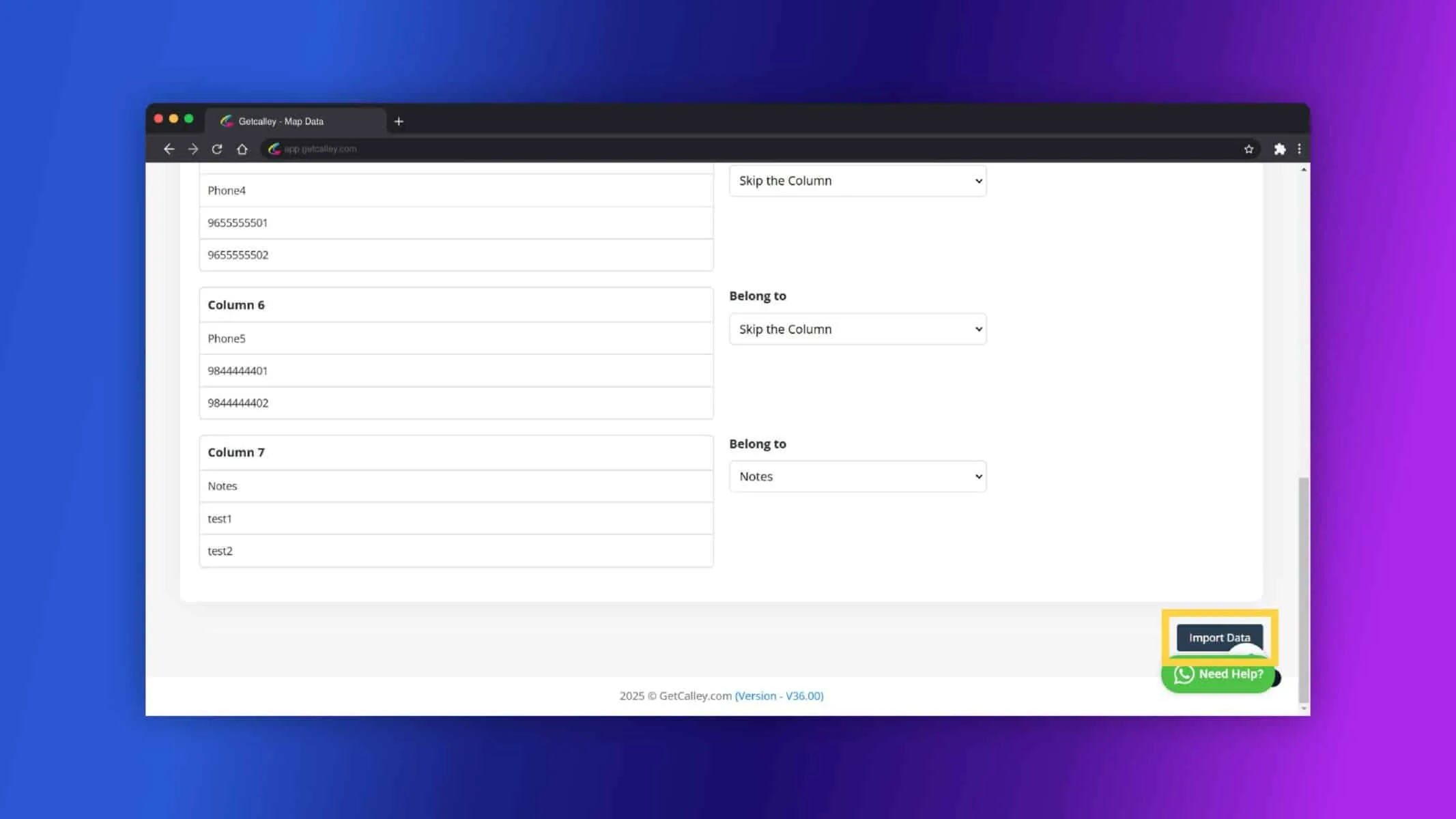
Click on Import Data button.
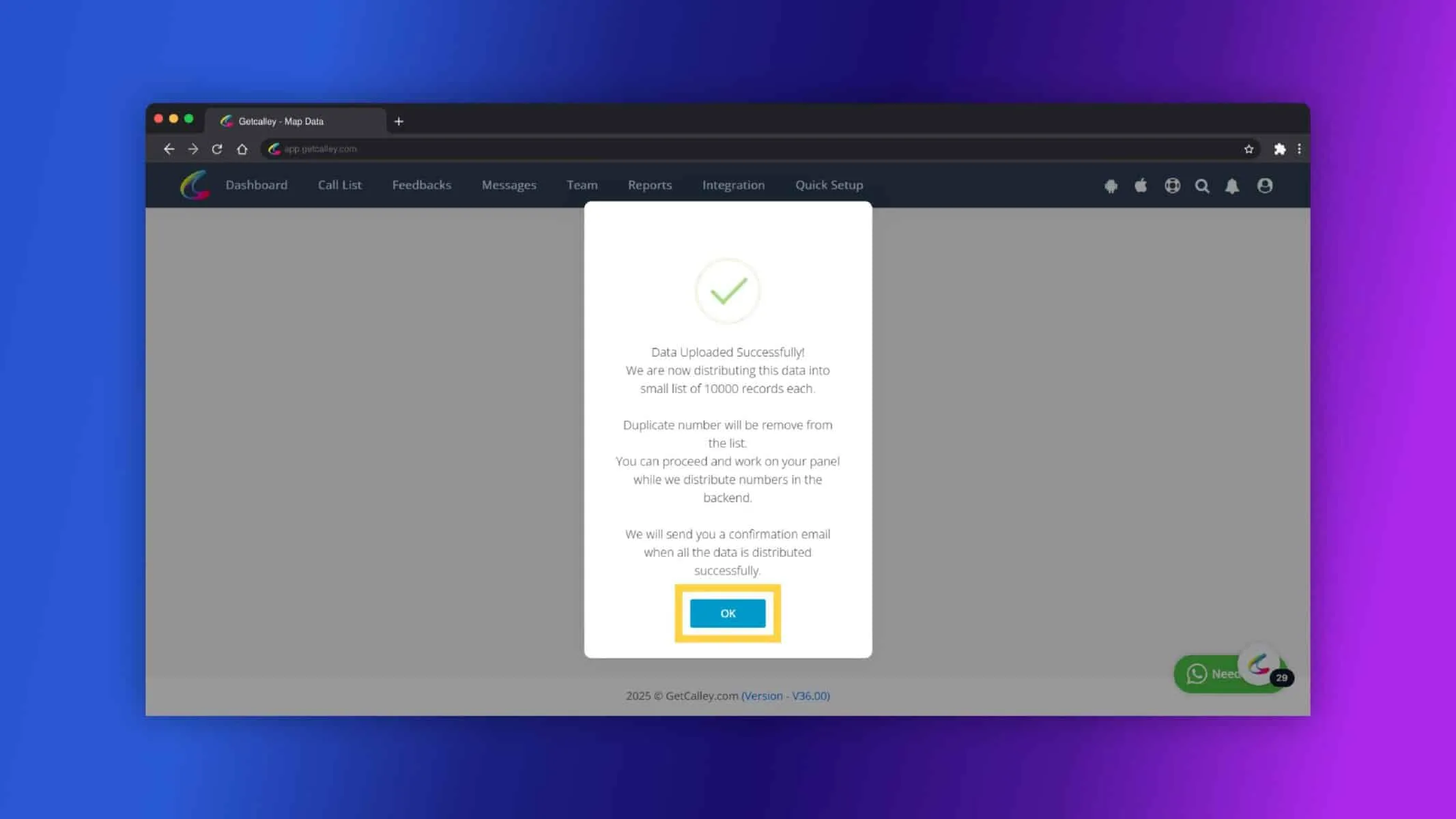
List Created Successfully. Click on OK.
Making Calls to Multiple Numbers for the Same Lead
Once your list is uploaded, you can call all the numbers associated with a lead using two methods: Calling from Browser and Calling from Mobile App.
Calling Multiple Numbers from the Browser
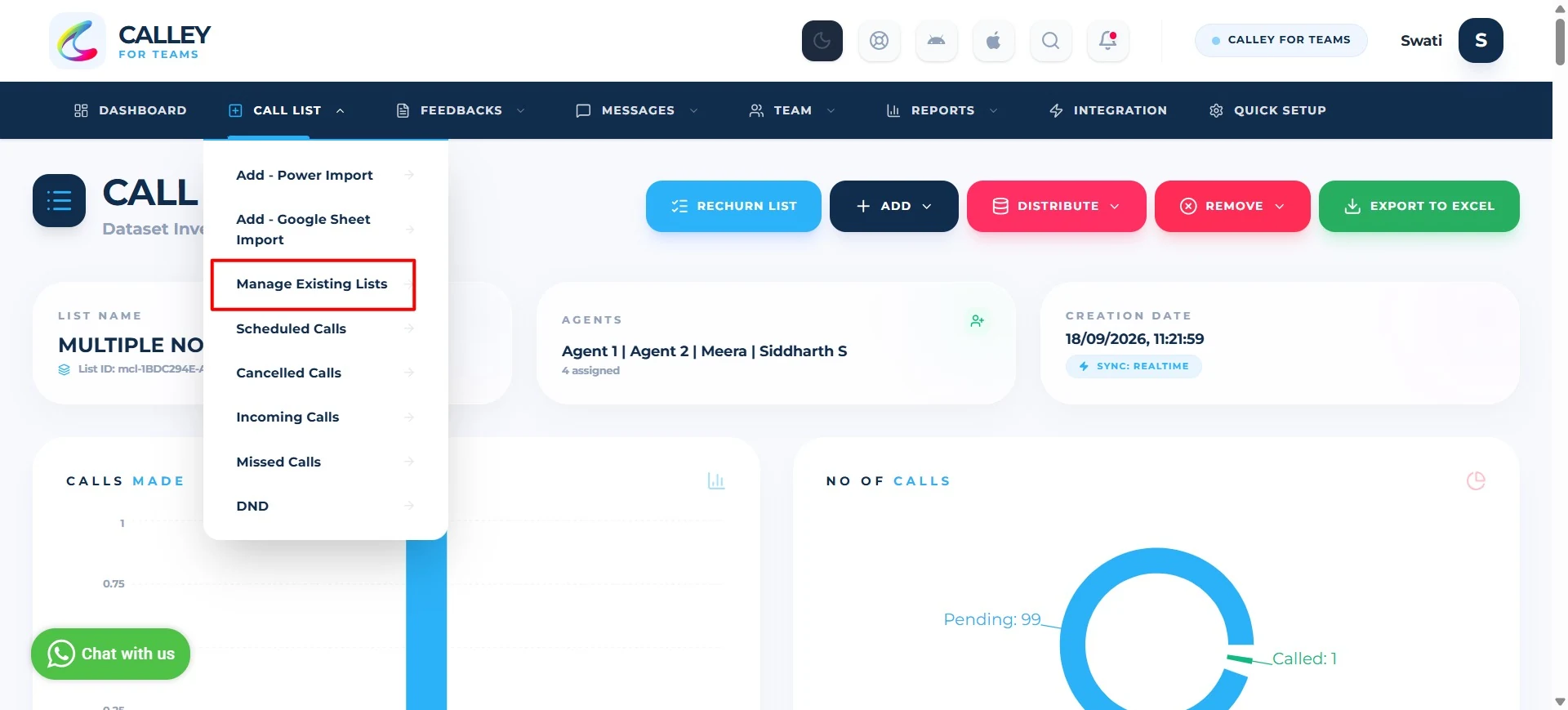
In the Web/Agent panel, go to Call List and click Manage Existing Lists to open your uploaded calling lists.
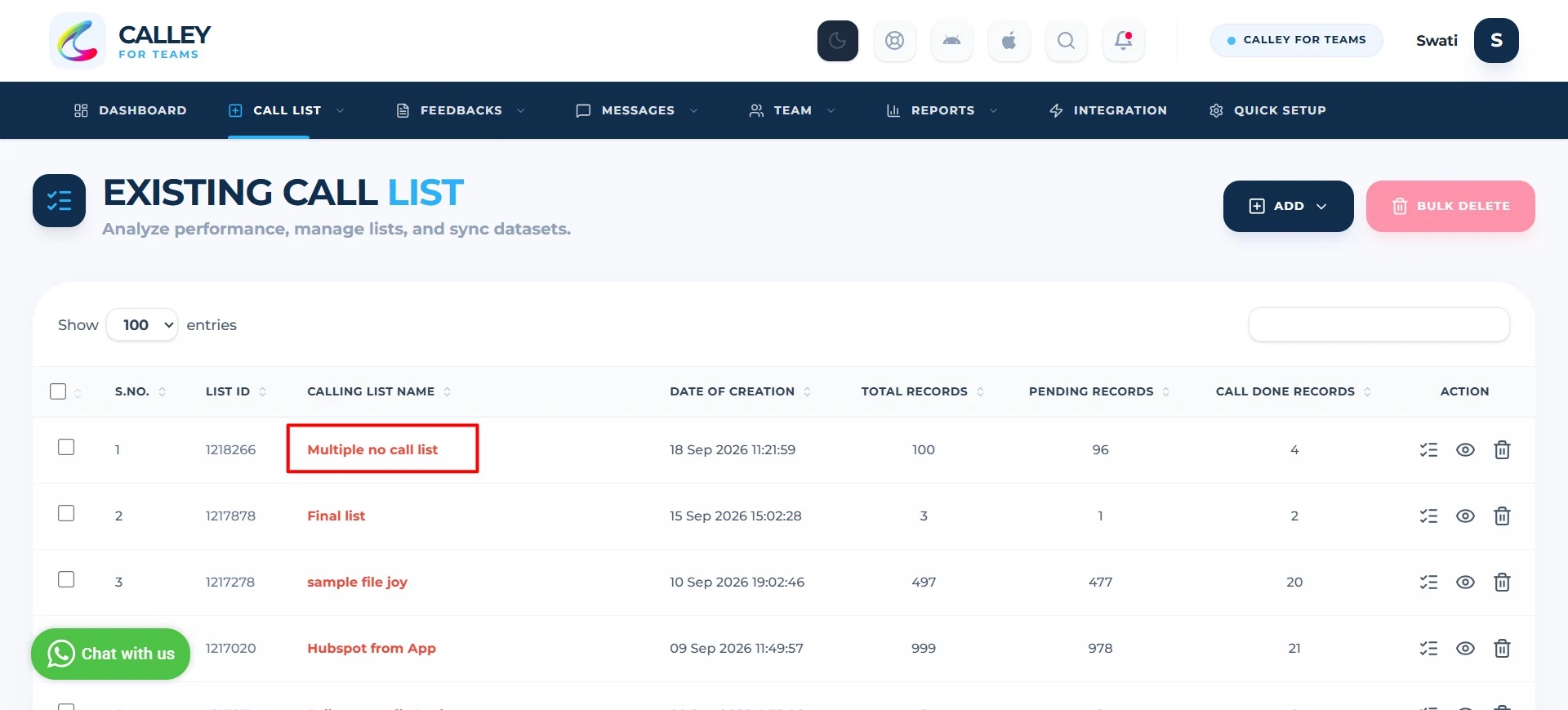
Select the list you want to call from, e.g. the list with multiple numbers per lead.
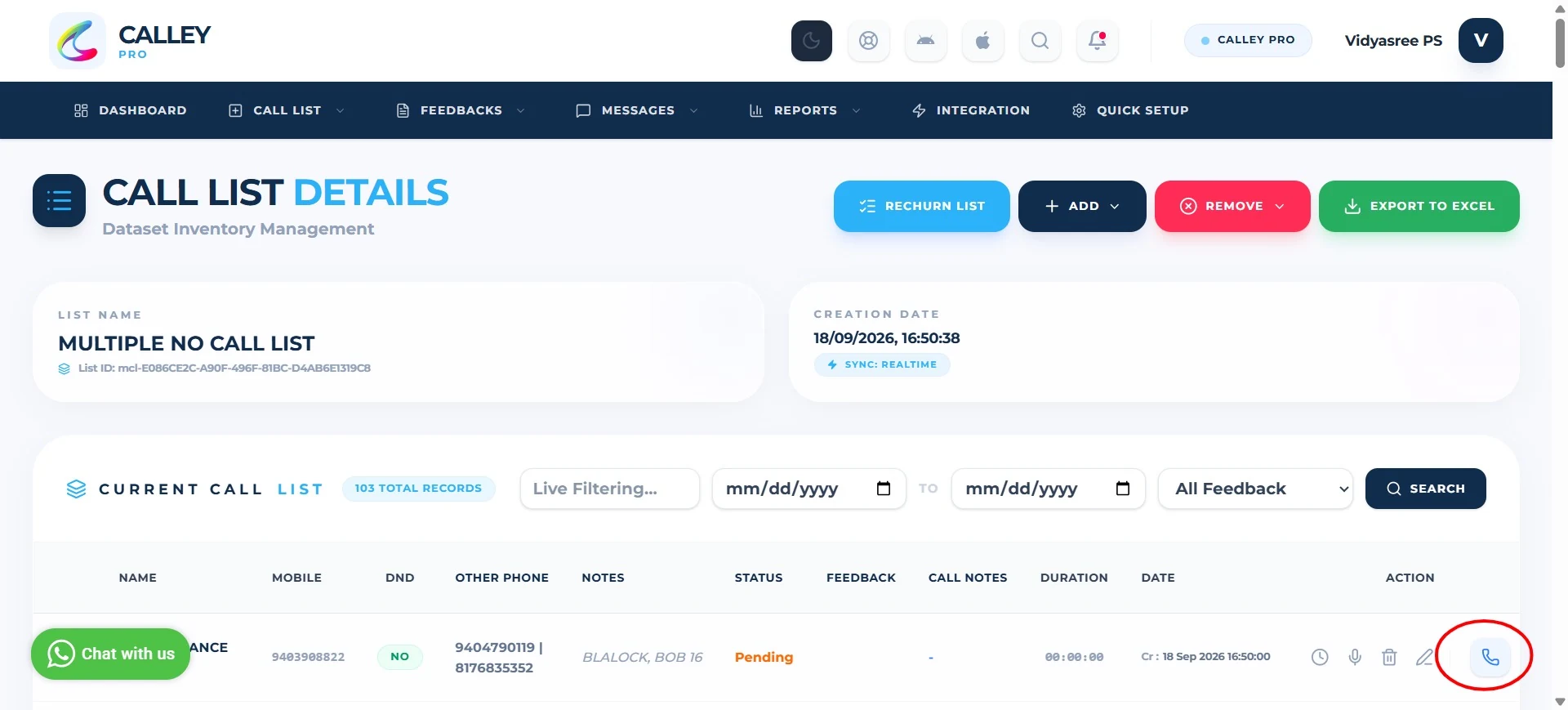
On the List Details page, click the call icon next to a lead to trigger a browser call.
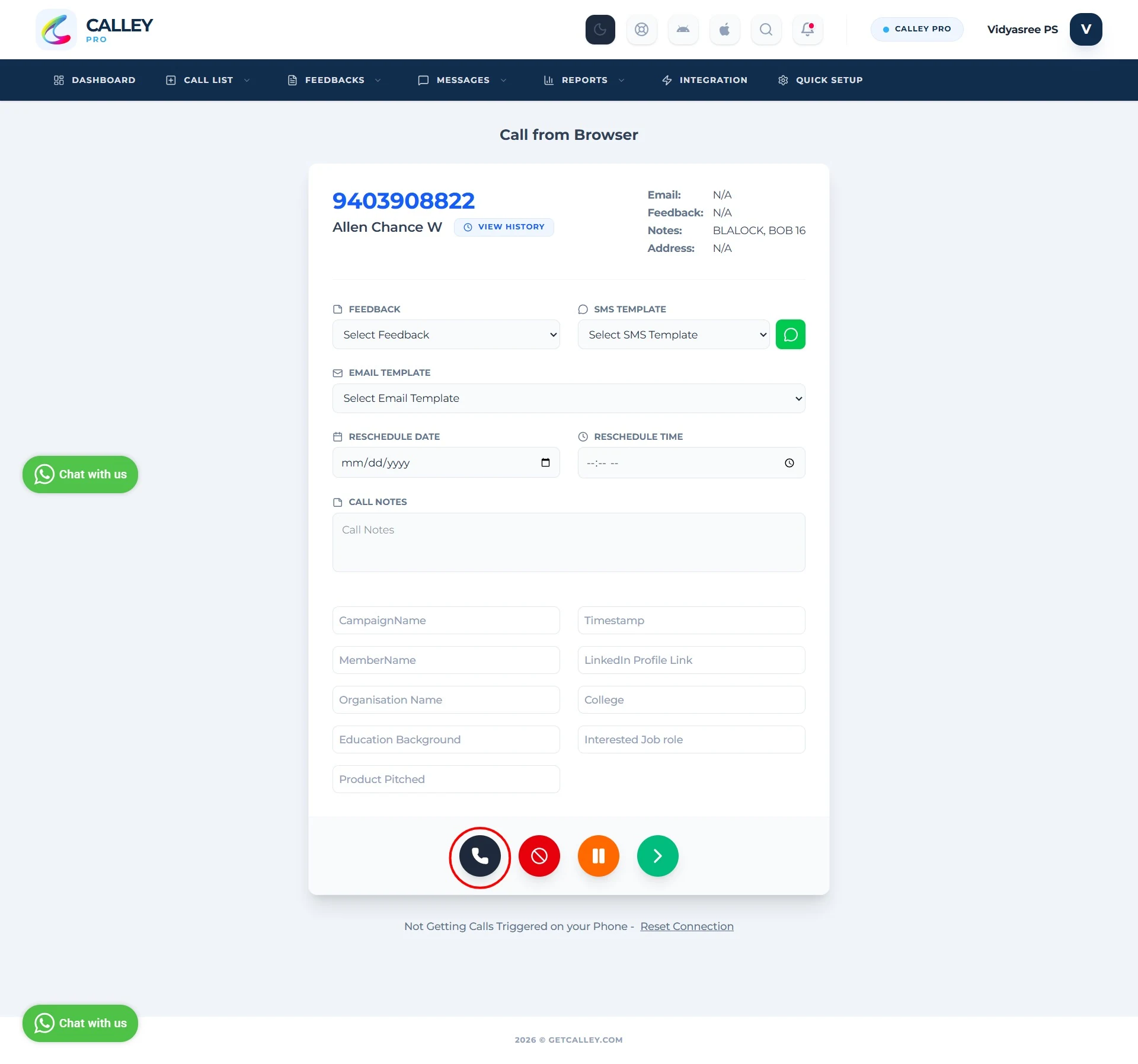
The Call from Browser screen shows the lead's details; click the call icon to dial. Calley triggers the call and sends a notification to your mobile app to place it.
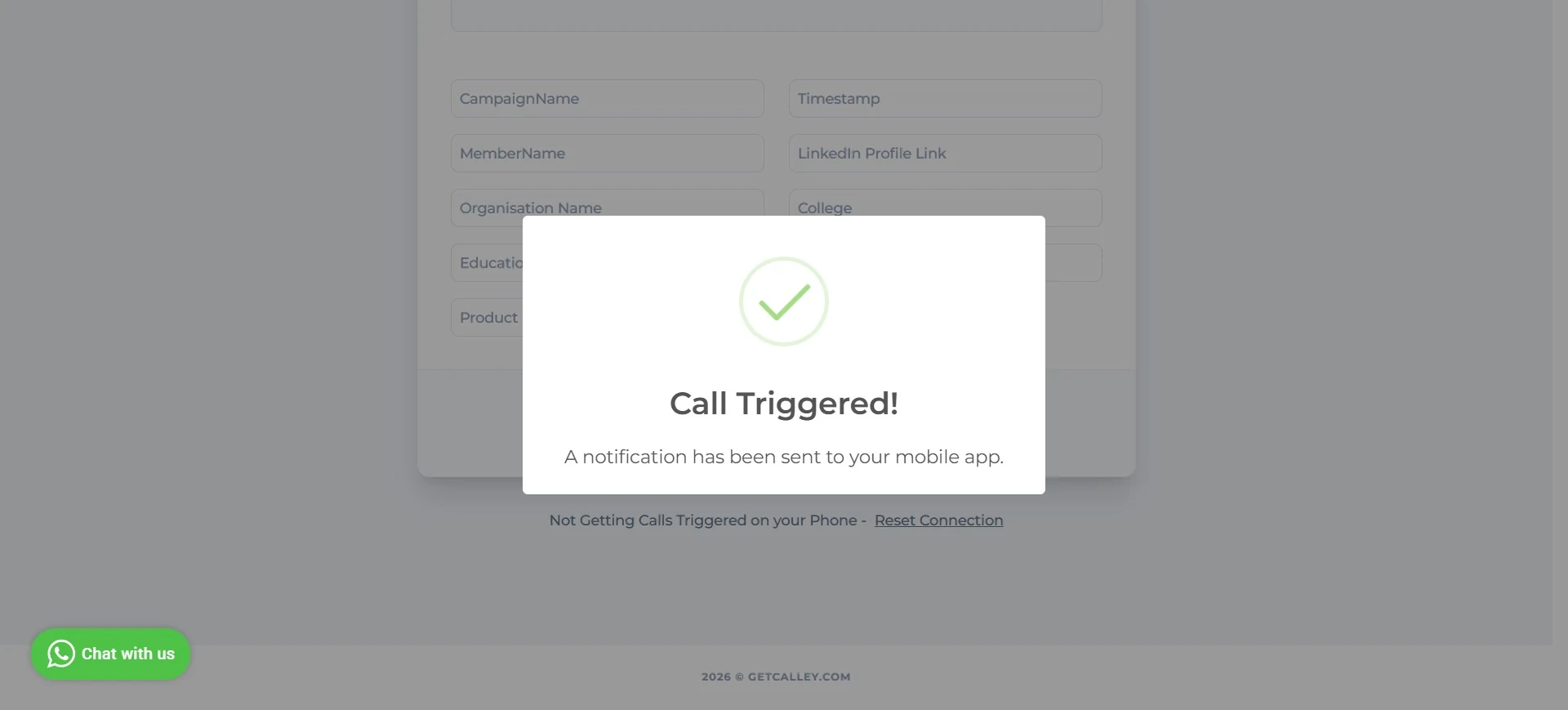
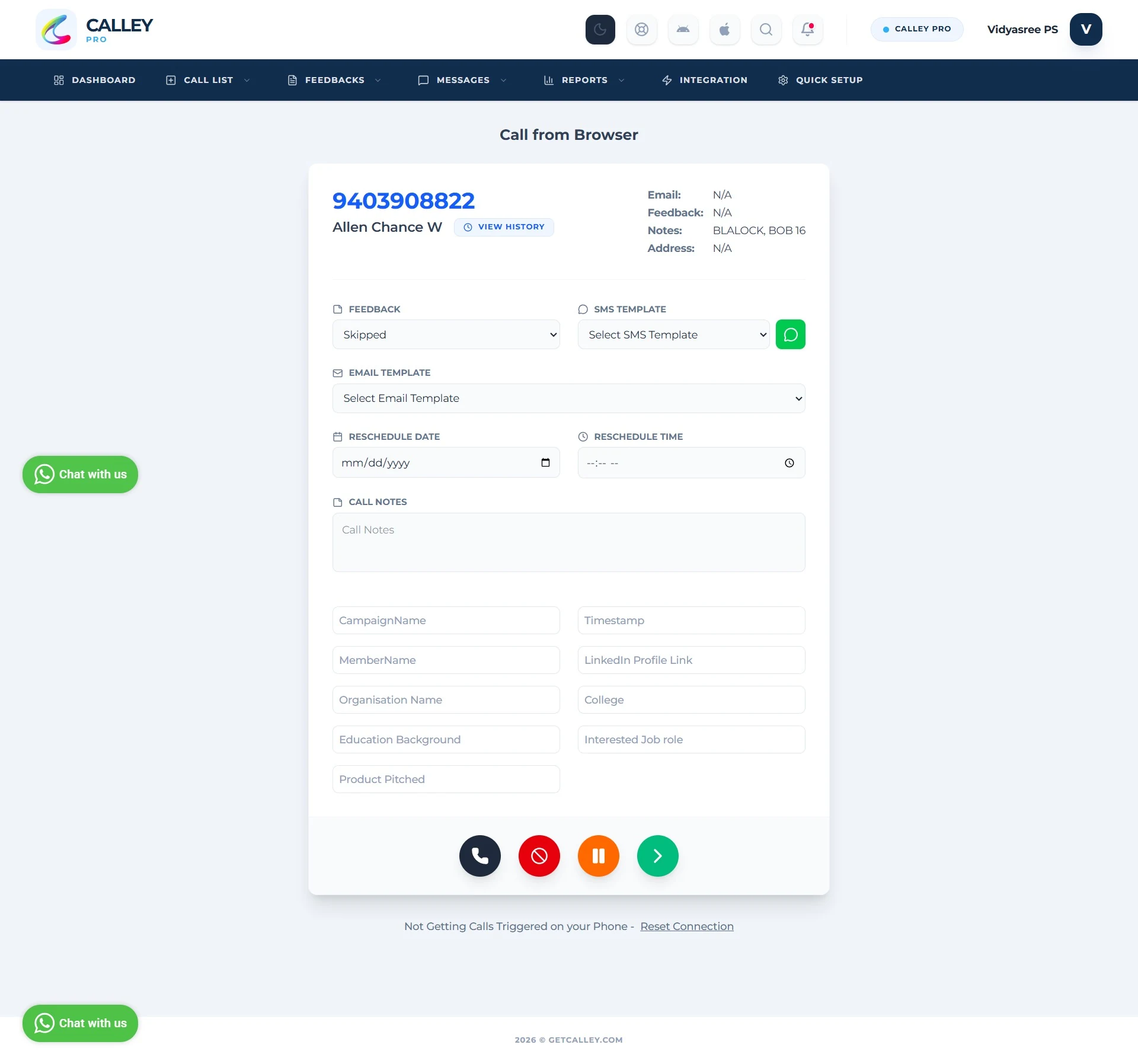
Select the outcome from the Feedback dropdown (e.g. Skipped) based on how the call went.
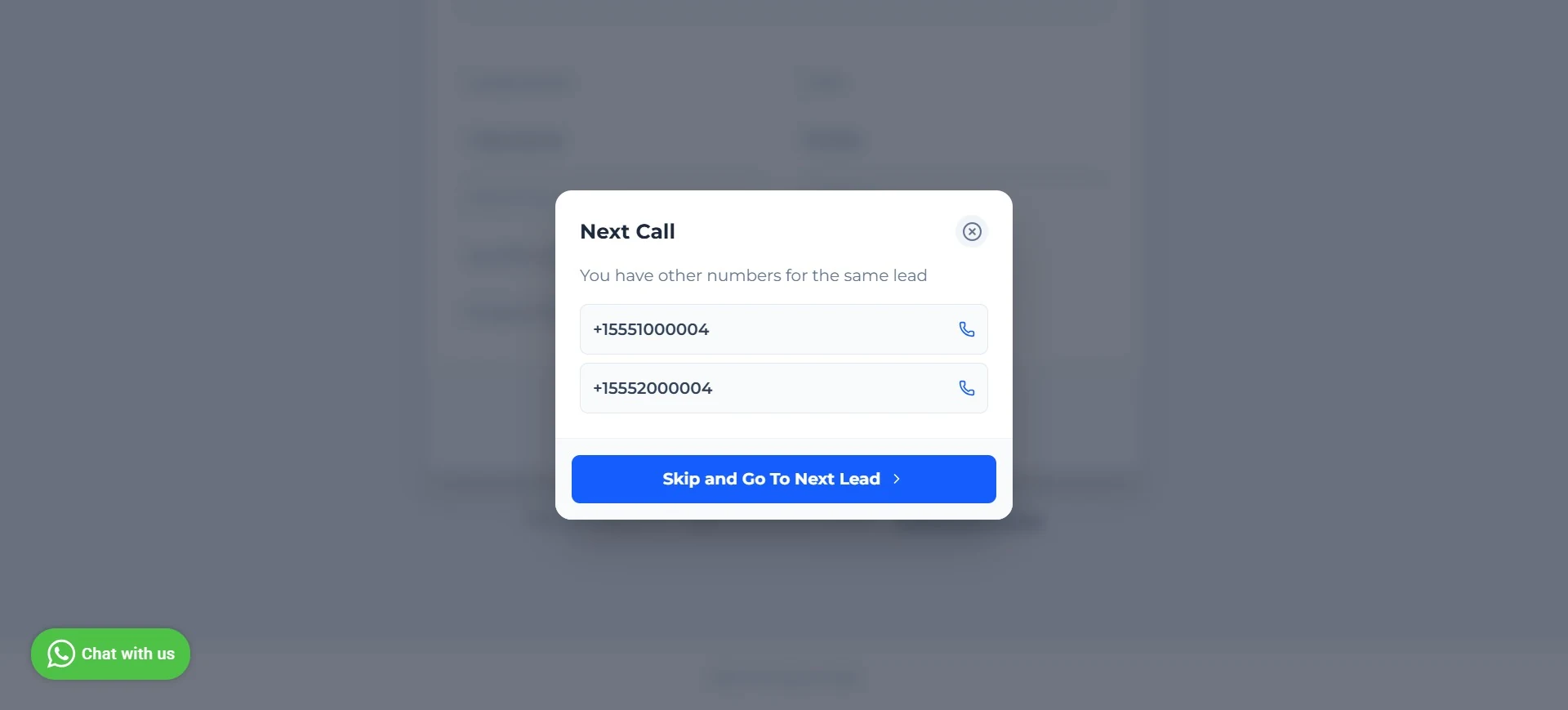
Since this lead has other saved numbers, a Next Call popup lets you dial another number for the same lead, or tap Skip and Go To Next Lead.
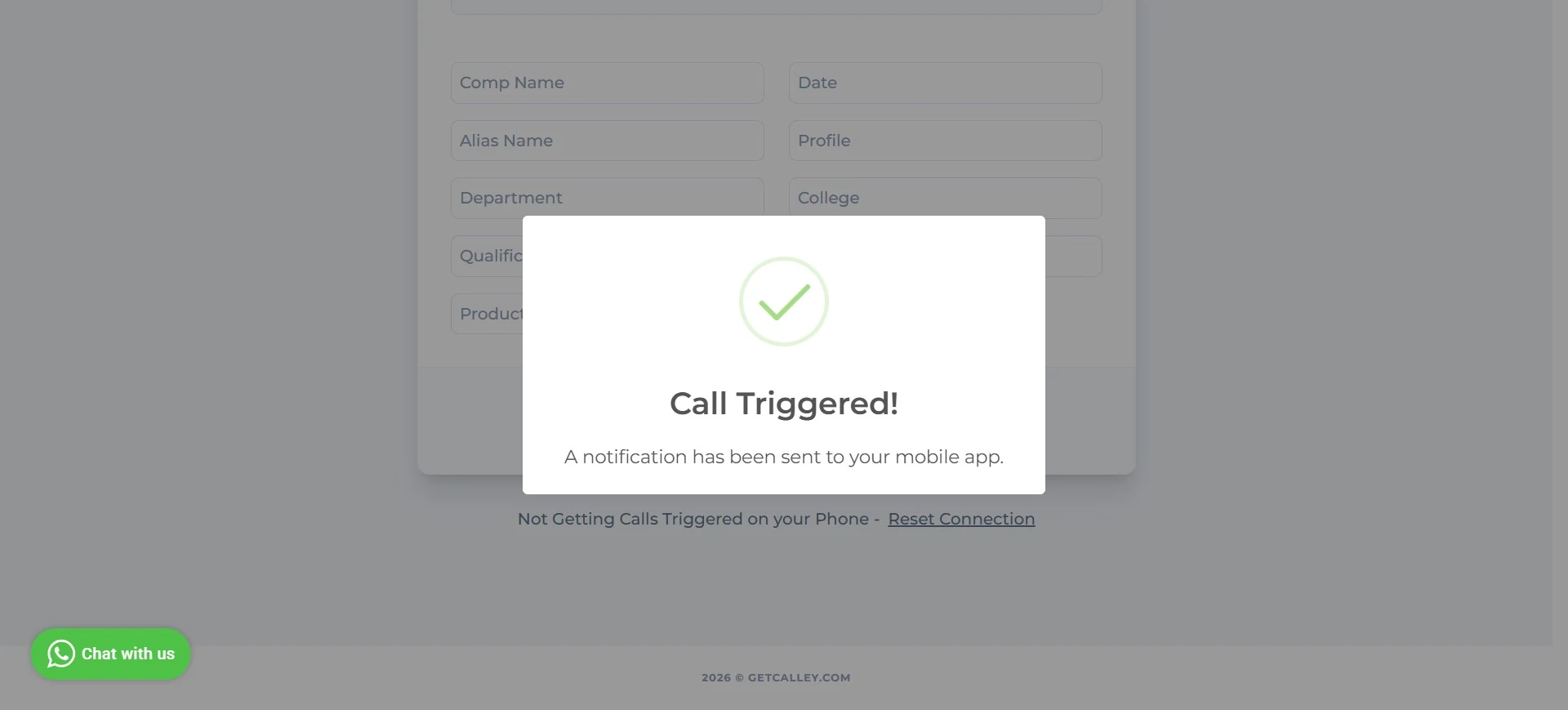
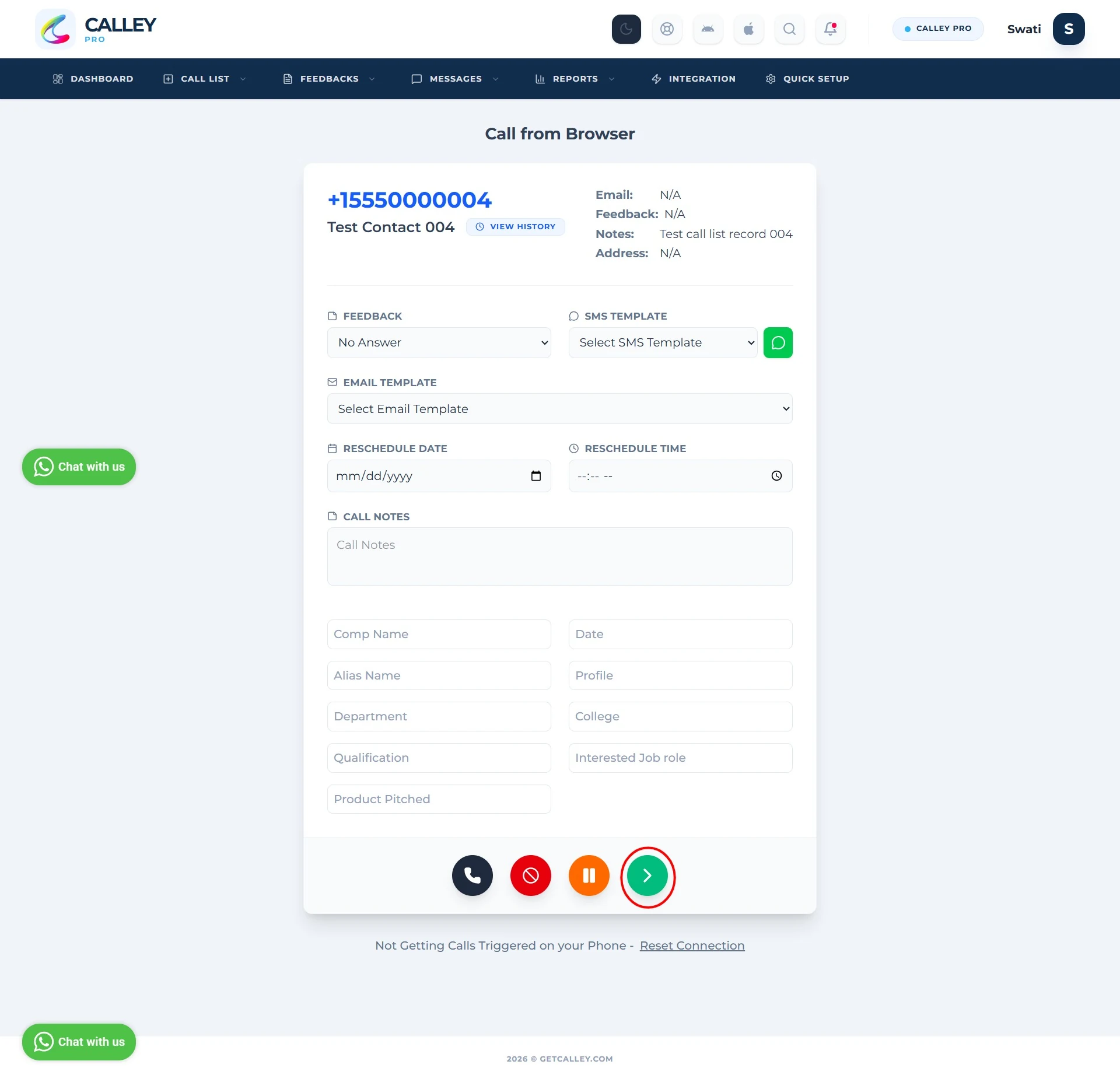
Update the Feedback for the new number (e.g. No Answer) and click the arrow to submit and move on - Calley again notifies your mobile app to trigger the call.
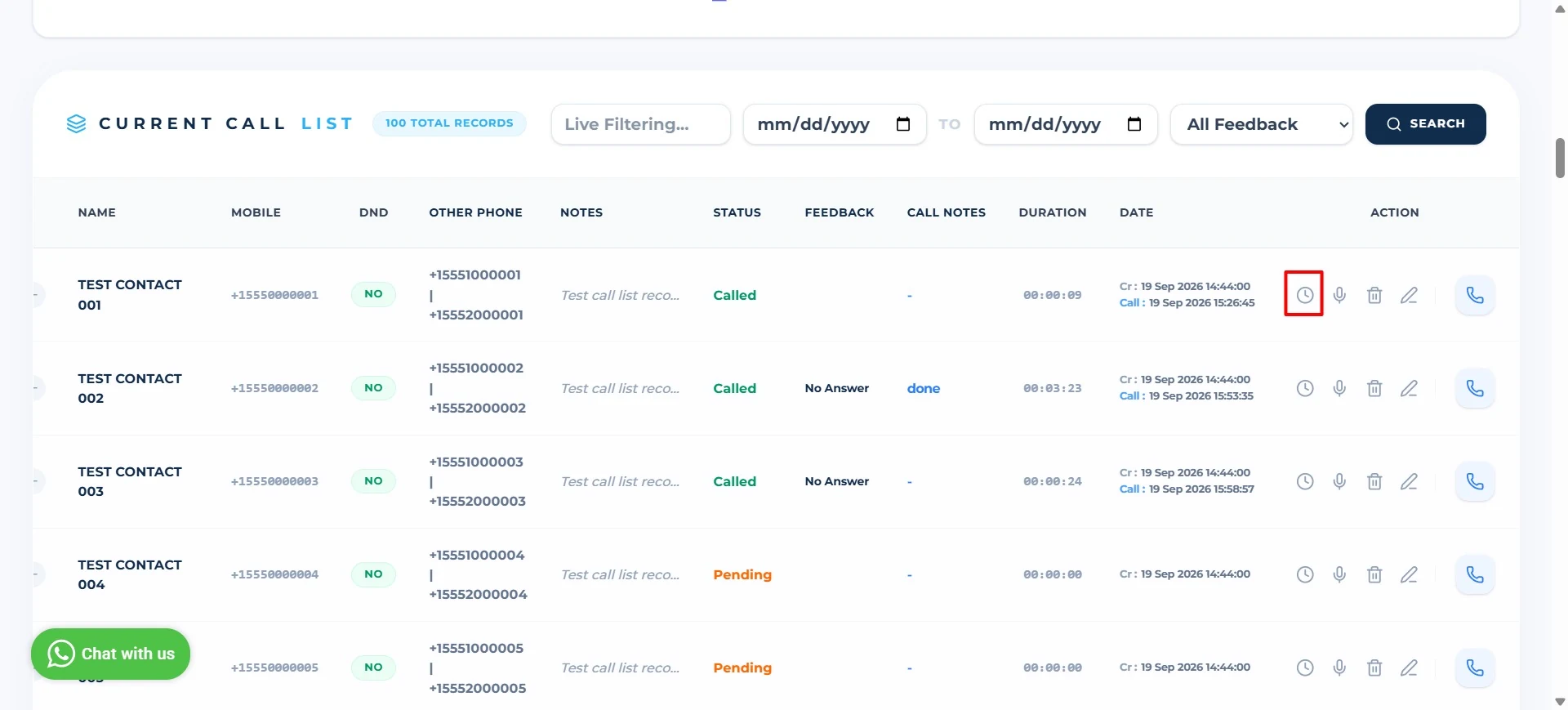
Back on the Current Call List, use the History icon next to a lead to check its past call activity.
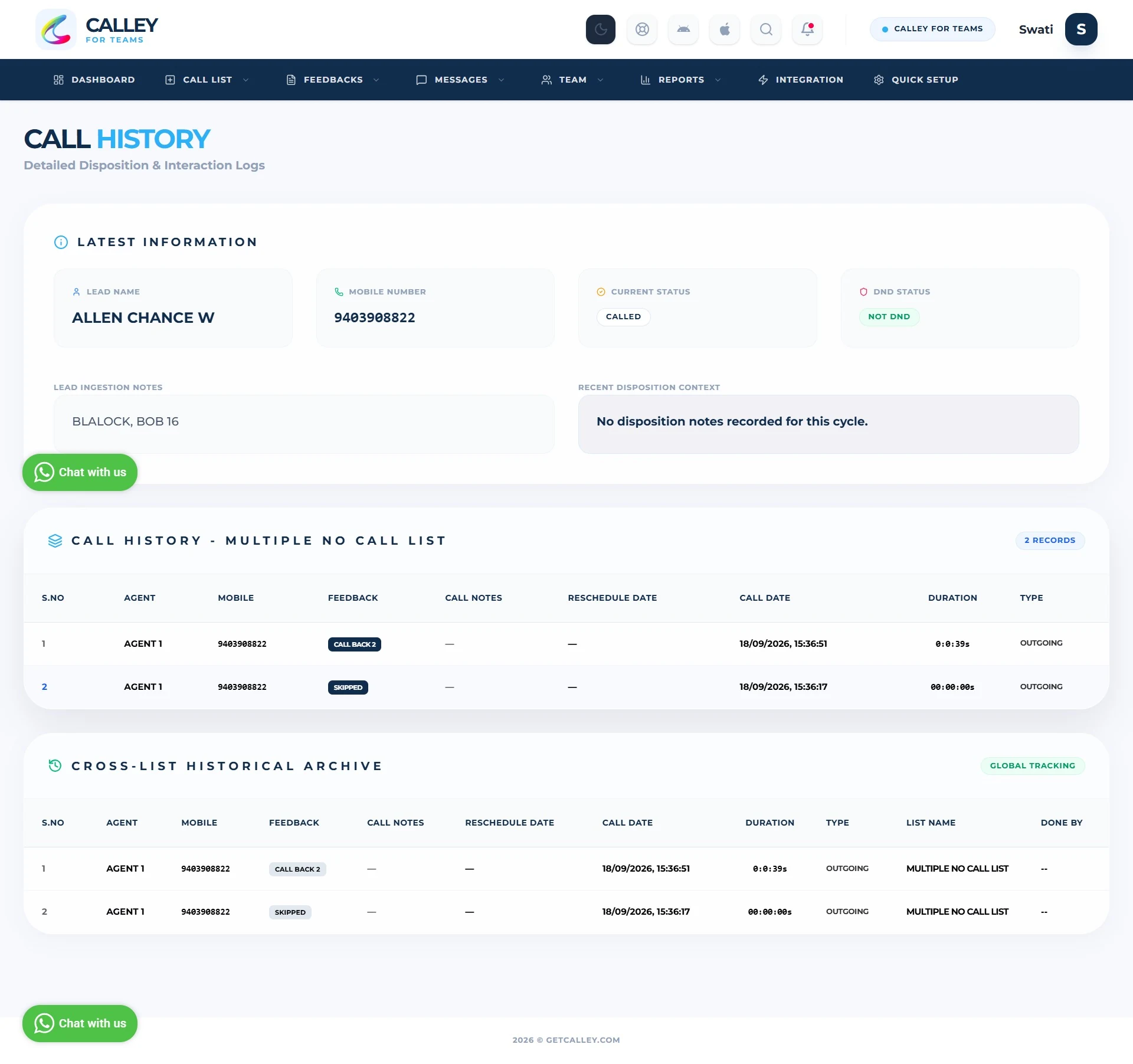
The Call History page shows the lead's latest status and disposition, plus a cross-list historical archive of every call made to that number.
This method is useful for agents working directly from their desktops or laptops and is integrated seamlessly with your calling system.
Calling Multiple Numbers from the Mobile App
If you do not have the app installed you will need to download the app on your mobile phone.
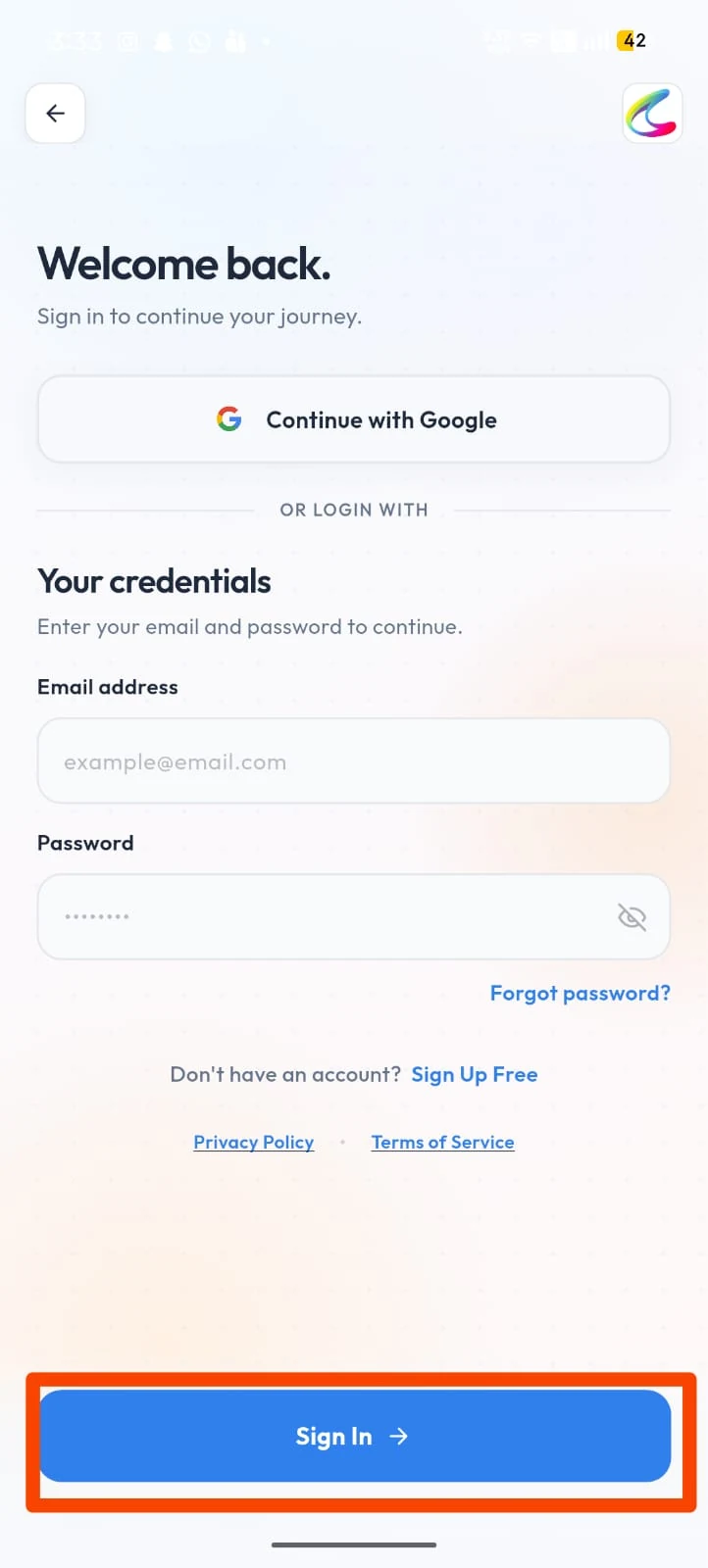
Open the Calley app and sign in with the email and password you use on the web panel, or continue with Google.
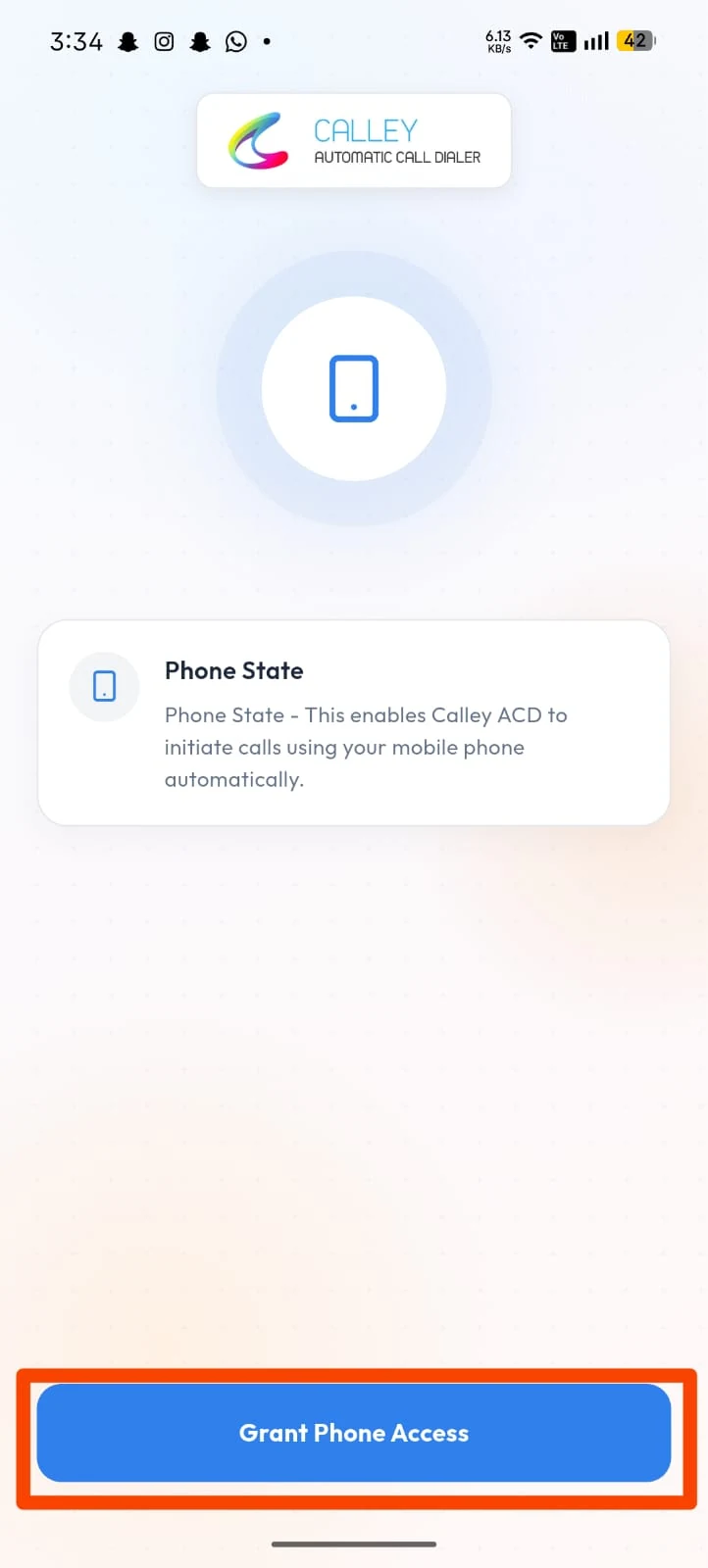
The app requests the Phone State permission, which lets Calley initiate calls from your mobile automatically. Tap Grant Phone Access.
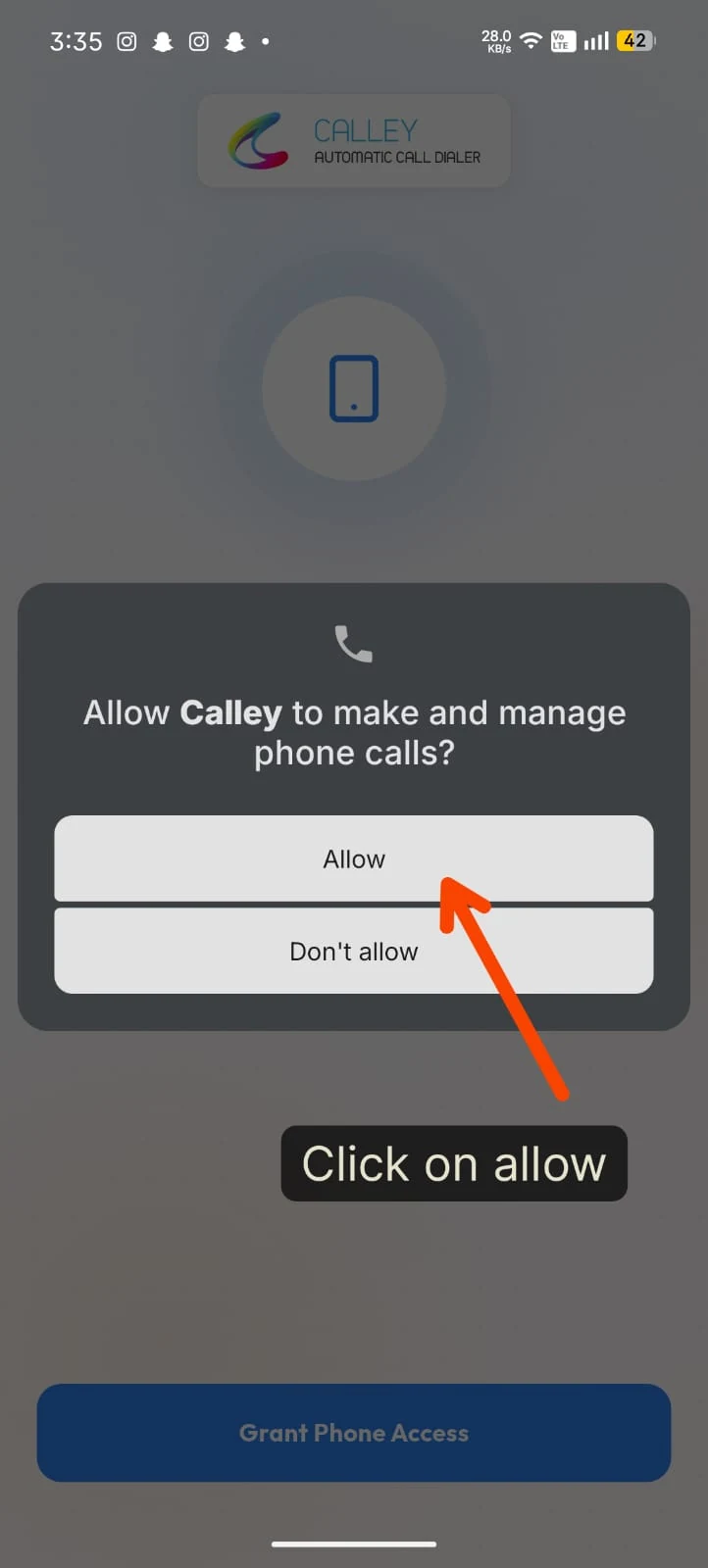
Confirm the system prompt by tapping Allow so Calley can make and manage phone calls on your device.
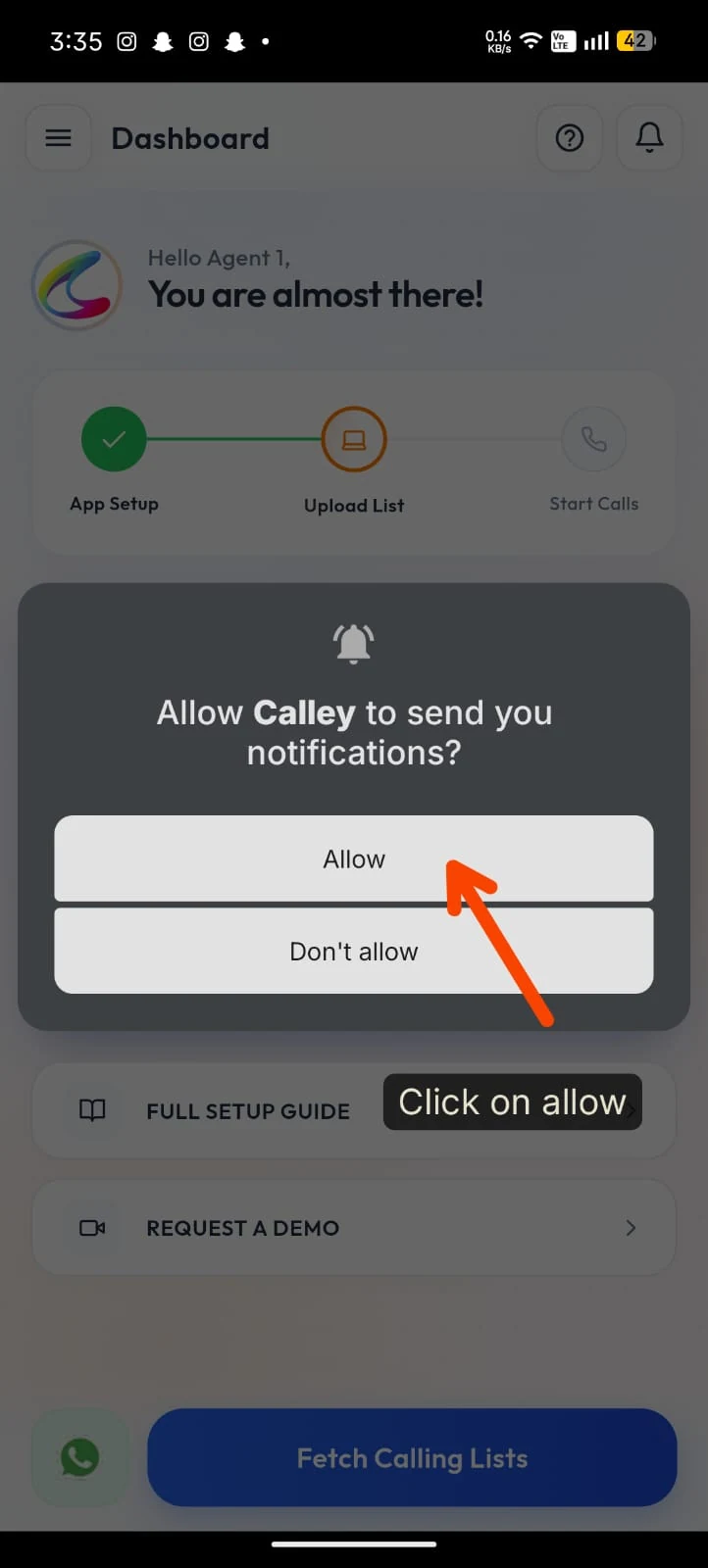
Allow notifications as well, so Calley can alert you about calls, reminders and updates.
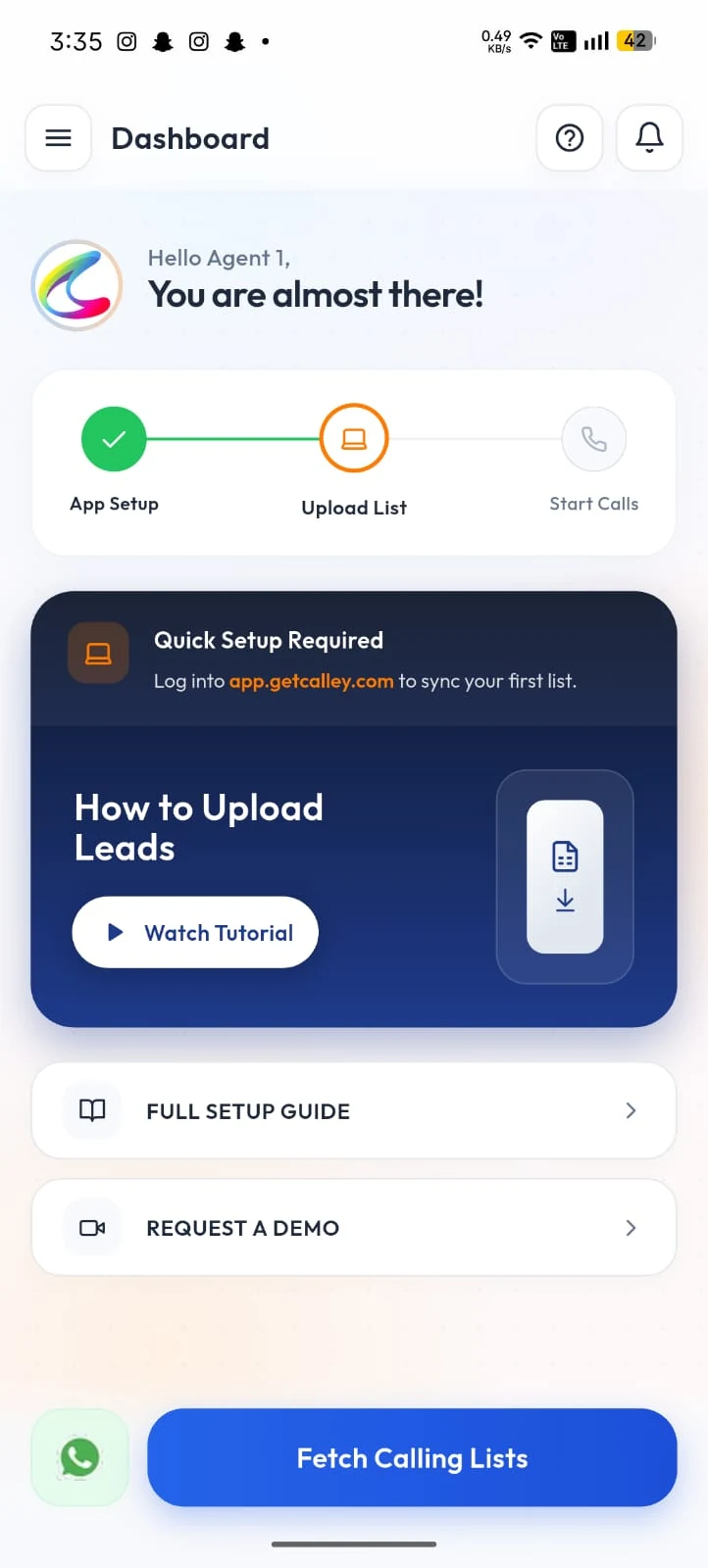
On the Dashboard you will see Quick Setup Required. Log in to app.getcalley.com to sync your first list, or tap Watch Tutorial for a walkthrough on uploading leads.
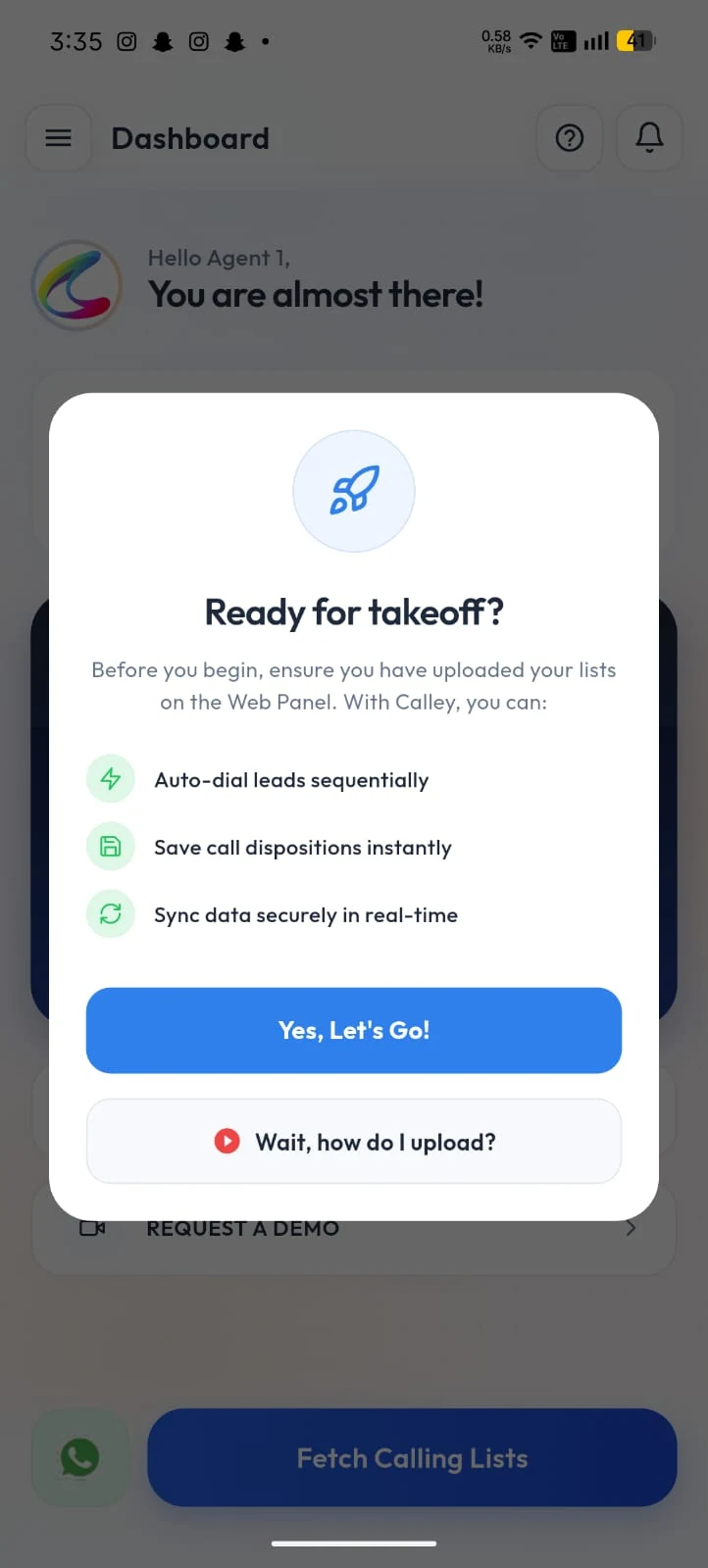
Once your list is ready to sync, the app confirms with a Ready for takeoff prompt reminding you it can auto-dial leads, save dispositions instantly and sync data in real time. Tap Yes, Let's Go!
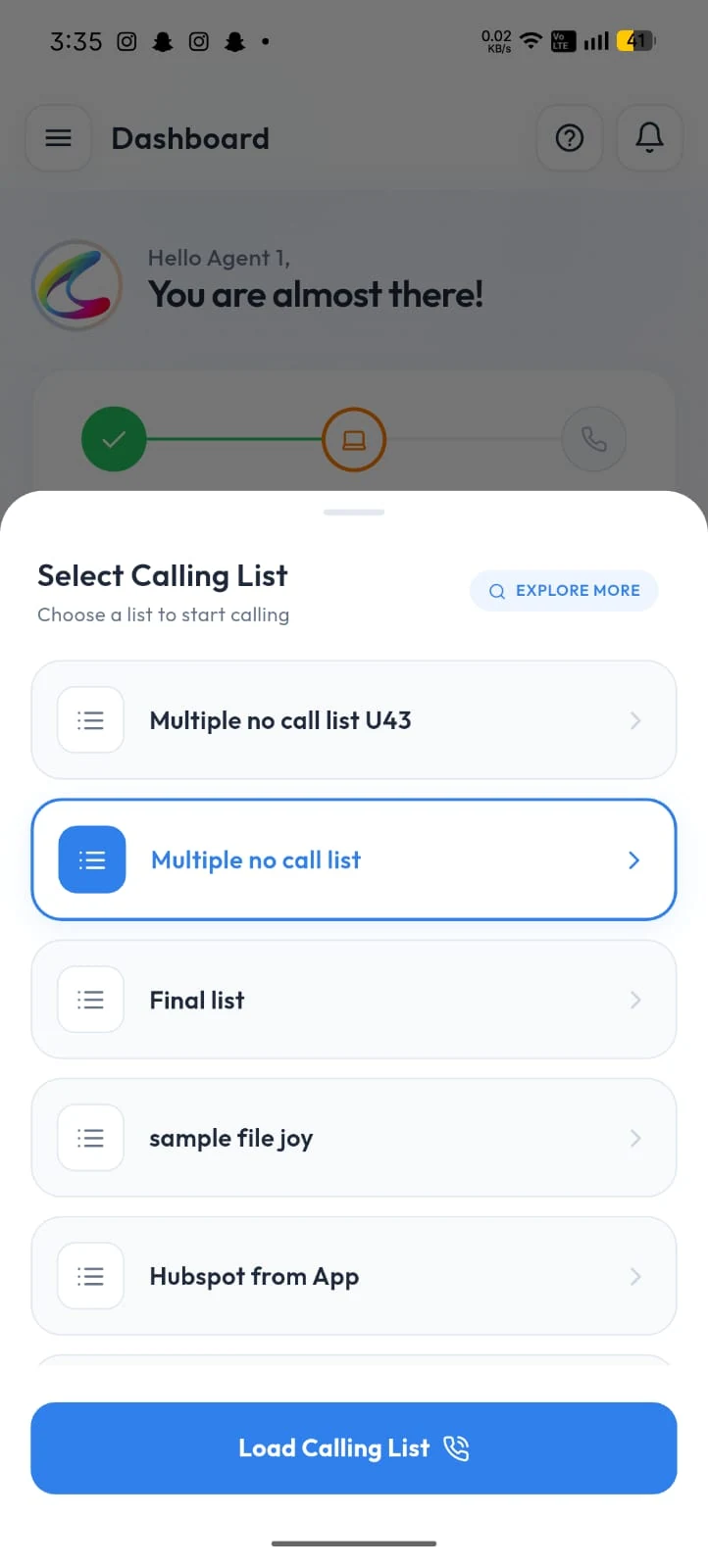
On the Select Calling List screen, choose the list you imported earlier with multiple numbers per lead, then tap Load Calling List.
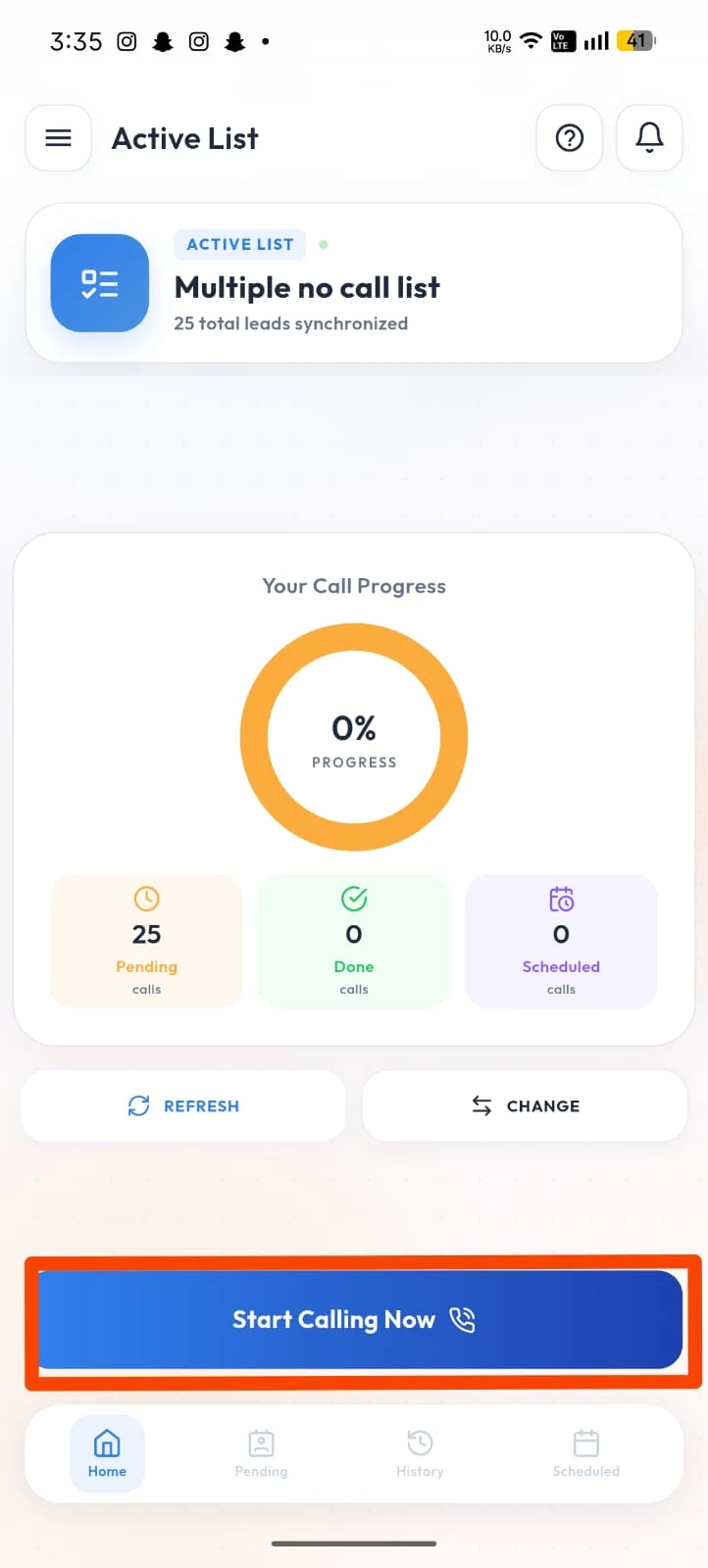
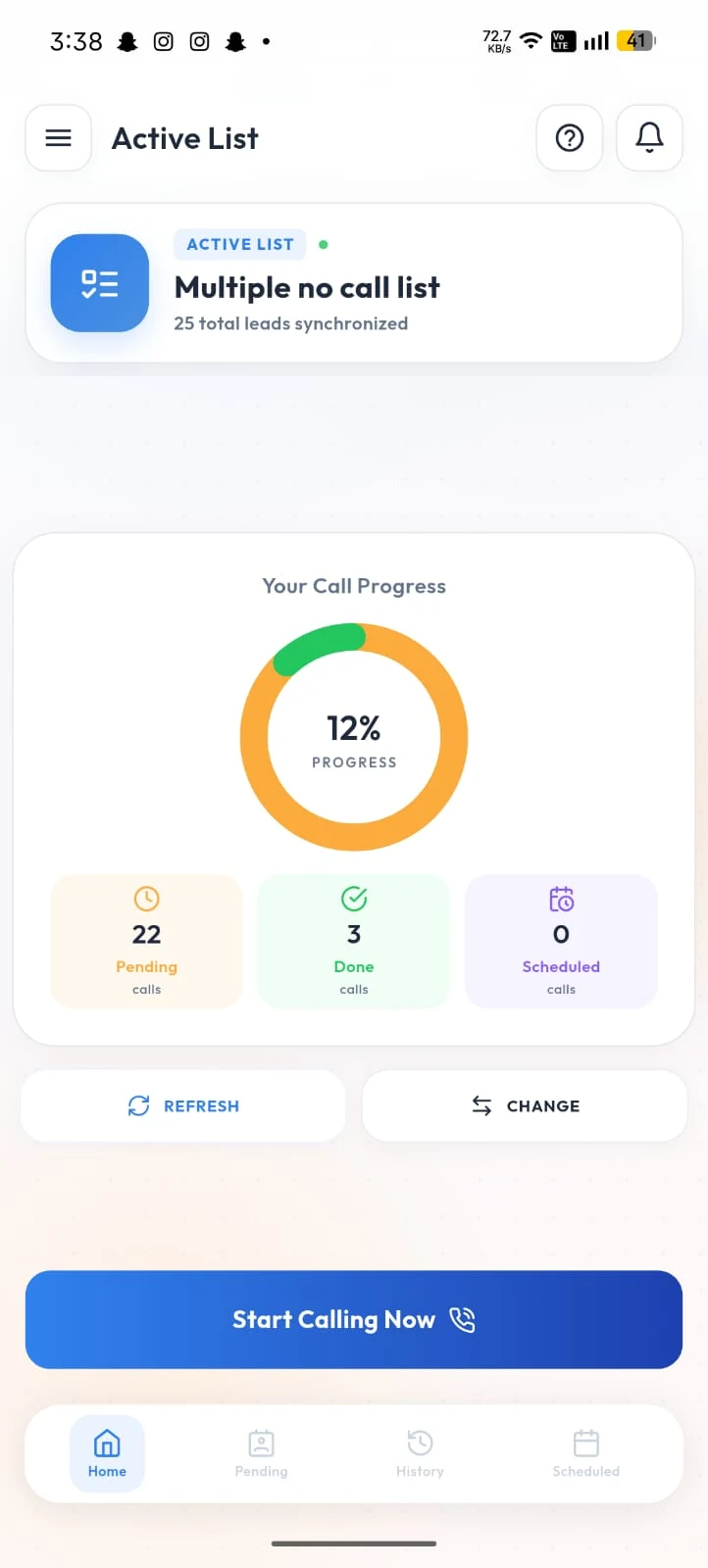
The Active List screen shows your synced leads and call progress. Tap Start Calling Now to begin auto dialing.
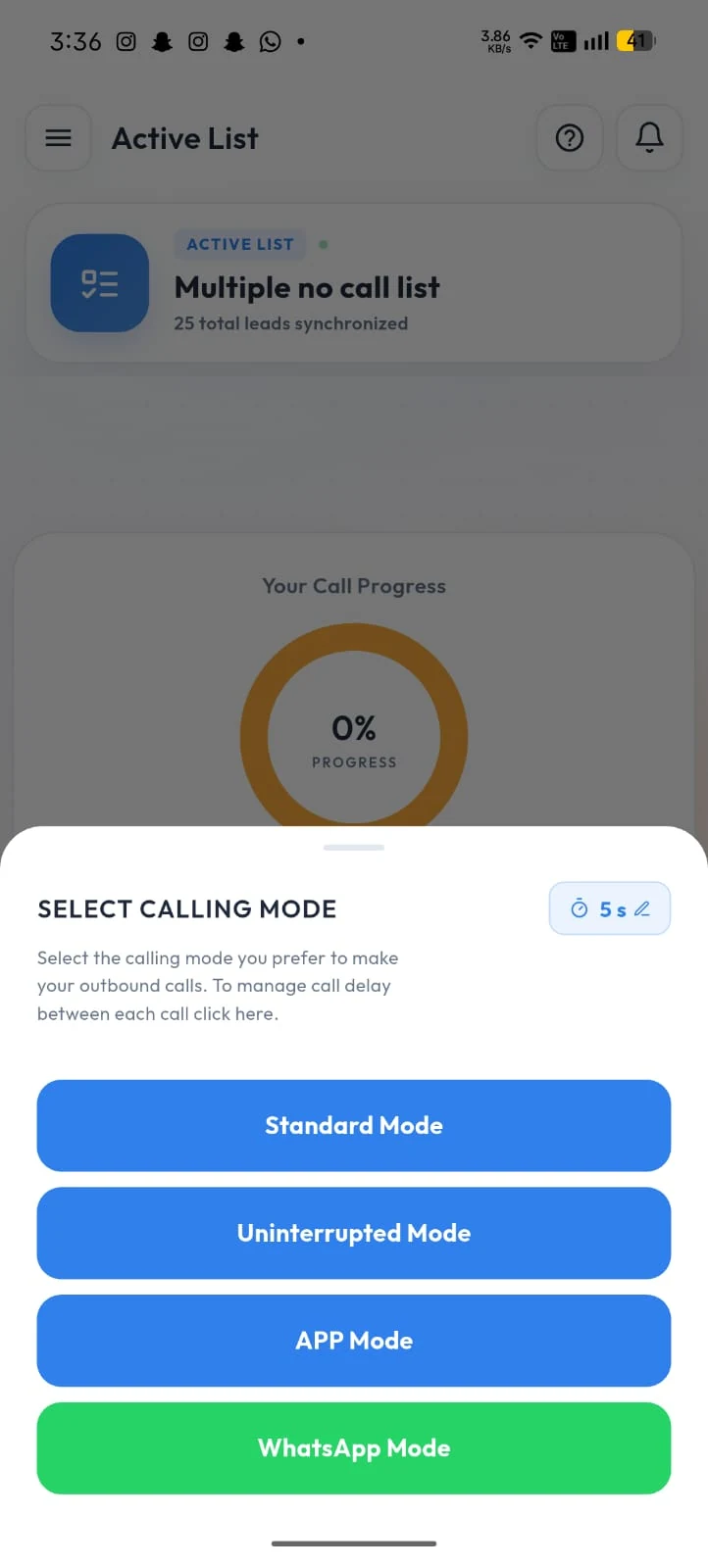
Pick your preferred Calling Mode - Standard, Uninterrupted, App or WhatsApp Mode. For this guide we use Standard Mode.
Calley prepares the first call and shows the lead's name and primary number before dialing.
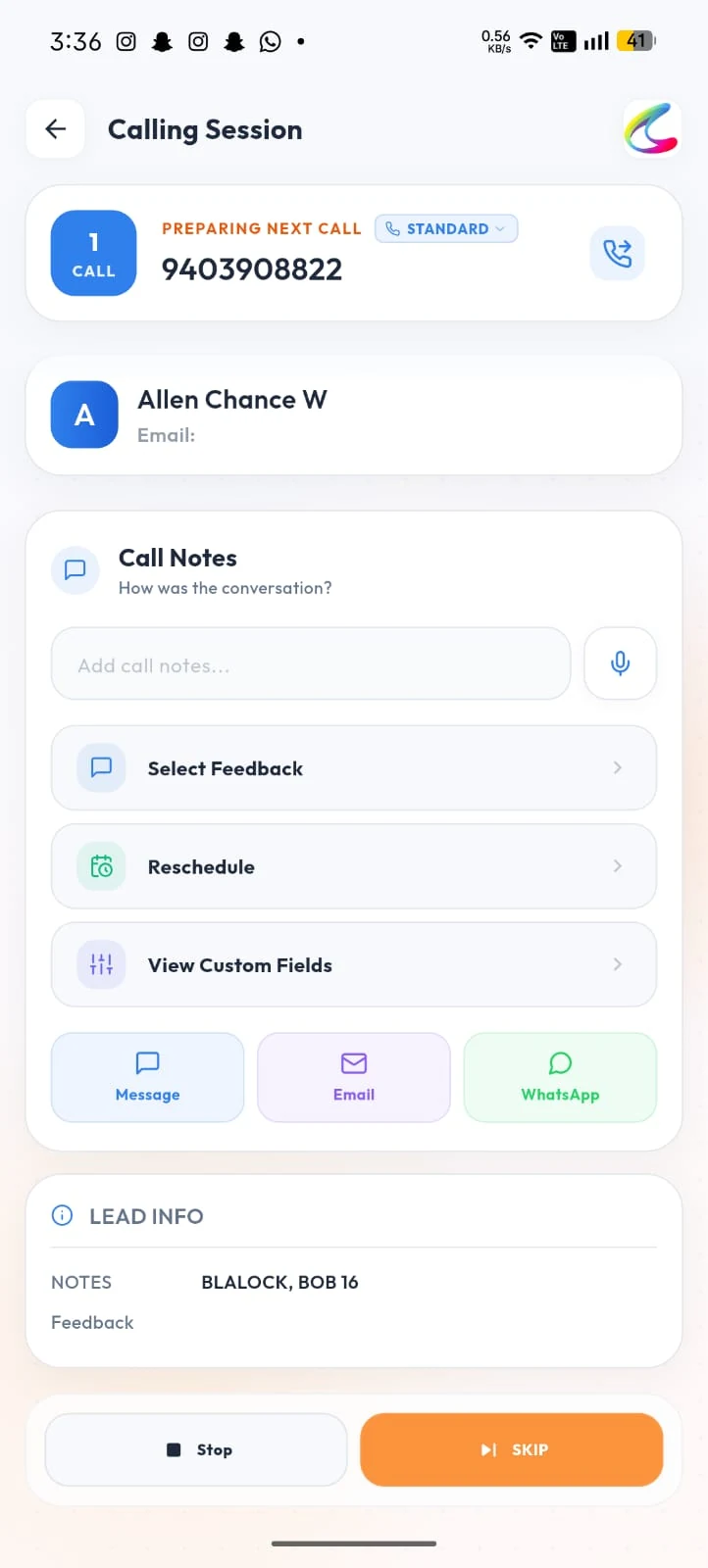
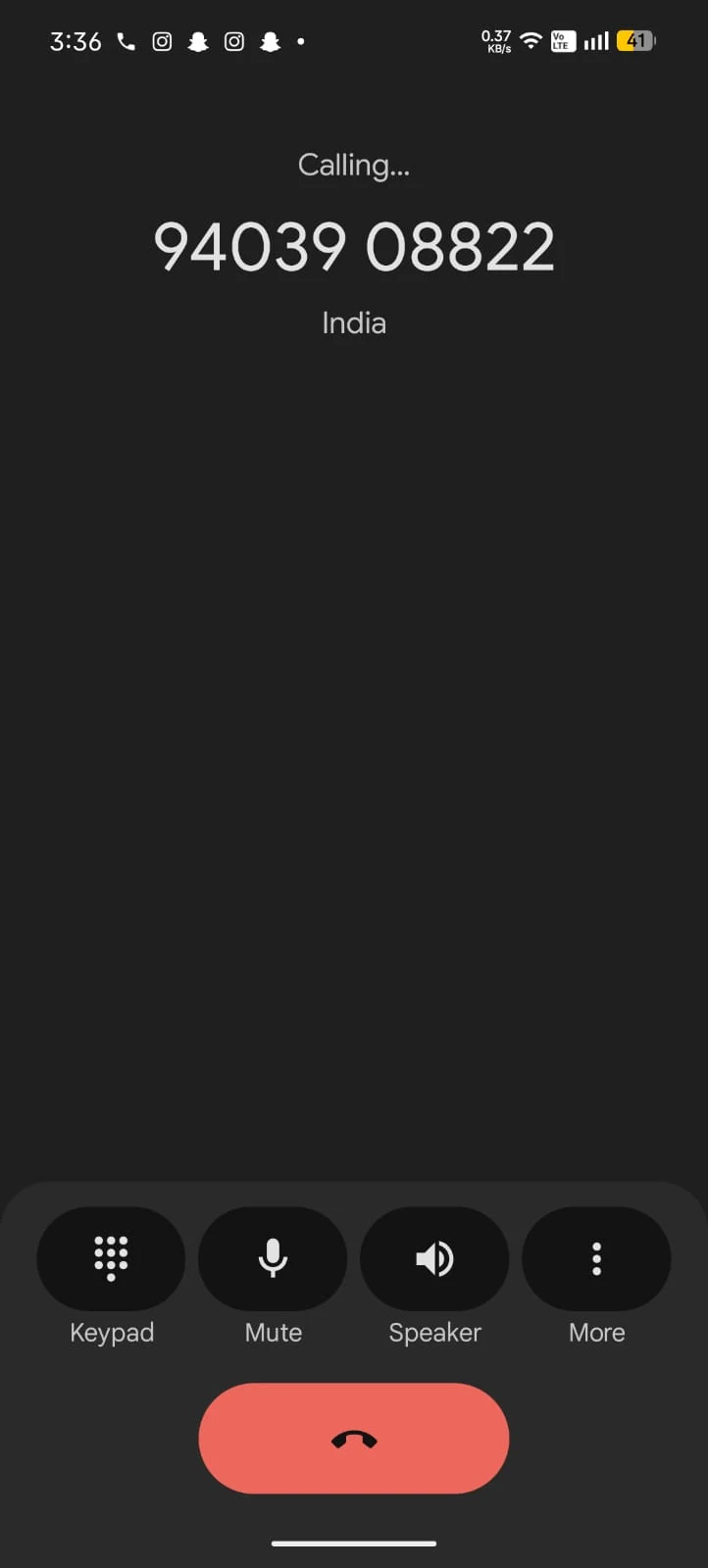
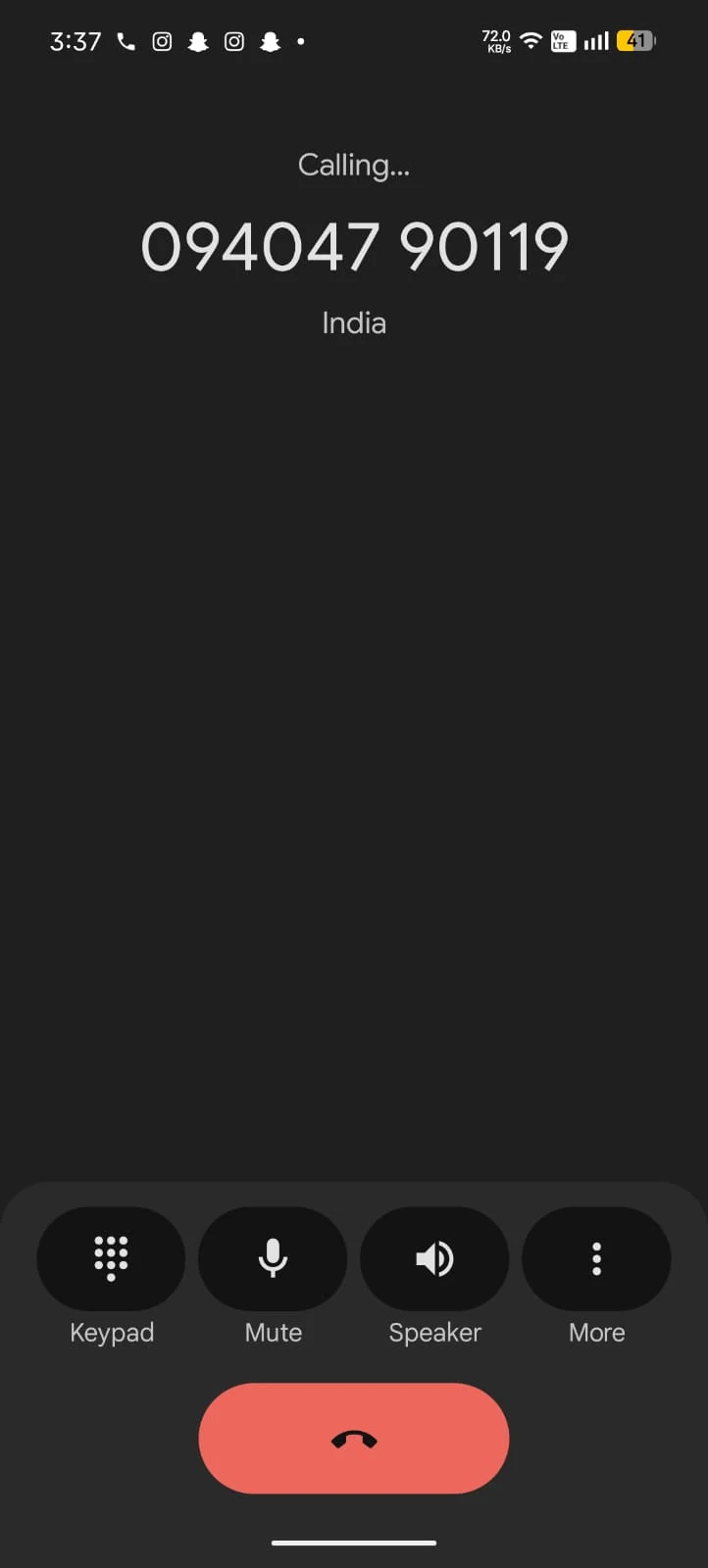
The call is triggered from your phone's dialer using the primary number.
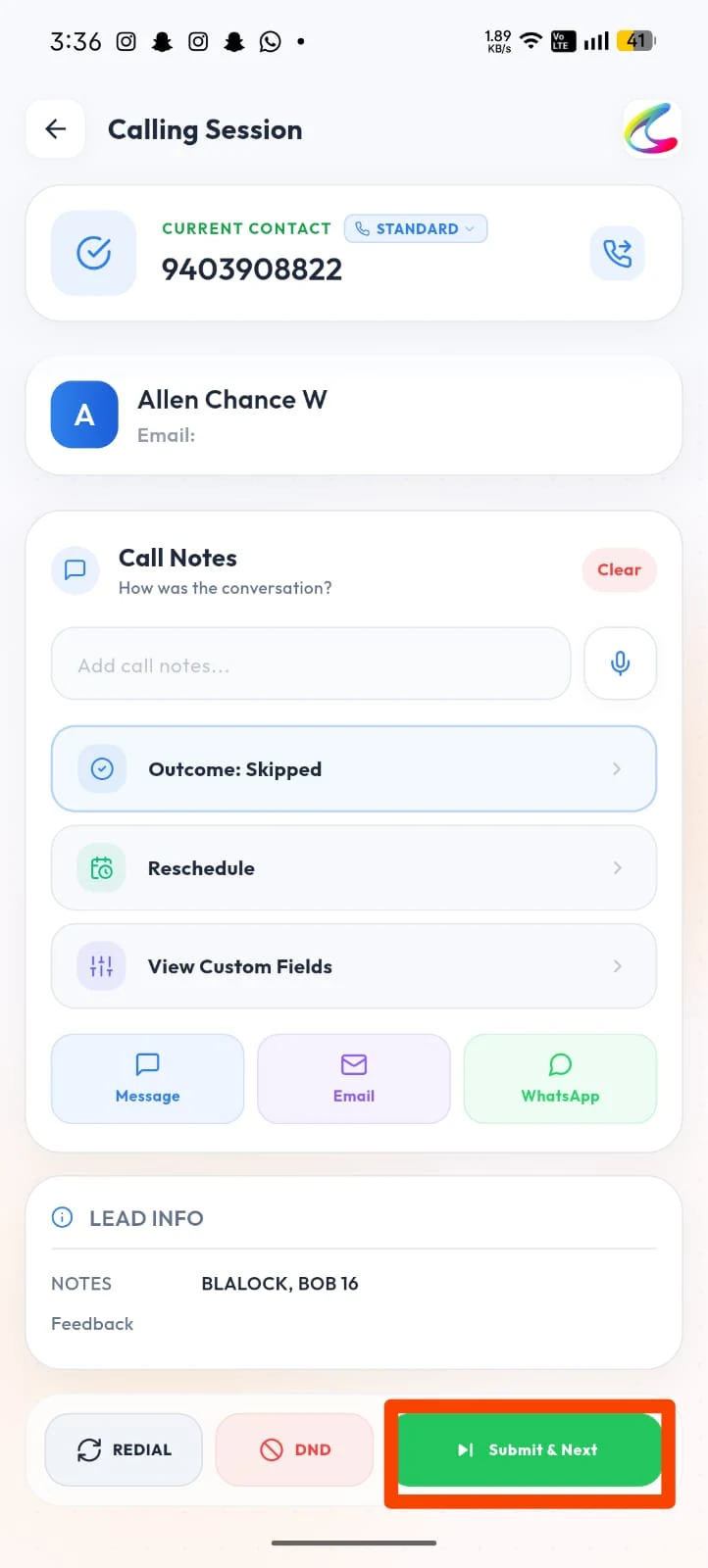
If the call does not connect, set the Outcome (e.g. Skipped), add notes if needed, and tap Submit & Next.
Since this lead has multiple numbers saved, Calley shows the other numbers to try. Tap the next number you want to call.
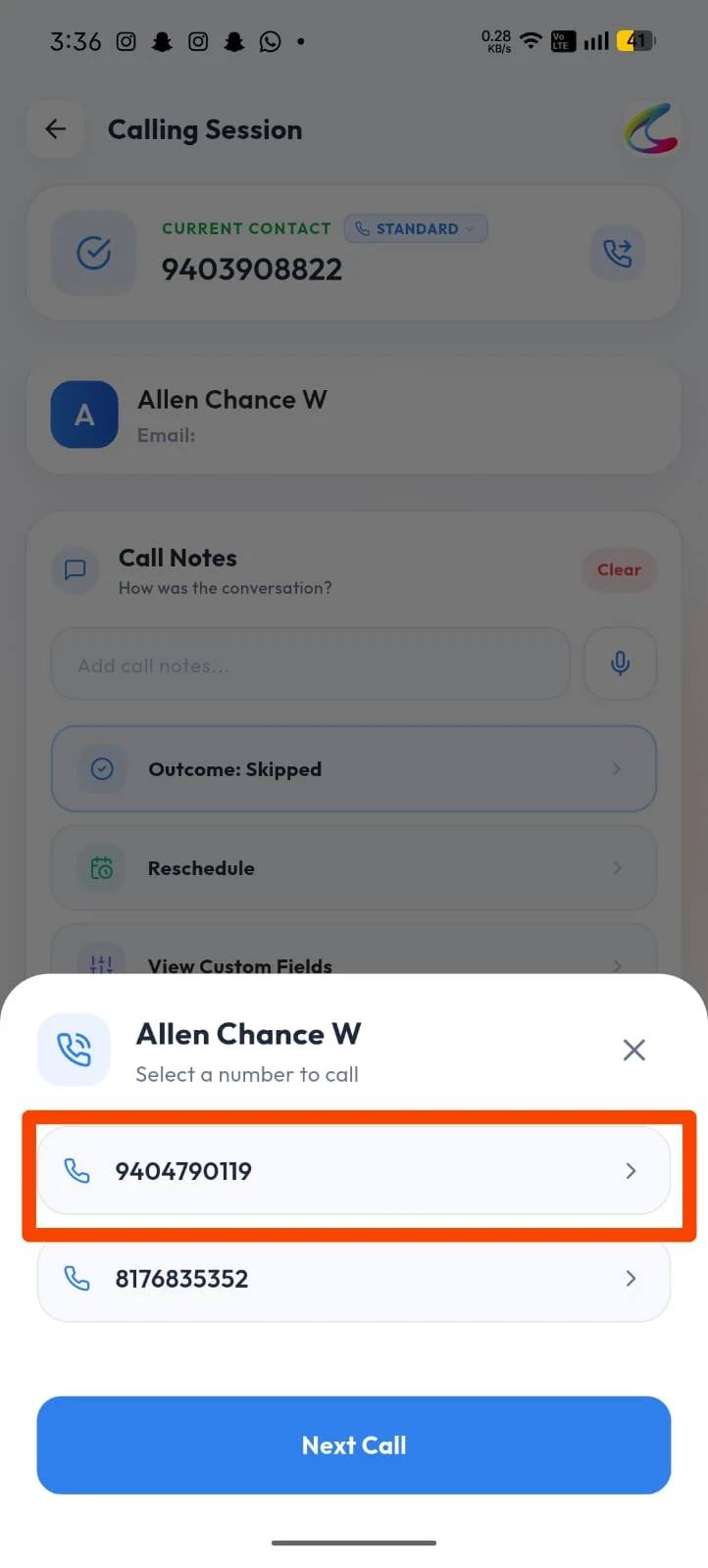
Calley prepares the call to the next number saved for the same lead.
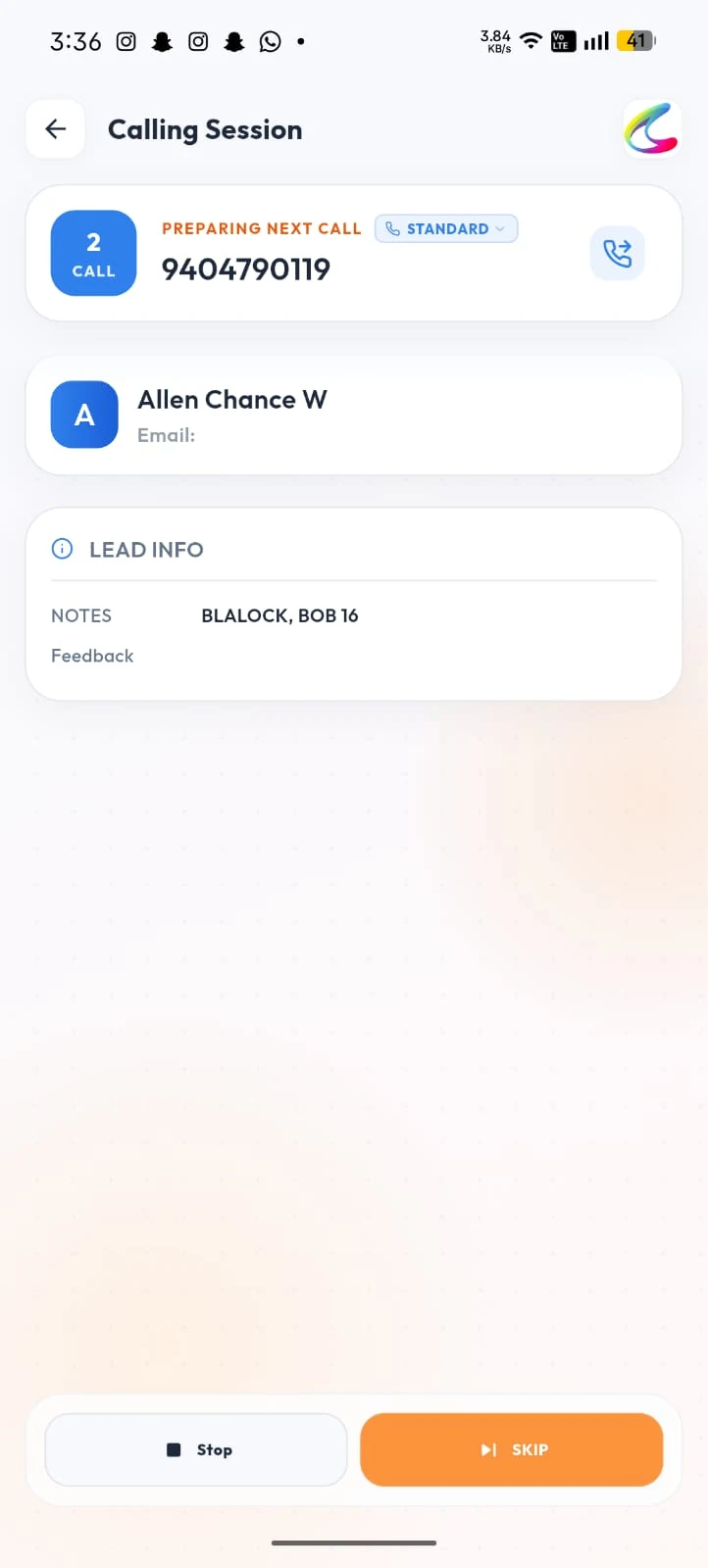
The call is triggered to the alternate number from your phone's dialer.
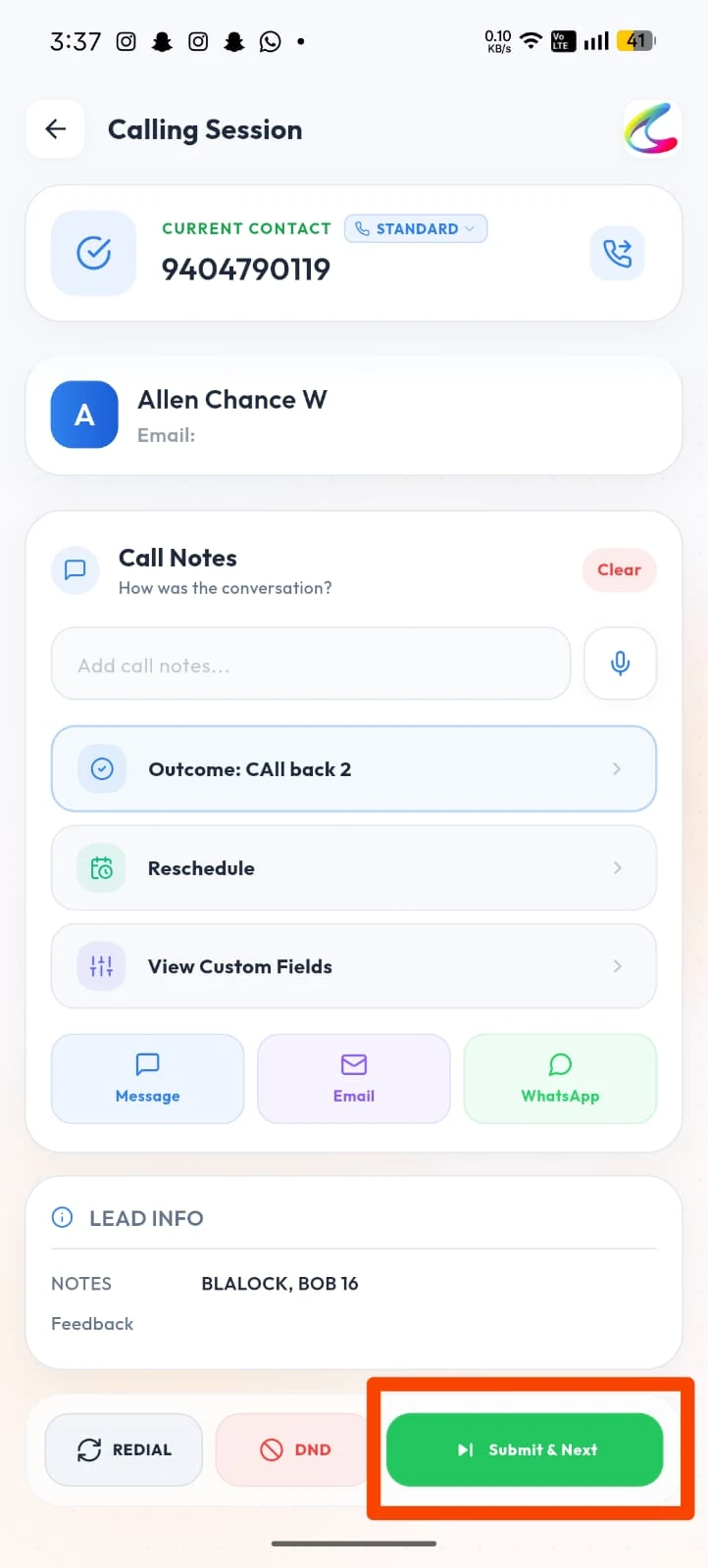
Update the Outcome for this attempt (e.g. Call back) and tap Submit & Next to move on.
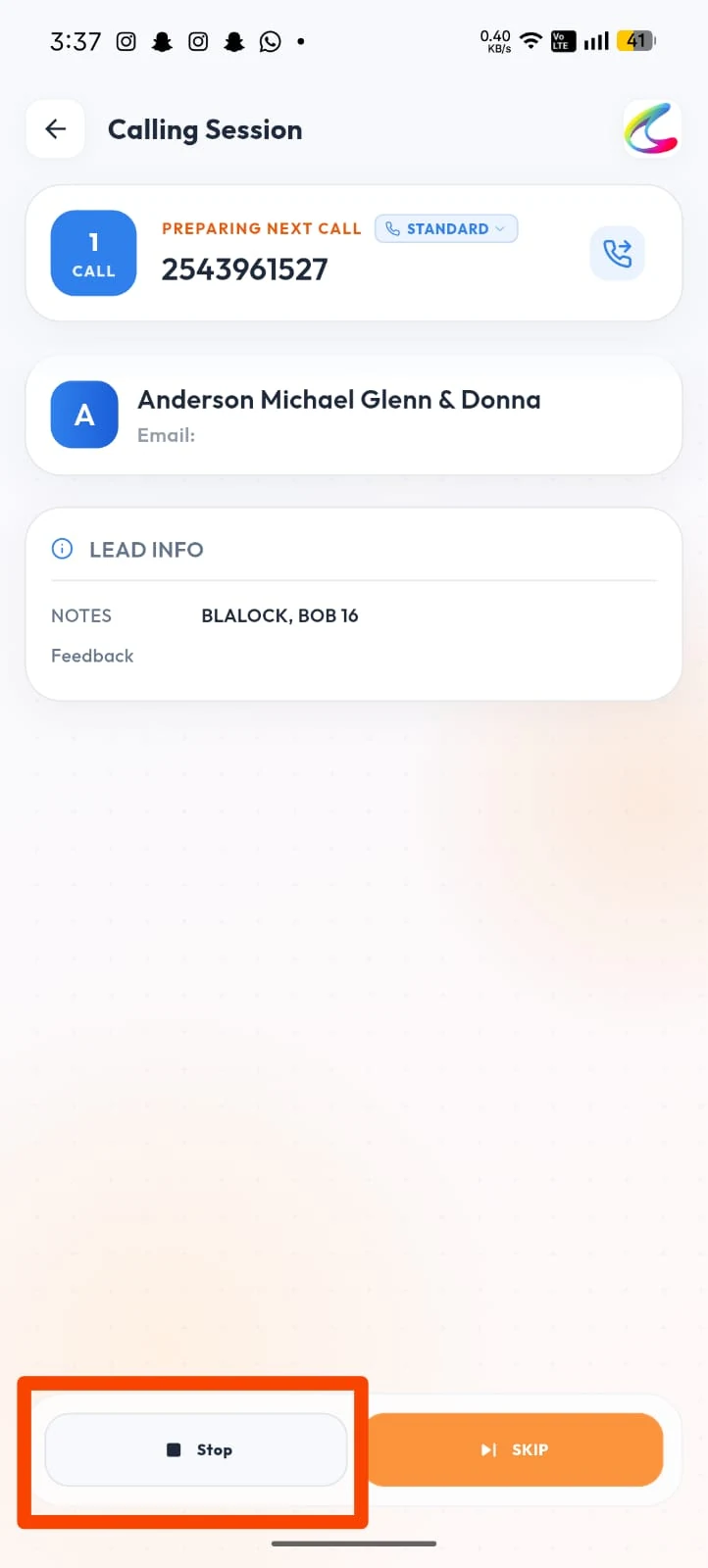
Calley automatically loads the next lead in your list. You can tap Stop anytime to pause the calling session.
Track your progress anytime on the Active List screen, which shows pending, done and scheduled calls.
- Call Notes - Add notes on how the conversation went, with voice input support.
- Select Feedback - Choose a call disposition for this attempt.
- Reschedule - Set a date and time to call this lead again; the app will remind you.
- View Custom Fields - Check any custom lead fields configured for your account.
- Message / Email / WhatsApp - Send a quick message, email or WhatsApp text to the lead.
Once filled, you have a few options at the bottom of the Calling Session screen.
- Redial - Calls the same number again.
- DND - Marks the number as Do Not Disturb so it is filtered from future calls.
- Submit & Next - Saves your outcome and notes, then moves to the next call.
- Stop - Pauses the calling session at any time.
The mobile app simplifies the process by automatically suggesting the next number, ensuring no potential lead is left uncontacted.
Benefits of Calling Multiple Numbers for the Same Lead
- Enhanced Reachability: If the primary number is unavailable, secondary and additional numbers ensure you can still connect with the lead.
- Improved Lead Conversion: By following up on multiple numbers, you increase the chances of successful engagement.
- Streamlined Workflow: Both the browser and mobile app make it easy to manage and call multiple numbers efficiently.
Best Practices
- Always prioritize calling the primary number first.
- Use the Call Notes feature to document the status of each number (e.g., connected, no answer, invalid).
- Regularly update the lead’s details to remove invalid or duplicate numbers.
- For Teams users, utilize Agent Assignment to distribute leads with multiple numbers among your team efficiently.
Calling multiple numbers for the same lead is a powerful feature in Calley Pro and Teams panels. It enhances your reachability and lead conversion rates while ensuring an organized workflow. For Teams, this feature is made even more effective through the division of responsibilities between Admins and Agents.
Start using this feature today to maximize your productivity and achieve better results in your calling campaigns!
Checkout here > Pricing Plans for Calley Auto Dialer App
Link to > Full Feature List of Calley AutoDialer
Do you want to Subscribe to a Free Auto Dialer with a limit of 25 calls per day?
We know you will have questions.
We would love to answer all your questions to get you started with Autodialing using The Calley Auto Dialer app.