
Load leads using Google Sheets in Calley Auto Dialer App?
Let’s Say you do not want to assign data to agents on daily Basis… HOW CAN CALLEY HELP?
What if you are running an Ads Campaign and getting leads automatically from the form submitted by the users into a Google Sheet. Lets do a Google Sheet Import of leads to Calley Autodialer App.
We do not expect you to manually download those leads and assign them to agents.
Remember, we are against anything Manual.
So, we created a feature by which you can directly connect Google Sheets with Calley ACD Web Panel, and the leads in Google Sheets are synced with the panel automatically.
- 1.Let's Say you do not want to assign data to agents on daily Basis... HOW CAN CALLEY HELP?
- 2.What is Google Sheets Import?
- 2.1.Step 1 - Login to your account on web panel
- 2.2.STEP 2 - go to THE Integration center from the top navigatioN.
- 2.3.STEP 3 - Click on Sign in with google and authenticate your account.
- 2.4.STEP 4 - Create a Google Sheet Sync
- 2.5.STEP 5 - Map the fields
- 2.6.STEP 6 - You are Ready & set for Auto dialing now
- 2.7.Step by Step video for Google Sheets Import in Calley
- 3.Google Sheet Import is a great Lead AssigNment Automation
- 4.WE KNOW YOU WILL HAVE QUESTIONS.
What is Google Sheets Import?
Google Sheets Import is the method by which you can create a Google Sheet and link it to your Calley Web Panel. When new data is added to the Google Sheet, it is automatically synced with the list it is connected to. The sync occurs every 15 minutes, and only the new leads that were not imported the last time are added to the calling list.
- Calley Teams Subscriber - The leads are distributed equally to the agents selected at the time of creation of the calling list
- Calley Pro Subscriber - all the leads are assigned to you directly.
Let me show you steps of doing a Google Sheet Import.
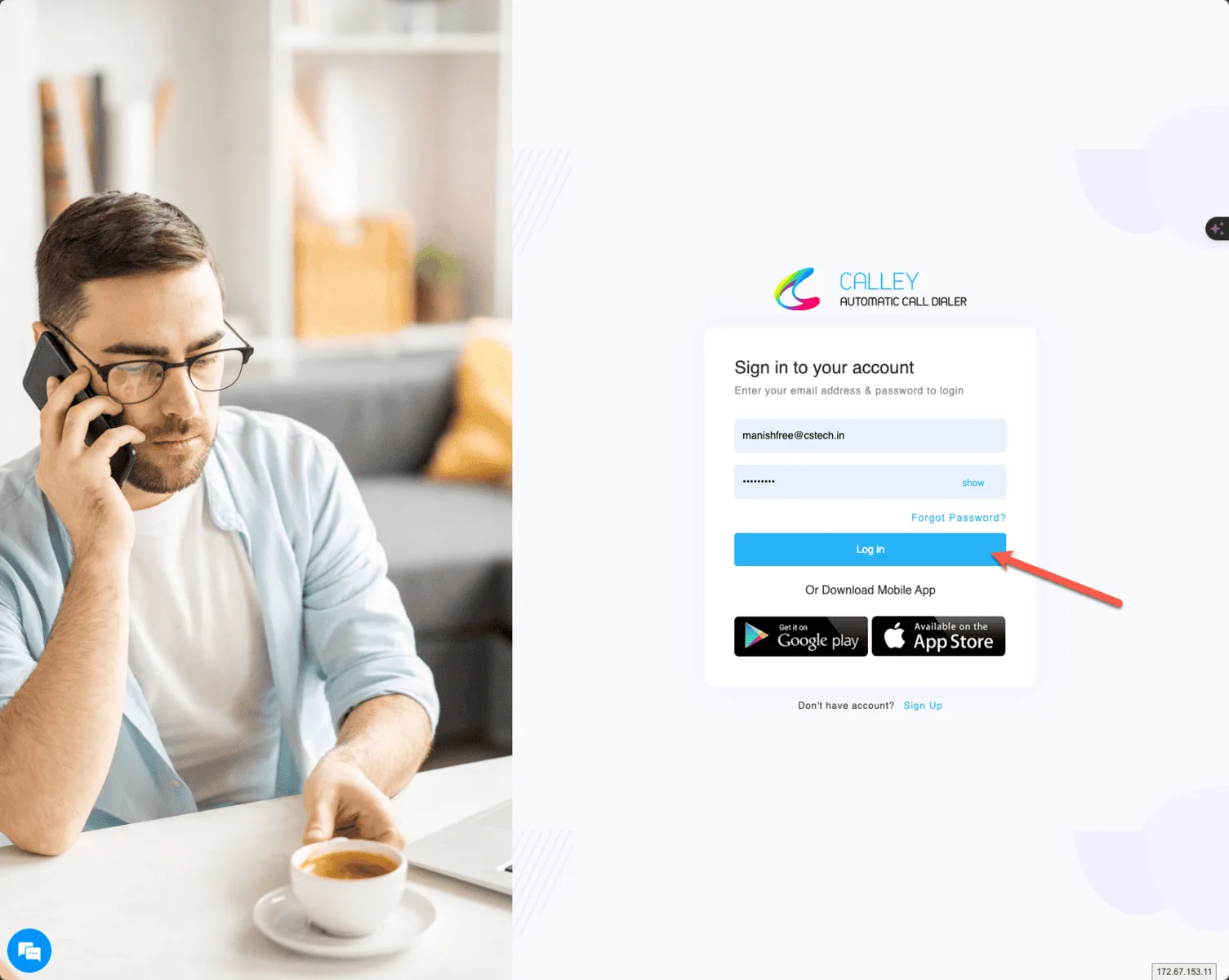
Step 1 - Login to your account on web panel
To do a Google Sheet sync, you must first log in to the Calley Web Panel hosted on https://portal.getcalley.com. Google Sheet Import is available only to Calley PRO, Calley Teams, and Calley Lifetime Subscribers.
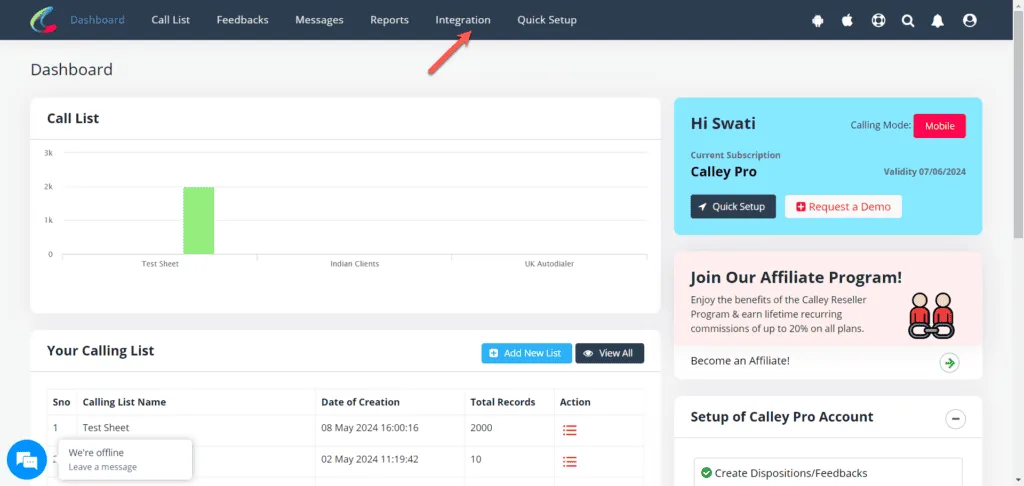
STEP 2 - go to THE Integration center from the top navigatioN.
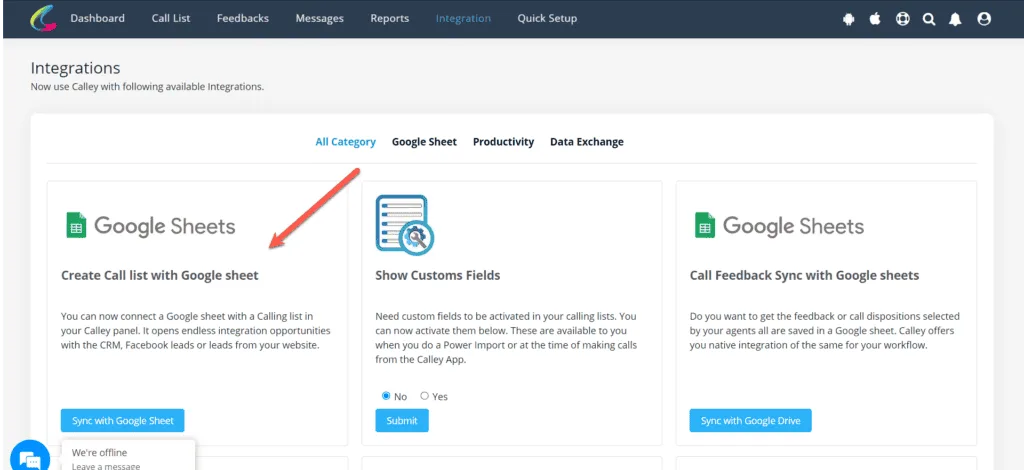
The integration center shows all the integrations that are currently live with the Calley Autodialer App, and you can select Google Sheet Import for the same.
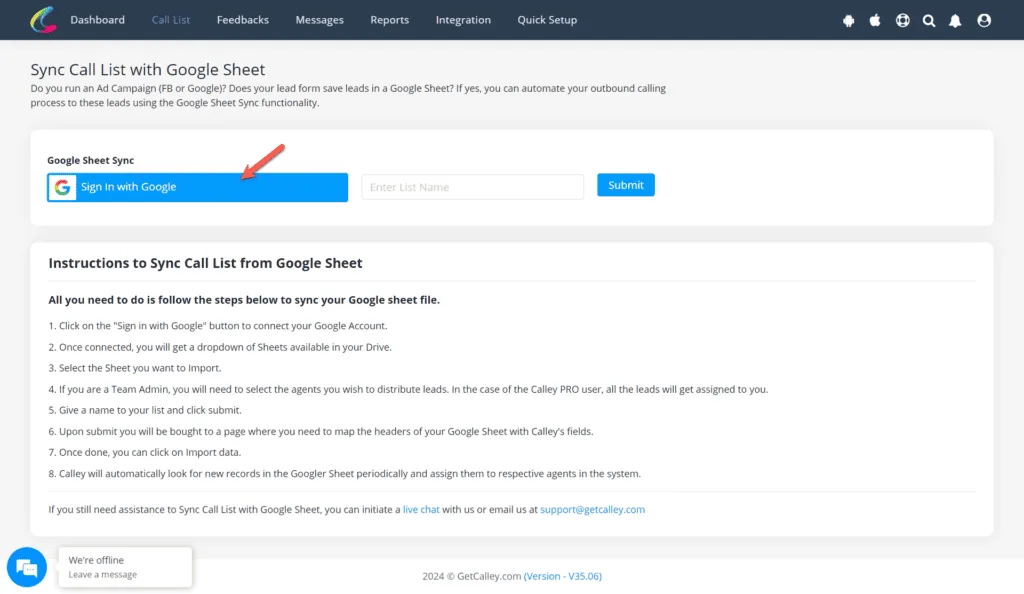
STEP 3 - Click on Sign in with google and authenticate your account.
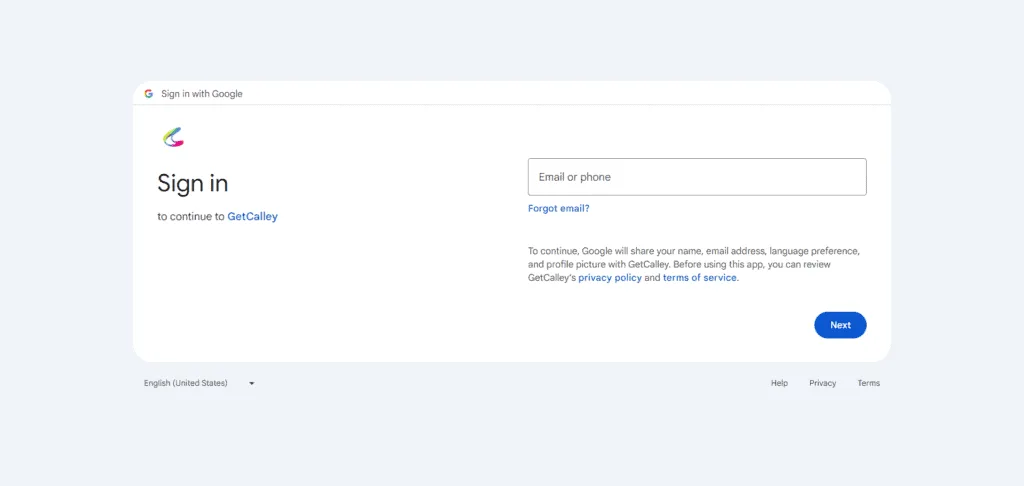
As you click on Sign In using Google you will be presented to login using an active Google Sheets account. You can authenticate and come back to the page for further actions.
STEP 4 - Create a Google Sheet Sync
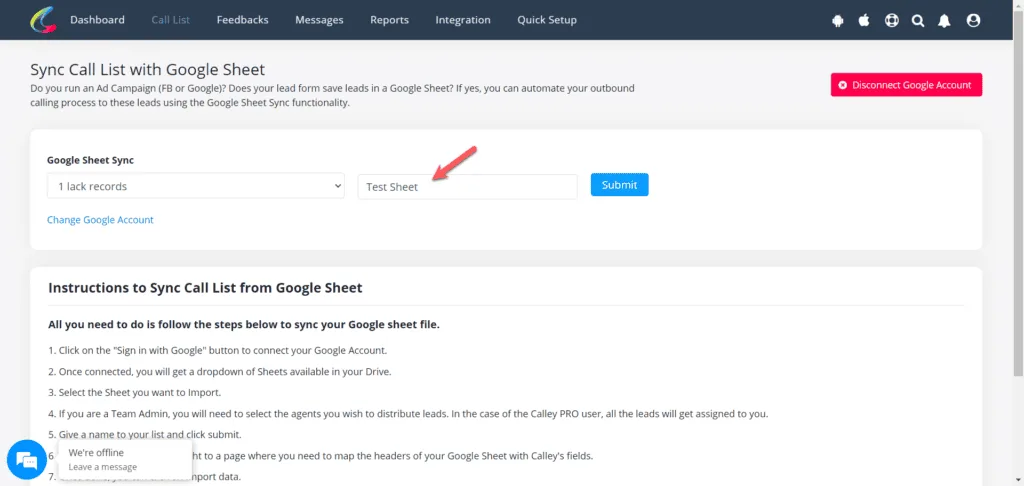
Select the Google Sheet that you want to sync. You can see the list of all the Google Sheets in the dropdown. (Please note that the dropdown list will only show Google Sheets, not XLS or XLSX files uploaded to your Google Drive Account). Once you have selected the Google Sheet, give a calling list name for which the Google Sheet sync will happen.
Once you have selected the Google Sheet, give a calling list name for which the Google Sheet sync will happen.
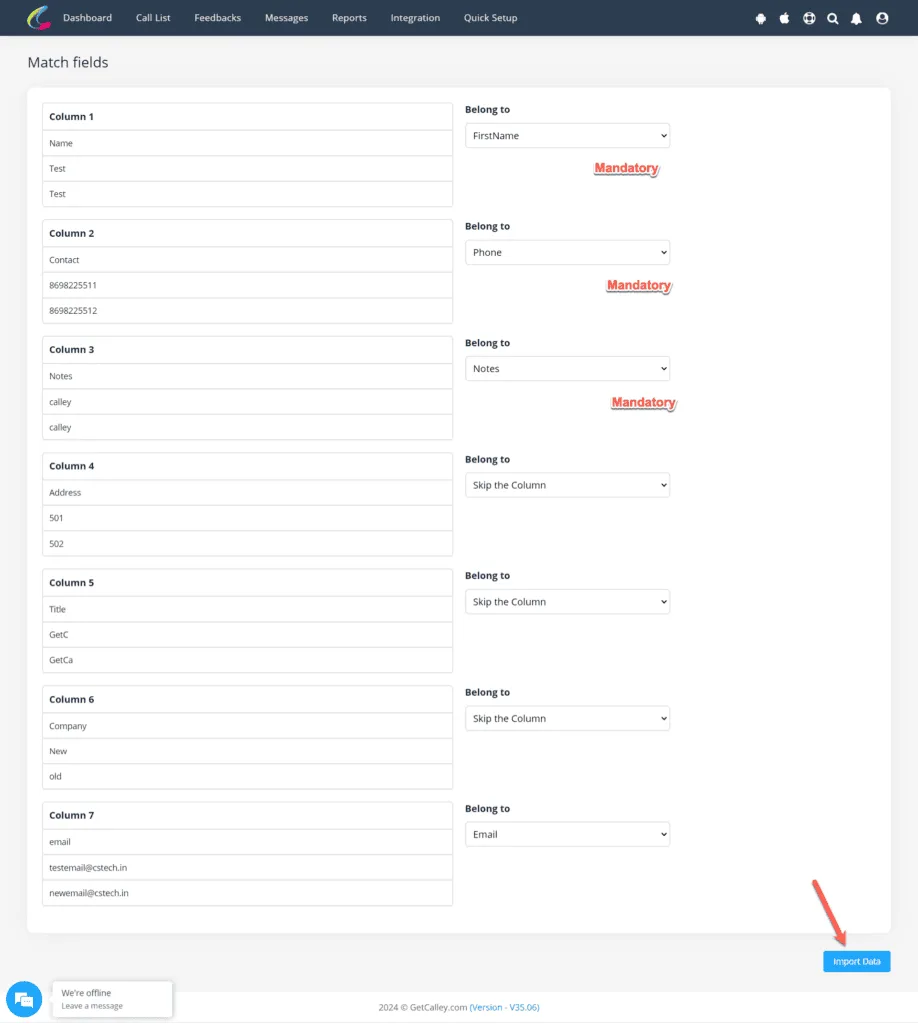
STEP 5 - Map the fields
Do a mapping of fields between Google Sheets and Calley’s Calling List. After the mapping, please click Import Data to enable the import of the leads in your Calley web panel.
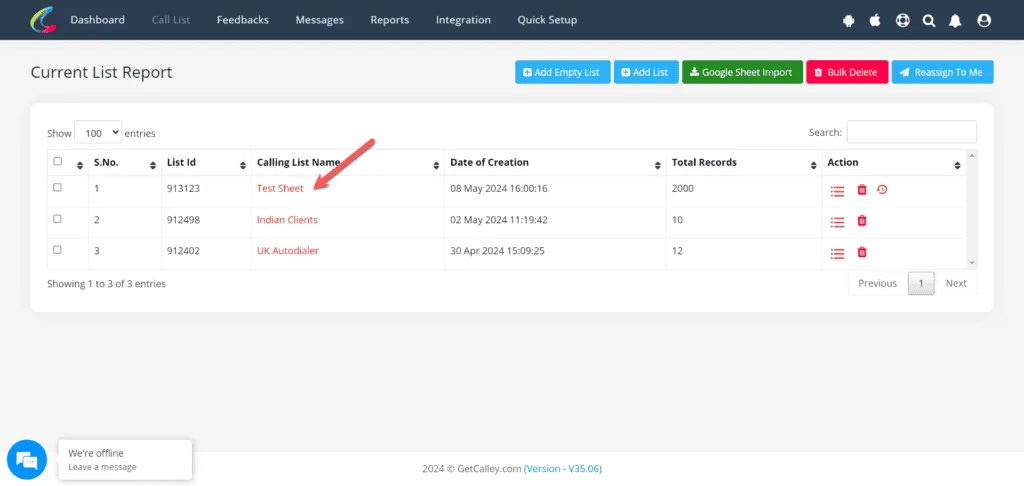
STEP 6 - You are Ready & set for Auto dialing now
This is all you need to do to set up Google Sheets data with Calley Calling List quickly. You can now Autodial using the Calley Mobile App or PC Dialing.
Step by Step video for Google Sheets Import in Calley
Check out the whole process as a video to understand how you can import leads in bulk using Google Sheets Import functionality. The automation assists you with continuously importing, verifying, and distributing leads to your calling agents.
Google Sheet Import is a great Lead AssigNment Automation
At Calley we love Automation.
Calley itself is a tool that was created due to a need to automate outbound calls.
With Google Sheet Import and Calley, we can...
- Automate Lead Import to Calley.
- Automate Leads Assignment & Distribution in Calley.
- Thus leading to Automation in Dialing Outbound Calls by your agents.
Checkout here > Pricing Plans for Calley Auto Dialer App
Link to > Full Feature List of Calley AutoDialer
Do you want to Subscribe to a Free Auto Dialer with a limit of 25 calls per day? Or do you want to Auto-Dial Unlimited Leads using the Calley Auto Dialer App?
We know you will have questions.
We would love to answer all your questions to get you started with Autodialing using The Calley Auto Dialer app.