
PC Dialing Using Mobile SIM Card
Though portable Mobile Phone Screens are small & with Calley, we offer you the option of PC Dialing using your Mobile Sim Card 😃
Mobile screens are portable and allow you to auto-dial from anywhere, but what if we told you that you could also do PC auto dialing using the same account?
When calling within your country, mobile-based auto dialing is a cost-effective option. Mobile sim providers usually offer unlimited calls, so there is no additional or hidden cost beyond the local pulse fee.
Using this, you can autodial from the Calley web panel connected to the Calley mobile app installed on your mobile phone.
Let us tell you how to configure Calley for PC Dialing or Desktop Autodialing...
- 1.Though portable Mobile Phone Screens are small & with Calley, we offer you the option of PC Dialing using your Mobile Sim Card
- 1.1.Signup for a Calley Account
- 1.2.If it is a new account then, Go to Dashboard & Configure
- 1.3.Create a Calling List
- 1.4.Do a Power Import of Leads
- 1.5.Create Call Feedback or Dispositions
- 1.6.Head towards your mobile & Download Calley App
- 1.7.Ensure Connection between Web Panel & Calley App
- 1.8.Go to the Calling List you wish to auto-call in the Web Panel
- 1.9.Start Calling Now
- 1.10.The call is triggered from THE mobile app
- 1.11.Do more than just PC AutoDialing
- 1.12.Understanding Reports in Calley Web Panel
- 2.Start PC Autodialing Using Calley Auto Dialer App
- 3.WE KNOW YOU WILL HAVE QUESTIONS.
To show you the Maximum Capabilities of Calley PC Autodialing Solution, we are using a Calley PRO Single User plan for this article.
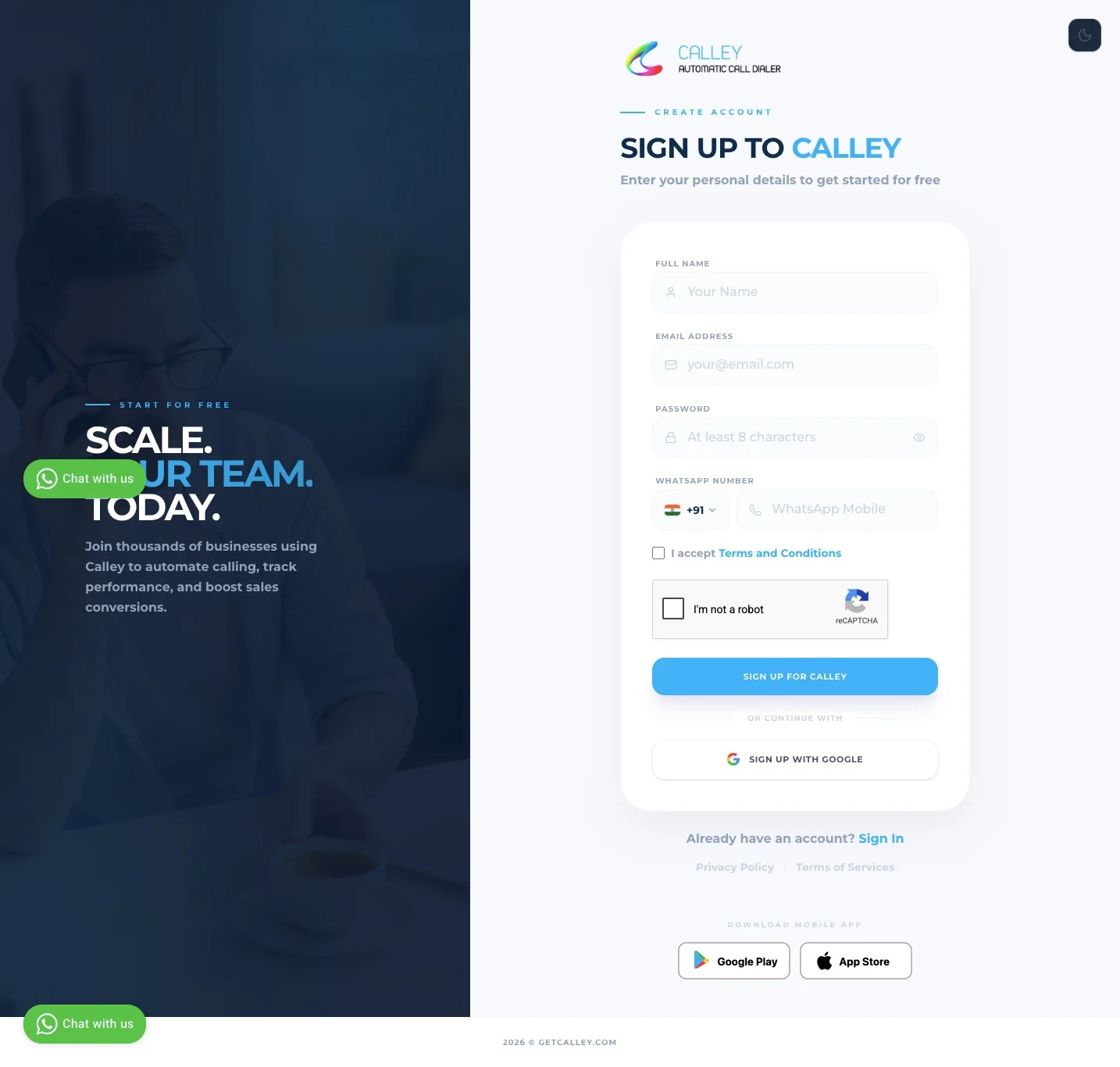
Signup for a Calley Account
Those with Calley accounts can log in at https://portal.getcalley.com, while those who wish to register can do so at https://app.getcalley.com/registration.aspx.
If it is a new account then, Go to Dashboard & Configure
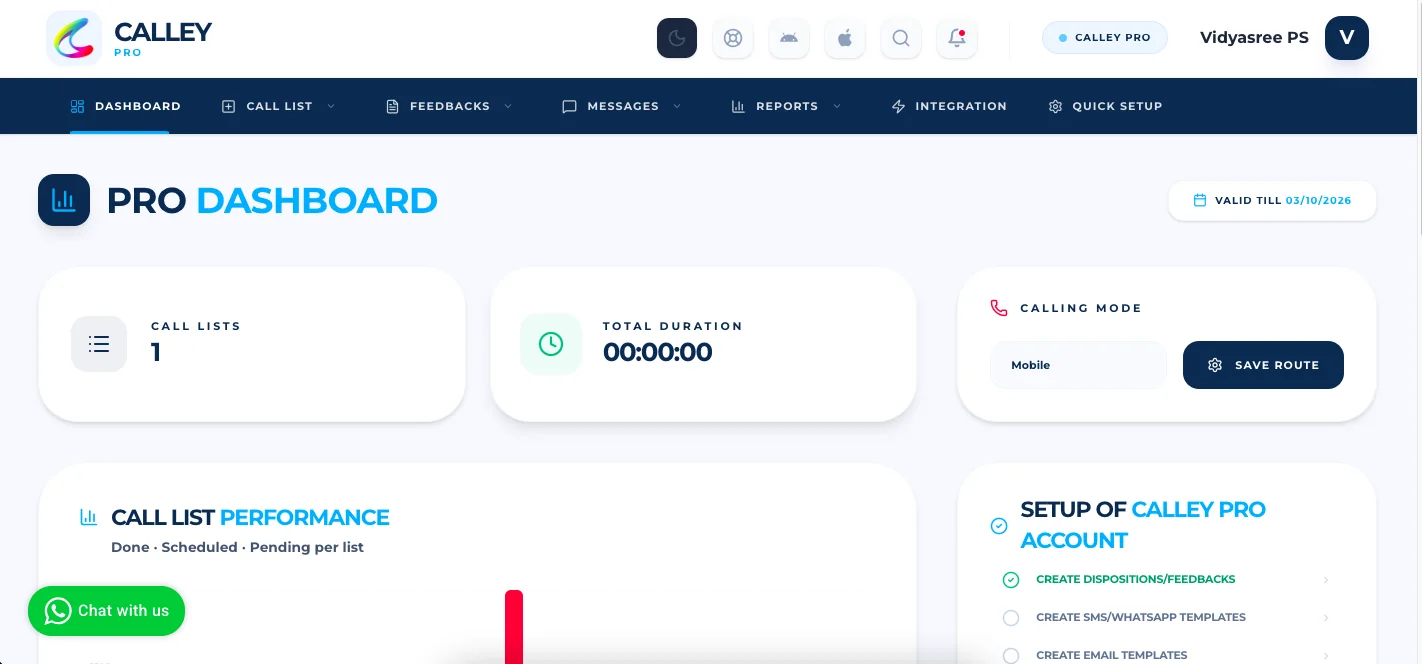
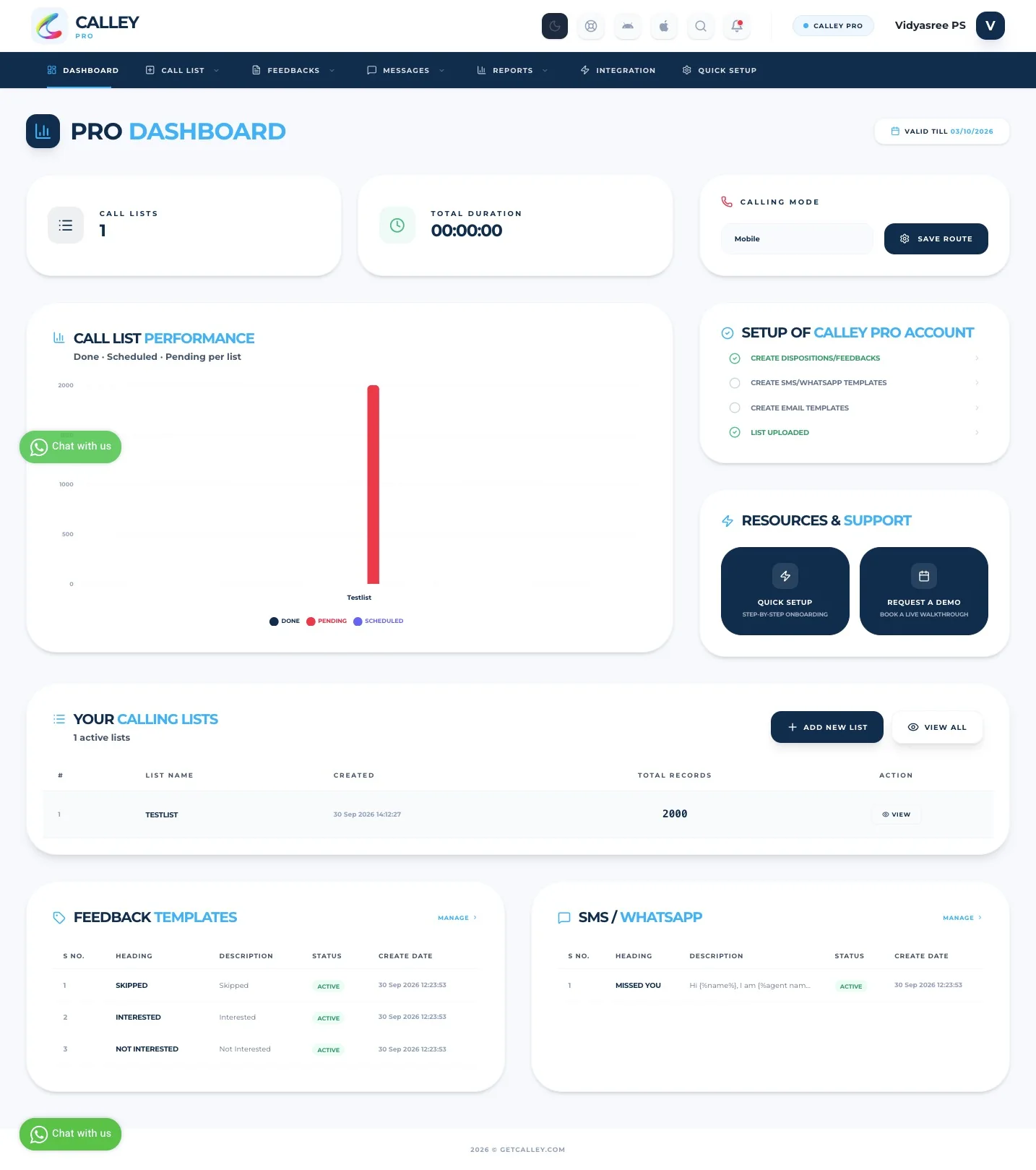
You reach the dashboard after registering or logging in. From here, you can configure the following.
- ✓Calling List
- ✓Call Feedbacks / Dispositions
Create a Calling List
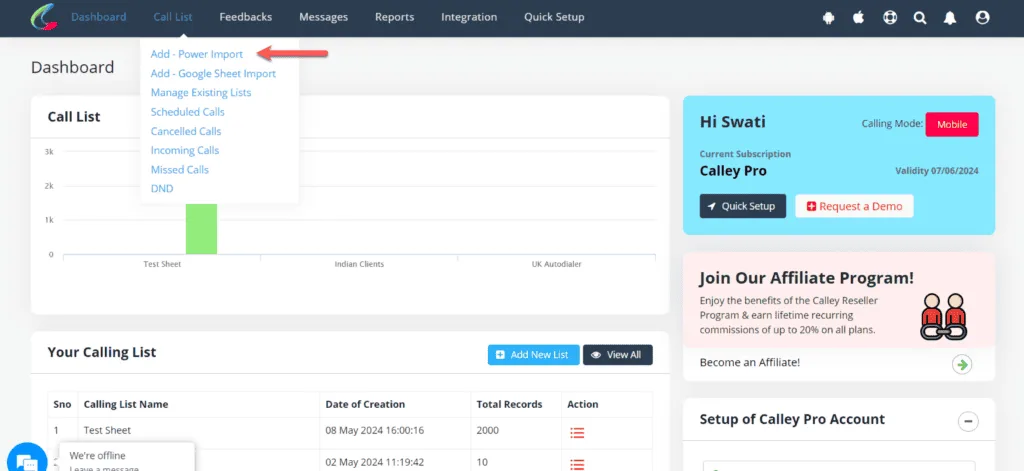
You must create a calling list; this is the list of leads on which you or an agent will make outbound calls. They can be imported through...
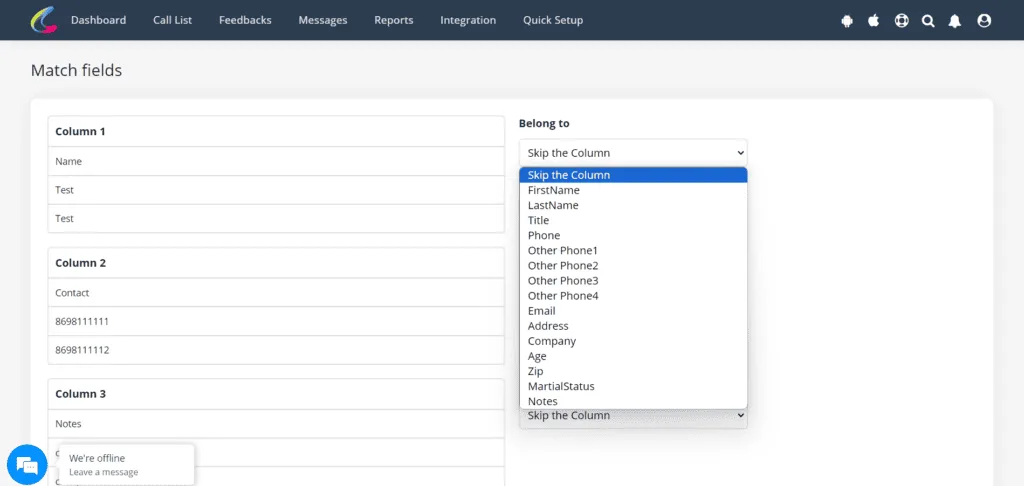
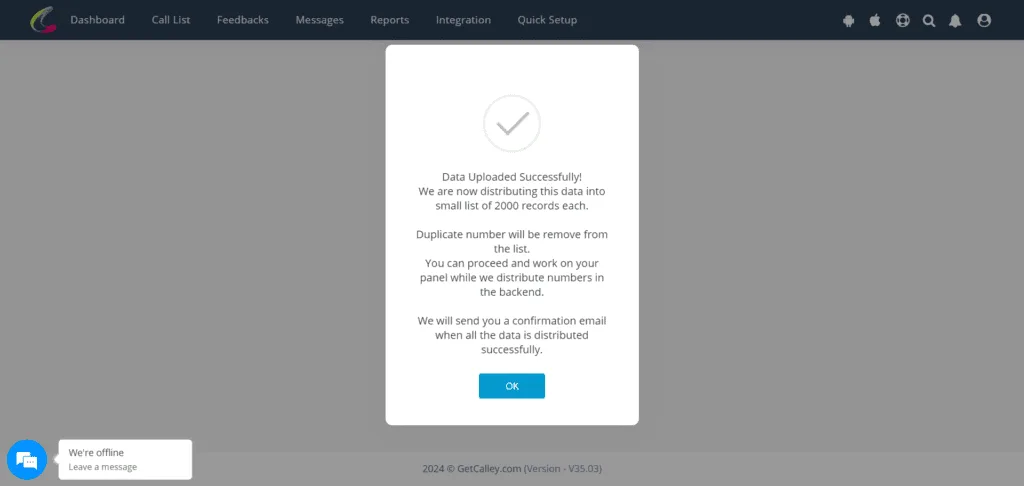
- ✓Power Import Mode - Use Power Import Mode to import 100,000 leads into Calley. This mode allows you to map values in your Excel file to Calley fields.
- ✓Google Sheet Import Mode - Connect a Google Sheet with the Calley Calling List and have it auto-update / import leads when a new record is added.
Do a Power Import of Leads
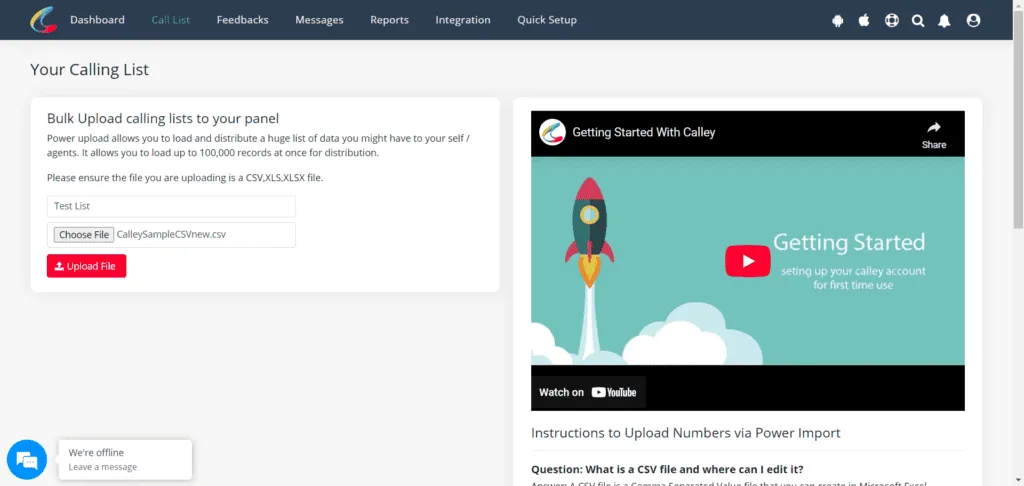
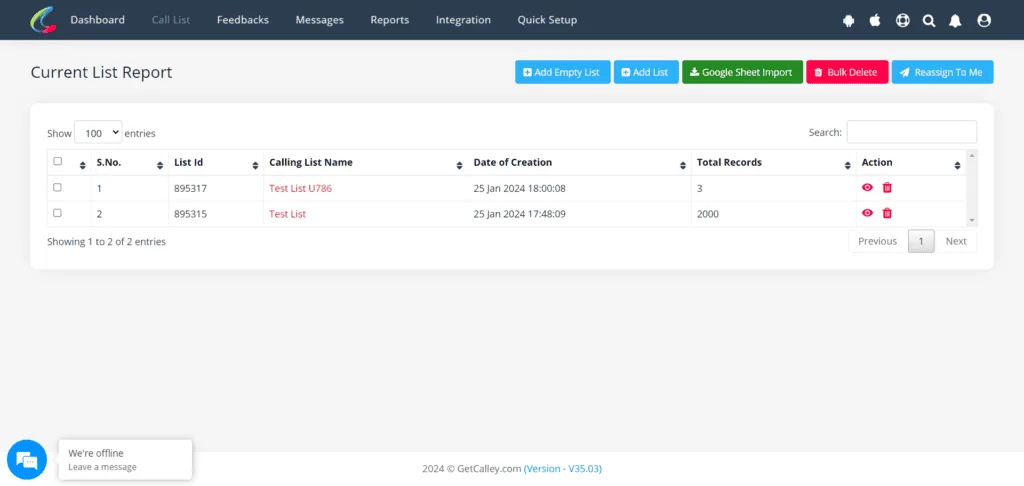
Enter a new list name and select the sheet (xls, xlsx, csv) to upload.
Create Call Feedback or Dispositions
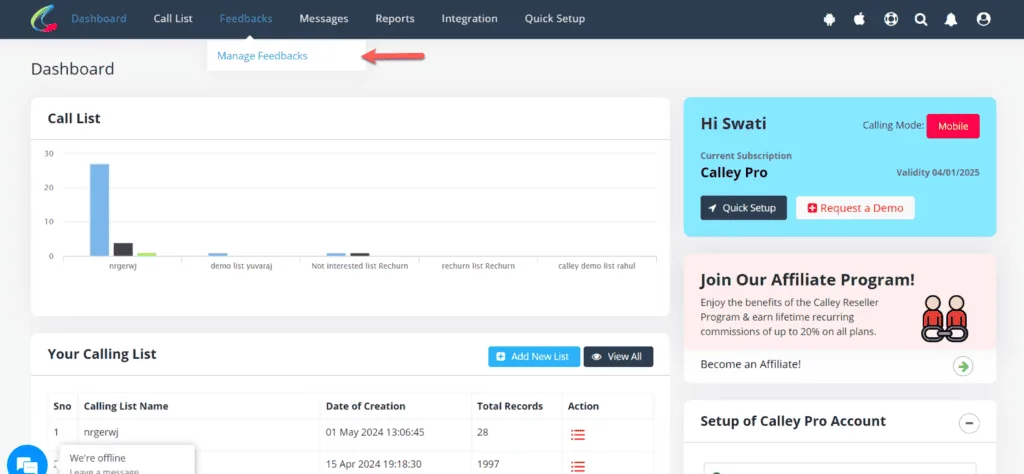
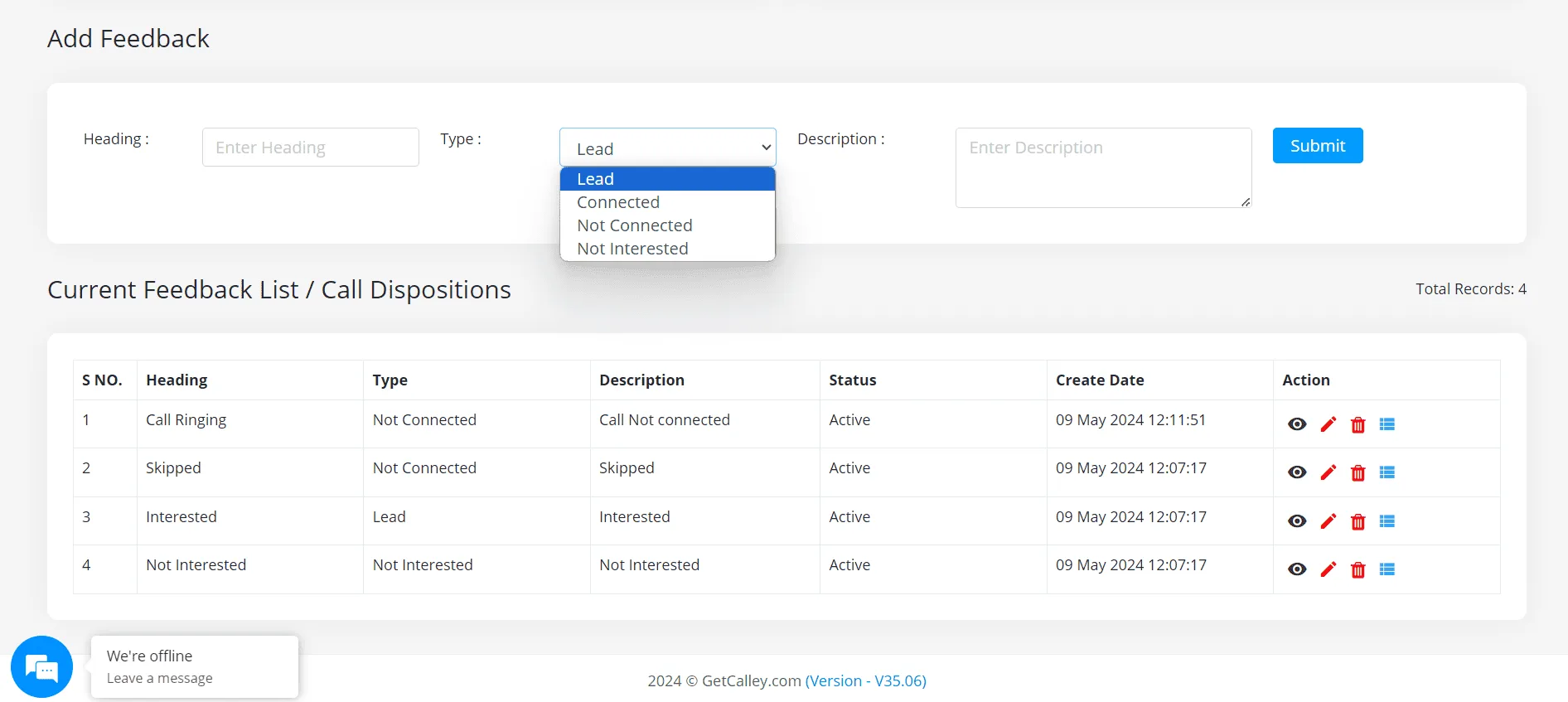
As soon as the list has been uploaded, proceed to the creation of Call Dispositions. Dispositions can be created in an unlimited number, but they are categorized into four major types.
- ✓Lead
- ✓Connected
- ✓Not Connected
- ✓Not Interested
Head towards your mobile & Download Calley App
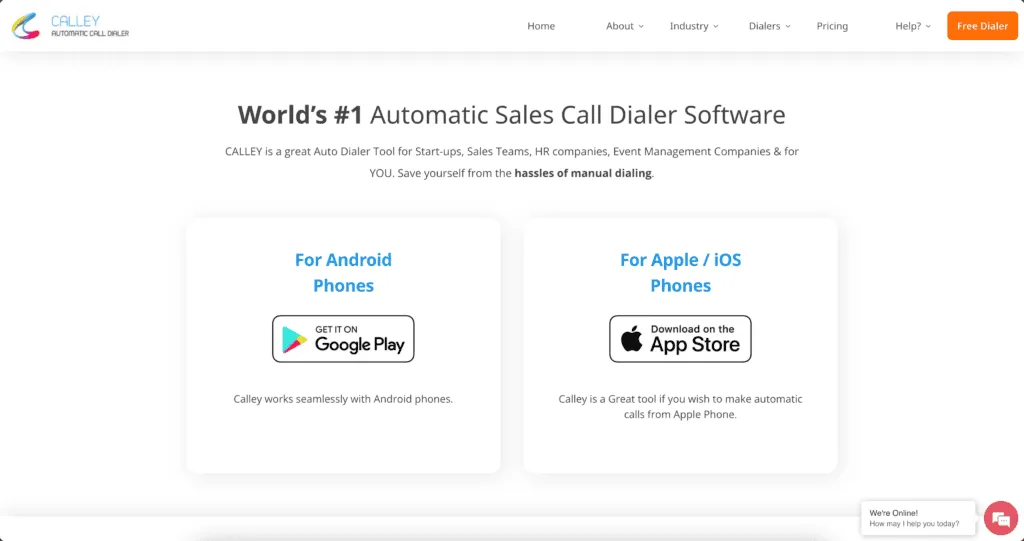
As you set up the web panel, you can now continue downloading and installing the Calley Autodialing Mobile App on your mobile phone.
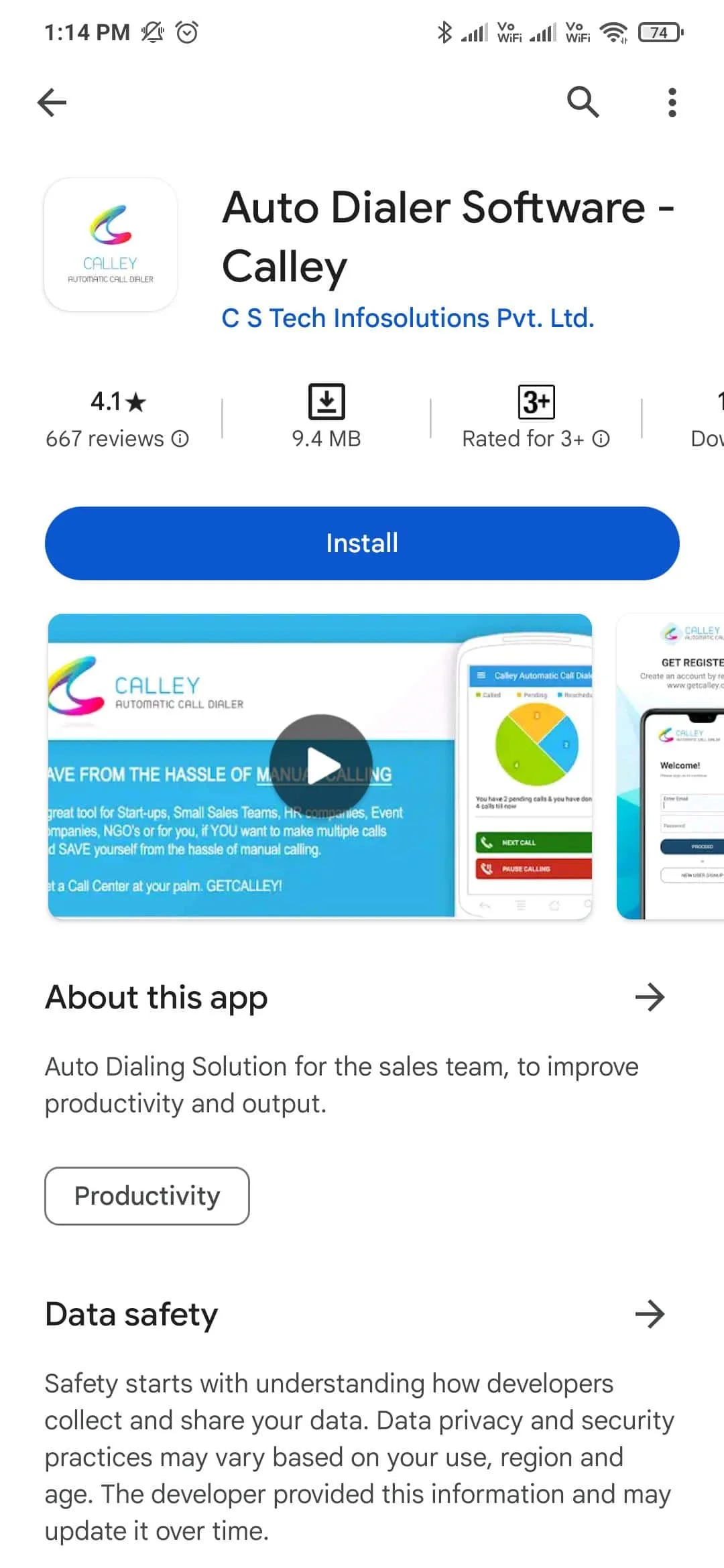
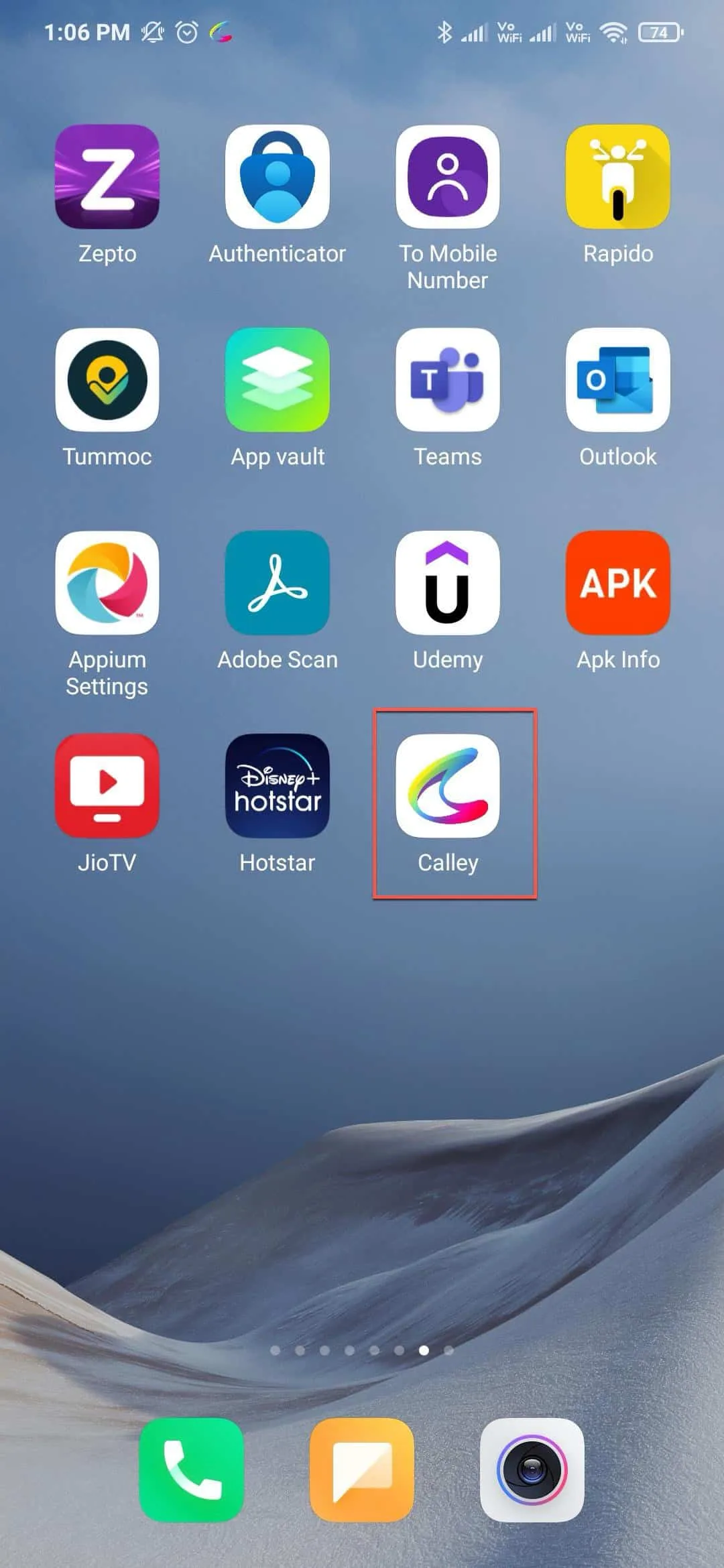
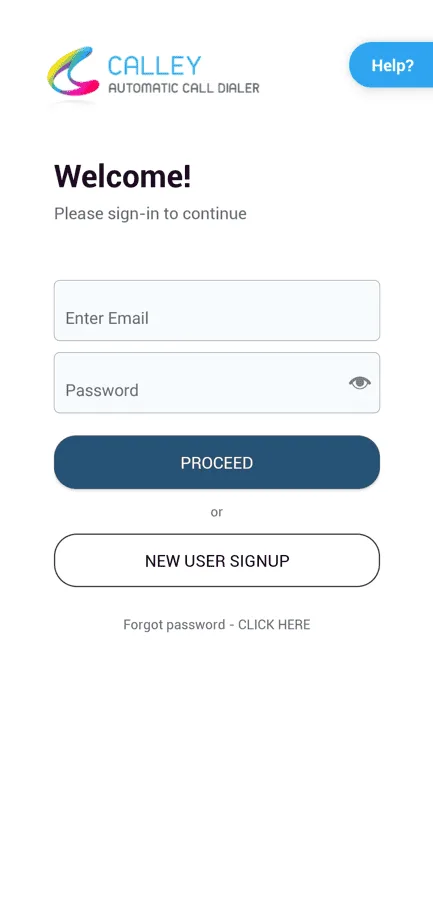

Your Calley Mobile App must also be logged in with the same credentials as your web panel. For Calley Autodialer App to work seamlessly, you must approve all permissions.
Ensure Connection between Web Panel & Calley App
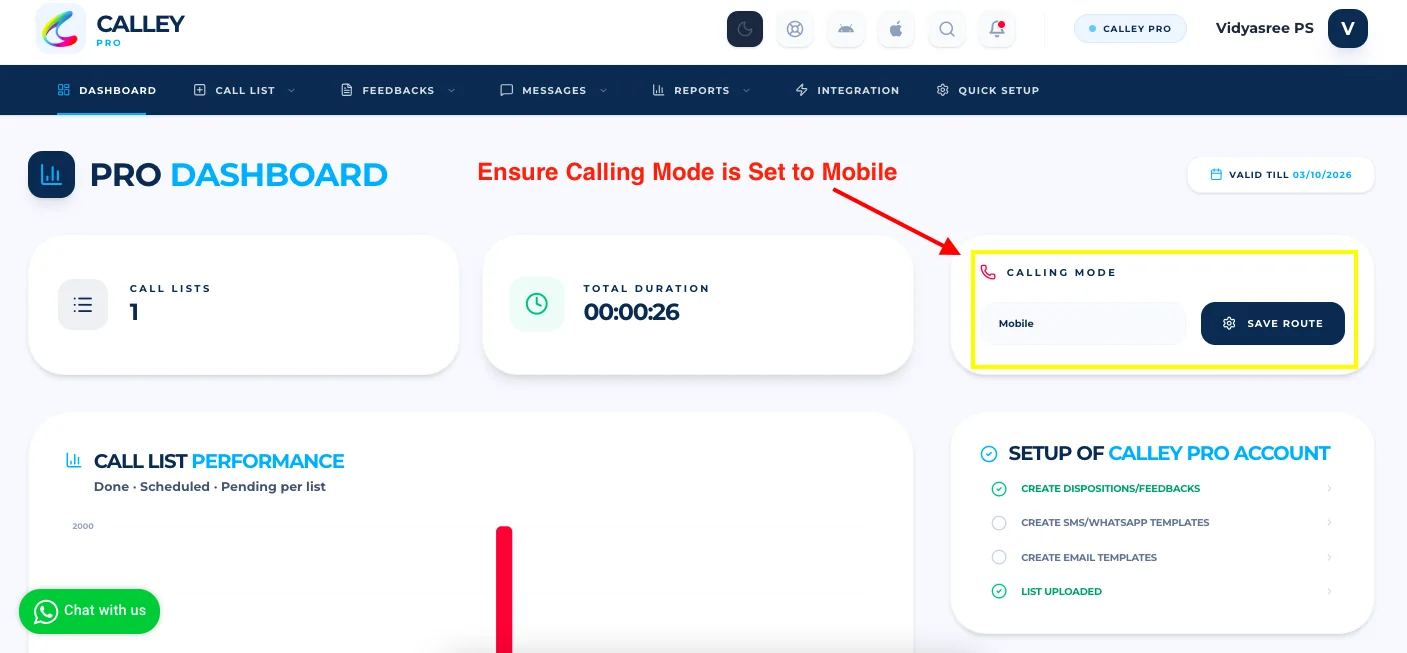
As you go to the dashboard of the Calley Web Panel, ensure that your Calling Mode is set to “Mobile.” This means that Calley will make calls using the SIM card installed in your mobile phone.
Go to the Calling List you wish to auto-call in the Web Panel
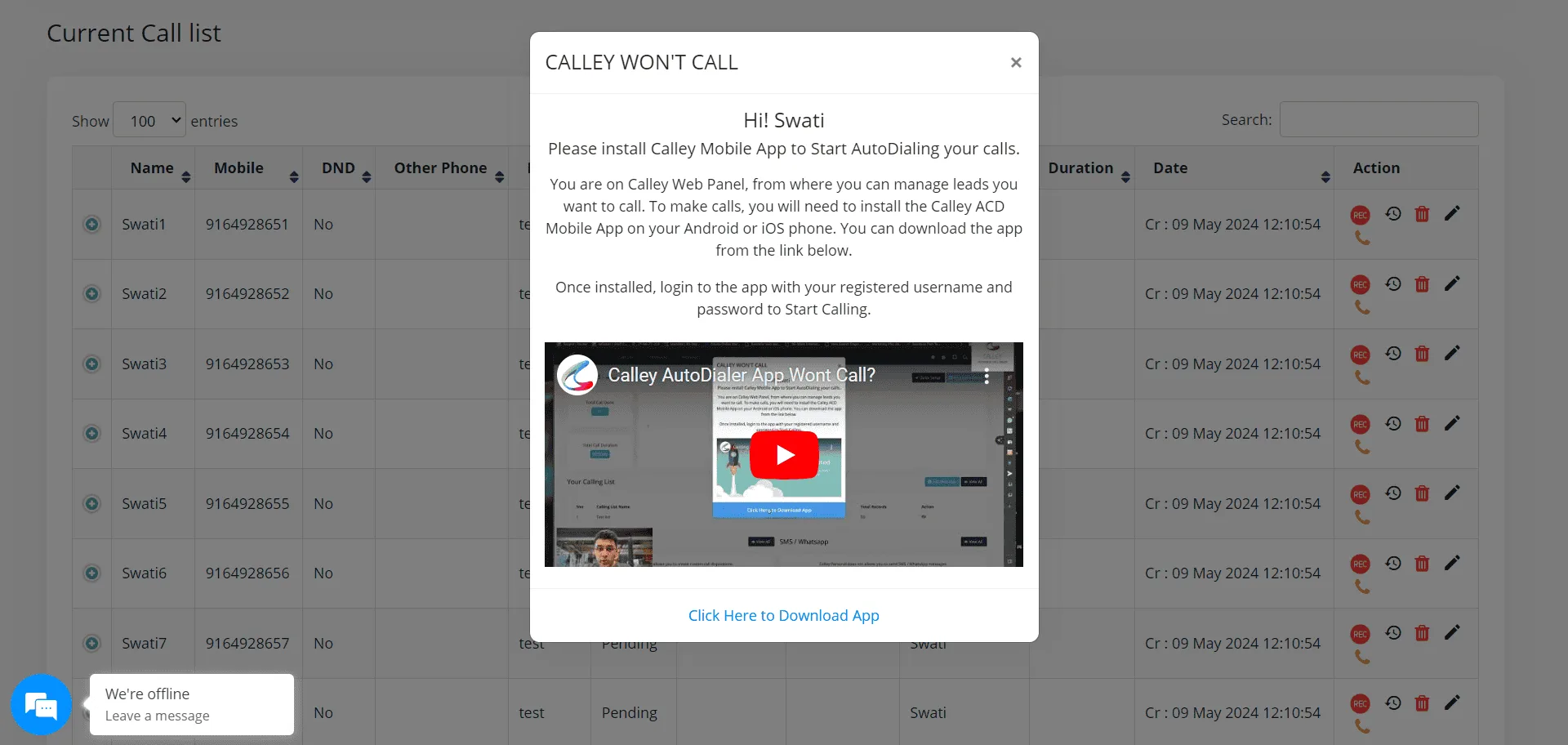
Once all the permissions are set and you are ready to start auto-dialing, head to the calling list you wish to auto-call from your desktop or PC.
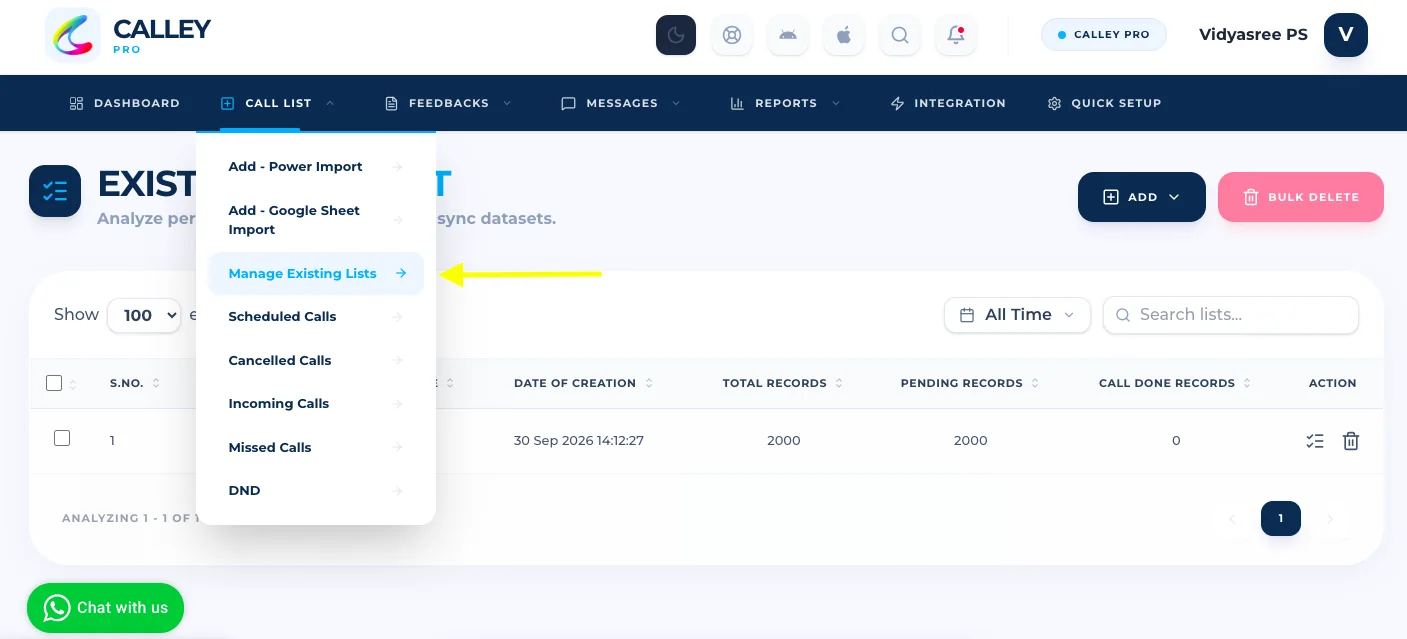
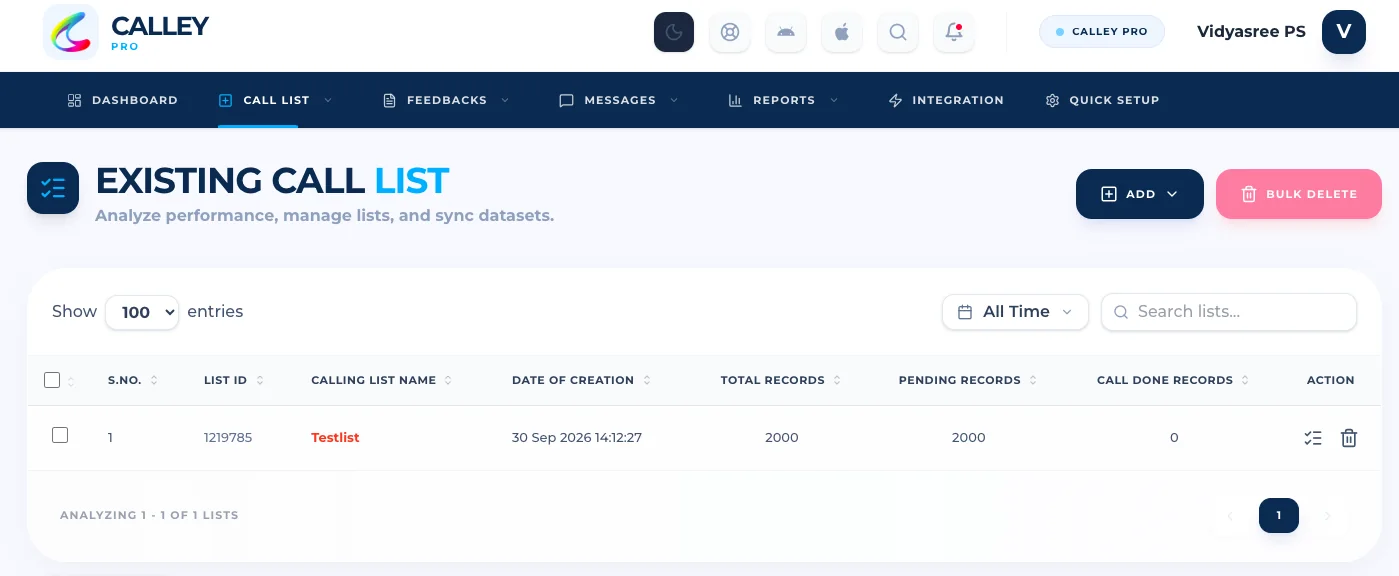
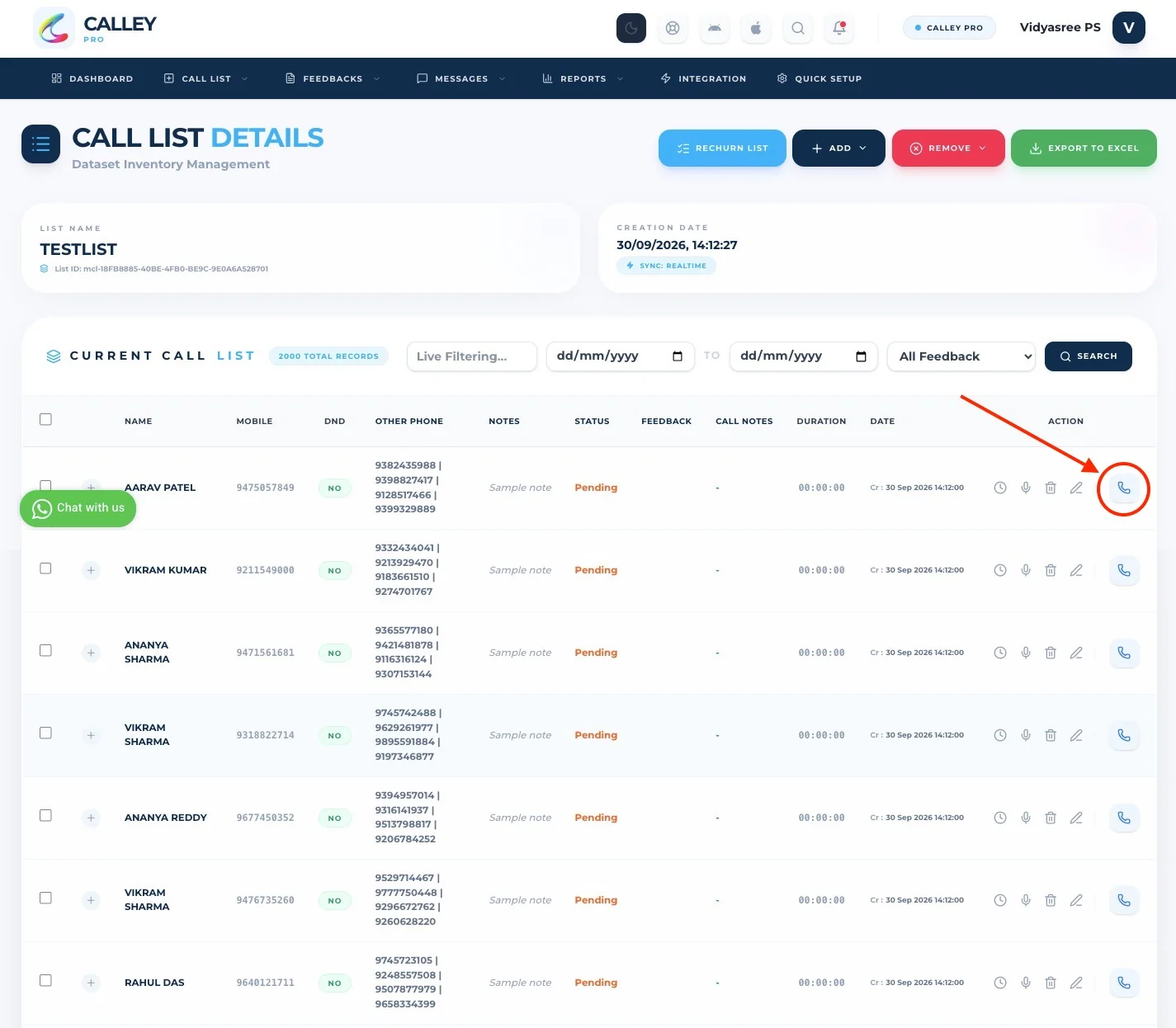
Start Calling Now
To start the autodialing process click on the Phone icon in front of the number you wish to call as the first number in the calling list.
The call is triggered from THE mobile app 🙂
Pressing the phone icon takes you to the Calling page, where you can see details about the call. On this page itself, you can update call status after your call has ended.
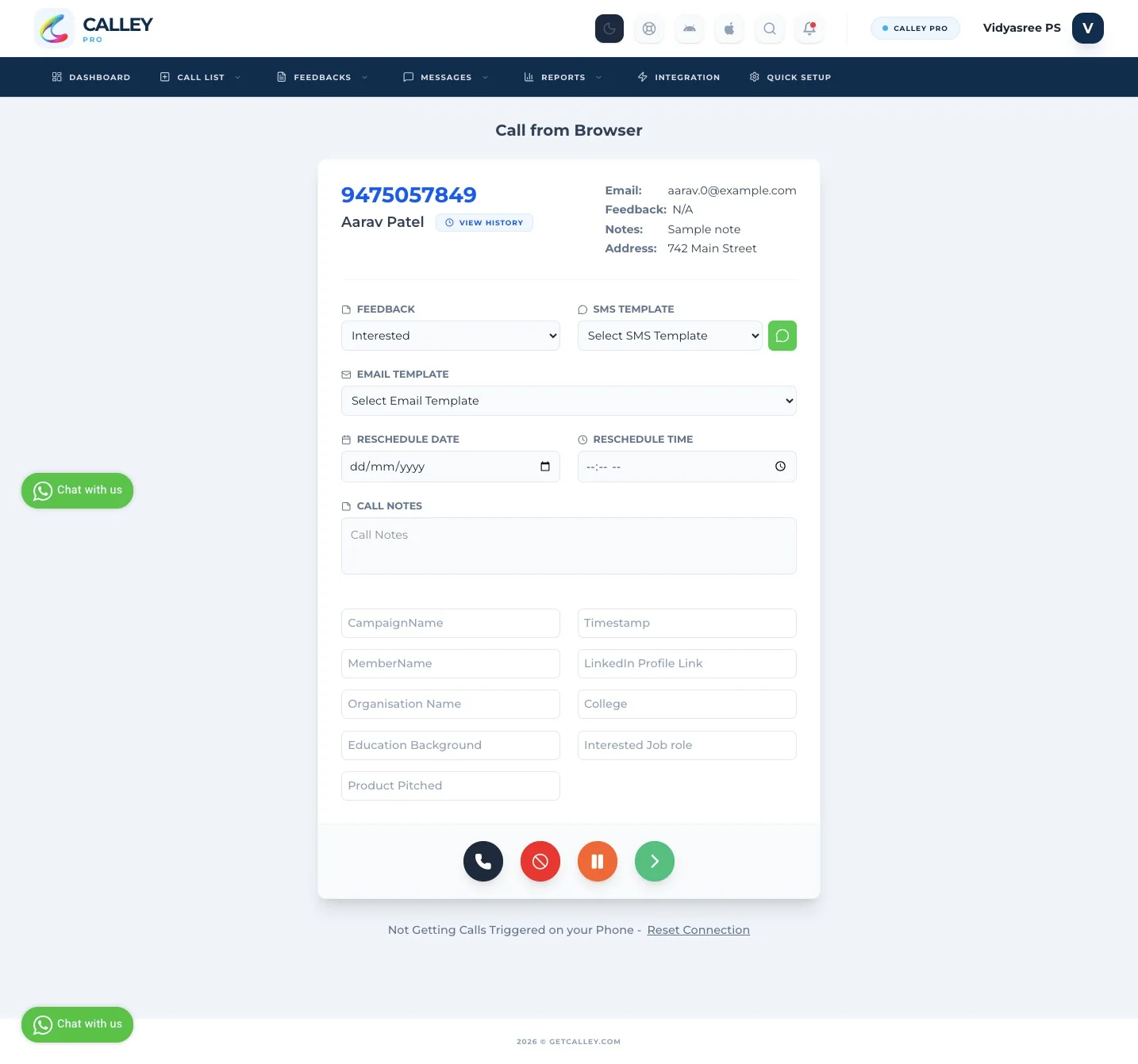
Actions todo at the End of a Call
- ✓Update Call Feedback / Call Dispositions
- ✓Send SMS to the Lead using SMS API
- ✓Send an Email to the lead using the your own email server like Gmail or Outlook.
- ✓Schedule your call in future
- ✓Call Notes
- ✓Redial Same Number
- ✓Mark the number as DND
- ✓Go to next number in the list
Do more than just PC AutoDialing
Using Calley PC Dialing, you can not just autodial but take actions to create a deeper connection with your lead. Actions like -
- ✓Sending SMS using Twilio API
- ✓Send Email using SMTP and your own Email Address.
- ✓Send WhatsApp messages using your Whatsapp Web Account.
- ✓Schedule your call in the future
and as you click on the Green icon you are taken to the next call automatically. The system at the same time update the call data against the call made and updates it in the reporting available to you in the same web panel.
Understanding Reports in Calley Web Panel
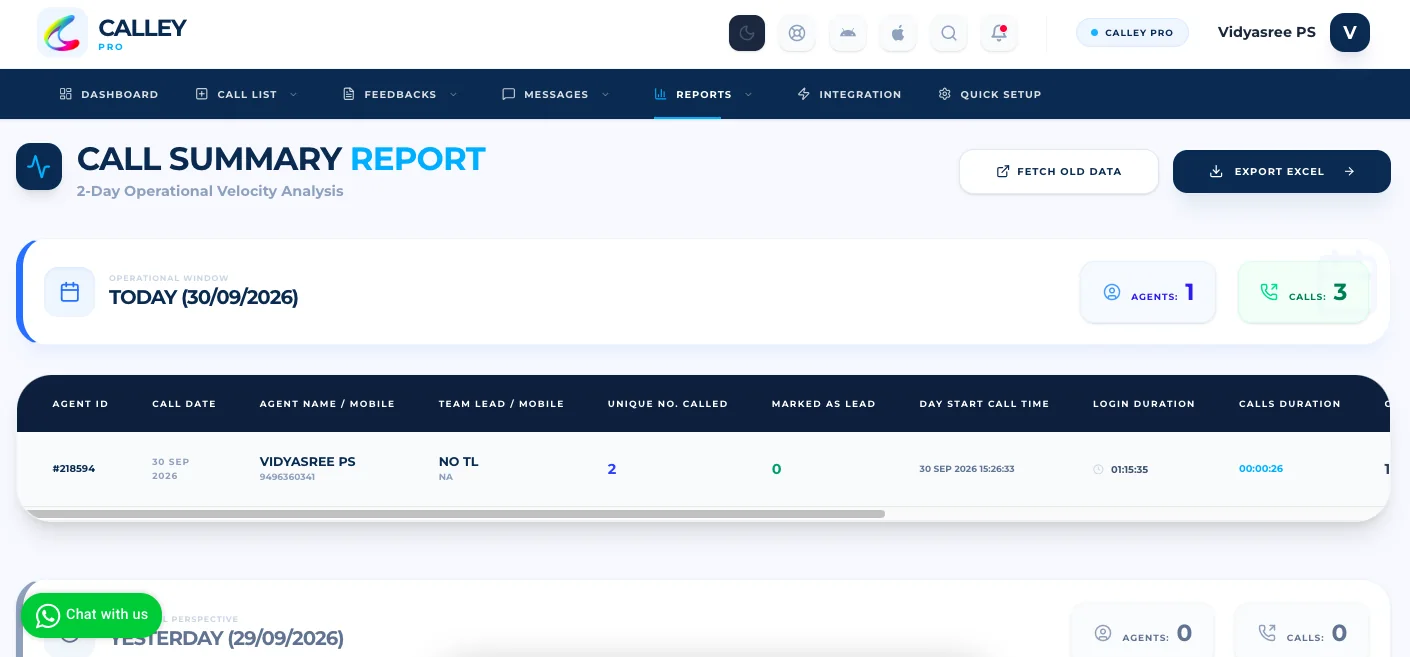
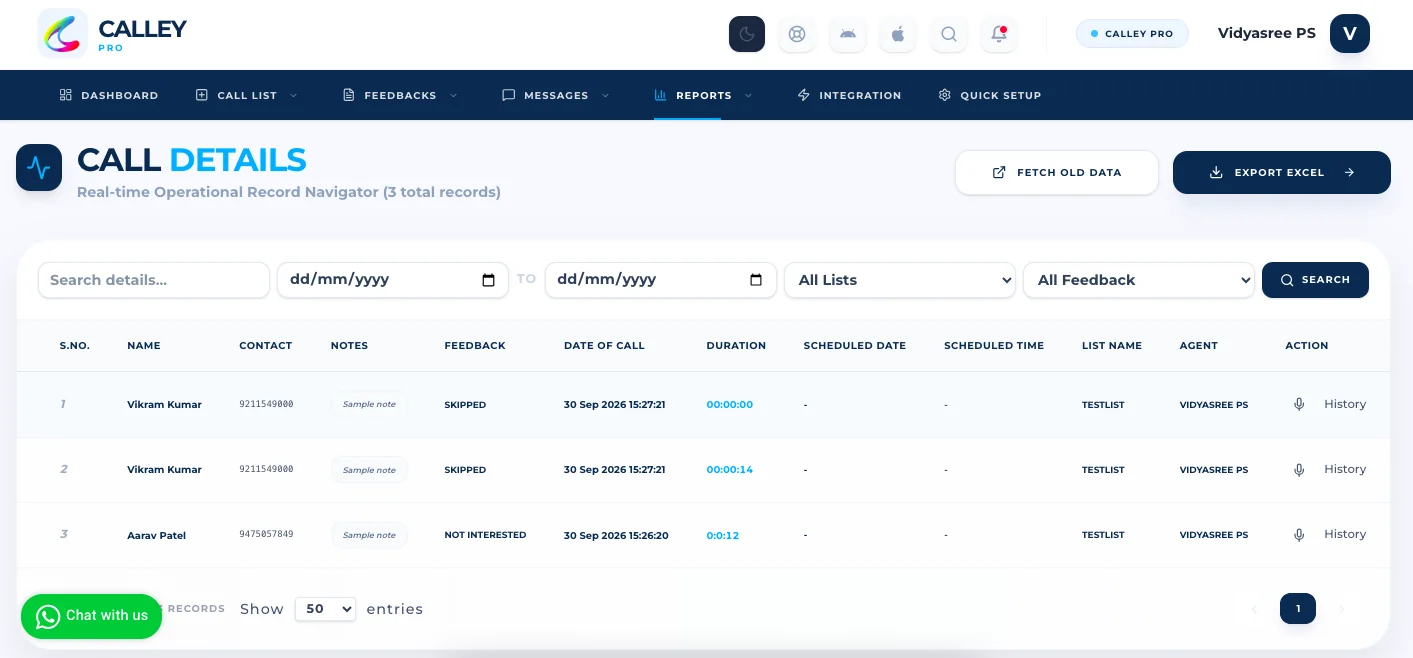
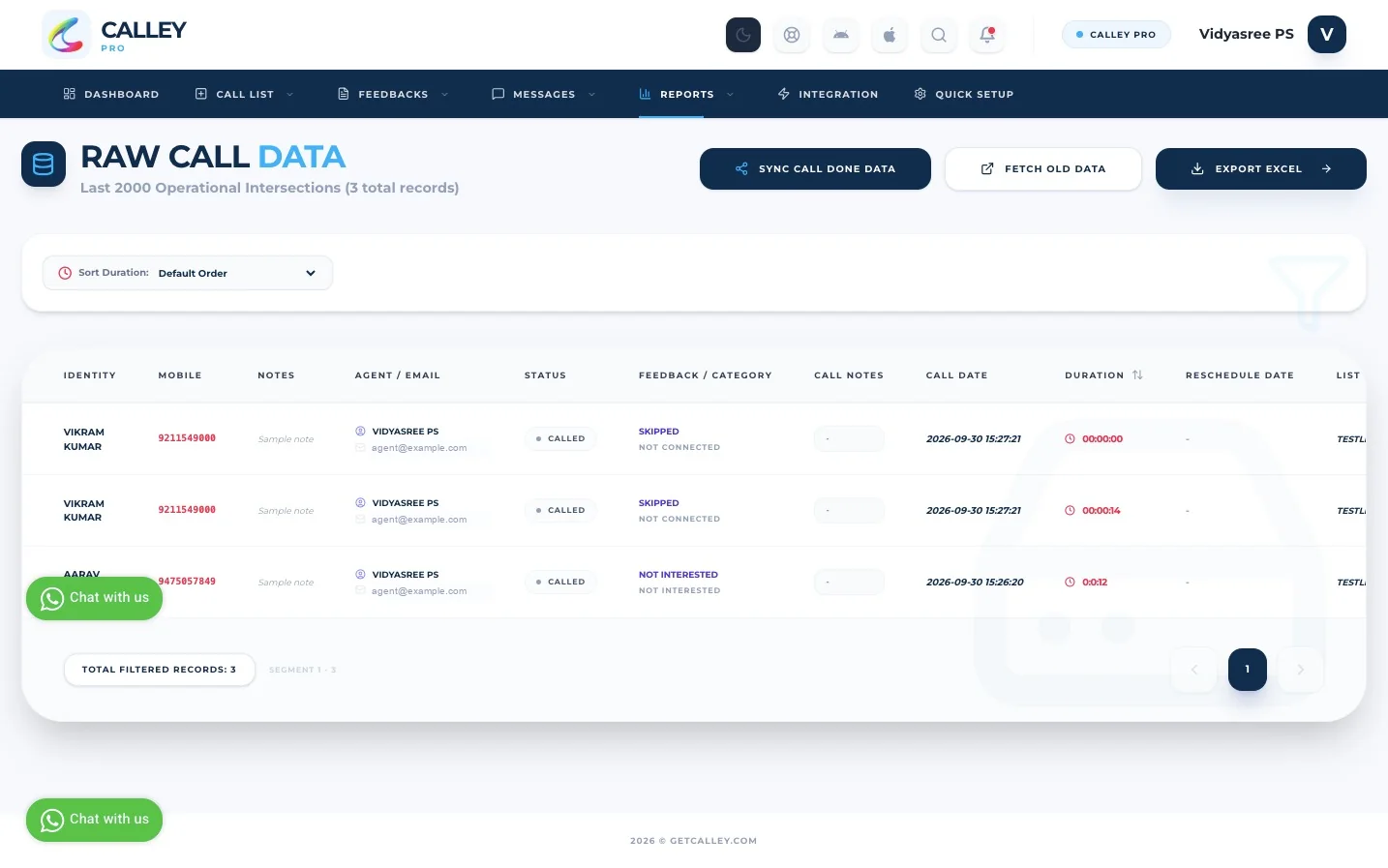
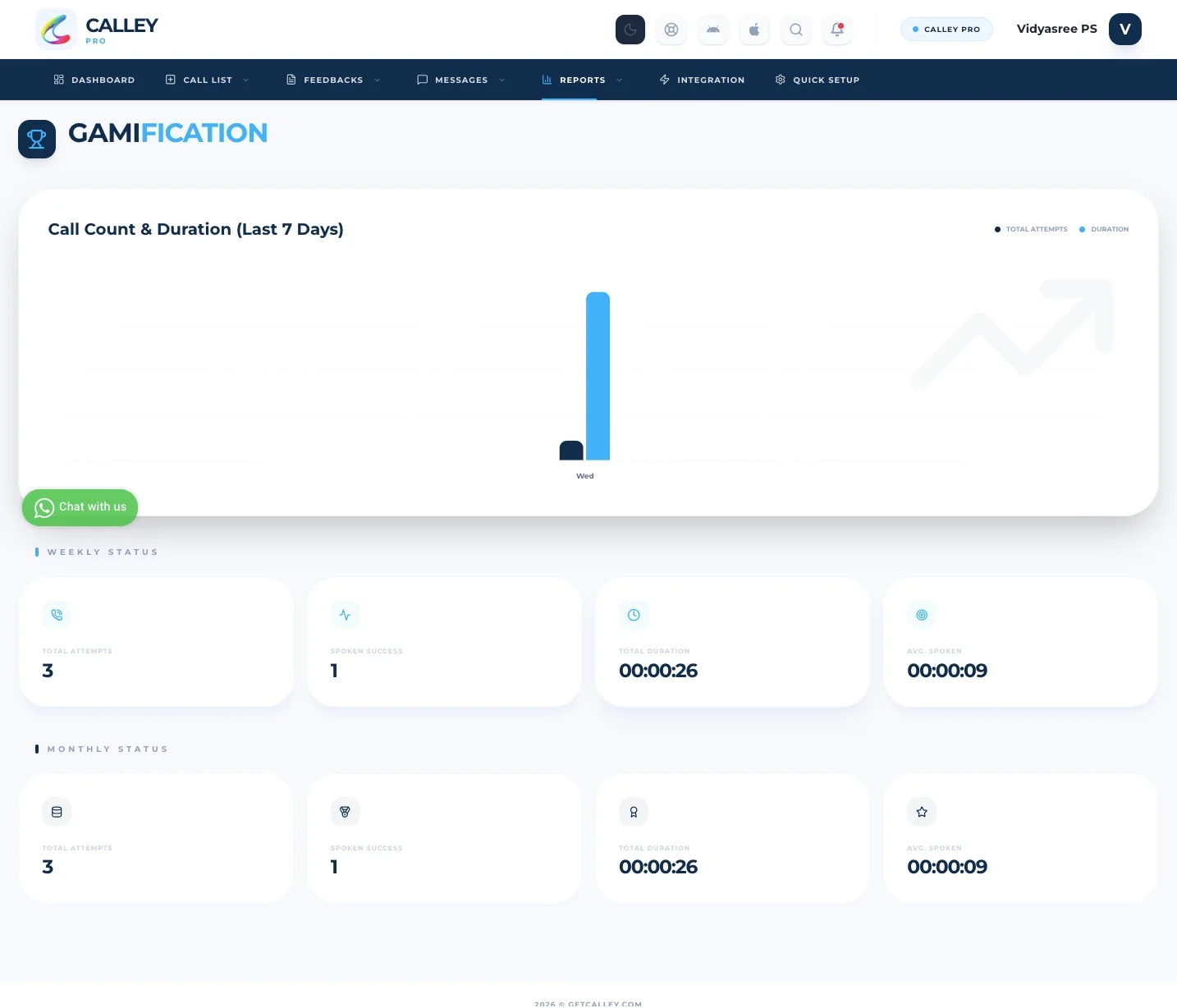
As you call, the Calley Autodialer is also collating data to present you with reports at the end of the campaign.
Start PC Autodialing Using Calley Auto Dialer App
Using these features of PC Autodialing using the Calley Autodialer App, you can start an Outbound Autodialing Campaign in minutes without the need for Fancy Hardware or a huge investment.
Start PC Autodialing using Calley PC Auto Dialer Software.
Checkout here > Pricing Plans for Calley Auto Dialer App
Link to > Full Feature List of Calley AutoDialer
Do you want to Subscribe to a Free Auto Dialer with a limit of 25 calls per day?
We know you will have questions.
We would love to answer all your questions to get you started with Autodialing using The Calley Auto Dialer app.