
How to Use the Voice Blast Feature in Calley Pro?
The Voice Blast feature in Calley Pro allows you to send automated voice calls to a list of contacts directly from your Calley Web Panel. This feature is powered by Twilio, ensuring reliable and professional call delivery.
Note: This feature is only available for Calley Pro users. It is not available for Calley Personal or Calley Teams users.
What is Voice Blast?
Voice Blast is a tool that allows you to send a pre-recorded voice message to many contacts at once. It’s ideal for making announcements, sending reminders, or sharing important information quickly.
Why Use Voice Blast?
- ✓Save Time: Make multiple calls at once without dialing manually.
- ✓Reach More People: Contact a large audience quickly.
- ✓Reliable Calls: Powered by Twilio for smooth and professional calling.
How to Set Up and Use Voice Blast
✓Go to the https://portal.getcalley.com/ and log in to your Calley Pro account.
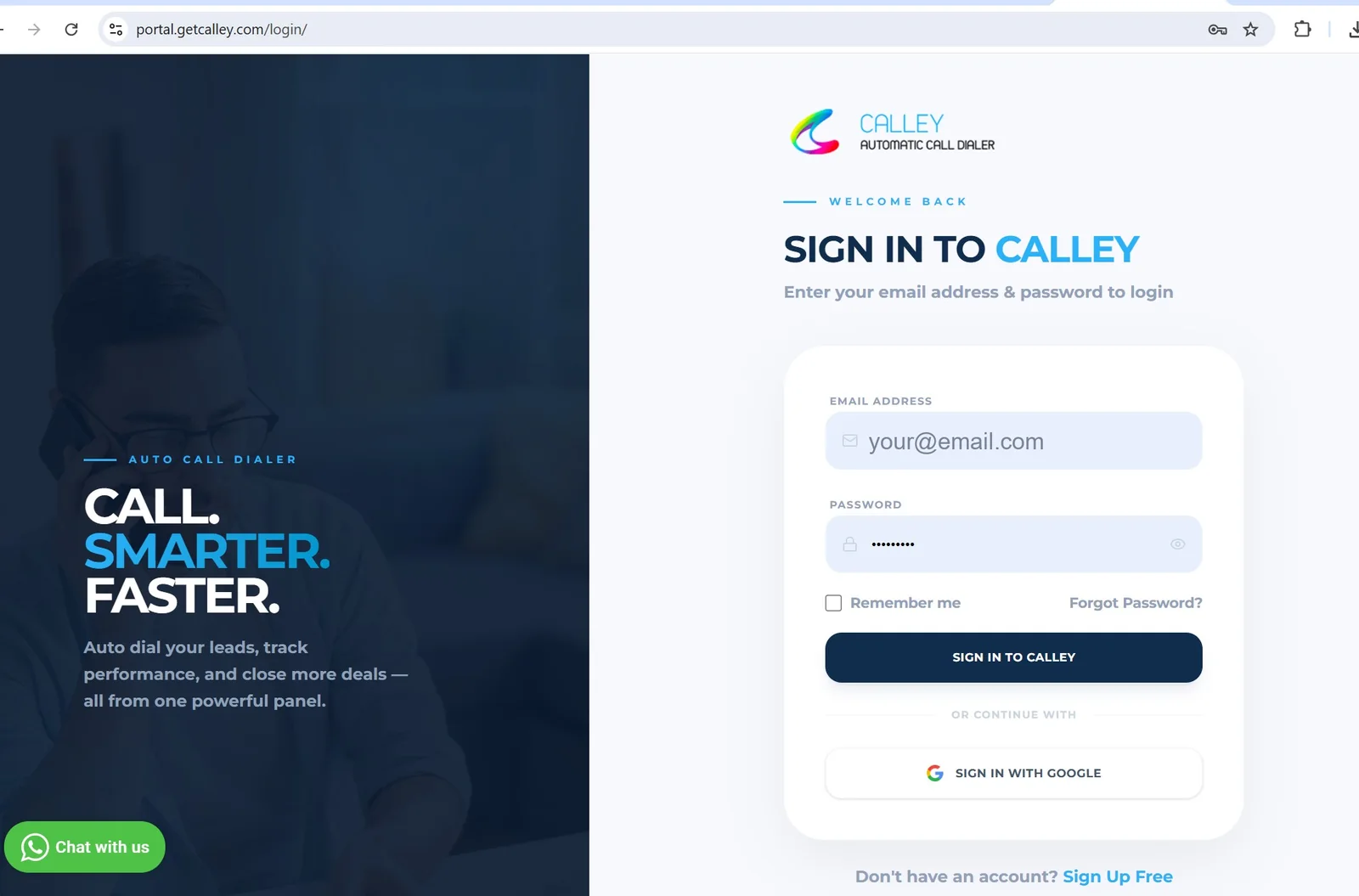
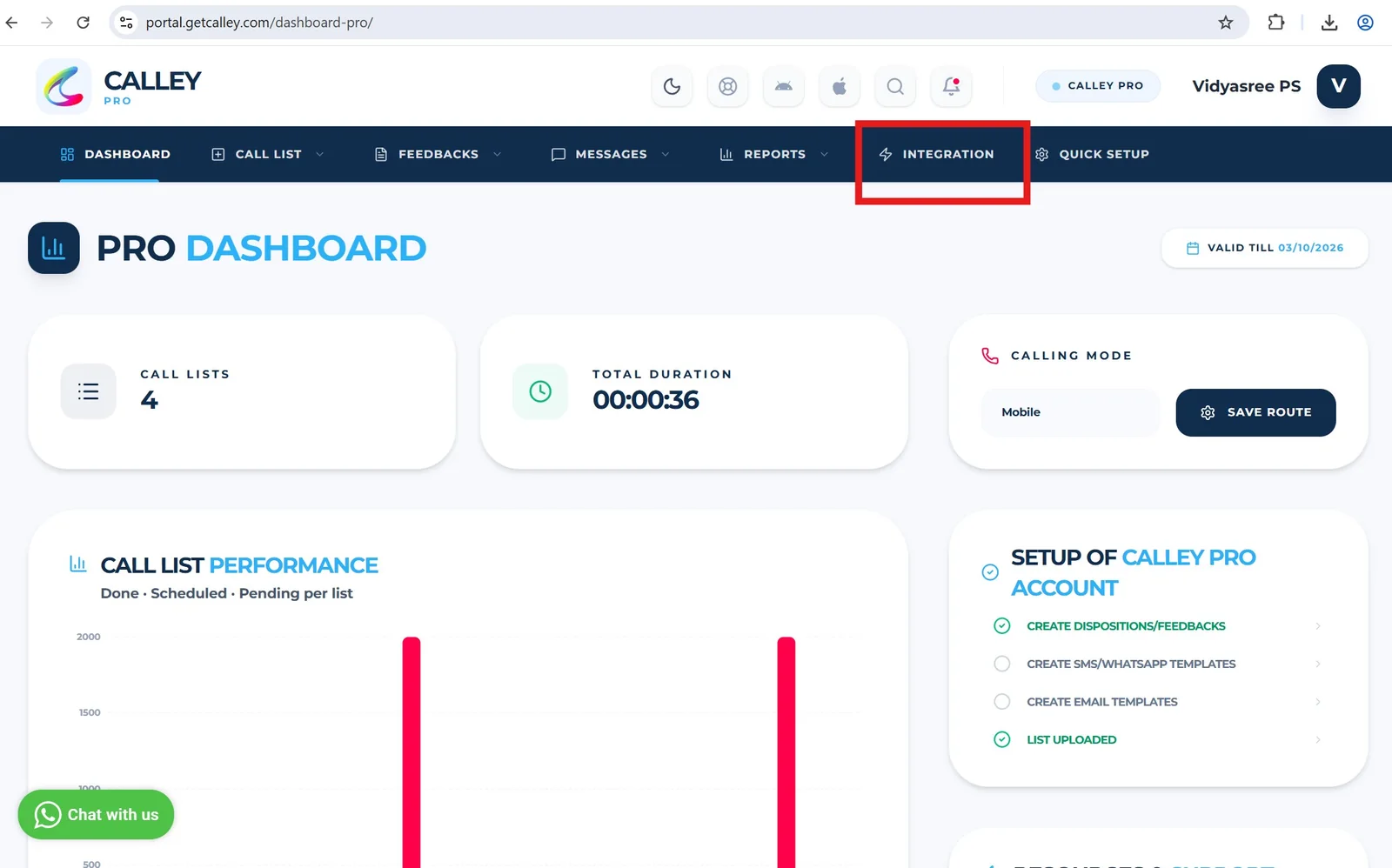
✓You will be redirected to the Calley Pro Dashboard. Go to the Integration Section.
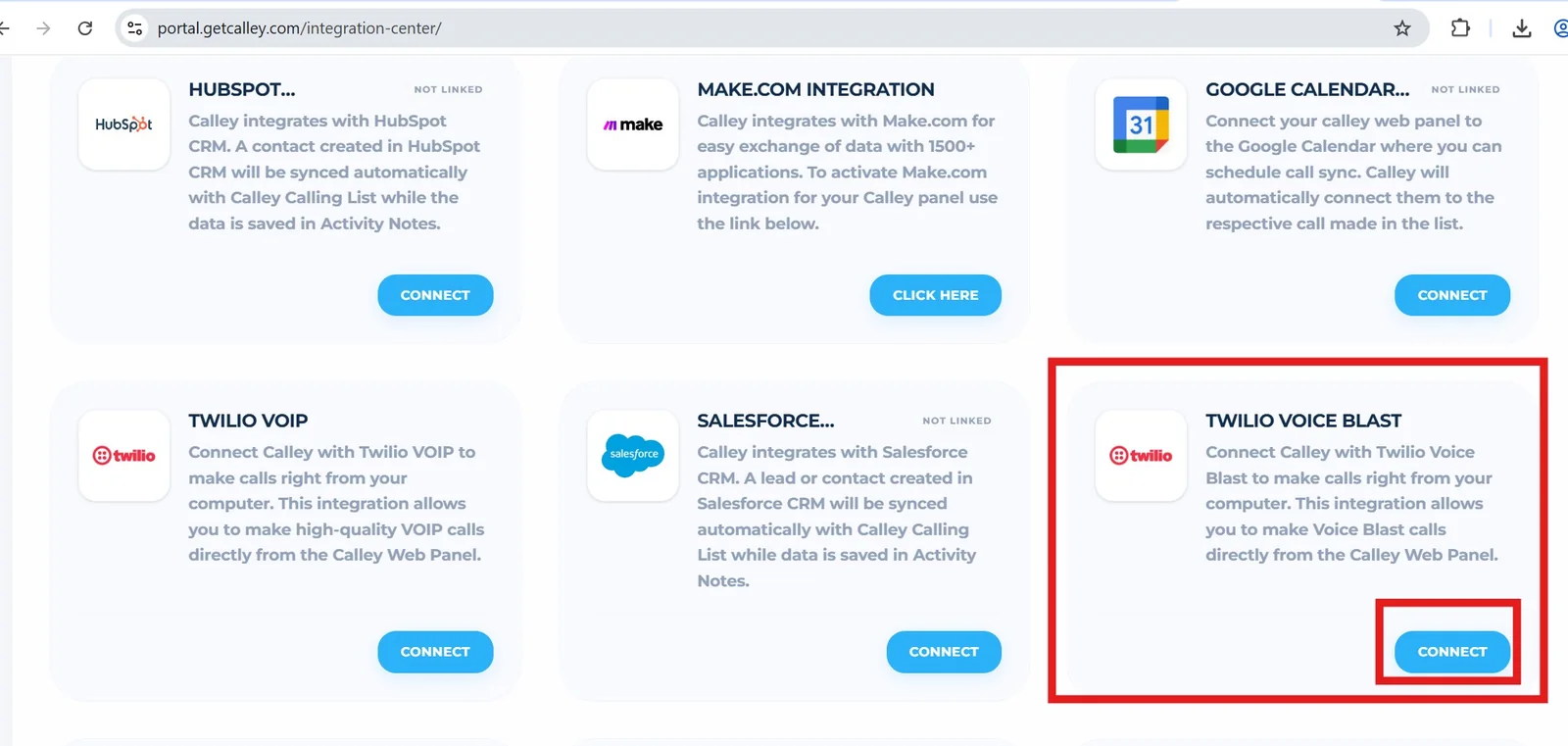
✓Navigate to the Integration section and scroll down to the Twilio Voice Blast section. Click on the Connect button.
✓Before setup Login to your Twilio Panel.
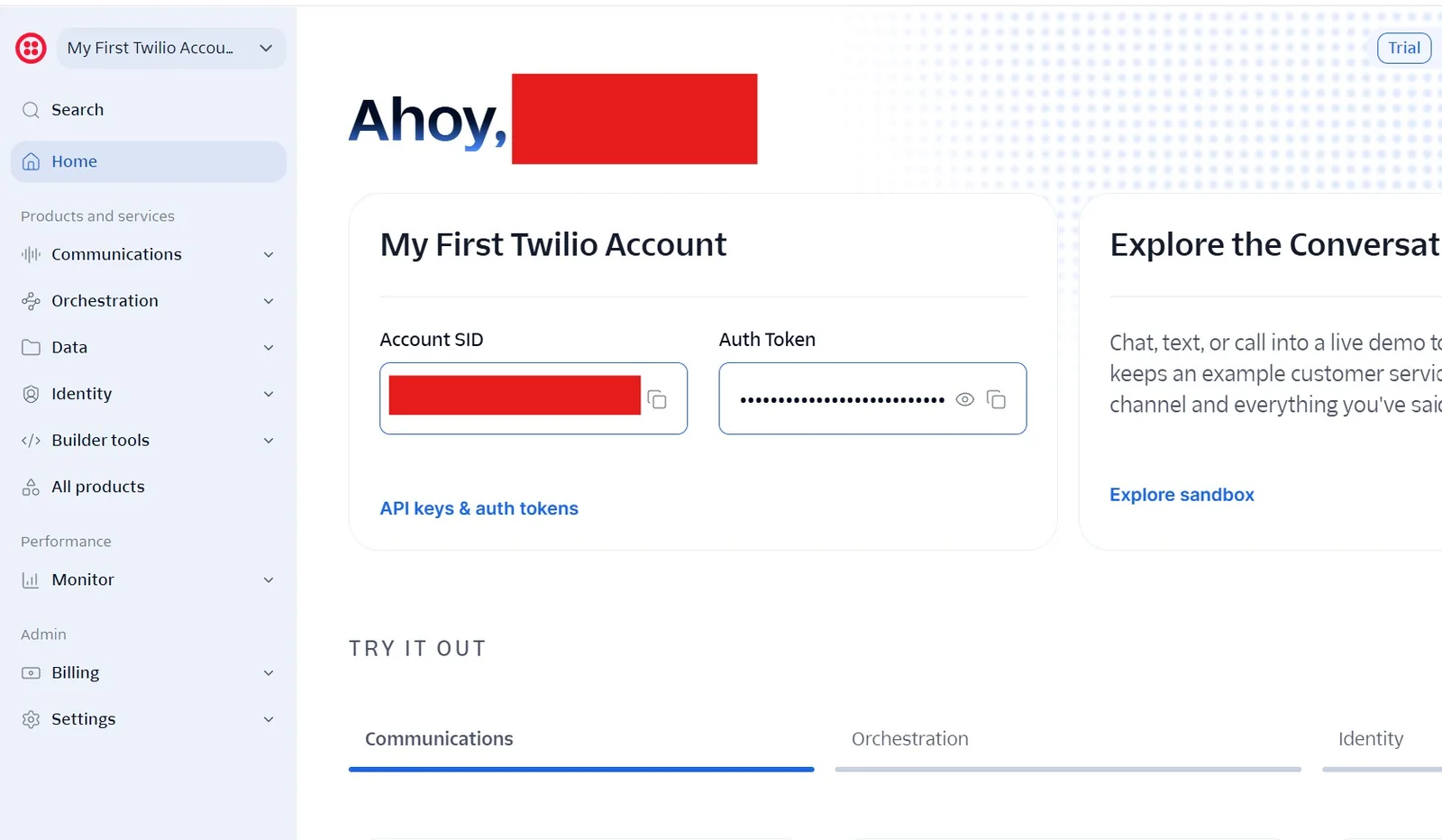
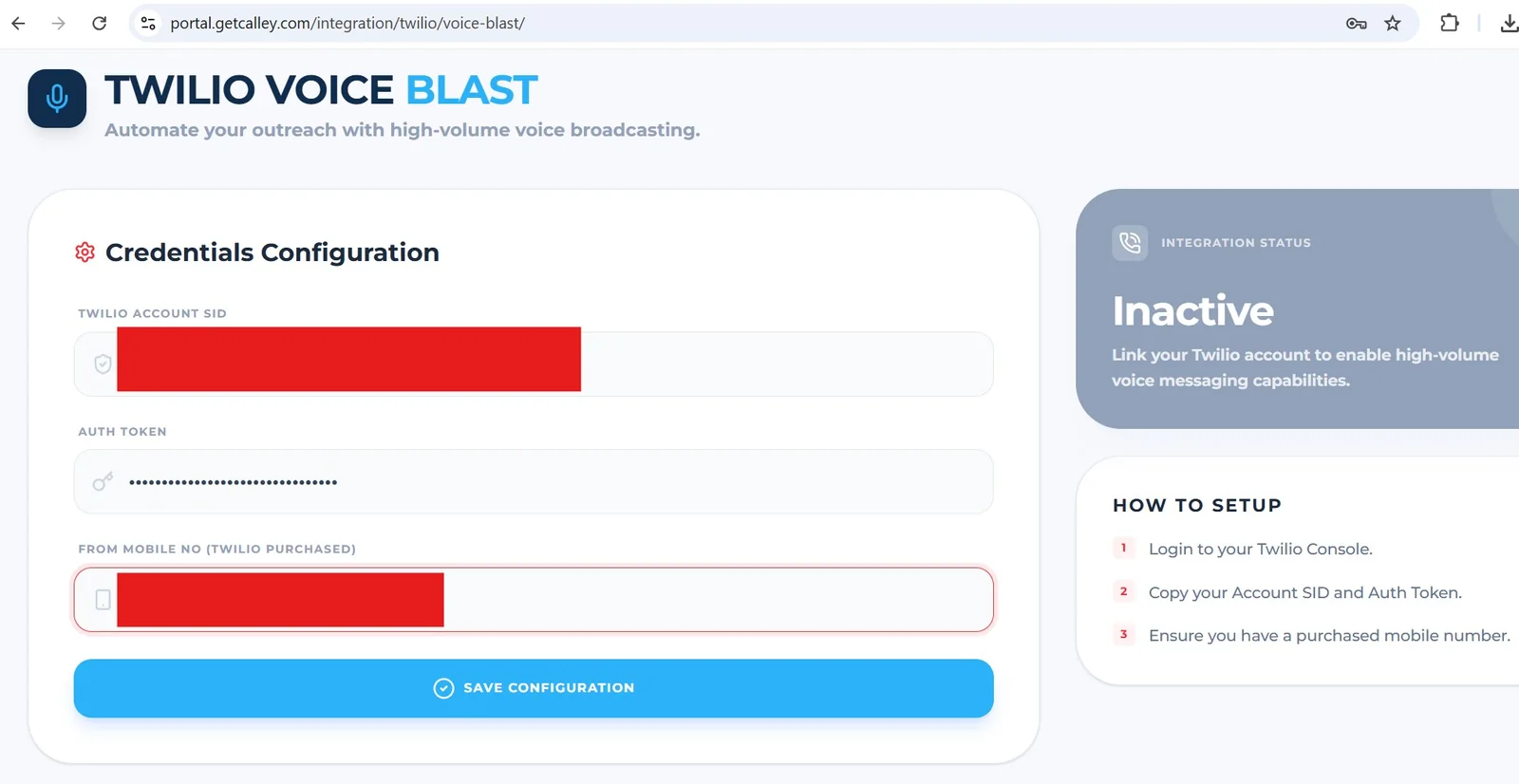
✓Enter your Twilio Account SID, Authorization Token, and From Mobile Number (Twilio phone number) by referring to Twilio Panel. Click Save Configuration.
✓Click on OK.
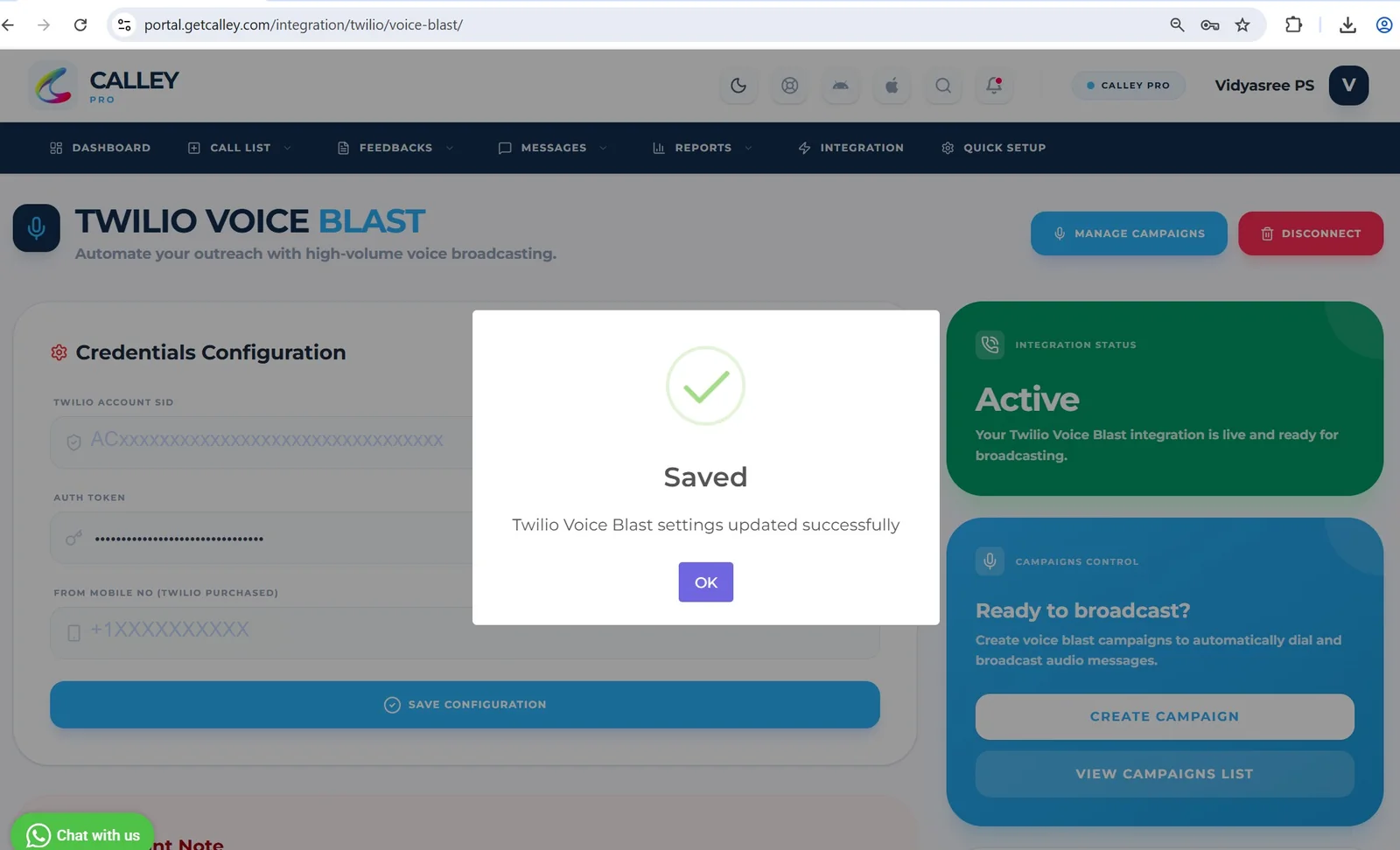
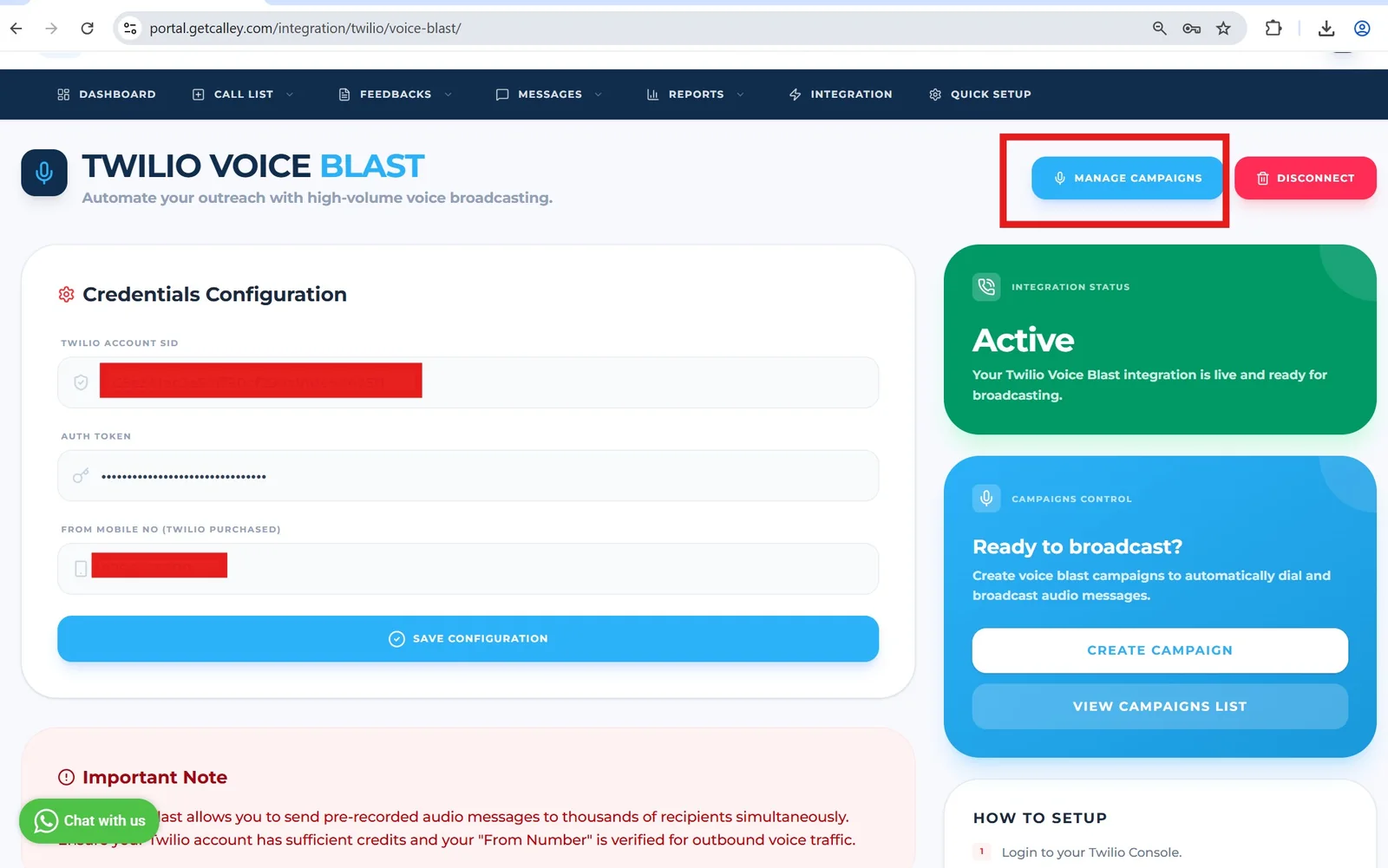
✓Once Setup is done the integration status will show Active. Click on Manage Campaigns.
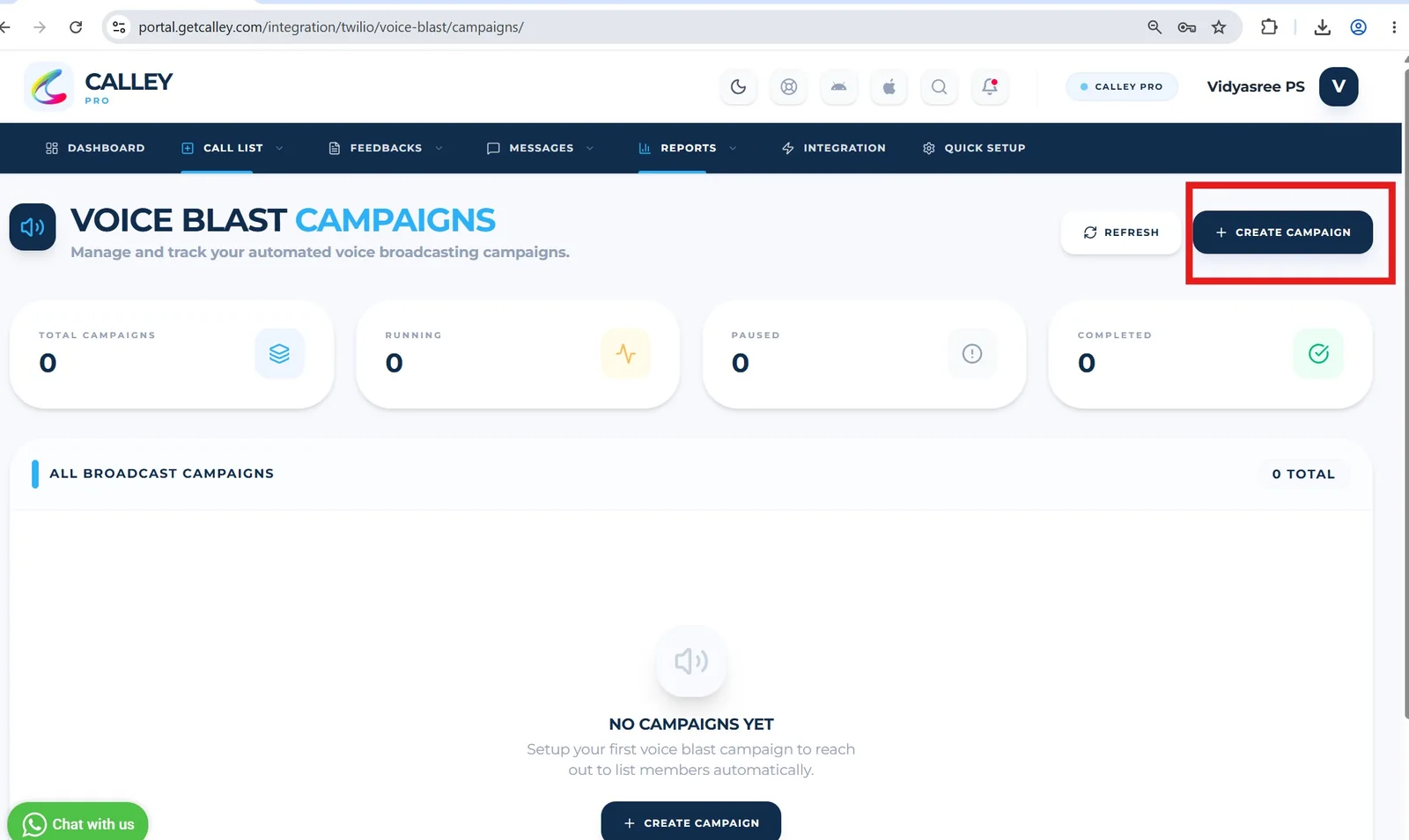
✓You will be redirected to the Campaign Listing Page. Click on Create Campaign to start a new voice blast campaign.
✓Enter Campaign Details:
- ✓Enter a Campaign Name.
- ✓Select a Call List from the uploaded lists. (Note: A list can only be used for one campaign at a time.)
- ✓Upload an Audio File in MP3, WAV, or MPEG format, with a file size of less than 10 MB.
- ✓Set up Feedback Options for Users who press 1, Users who disconnect the call and Users who do not pick up the call.
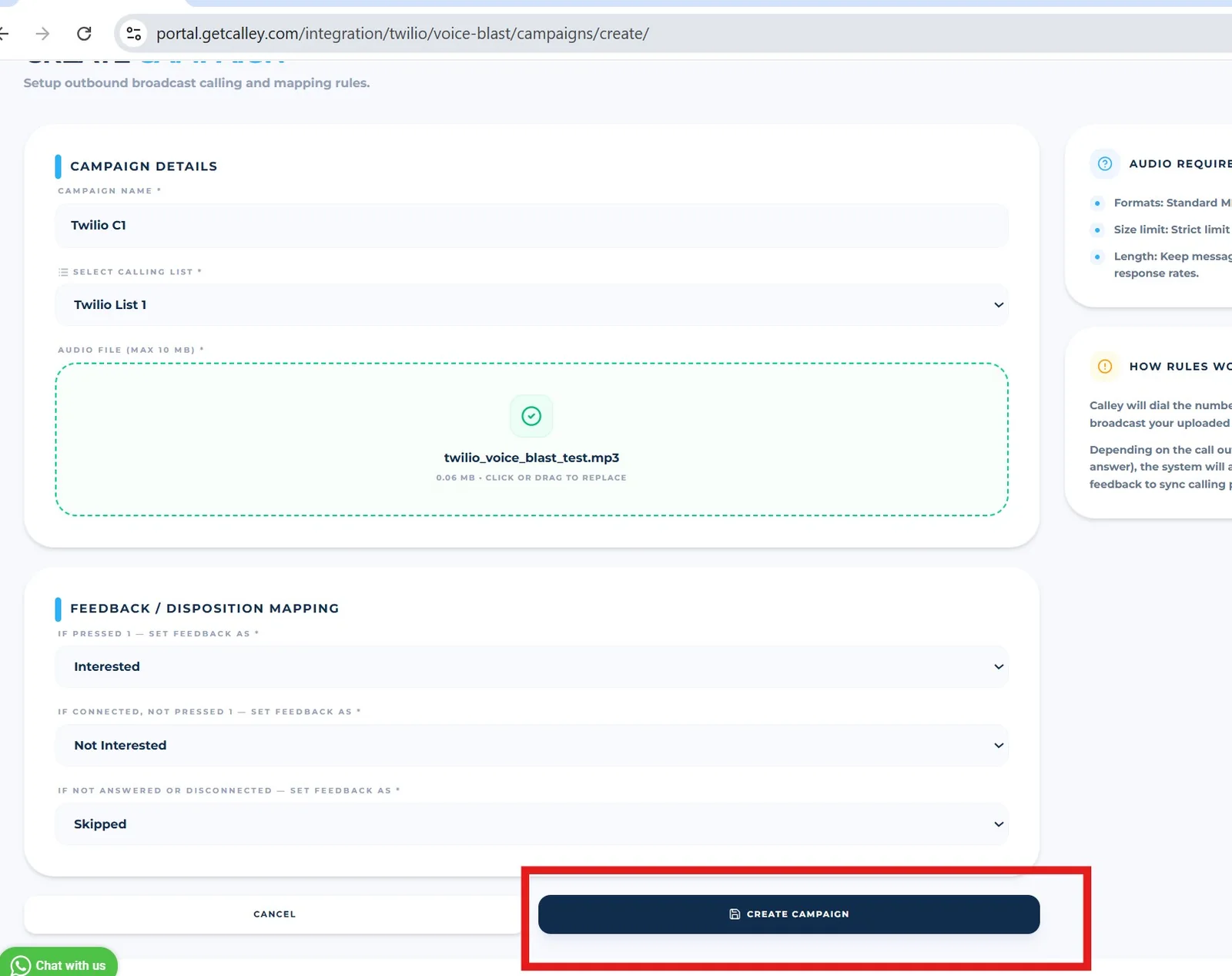
✓A confirmation will appear to check whether the country code exists in the contact numbers. Calls will only be triggered if the country code is present. If not then upload the Call list with country code and Create a Campaign.
✓Campaign Created successfully, Click on OK.
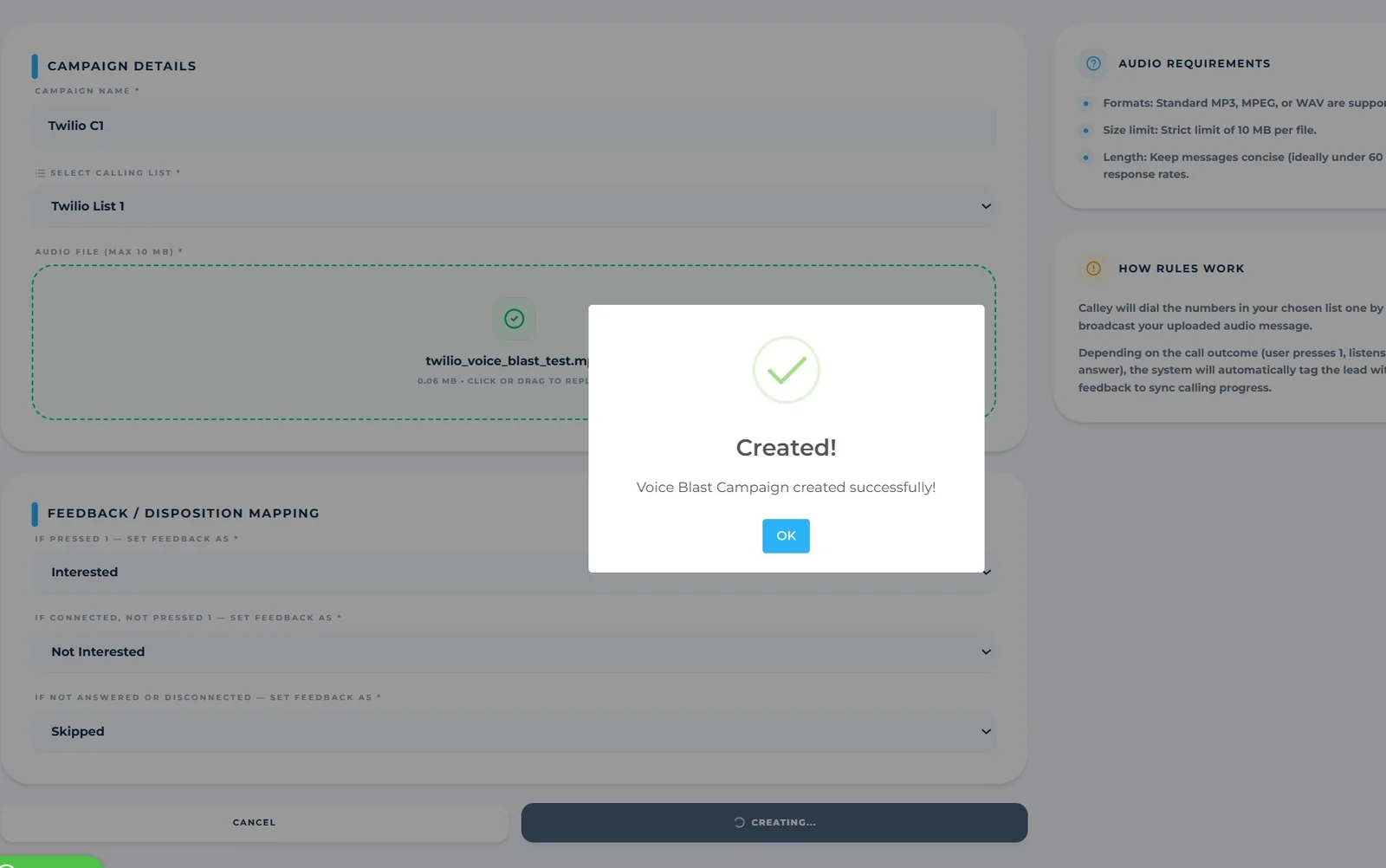
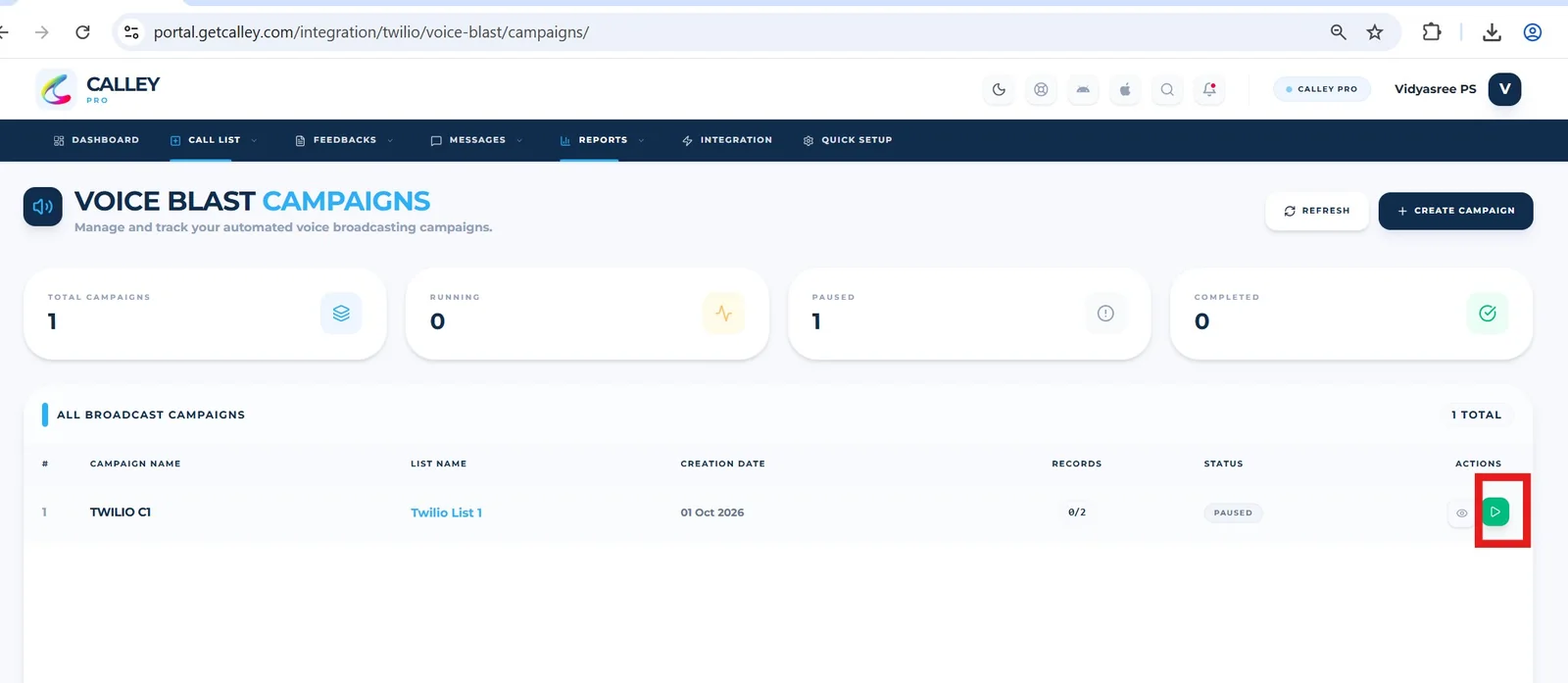
✓Once the campaign is created, its status will be Paused. Click on the Run button to start it.
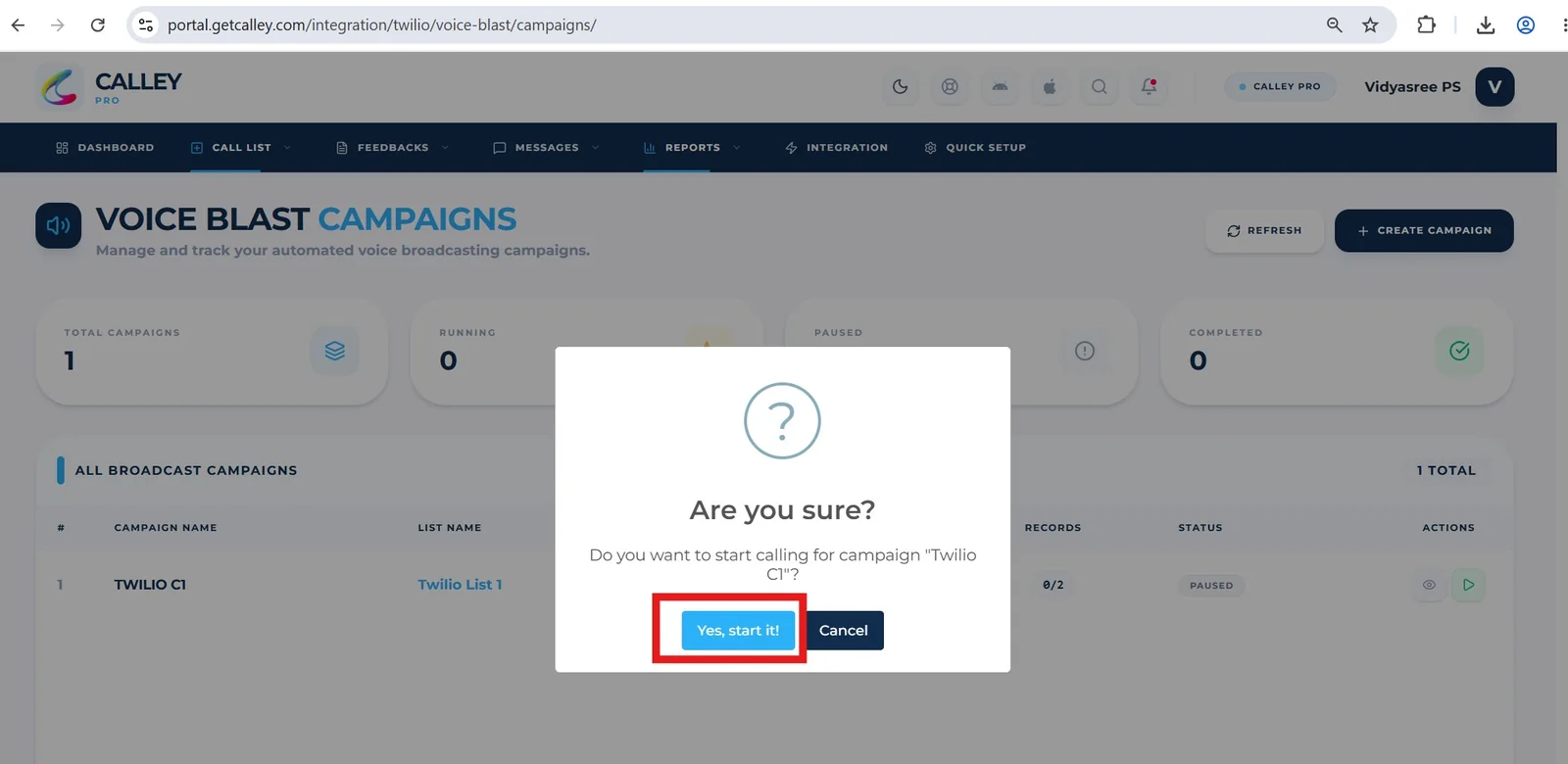
✓A confirmation will appear. Click on Yes, start it!.
✓The status will change to Running, and calls will be made one by one.
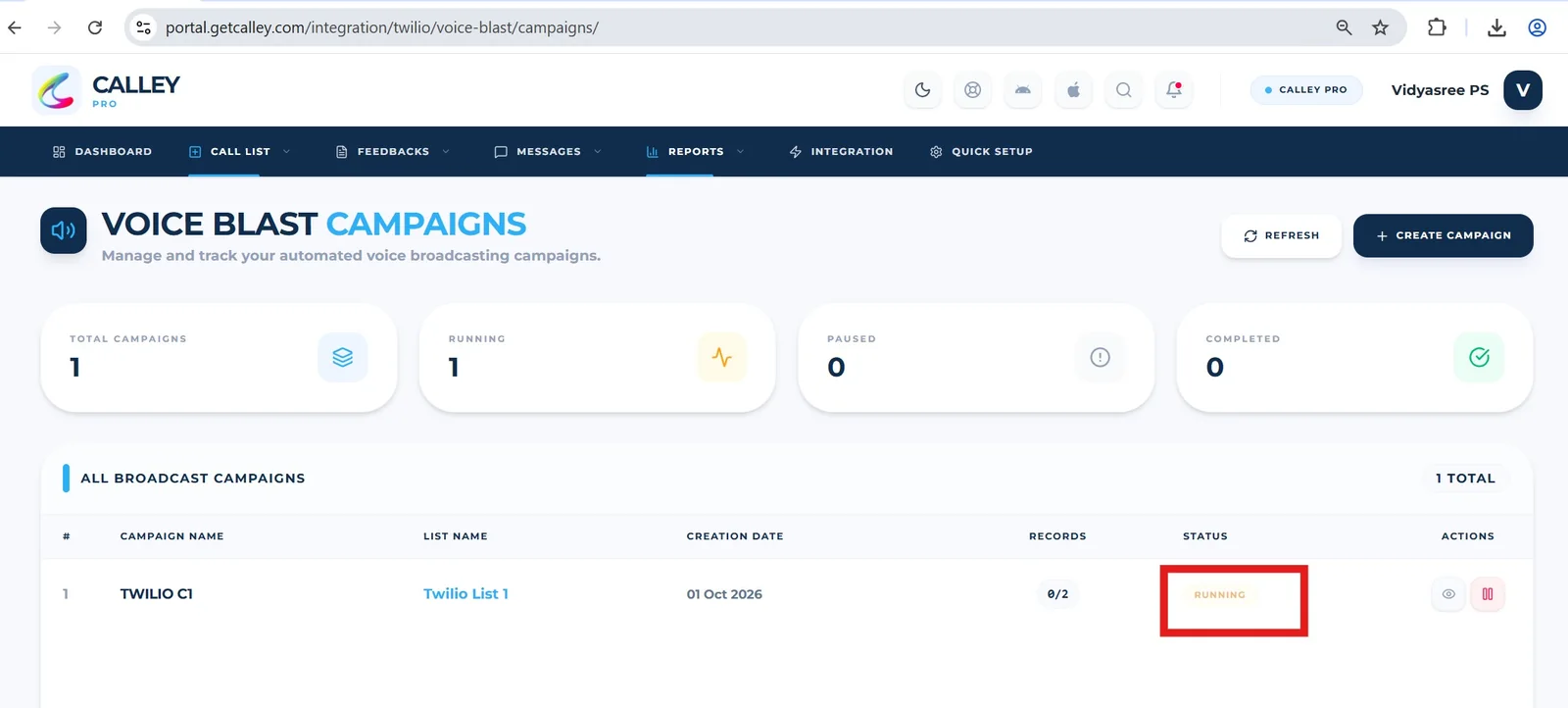
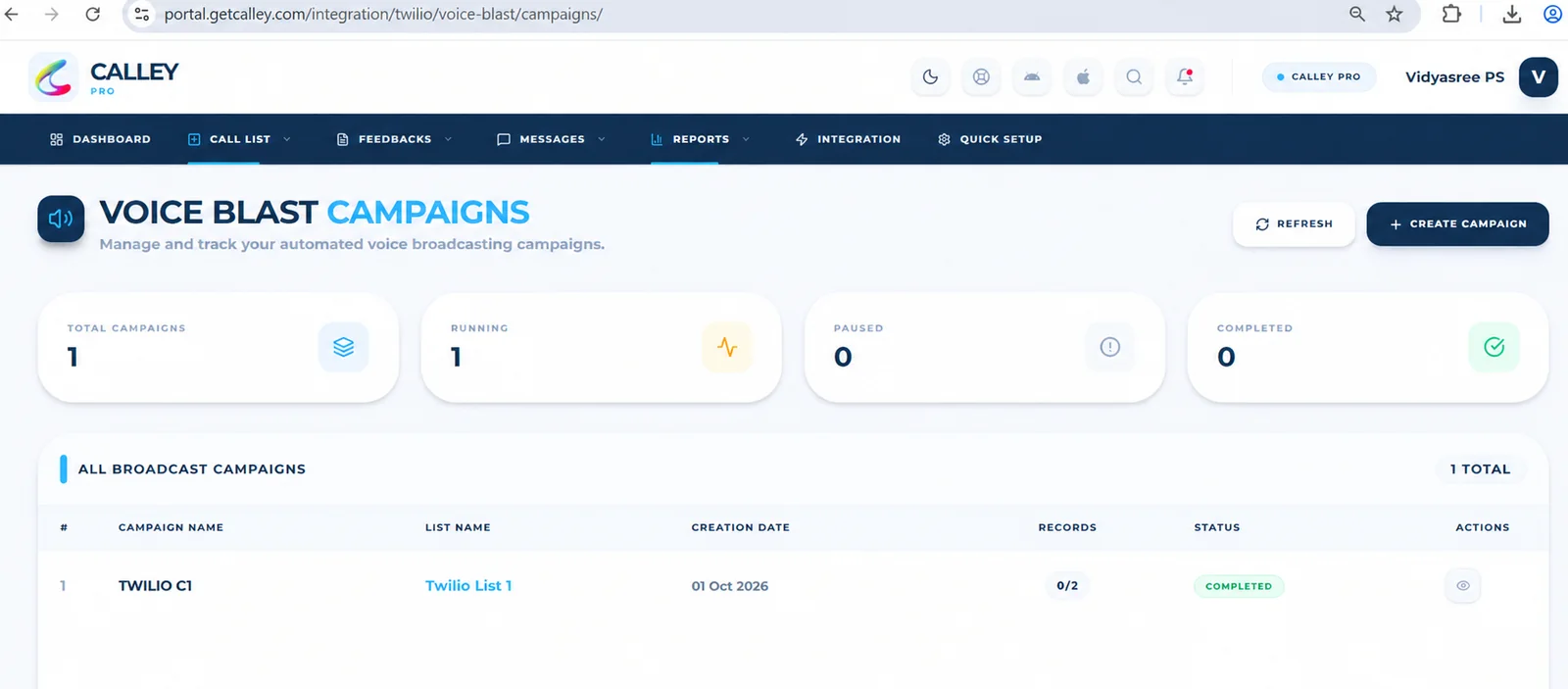
✓Once all calls are completed, the status will change to Completed.
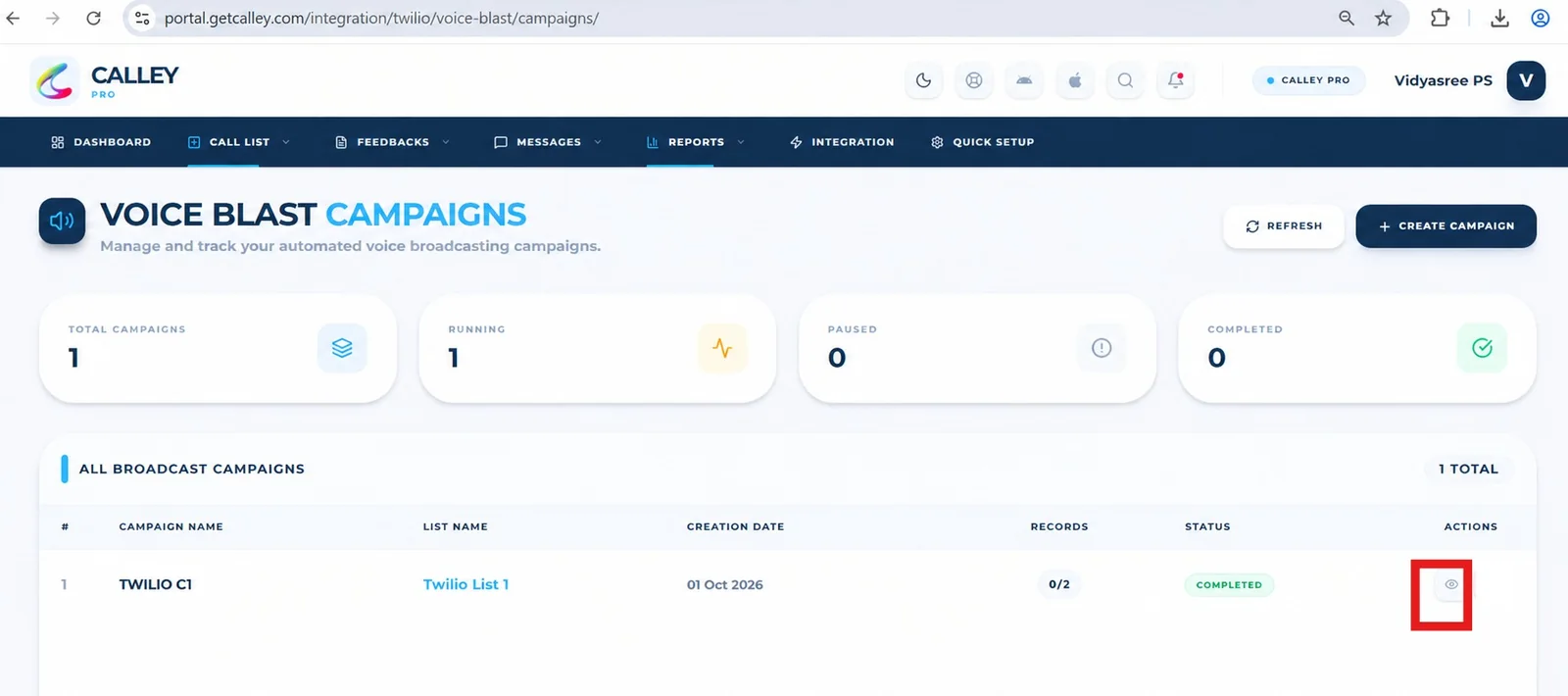
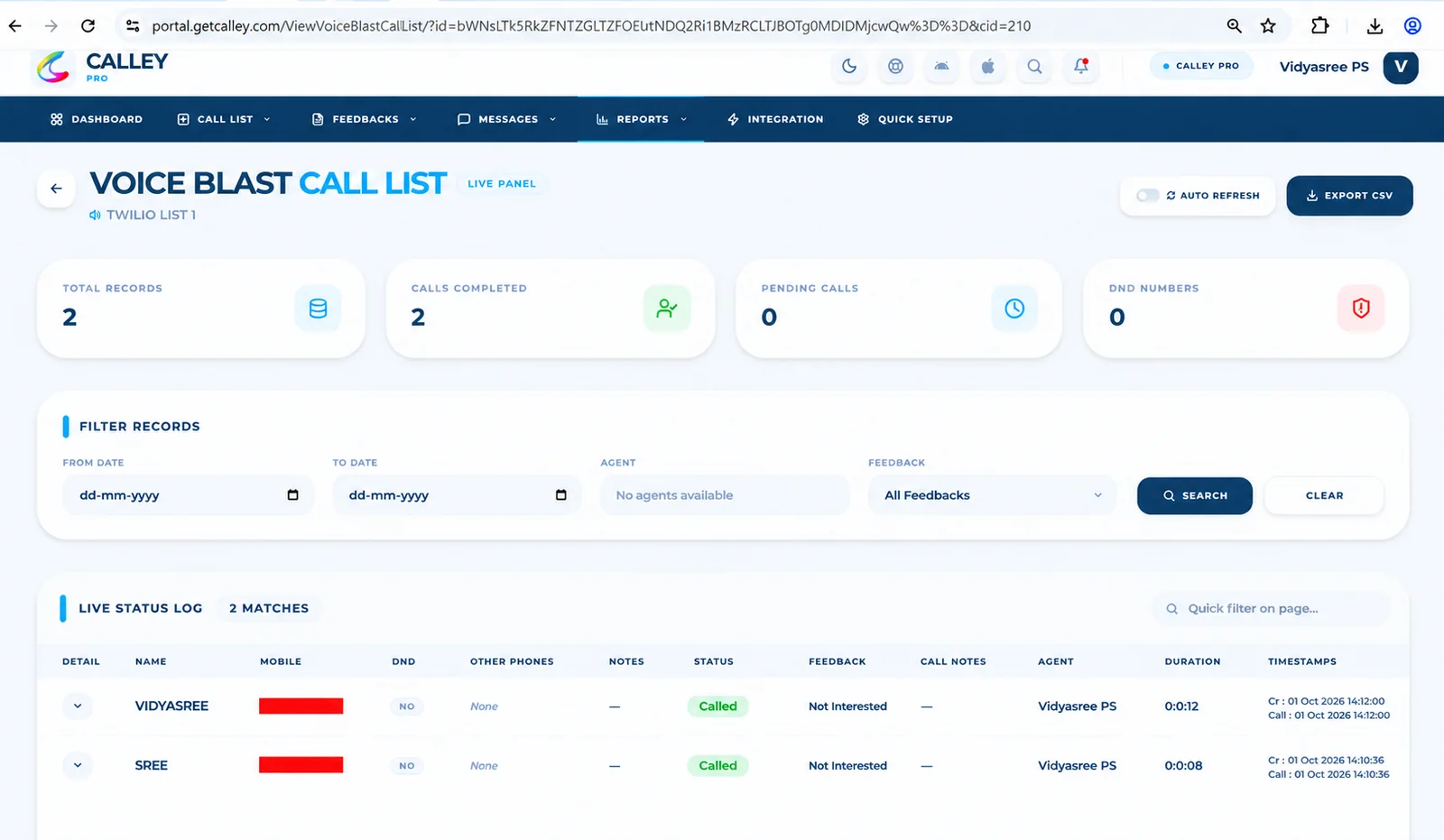
✓Click on the View button next to the campaign to see the detailed call feedback.
✓You can see the Reporting of Campaign as per feedback set by you.
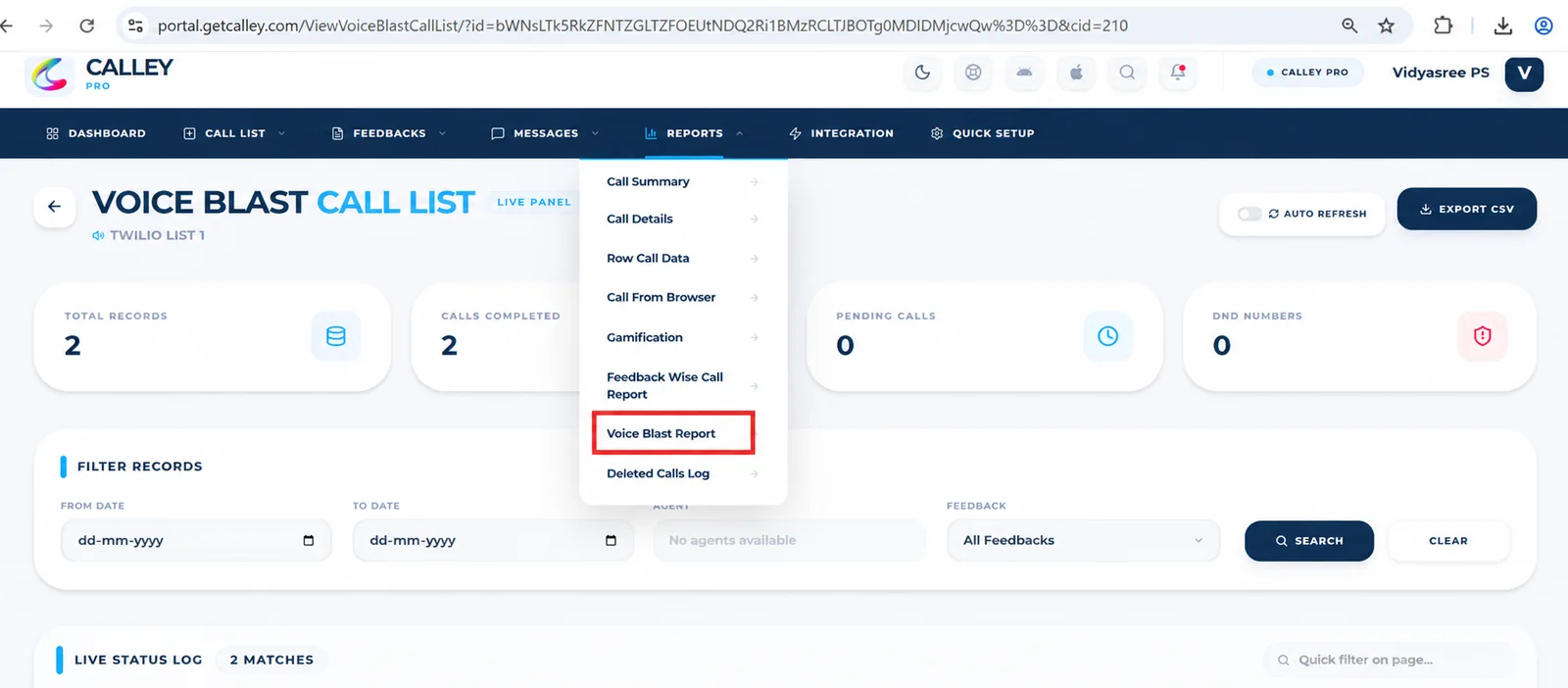
✓You can also navigate to the Reports section and click on Voice Blast Report for complete reporting.
How Voice Blast Helps Your Business
- ✓Fast Communication: Deliver messages quickly to a large group.
- ✓Better Customer Engagement: Keep customers informed with updates, reminders, and offers.
- ✓Save Effort: Automate calls to save time and reduce manual work.
- ✓Fewer Mistakes: Pre-recorded messages ensure consistent and accurate delivery.
Tips for a Successful Voice Blast
- ✓Keep it Short: Make your message clear, concise, and to the point.
- ✓Test First: Always preview your message to ensure it sounds right before sending.
- ✓Use a Familiar Number: Set up Caller ID masking (if supported by Twilio) to help your recipients recognize your number
- ✓Check Twilio Credits: Ensure your Twilio account has enough balance to make the calls before starting.
The Voice Blast feature in Calley Pro is a powerful tool for reaching many people quickly and professionally. It helps automate calls, save time, and improve customer communication. Whether you’re a small business owner or managing a larger team, Voice Blast will simplify your outreach process.
Checkout here > Pricing Plans for Calley Auto Dialer App
Link to > Full Feature List of Calley AutoDialer
Do you want to Subscribe to a Free Auto Dialer with a limit of 25 calls per day?
We know you will have questions.
We would love to answer all your questions to get you started with Autodialing using The Calley Auto Dialer app.