
How to Send WhatsApp Messages in Calley?
Calley allows you to send WhatsApp messages to your contacts directly from the platform, streamlining communication for your sales team or business operations. This feature is available for both Calley Pro and Calley Teams users. The main difference lies in how message templates are managed and who can send the messages:
- Calley Pro: The single user creates the message templates and sends WhatsApp messages themselves.
- Calley Teams: The Team Admin creates the message templates, and Team Agents send the messages. Team Admins don’t have access to make calls from the mobile or browser, so they focus on managing templates and the overall workflow.
Before you start sending messages, you must first create message templates. Once your templates are ready, you can send WhatsApp messages both from the Mobile App and the Desktop App.
Let’s walk through the process of sending WhatsApp messages in Calley.
- 1.How to Send WhatsApp Messages in Calley?
- 1.1.Create Message Templates
- 1.2.How to Create Message Templates:
- 1.3.Send WhatsApp Messages
- 1.4.Sending WhatsApp Messages from the Mobile App:
- 1.5.Sending WhatsApp Messages from the Desktop App:
- 1.6.Why WhatsApp Messaging is a Game-Changer for Your Business
- 2.WE KNOW YOU WILL HAVE QUESTIONS.
Create Message Templates
Before you can send WhatsApp messages, you need to create Message Templates. These templates are pre-configured messages that you can customize and send to your contacts.
How to Create Message Templates:
Login to Web Panel.
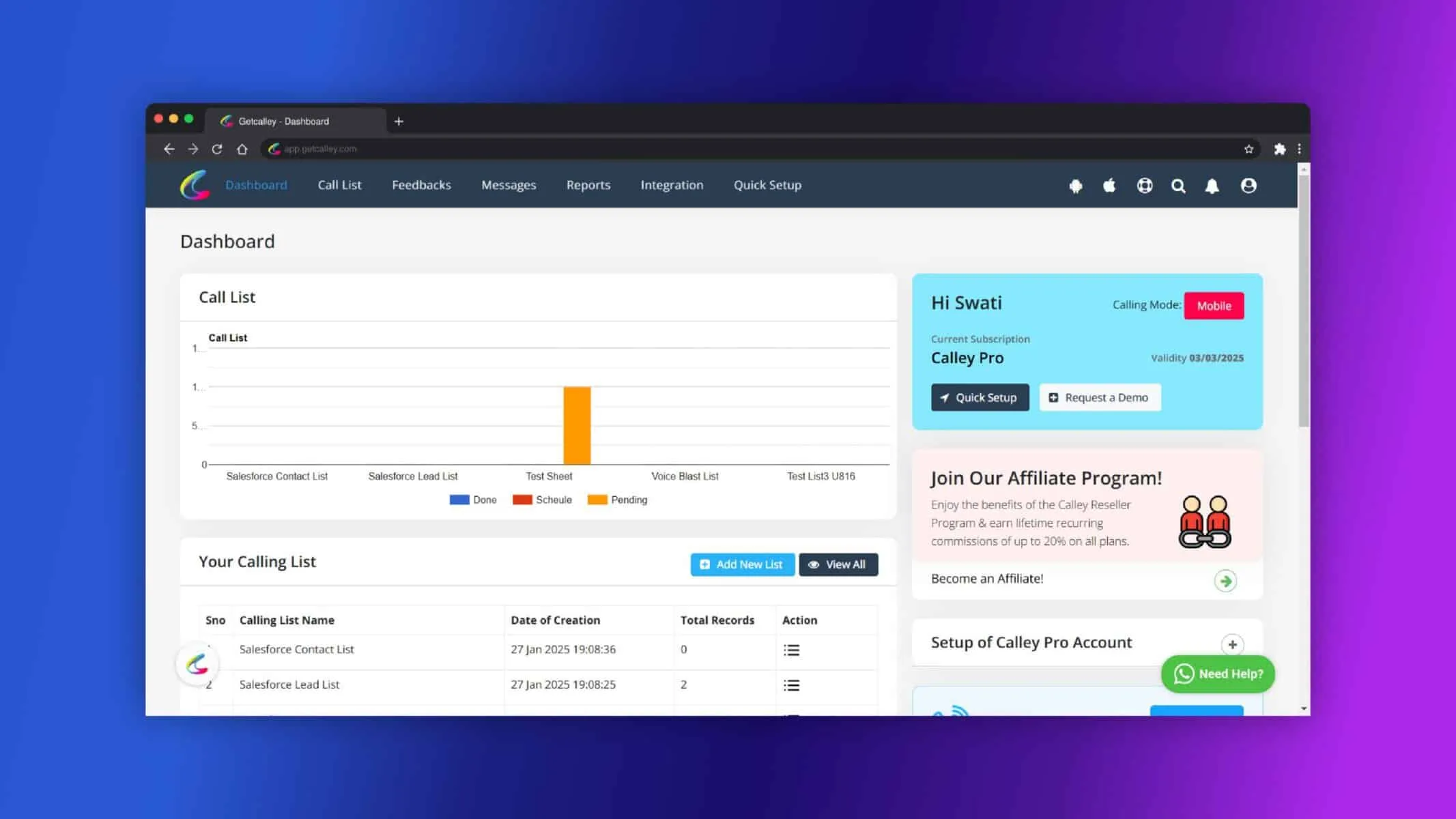
As you Login, redirected to Dashboard. Go to Messages > SMS/ WhatsApp and Click on Message Templates
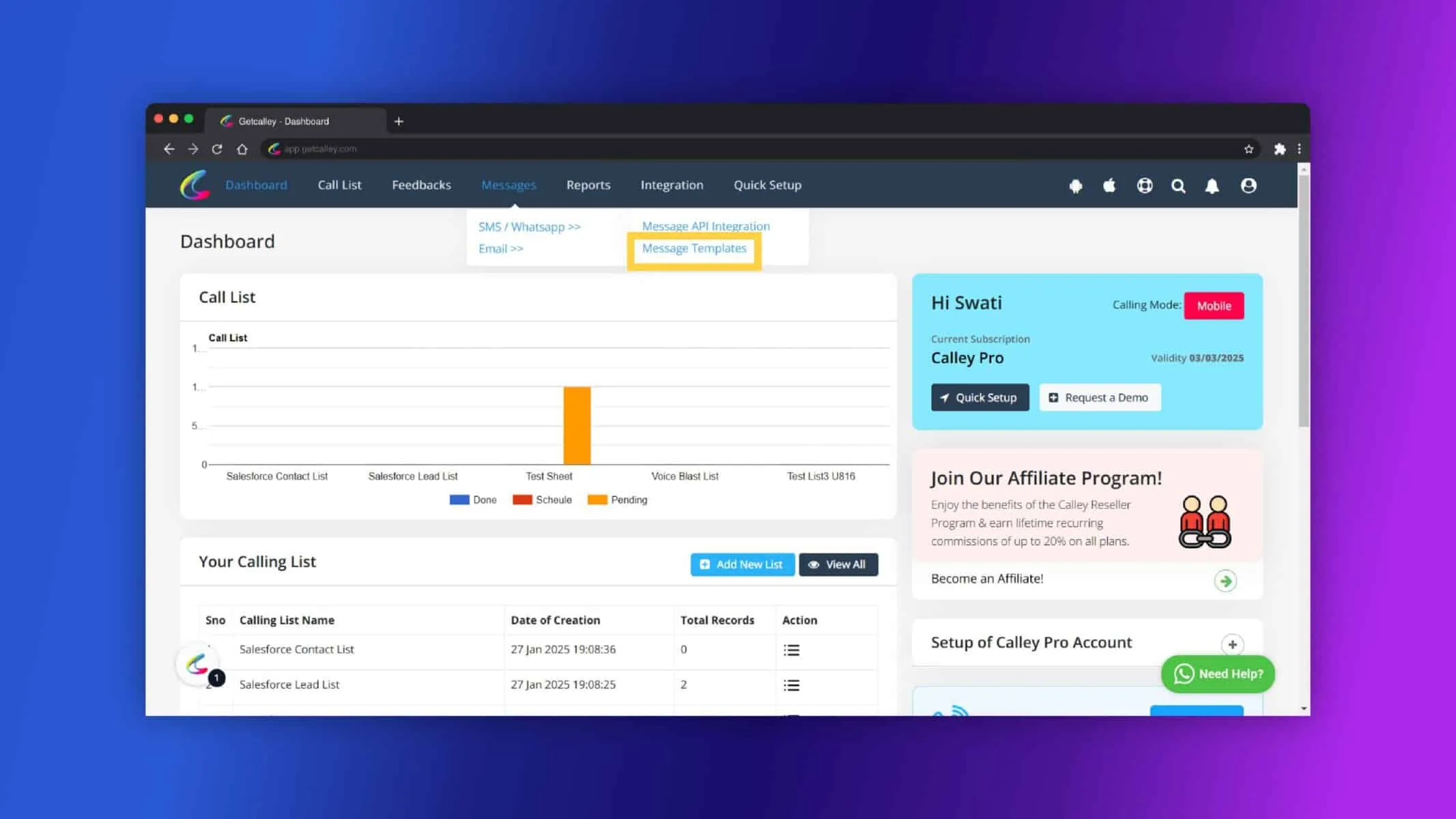
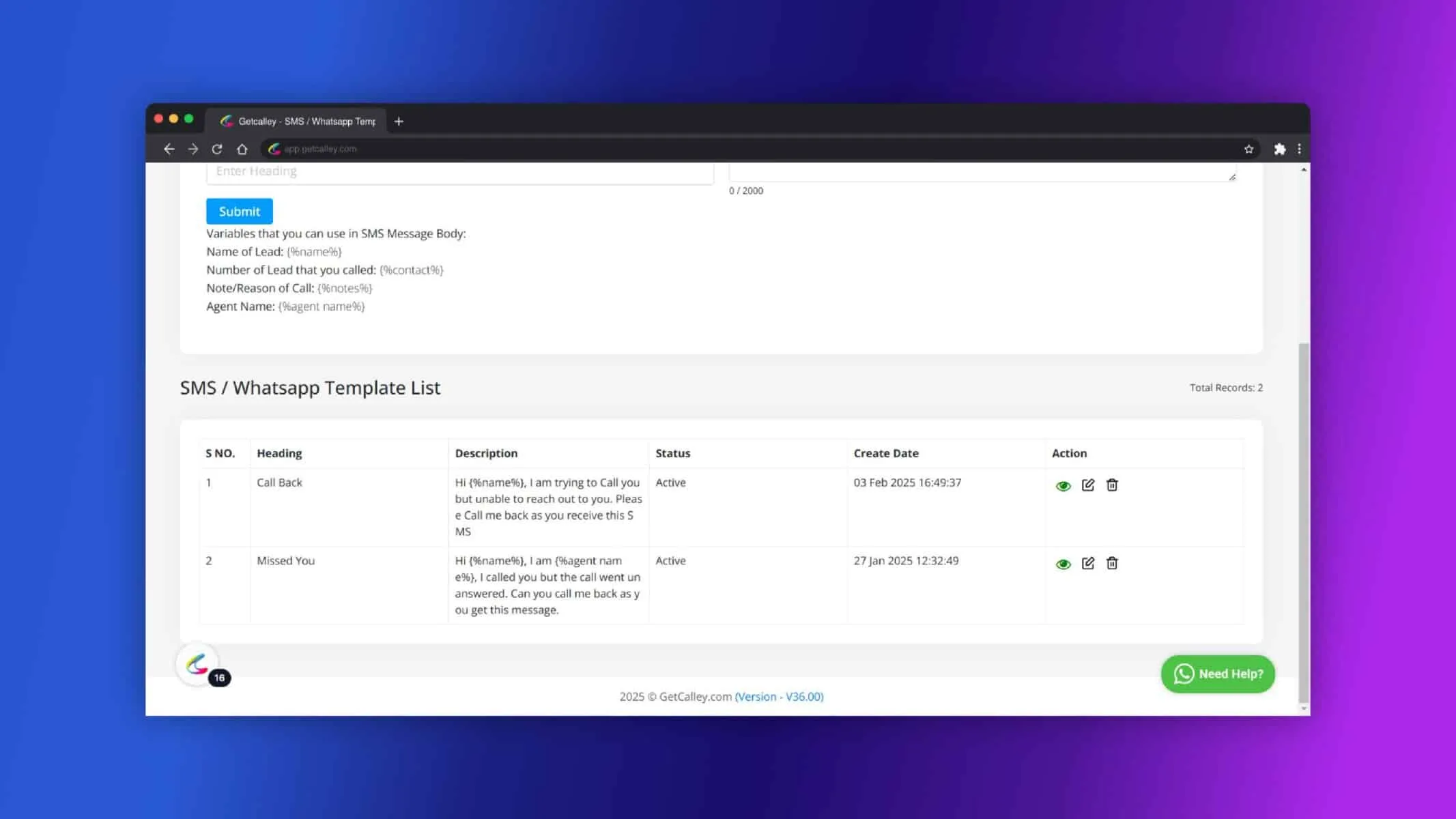
Fill in the necessary details such as Heading, Enter the message you would like to use, which can include placeholders for personalization (e.g., {{name}}, {{contact}},{{notes}} and {{agent name}} and Click on Submit.
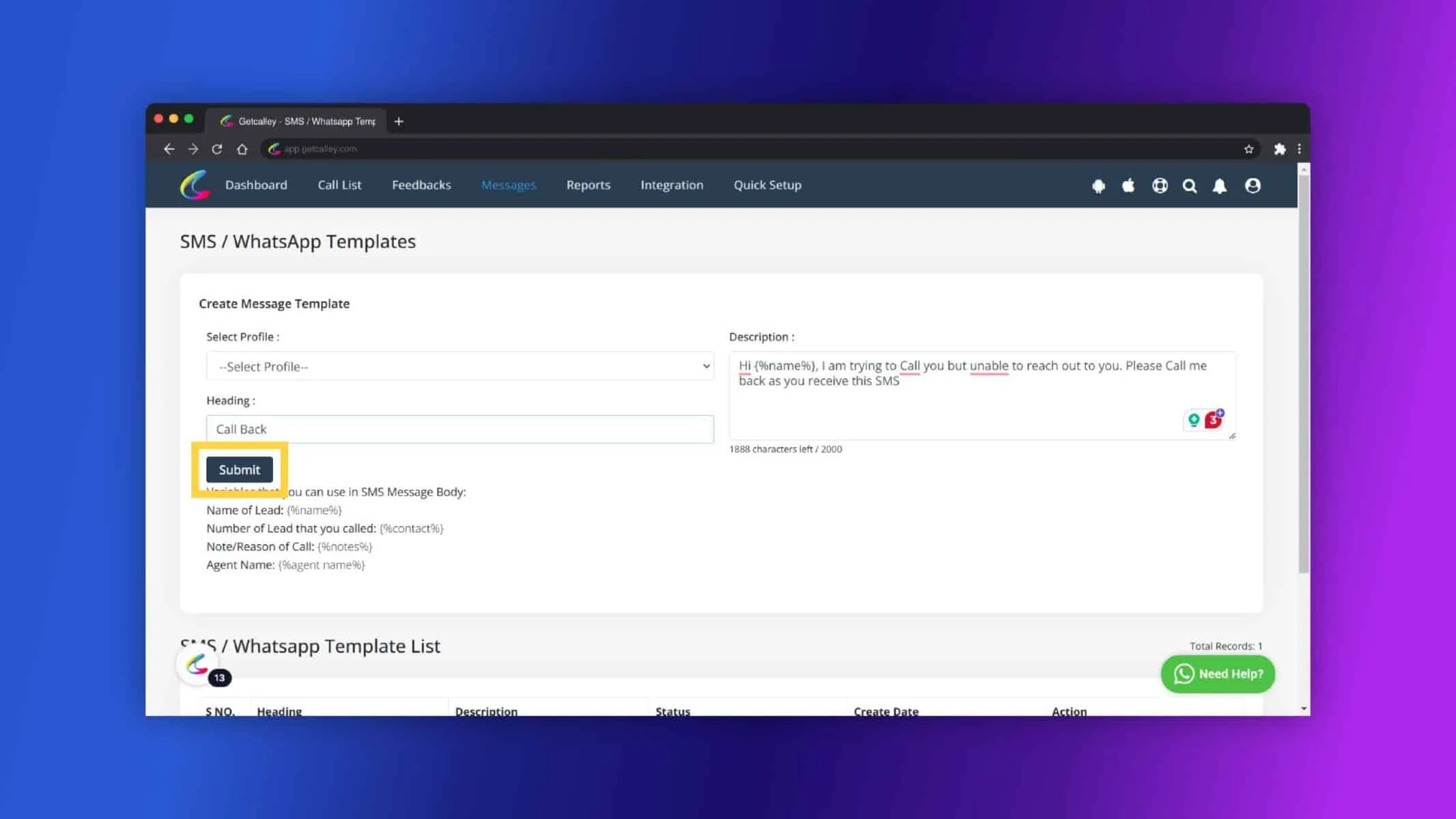
Click on OK.
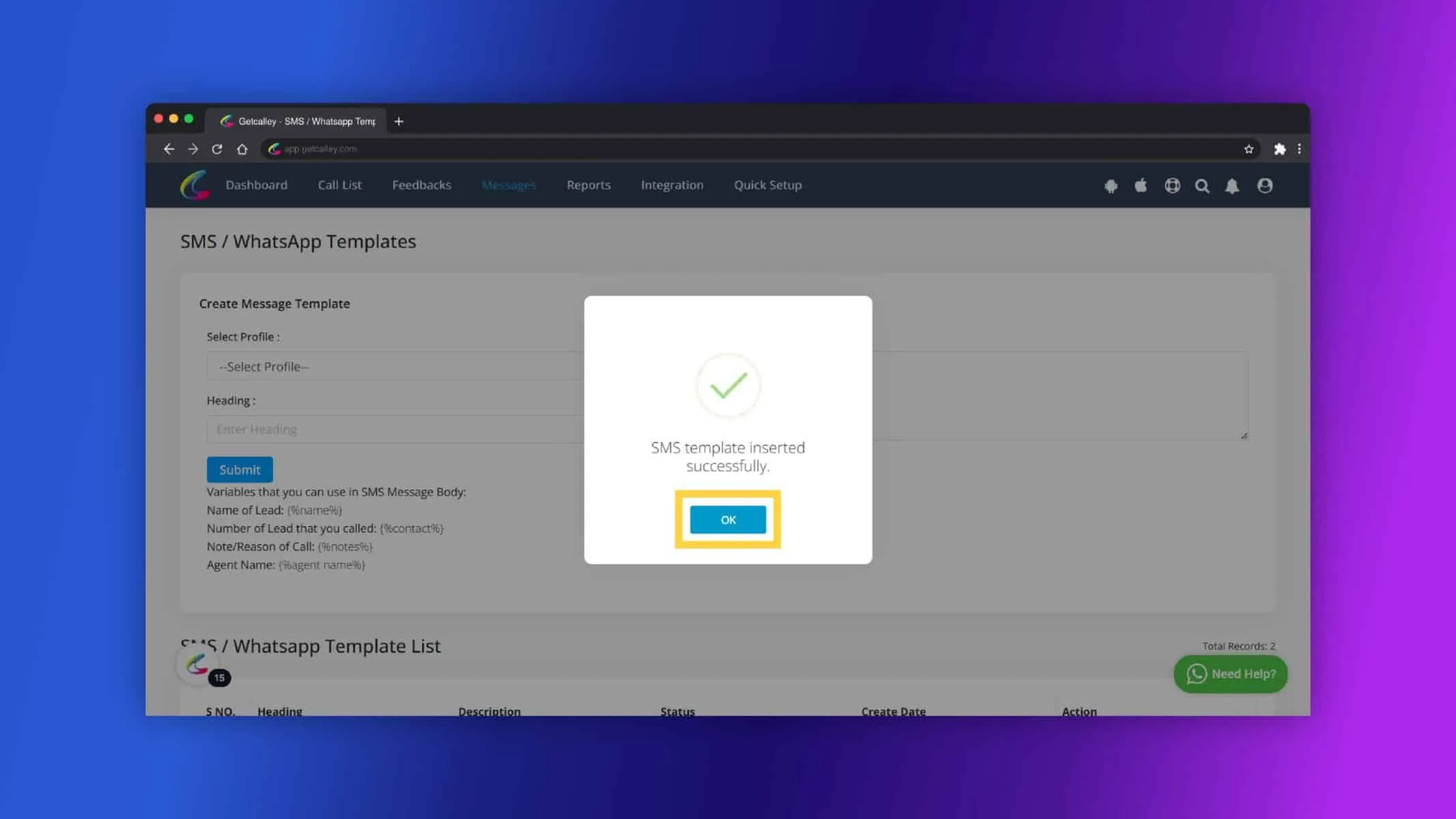
Now Templates created successfully.
Send WhatsApp Messages
After creating your message templates, you can start sending WhatsApp messages to your contacts. Calley allows you to send these messages both from the Mobile App and the Desktop App.
Sending WhatsApp Messages from the Mobile App:
Login to Mobile App.
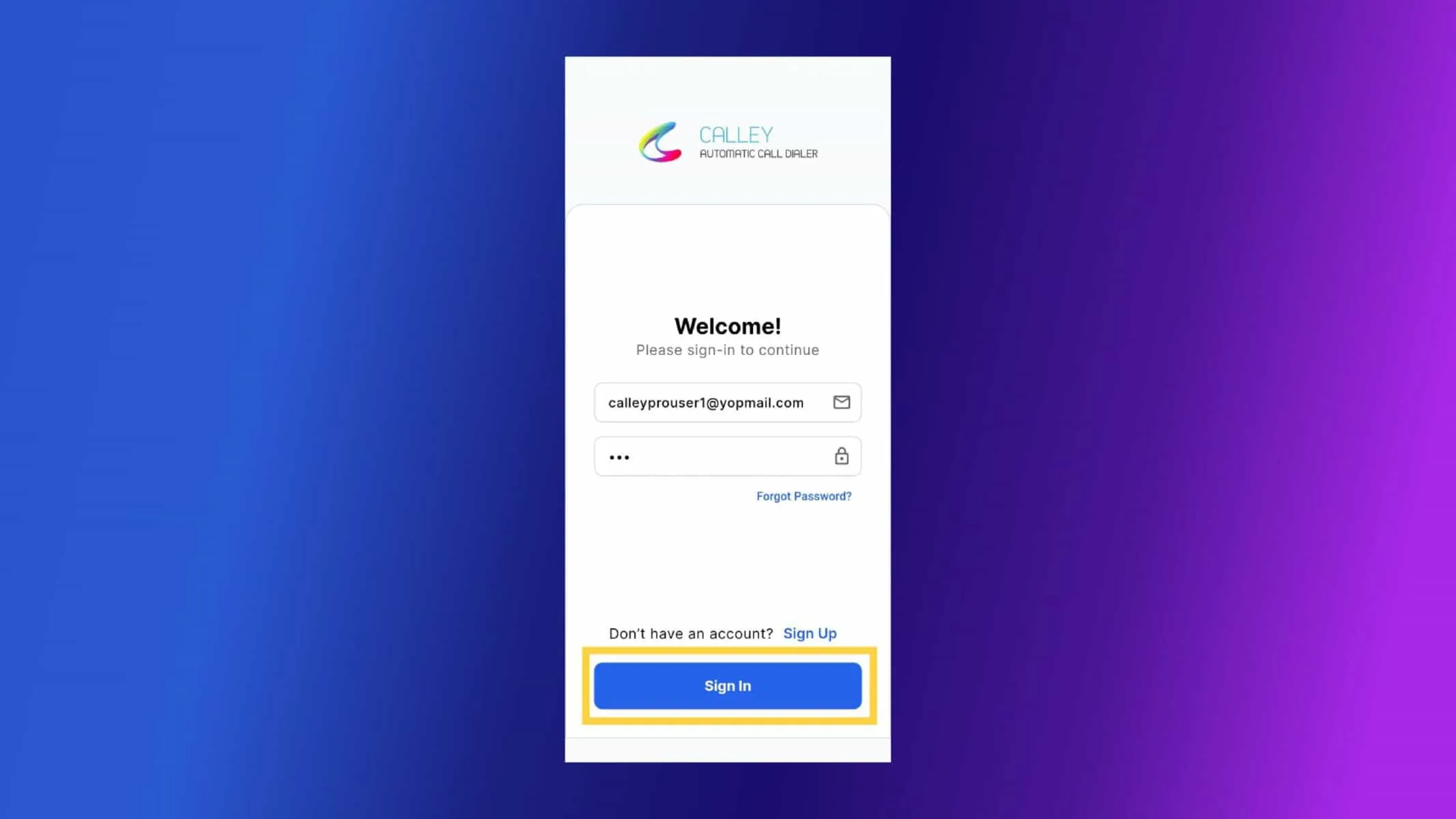
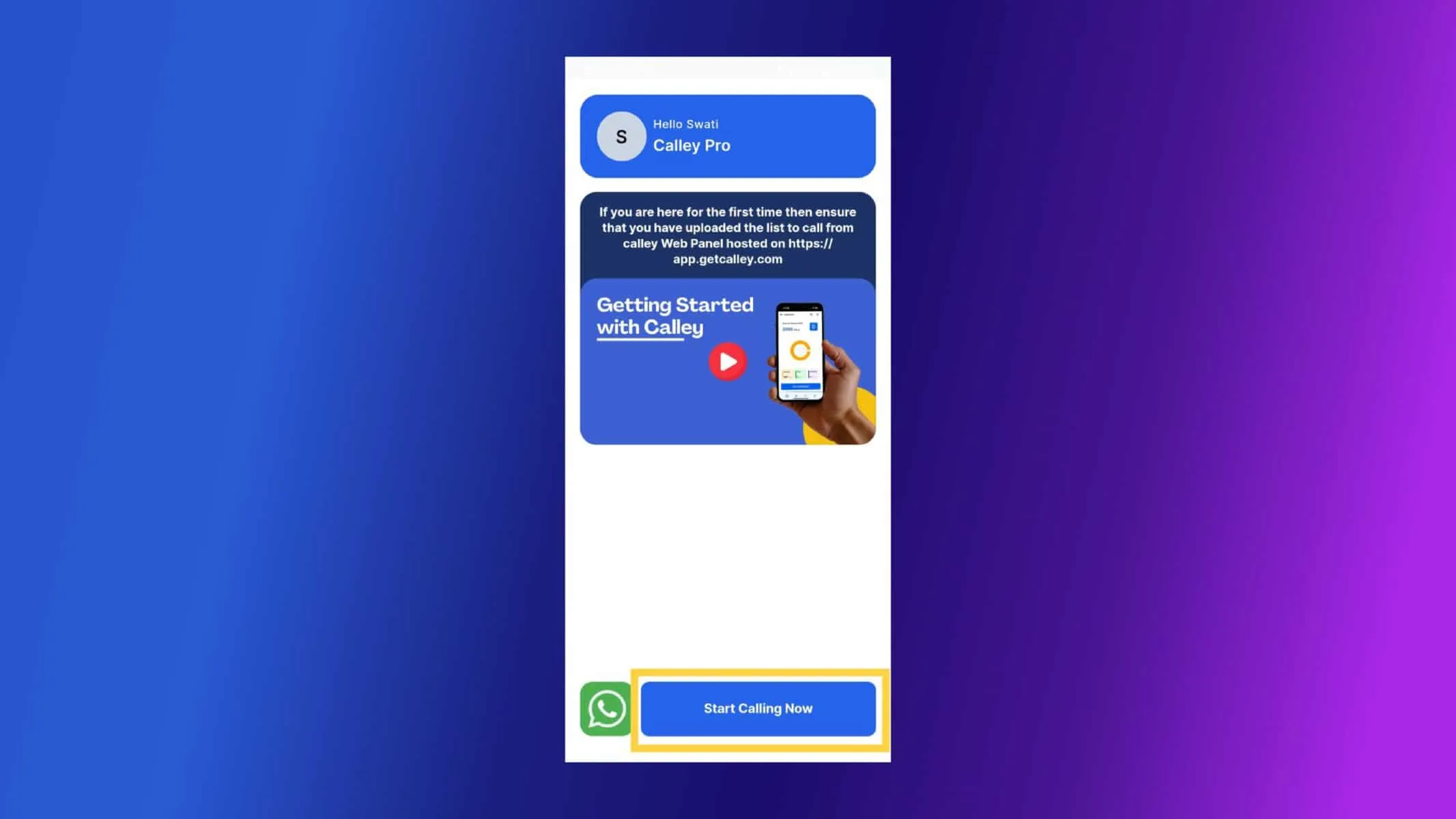
When you are brought to the getting started page that tells about how you can set up Calley Web Panel. Click on Start Calling Now.
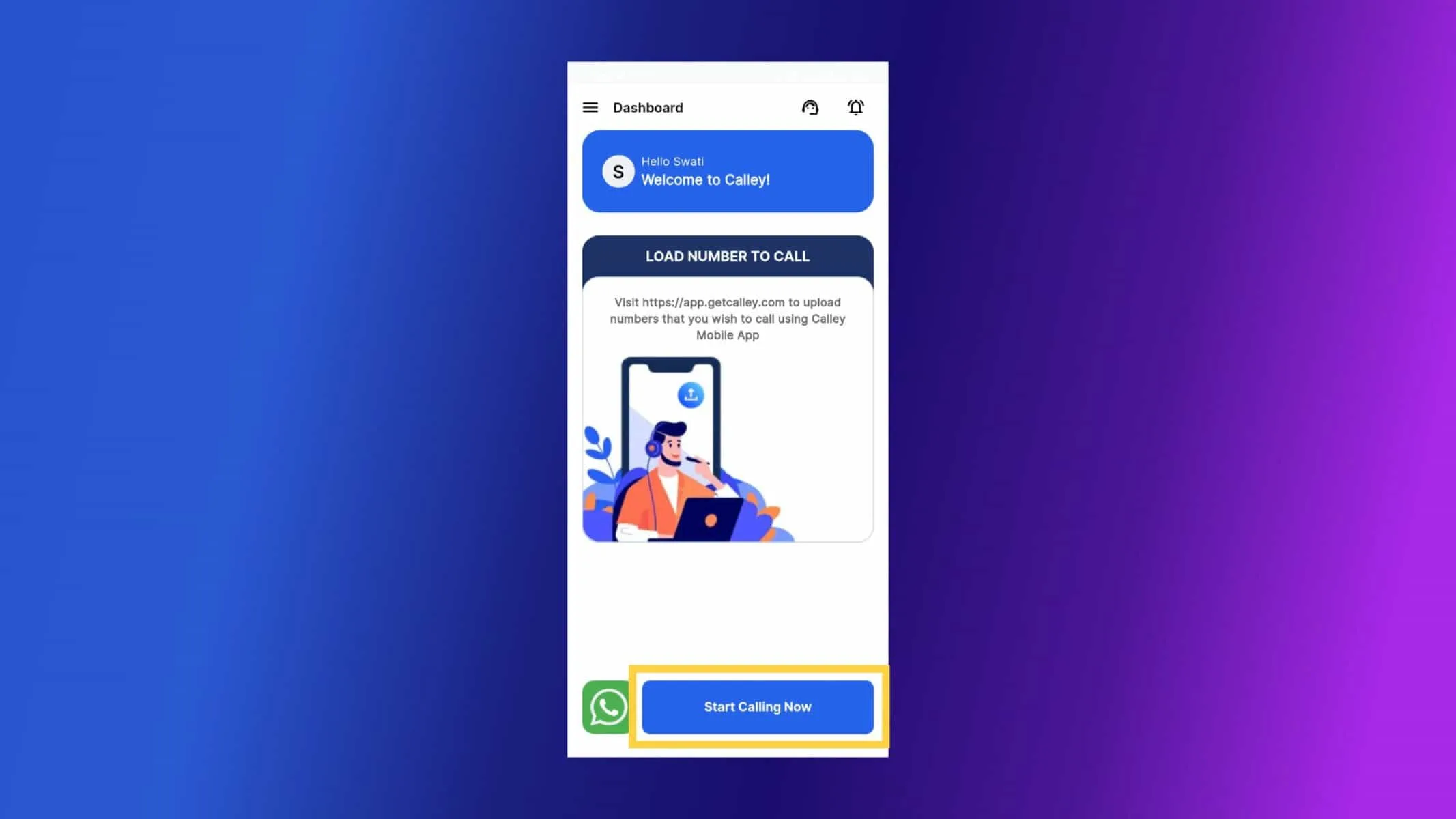
As you are on the dashboard, and we believe you have already uploaded your calling list in the web panel, you can now start calling. Click on the Blue Button.
Click on Continue.
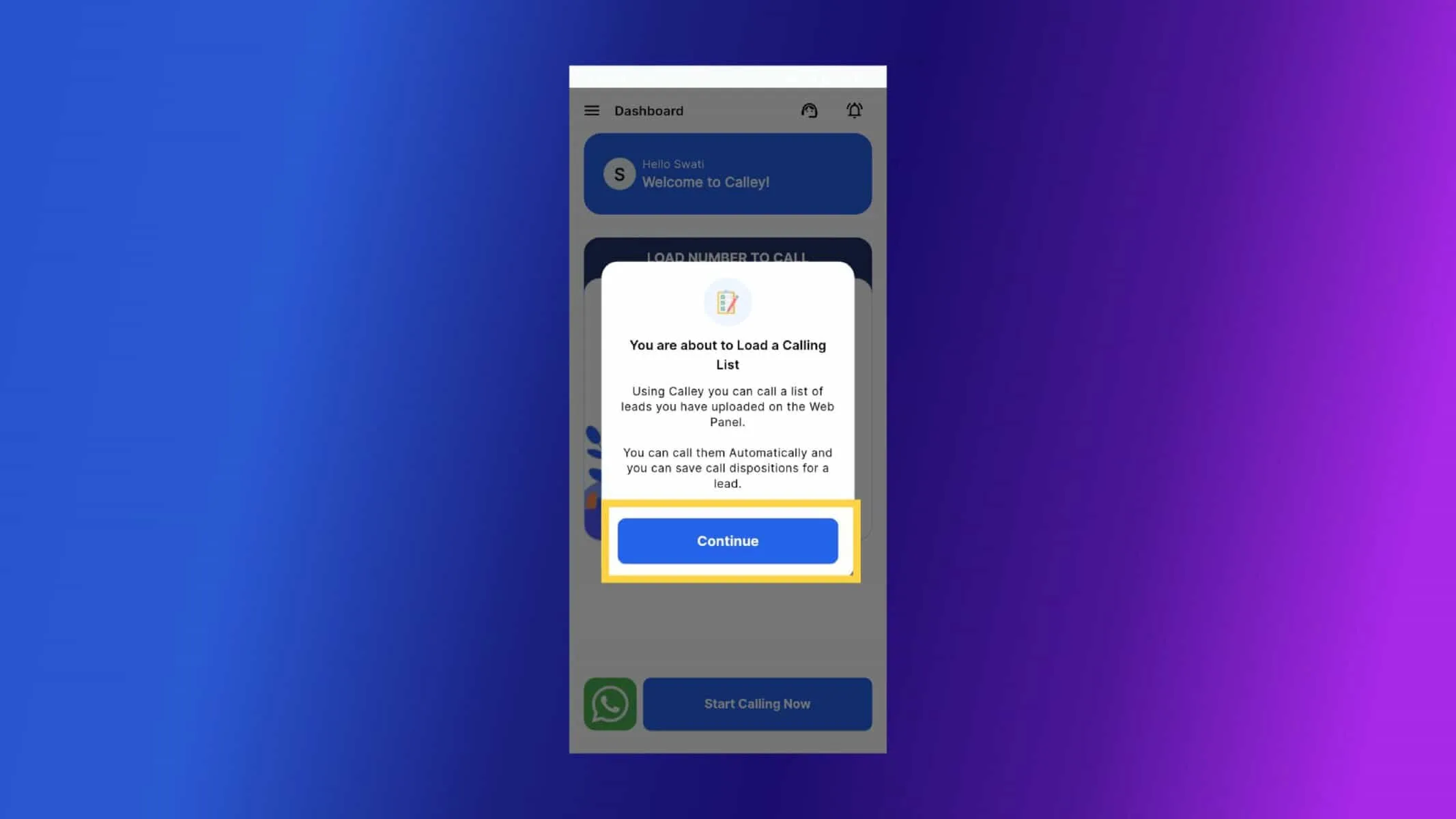
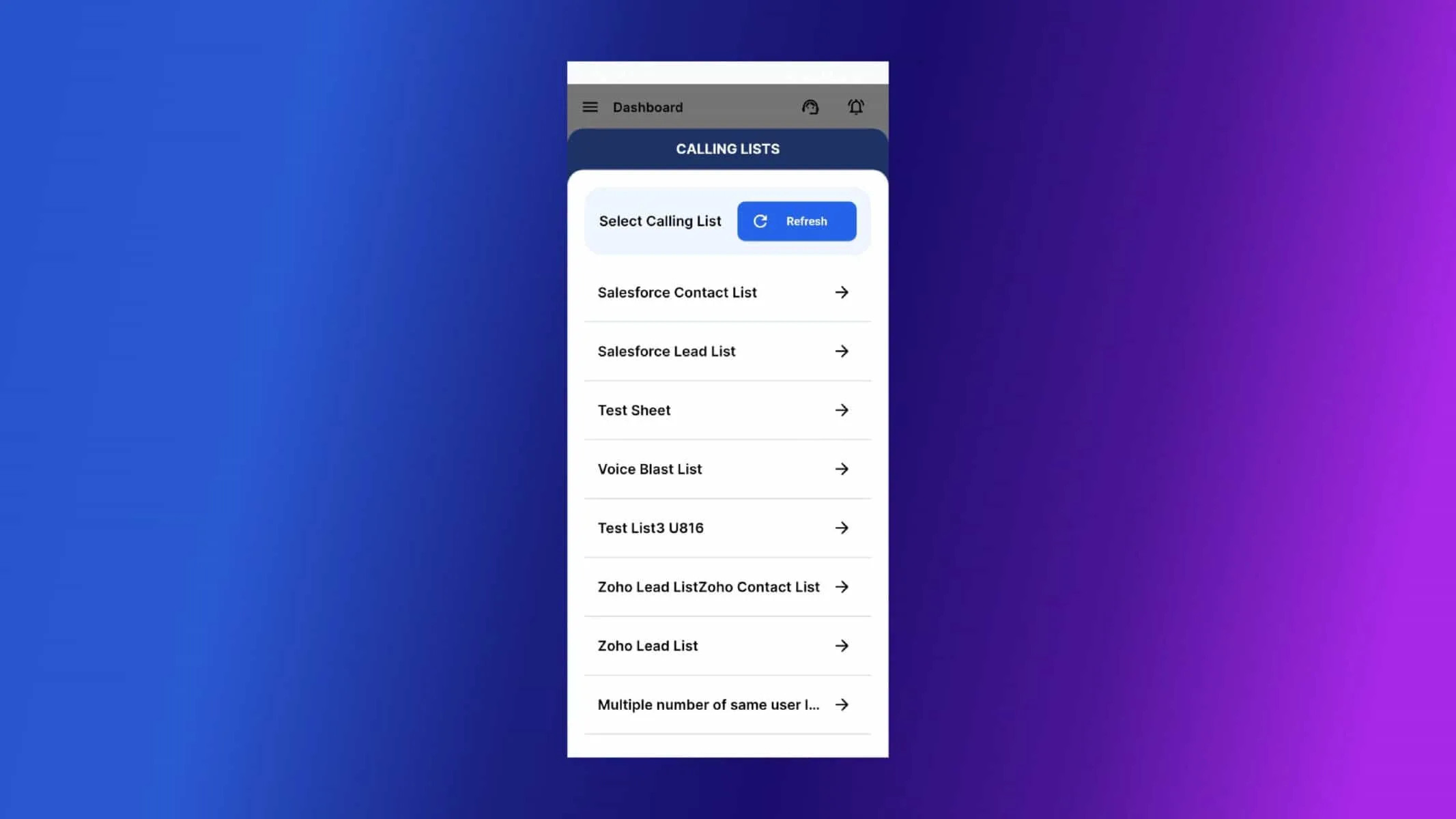
You can see the lists you have uploaded, Click on the list You want to auto dial.
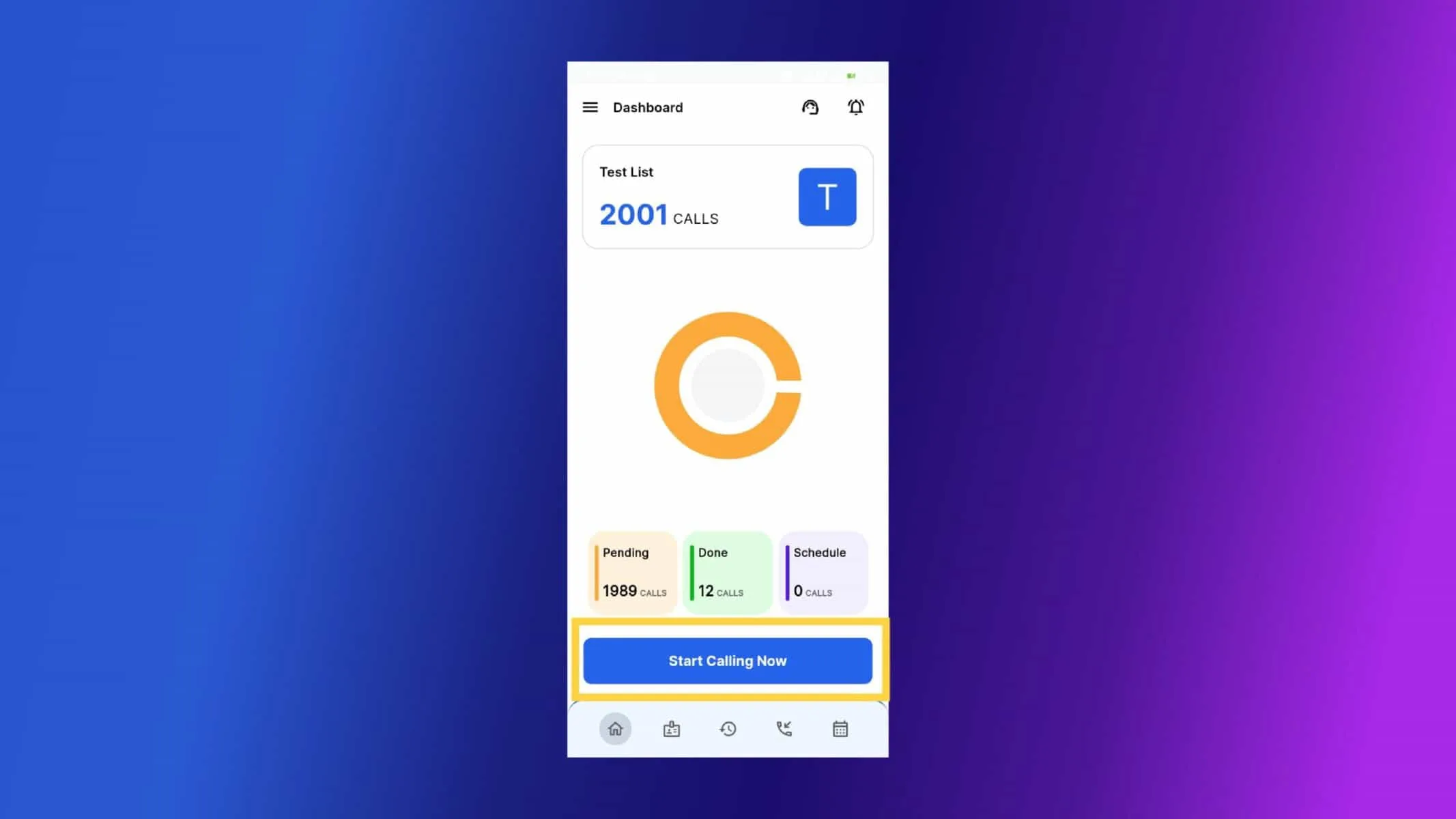
As the list is loaded successfully, on your Android phone, you can now start AutoDialing by clicking on Start Calling Now Button.
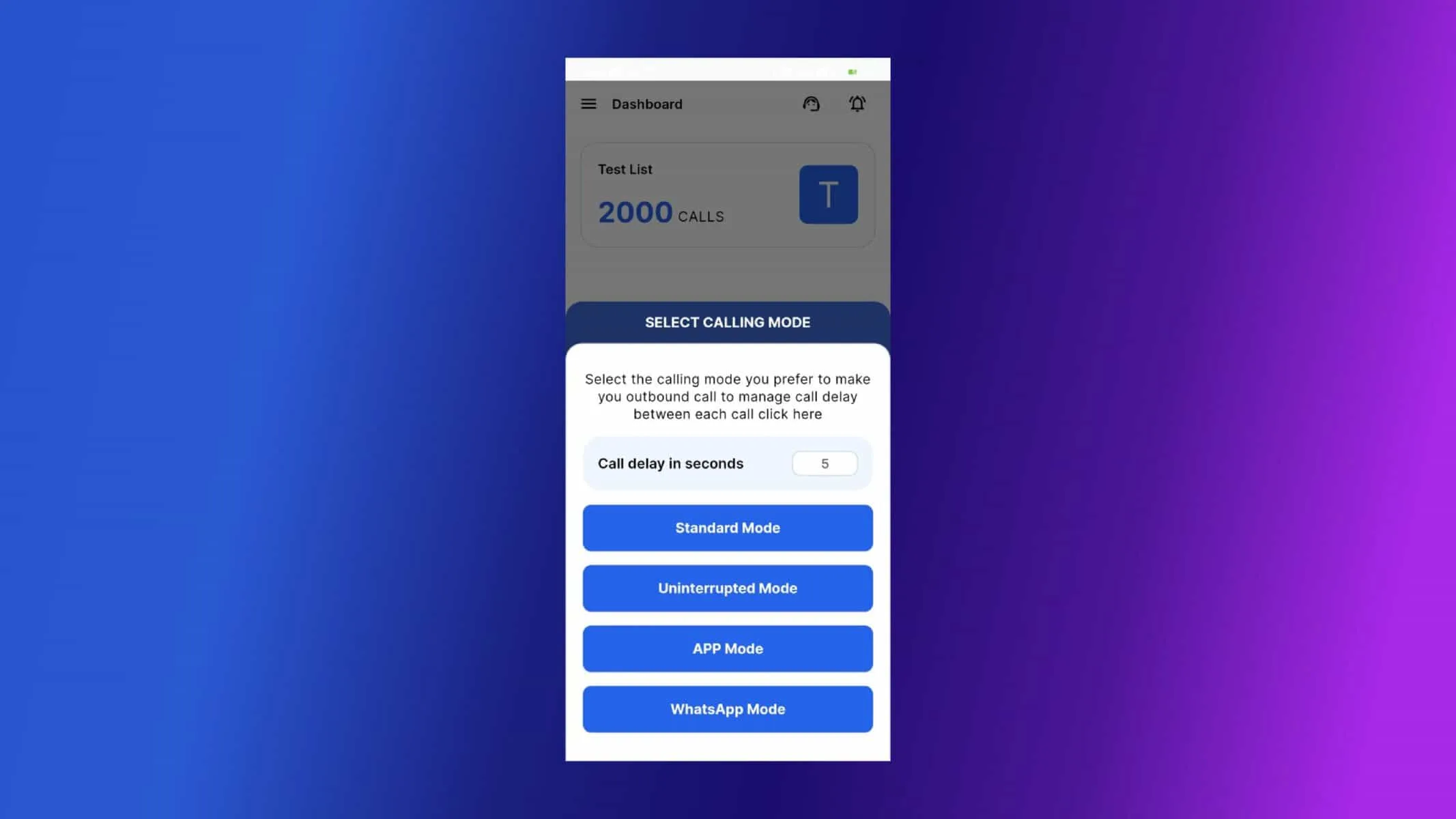
Calley offers you different calling modes to choose from when making calls from an android mobile phone. Standard Mode, Uninterrupted Mode, App Mode, WhatsApp Mode. For a Guide i am using Standard Mode.
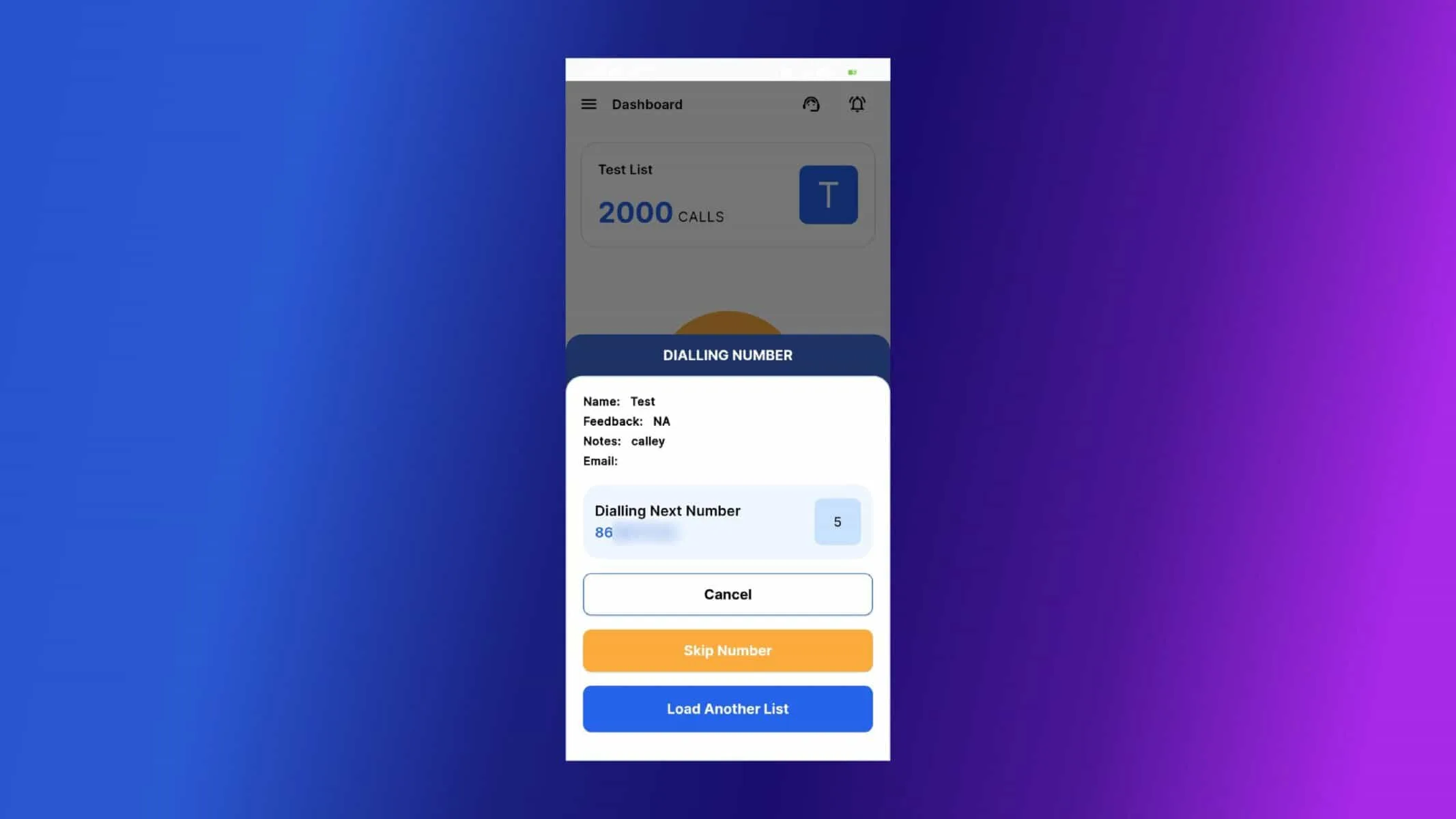
As the call is triggered you can see the details of the number being called. At this screen you can take 3 actions, You can Cancel the Call from being dialed, You can skip this number and go to the next number in the list or if you want you can load another list.
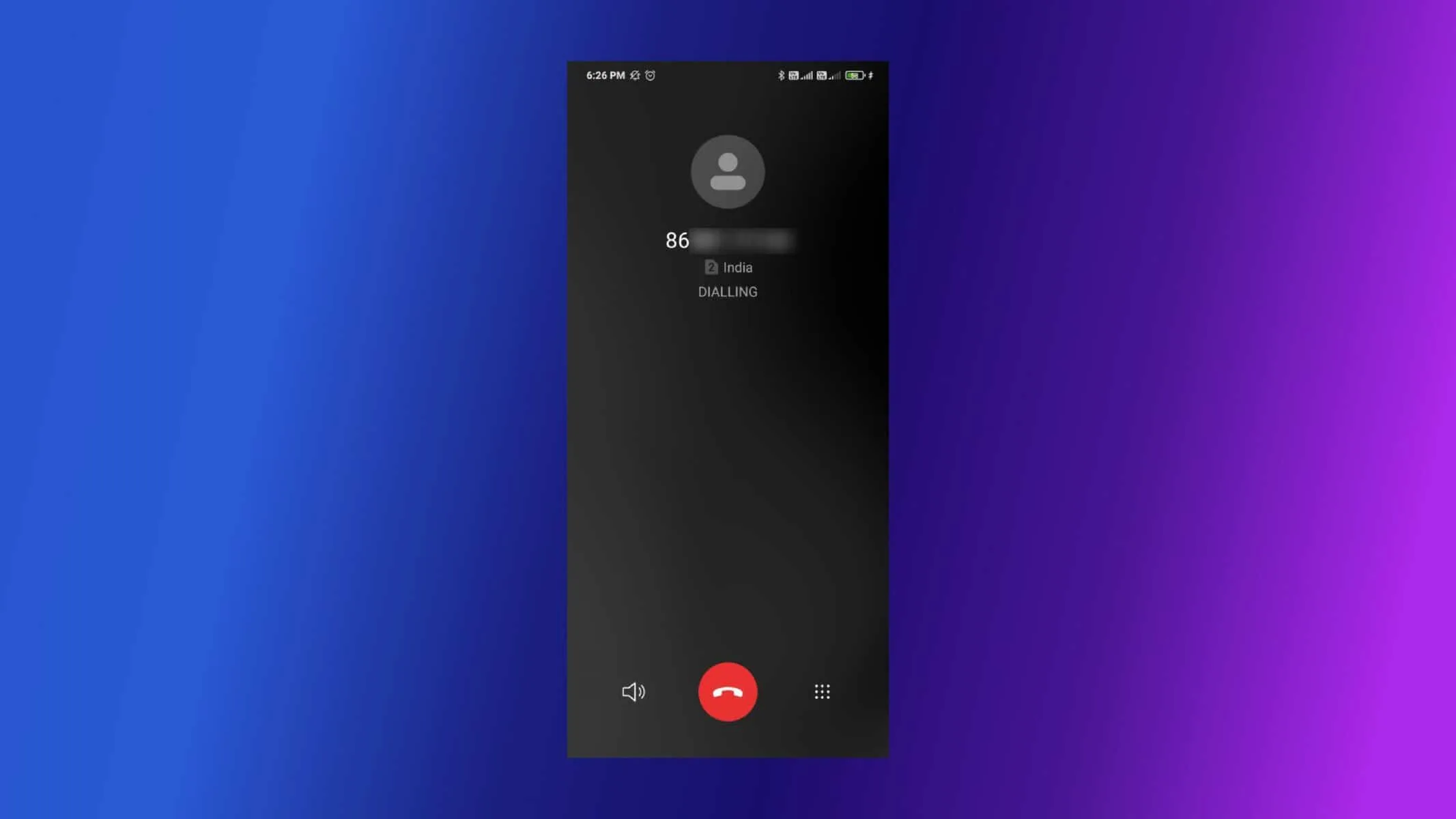
The Respective Phone Number is called from the Mobile Sim Card.
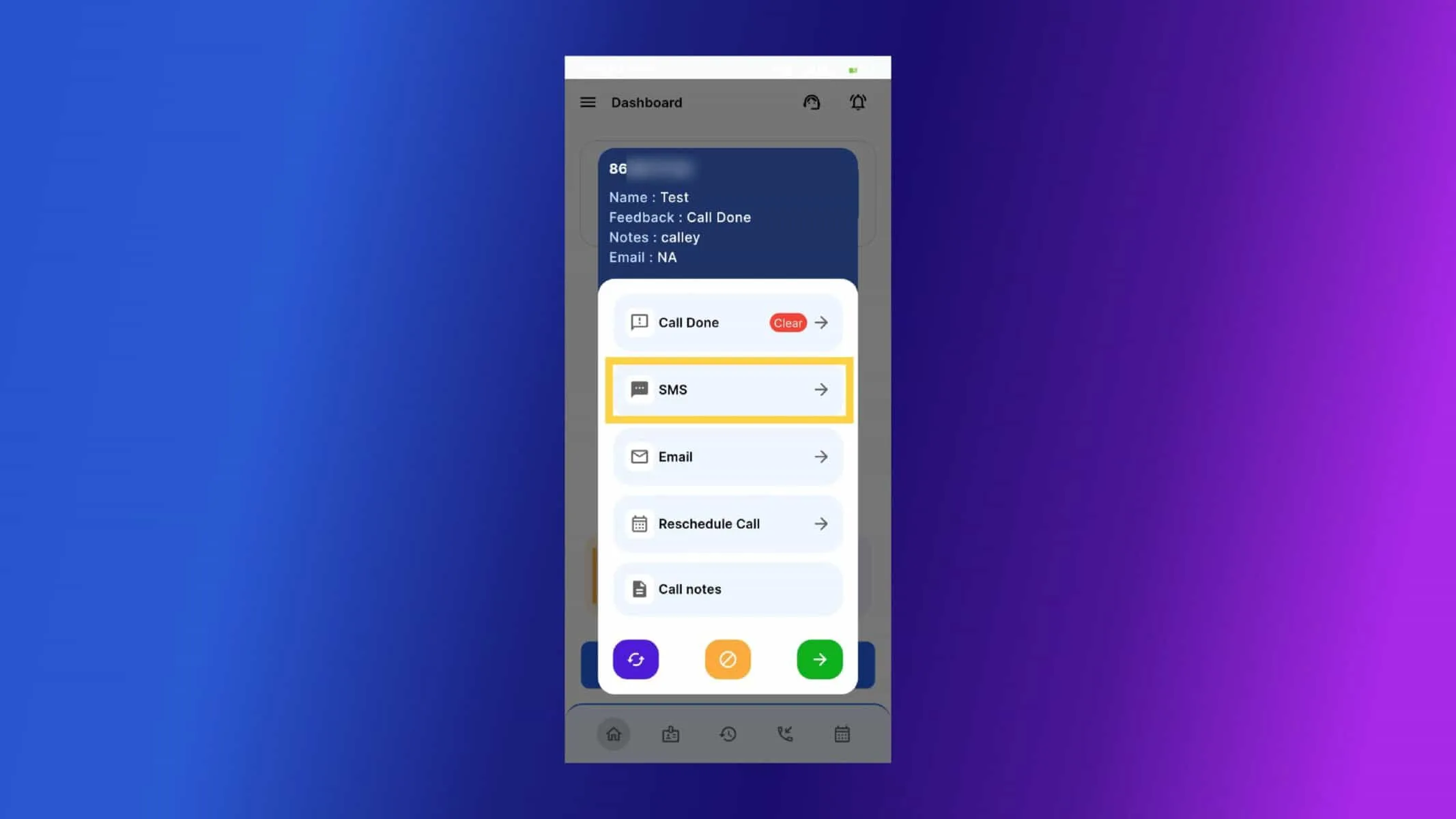
Once the call is finished the app will prompt you a Post Call Feedback page. Update the Feedback of the Call and to send the WhatsApp message, Click on SMS.
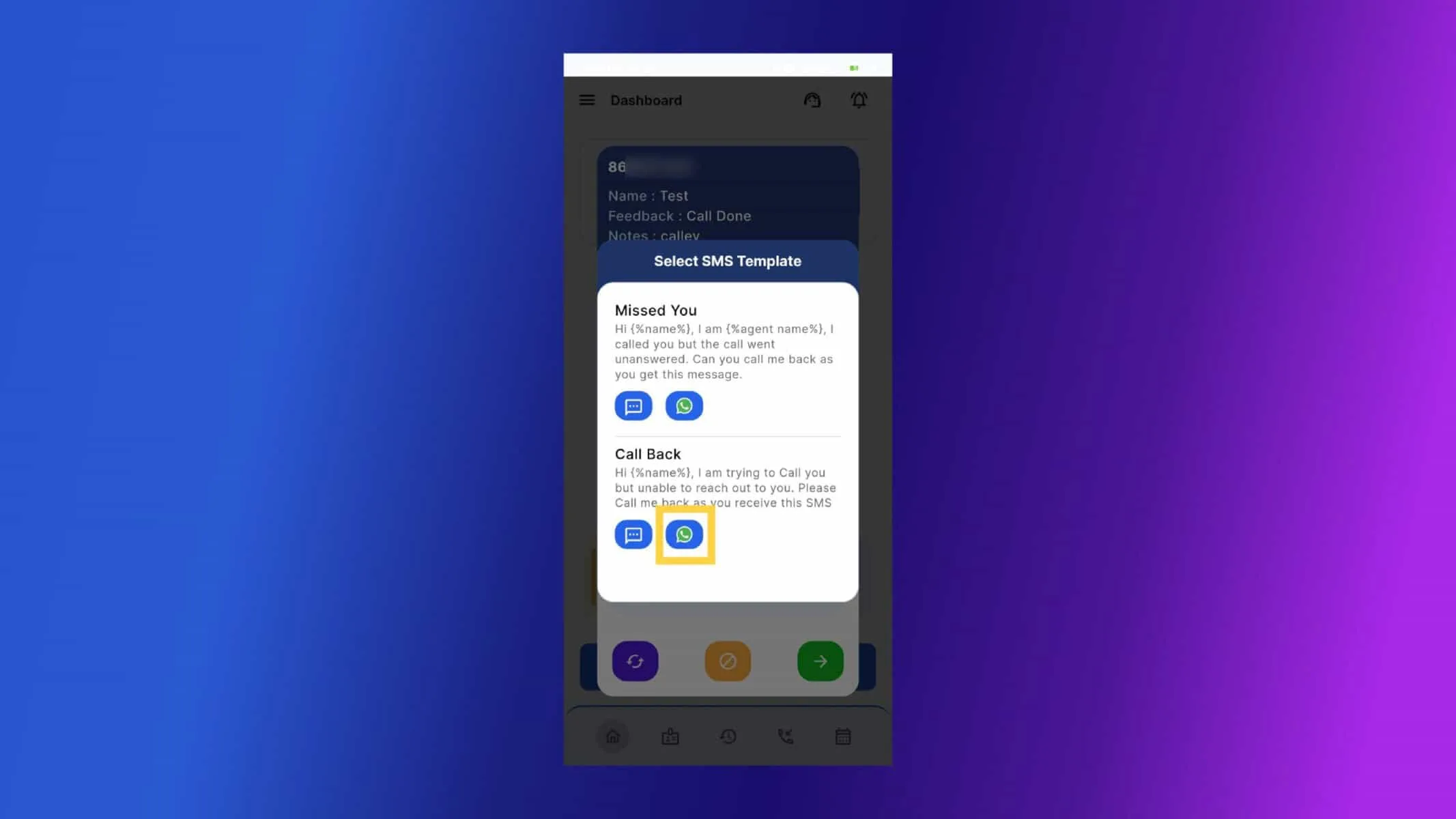
Select the Template. Click on WhatsApp button to send SMS through WhatsApp.
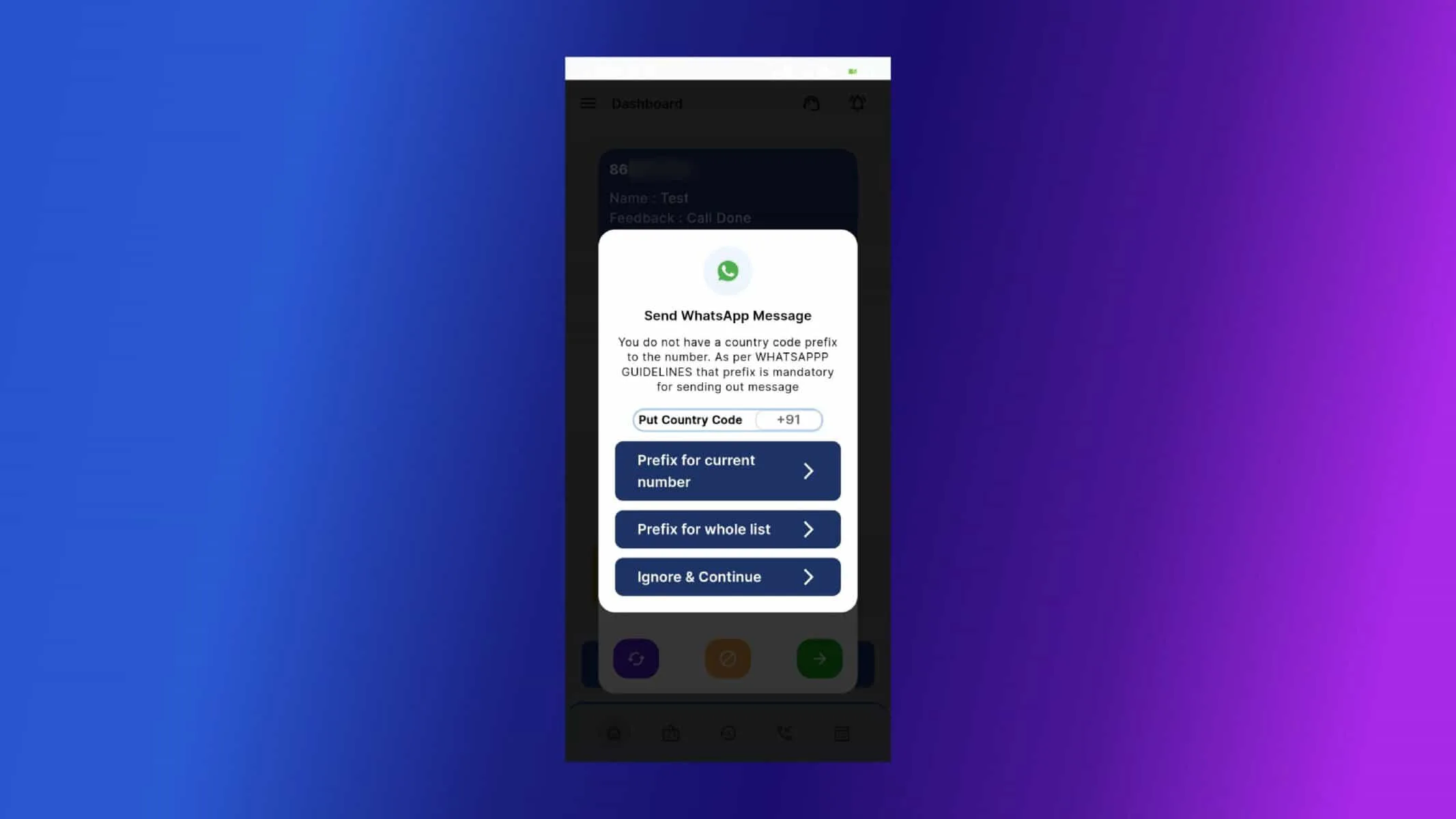
If there is no Country Code Exist, then it ask to enter country code.
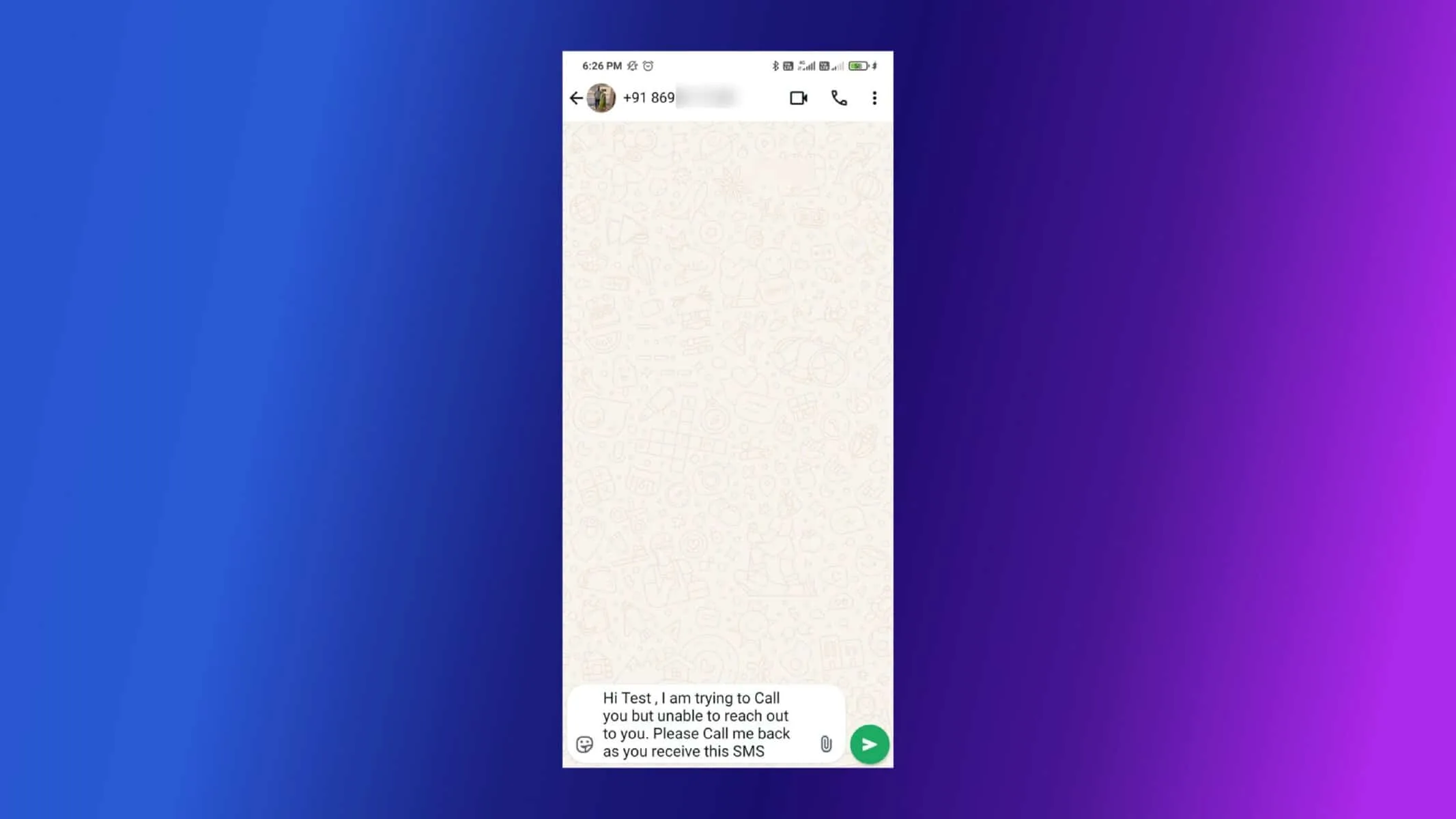
Now SMS sent through WhatsApp.
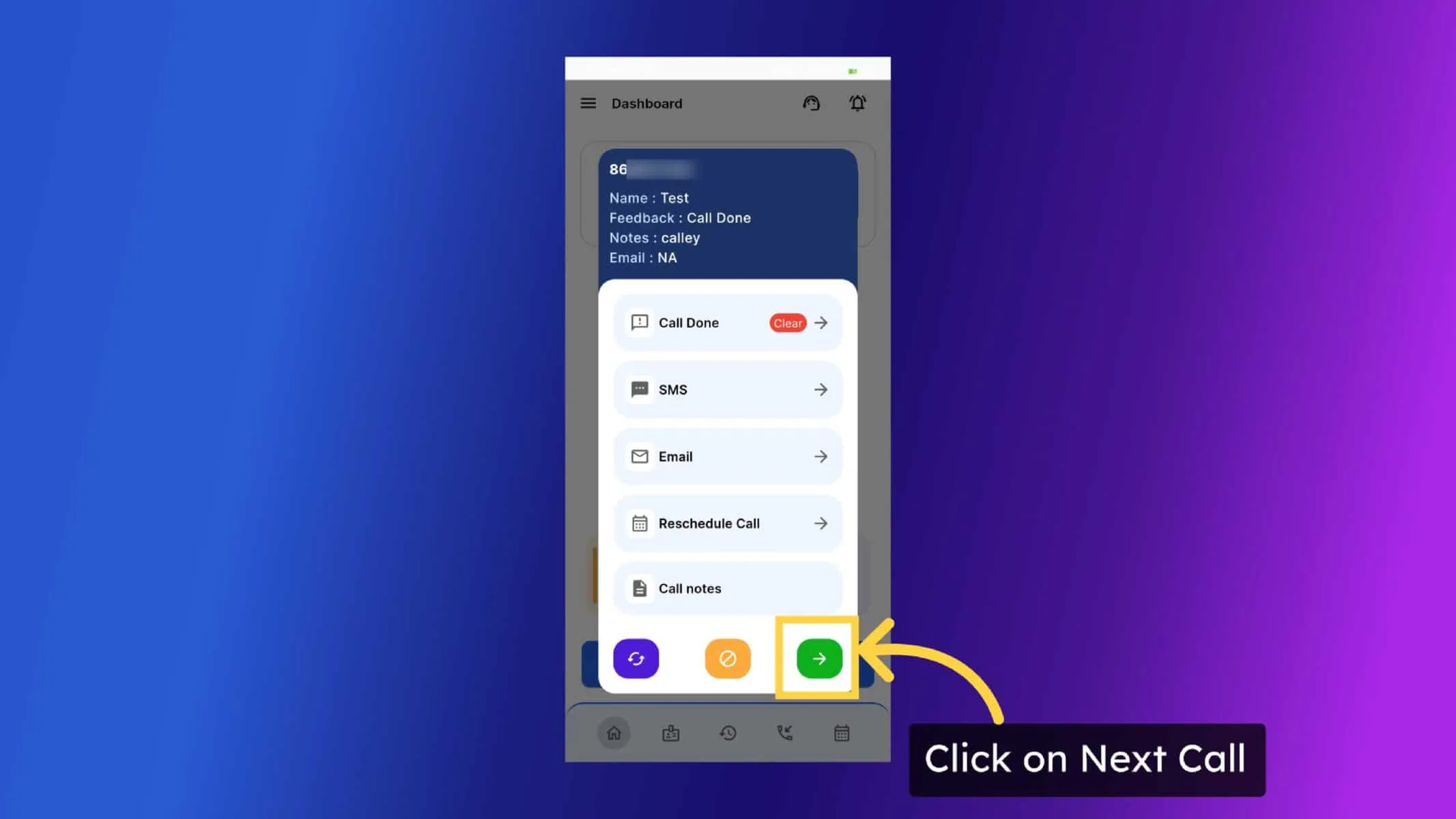
Once feedback updated, you have 3 options at the bottom of Post Call Feedback screen. One is Redial for Redial same number, DND to mark the number as DND and another is Next Call to dial next number of the List.
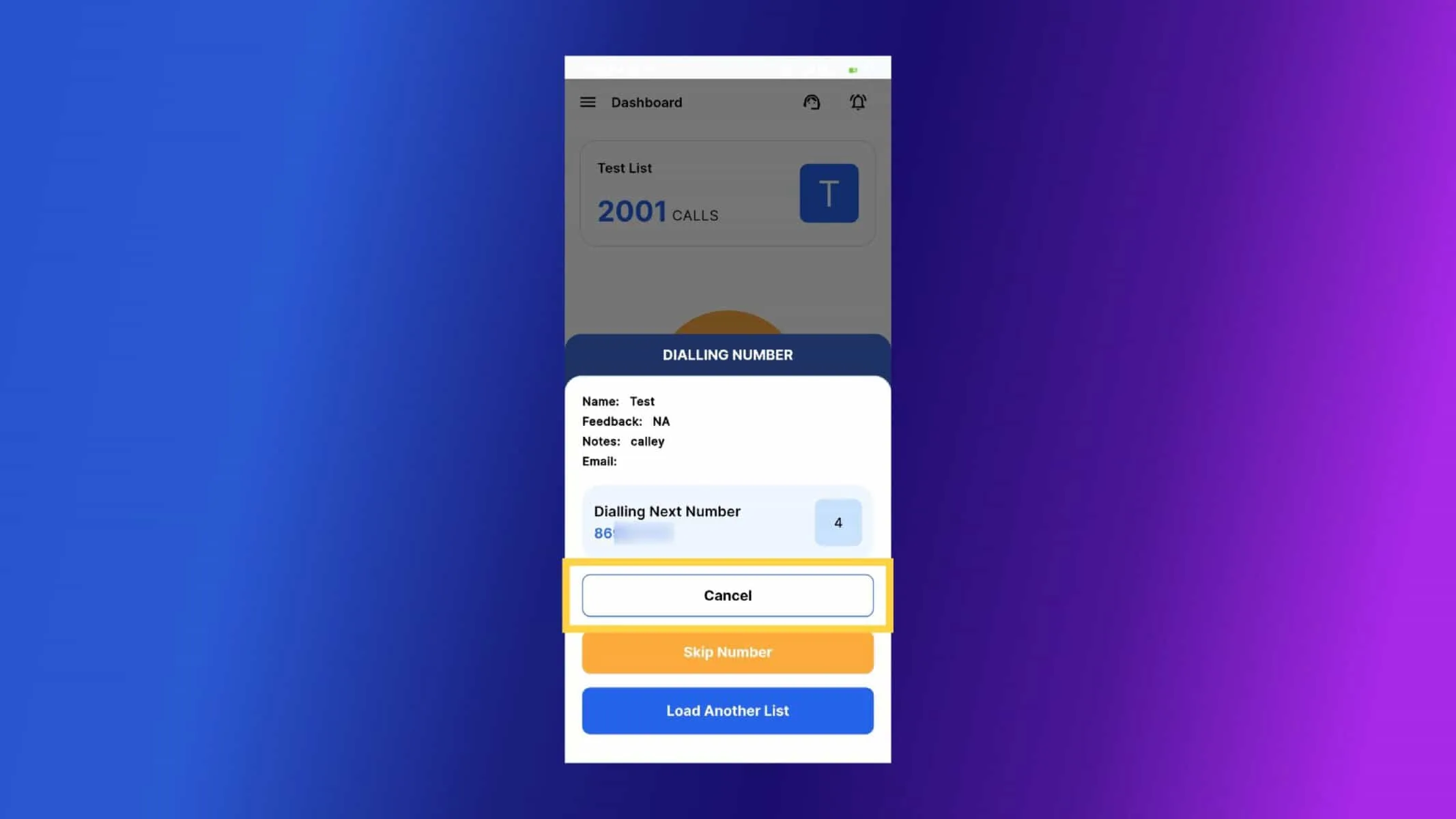
Calley will dial the next number in the list. In case you want to pause autodialing, you can click on Cancel and the list will be paused.
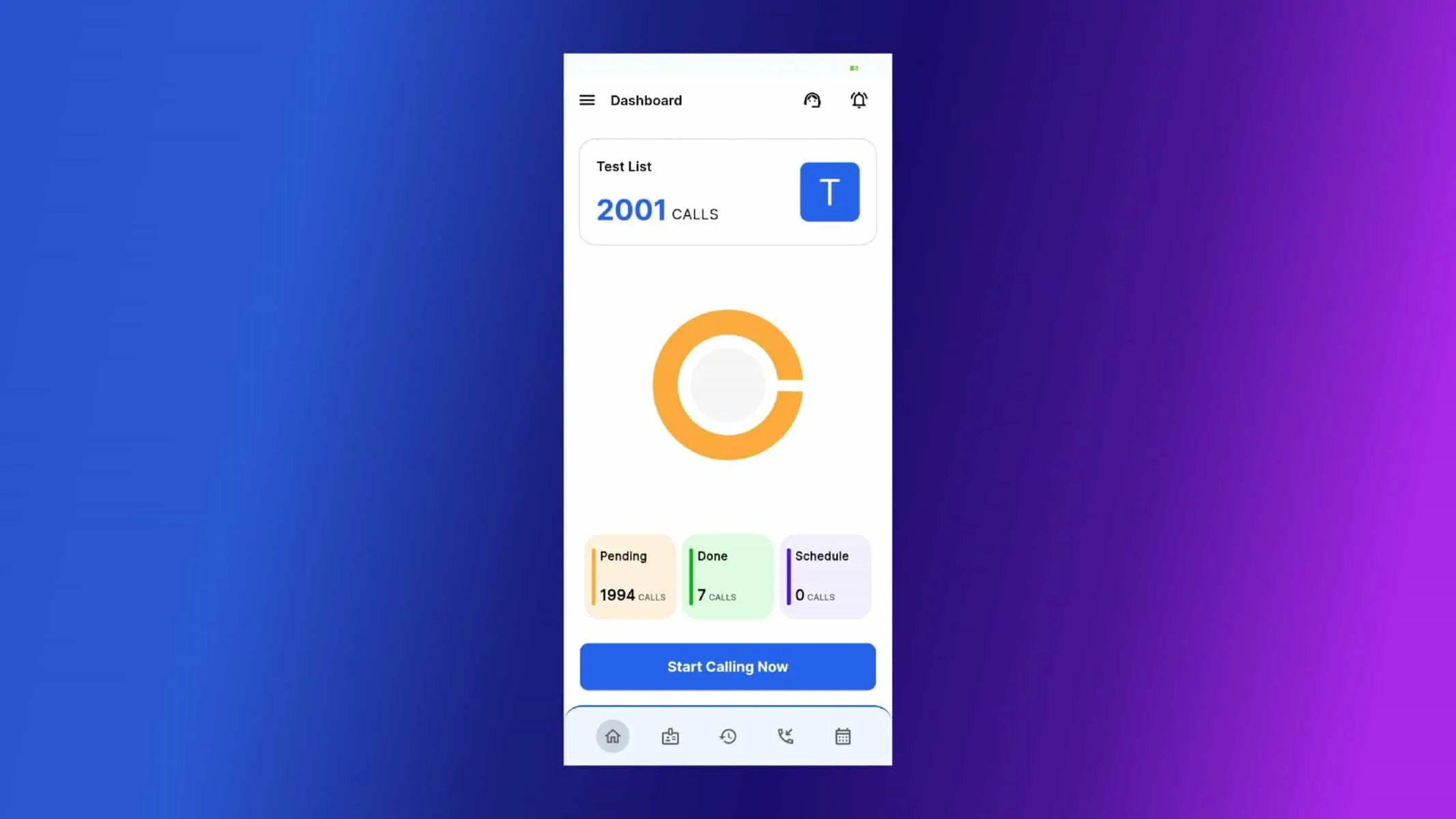
You can see the dashboard for the Calls done, Pending calls and Scheduled Calls.
Sending WhatsApp Messages from the Desktop App:
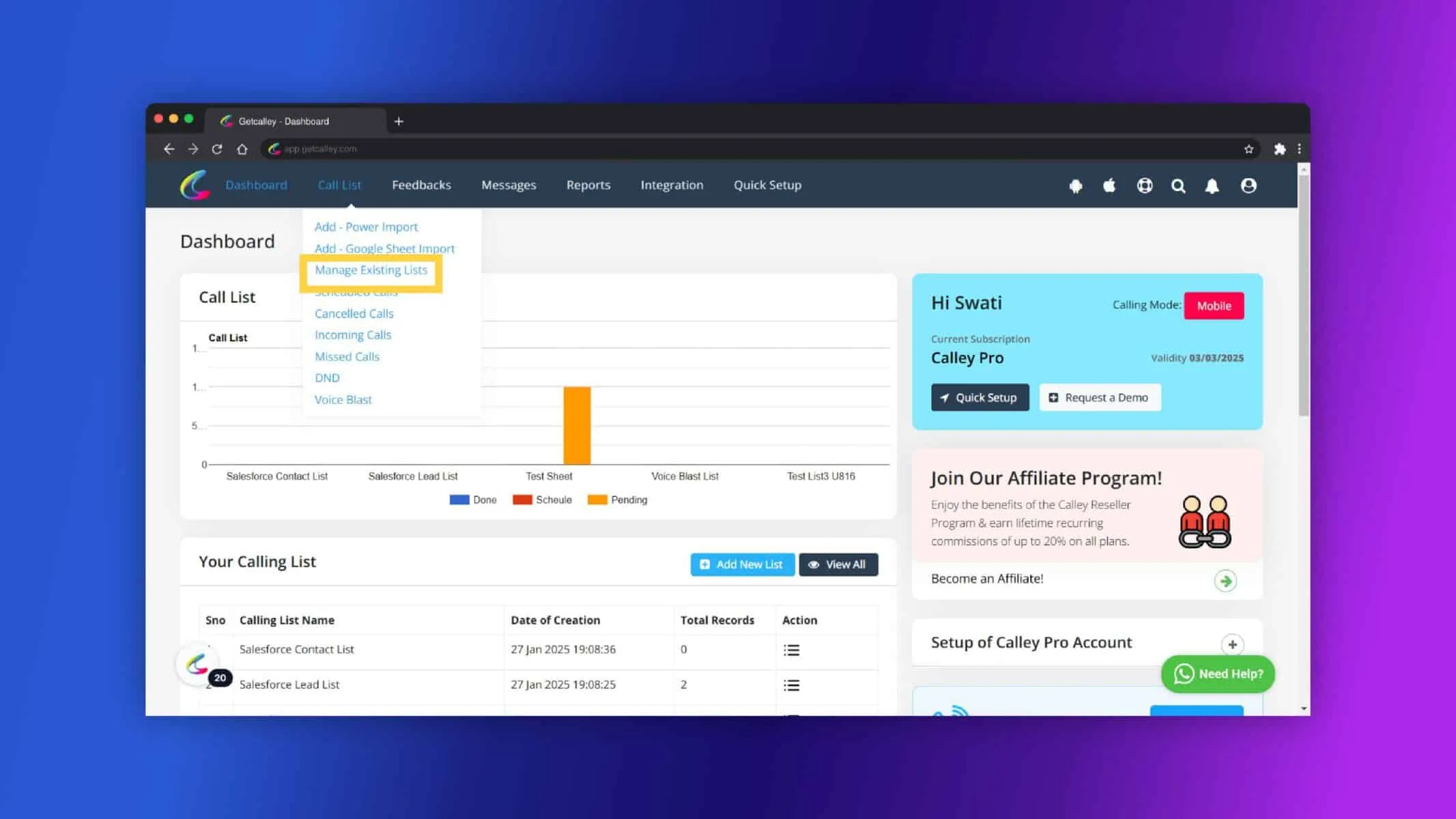
Login to Web panel. Go Call List and Click on Manage Existing Lists.
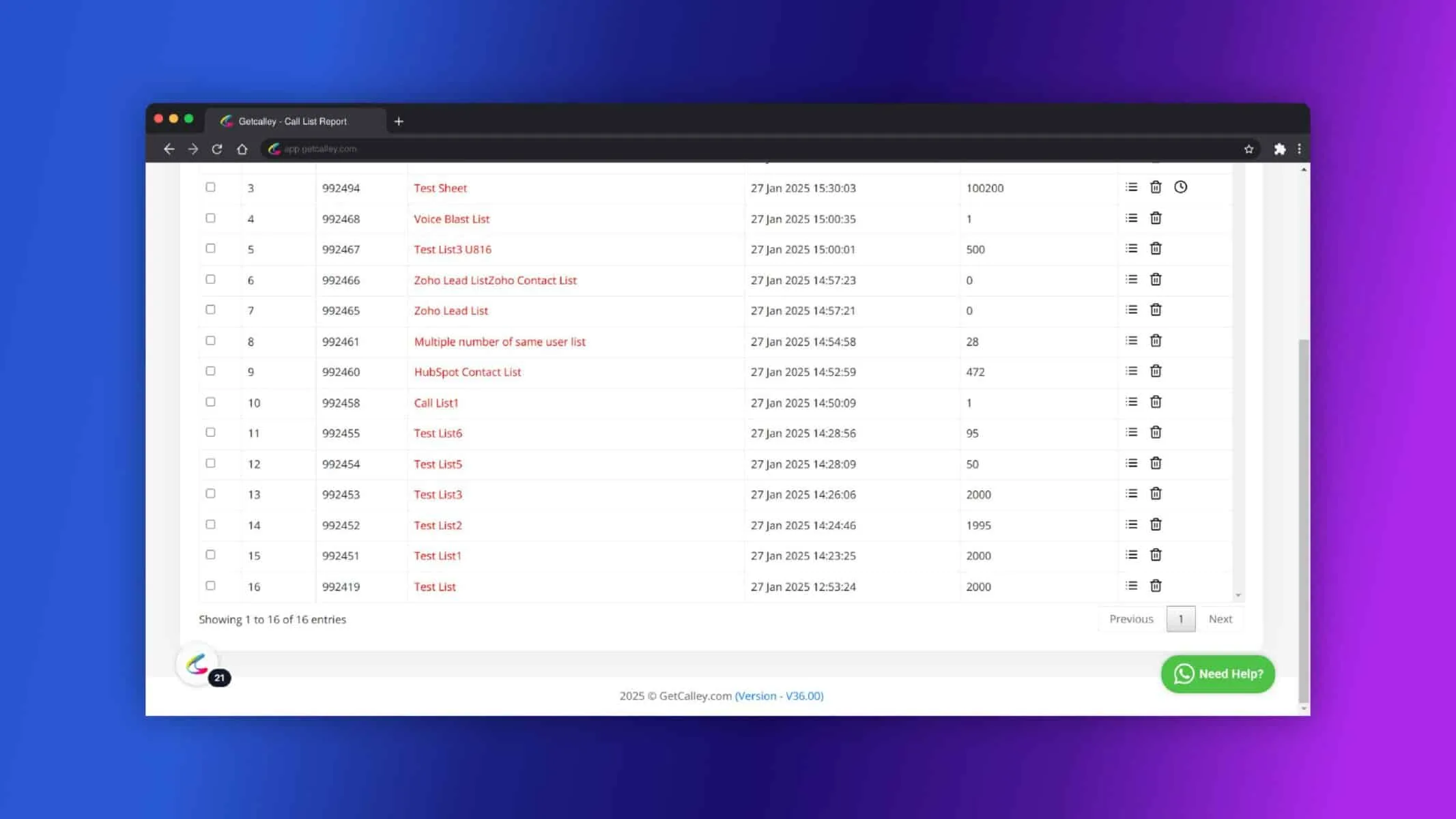
Open the Call List you want to make a call.
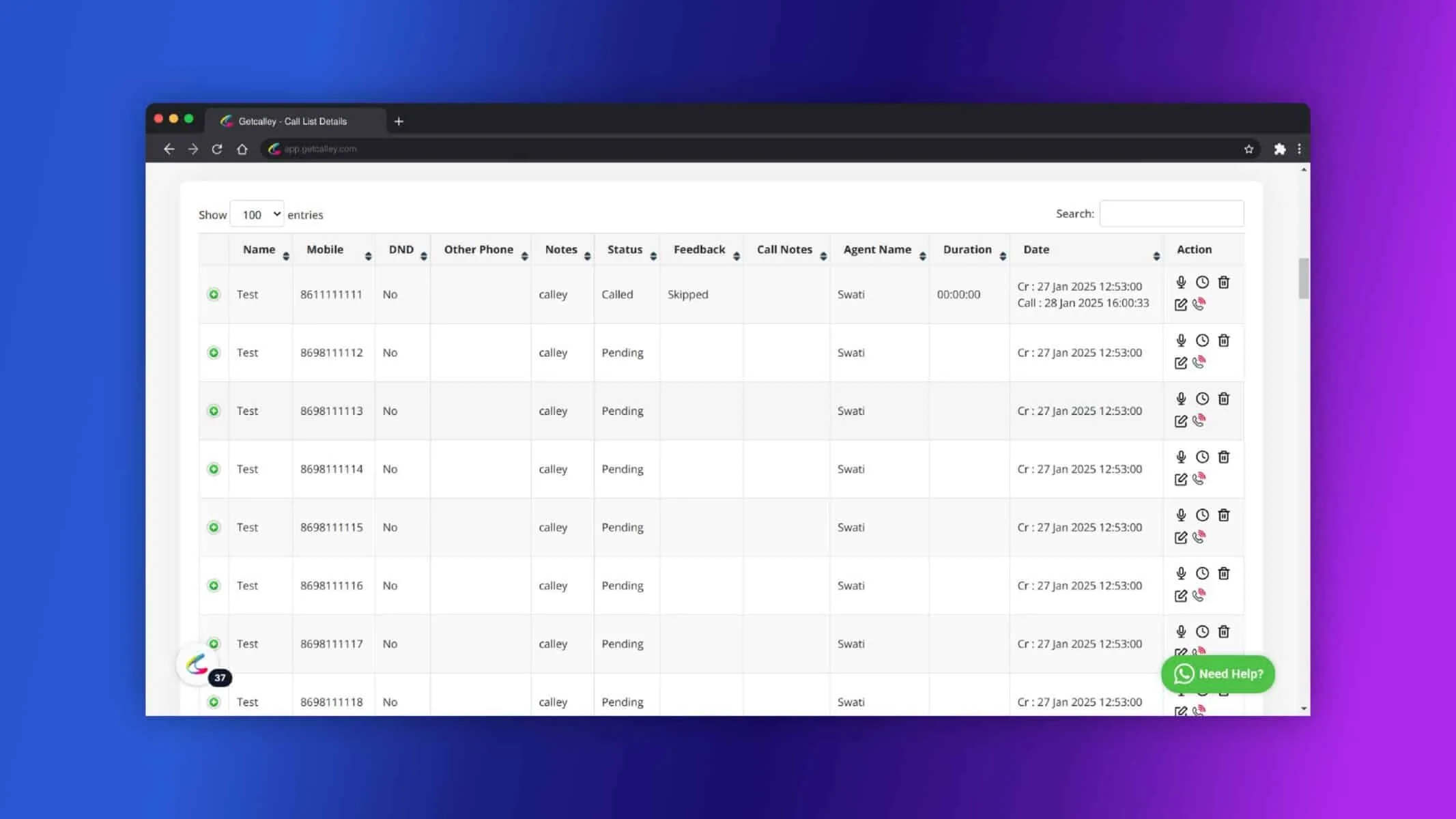
Now you can view the numbers in the list. Click the dialer button next to the number you wish to call. Ensure you are logged in to the Calley mobile app with the same credentials.
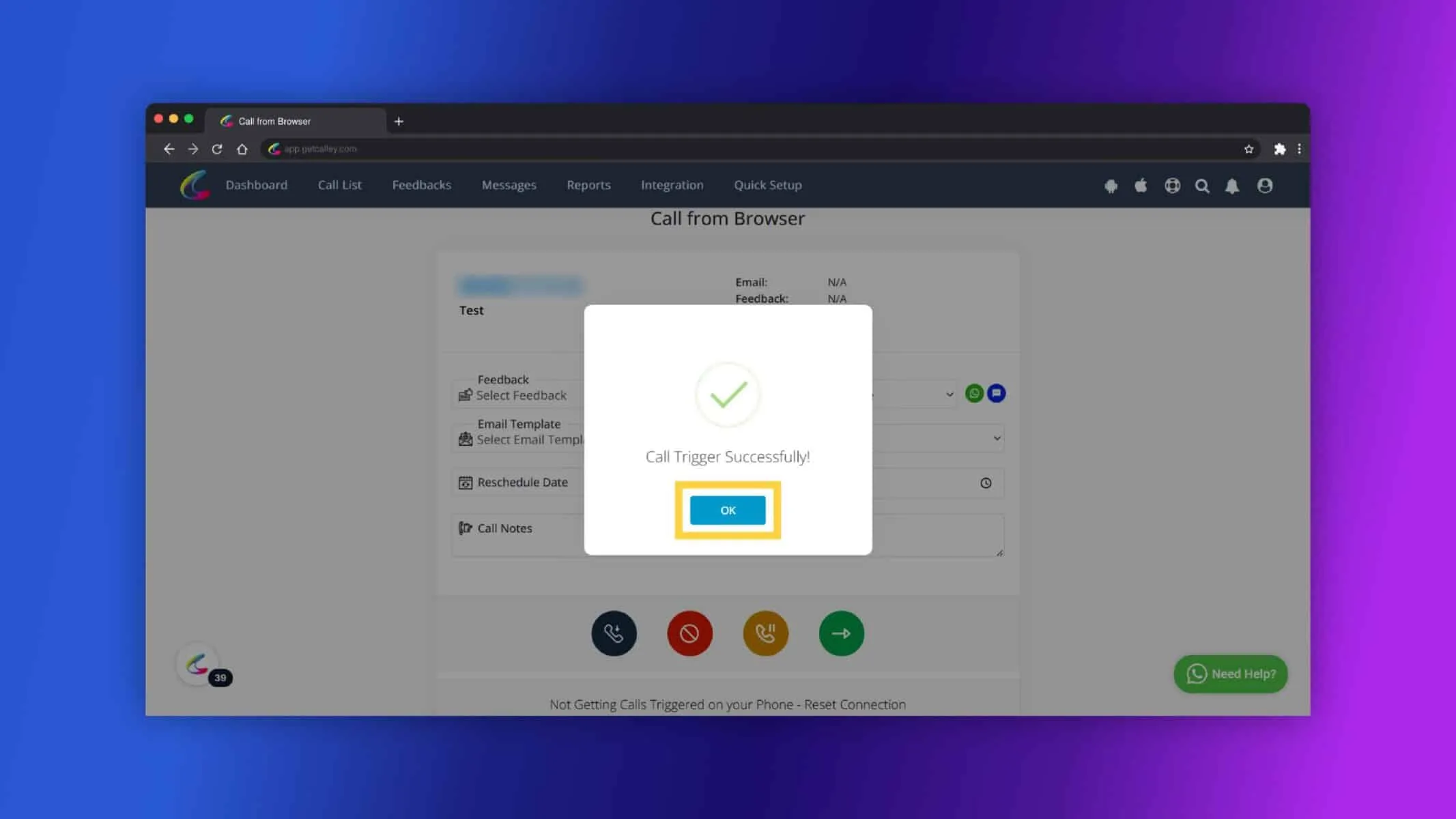
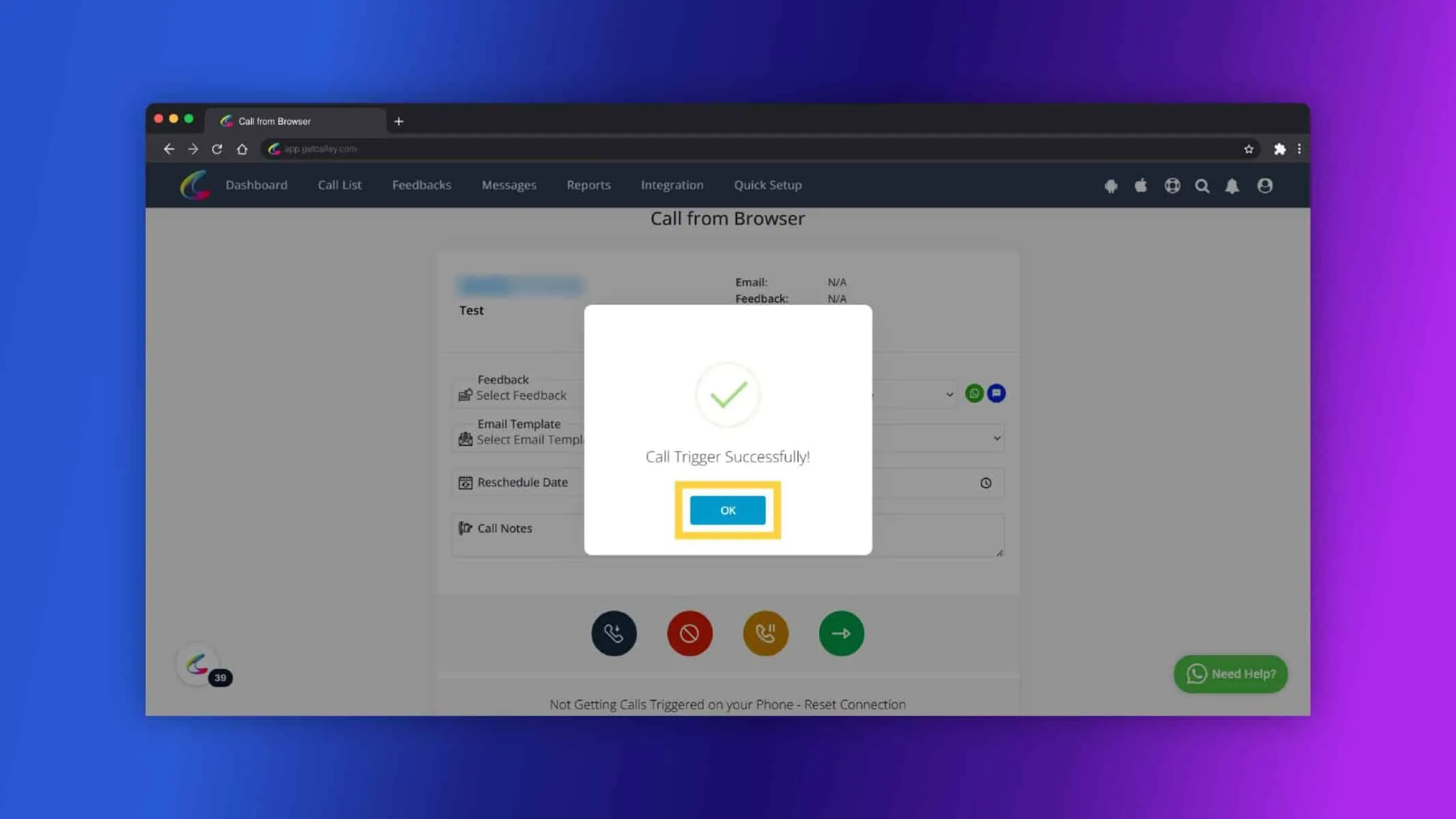
A call has been initiated on your mobile device. Click on OK.
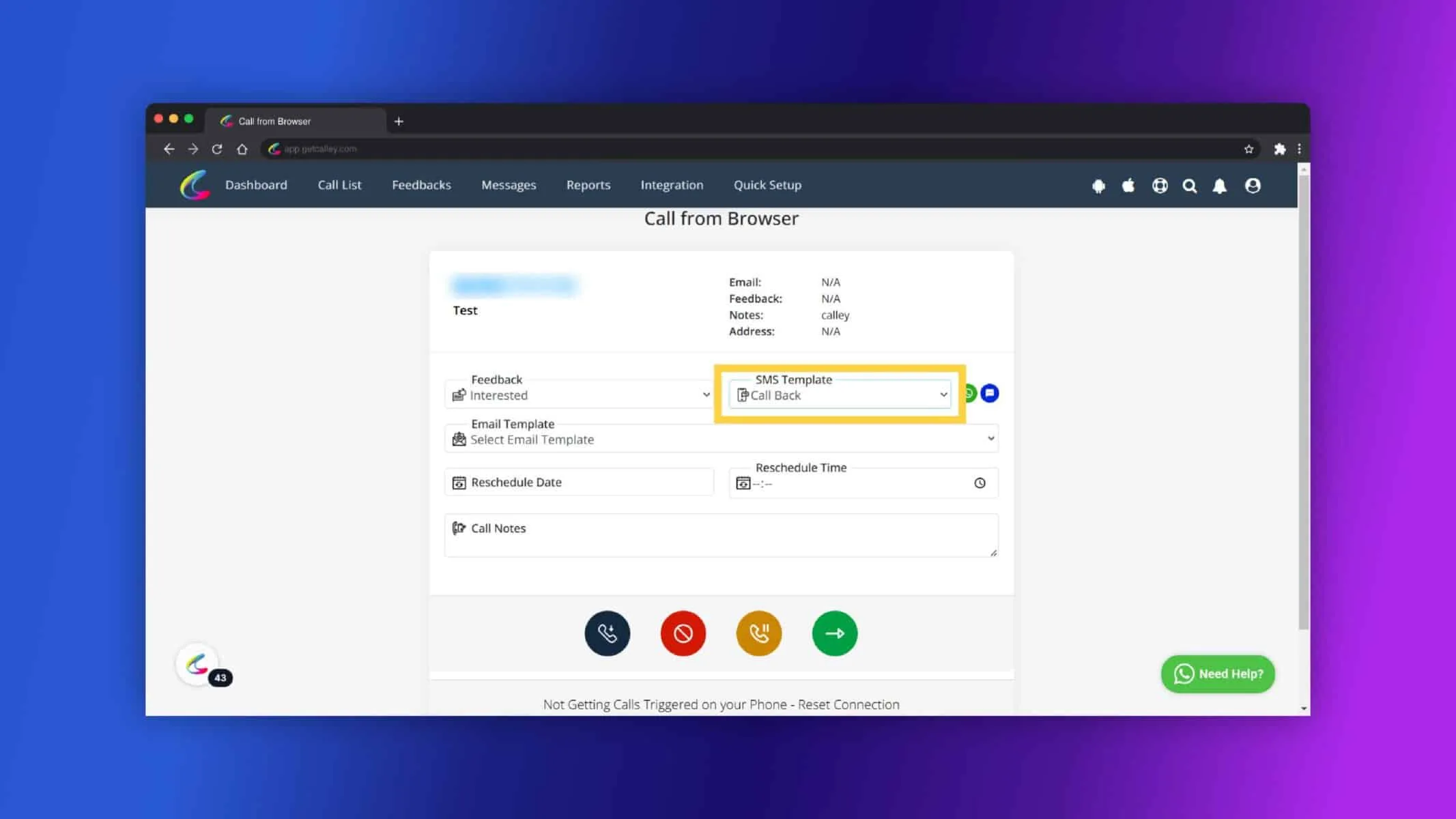
Once done with the Call, Update the Feedback of the Call here and To send the WhatsApp message select the Message Template.
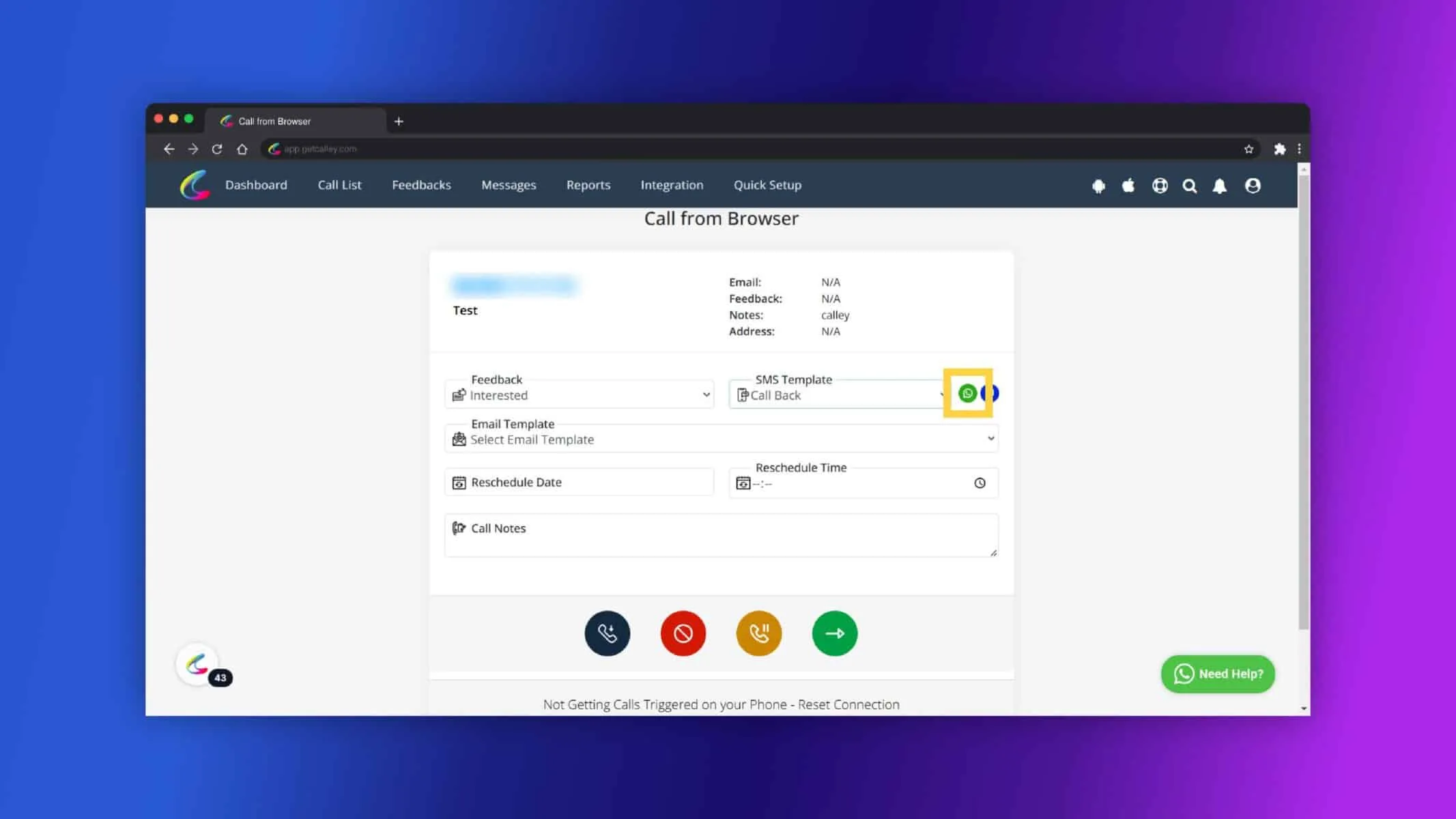
Now click on the WhatsApp icon.
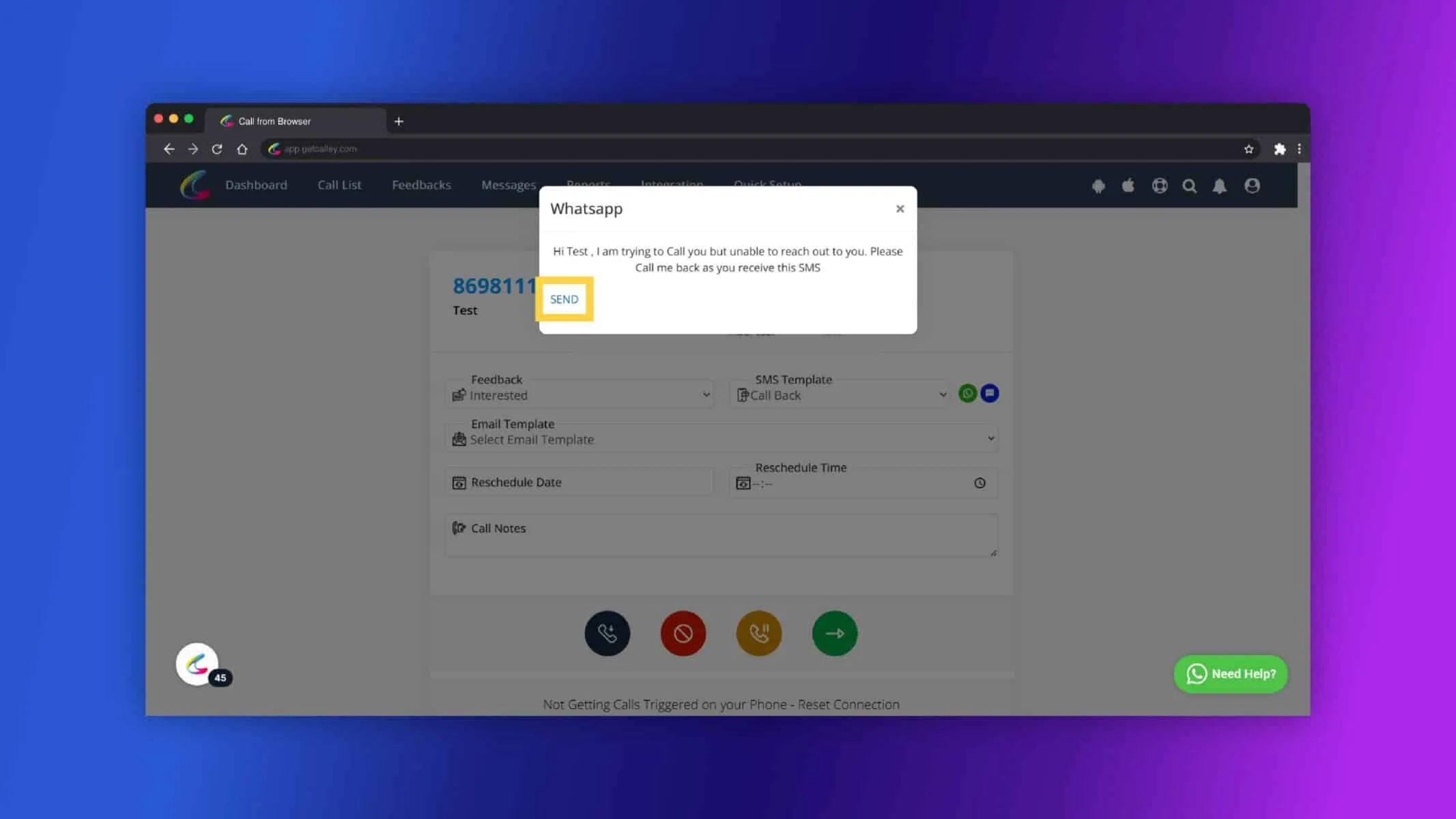
This the Message you are sending, review the message and Click on Send.
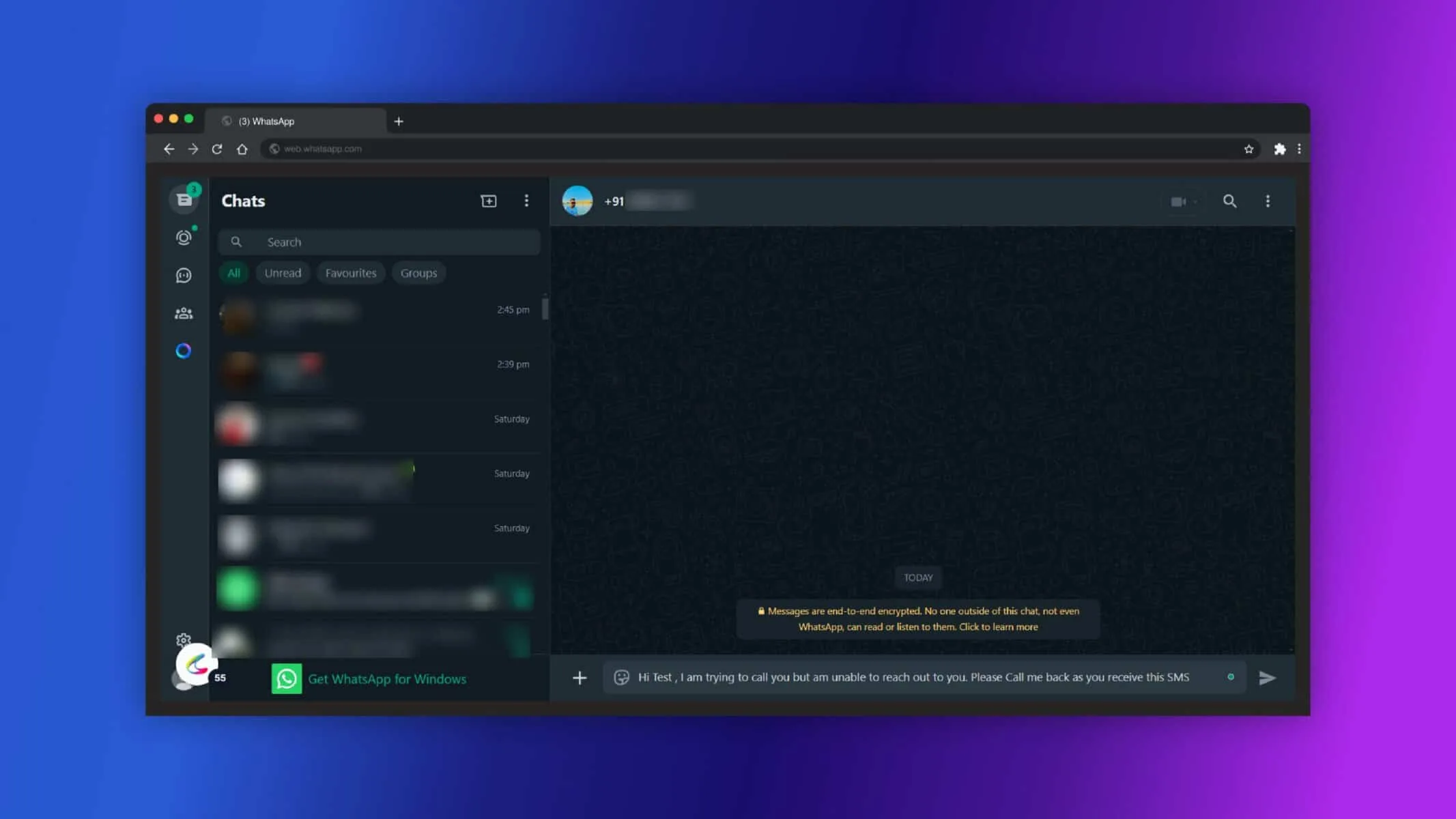
As you are sending message from browser, Click on Continue to Chat and connect your WhatsApp web.
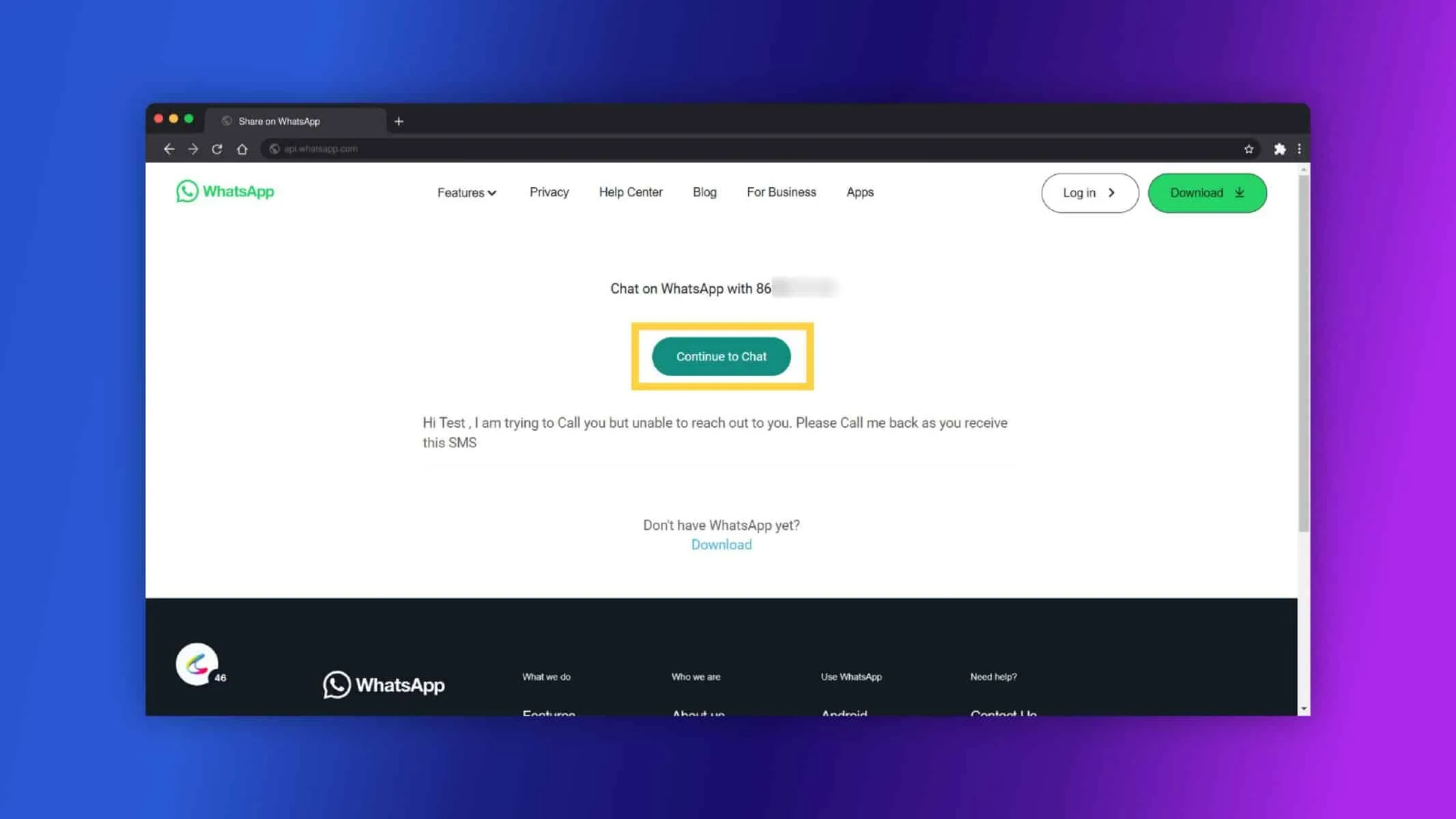
Send message from the WhatsApp.
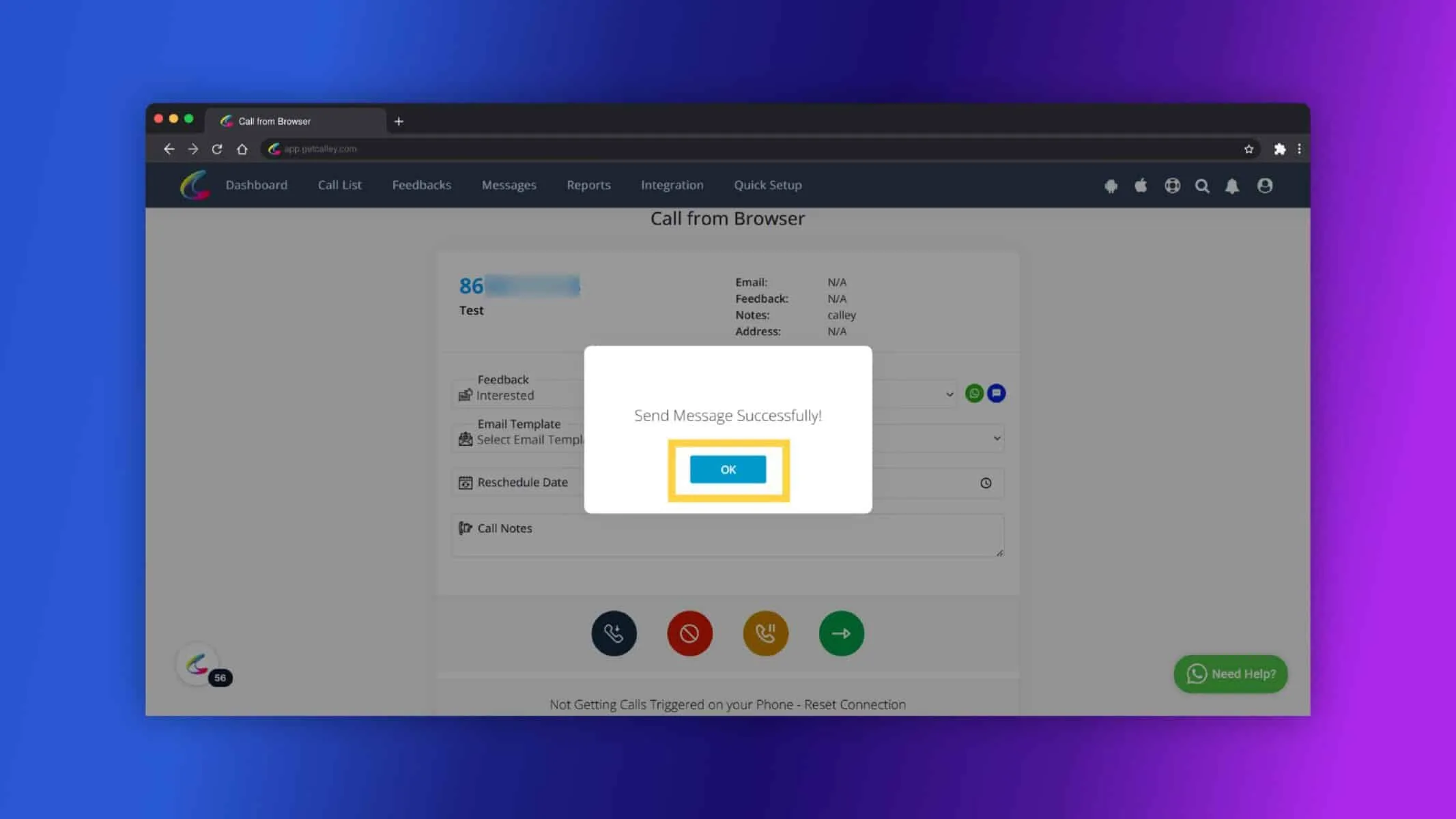
Message sent Successfully. Click on OK.
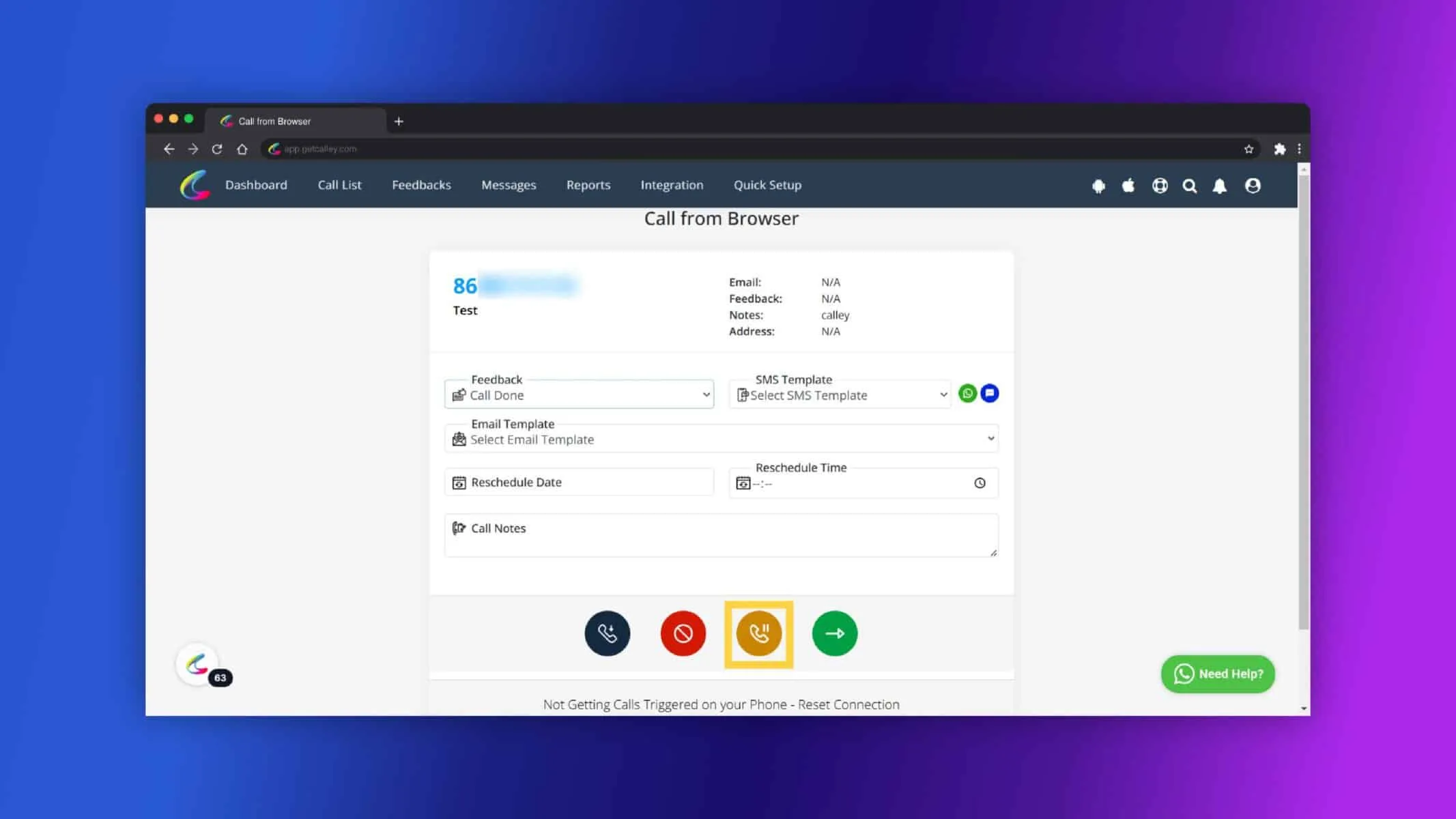
For Save and Pause Click on Orange Button.
Click on Ok.
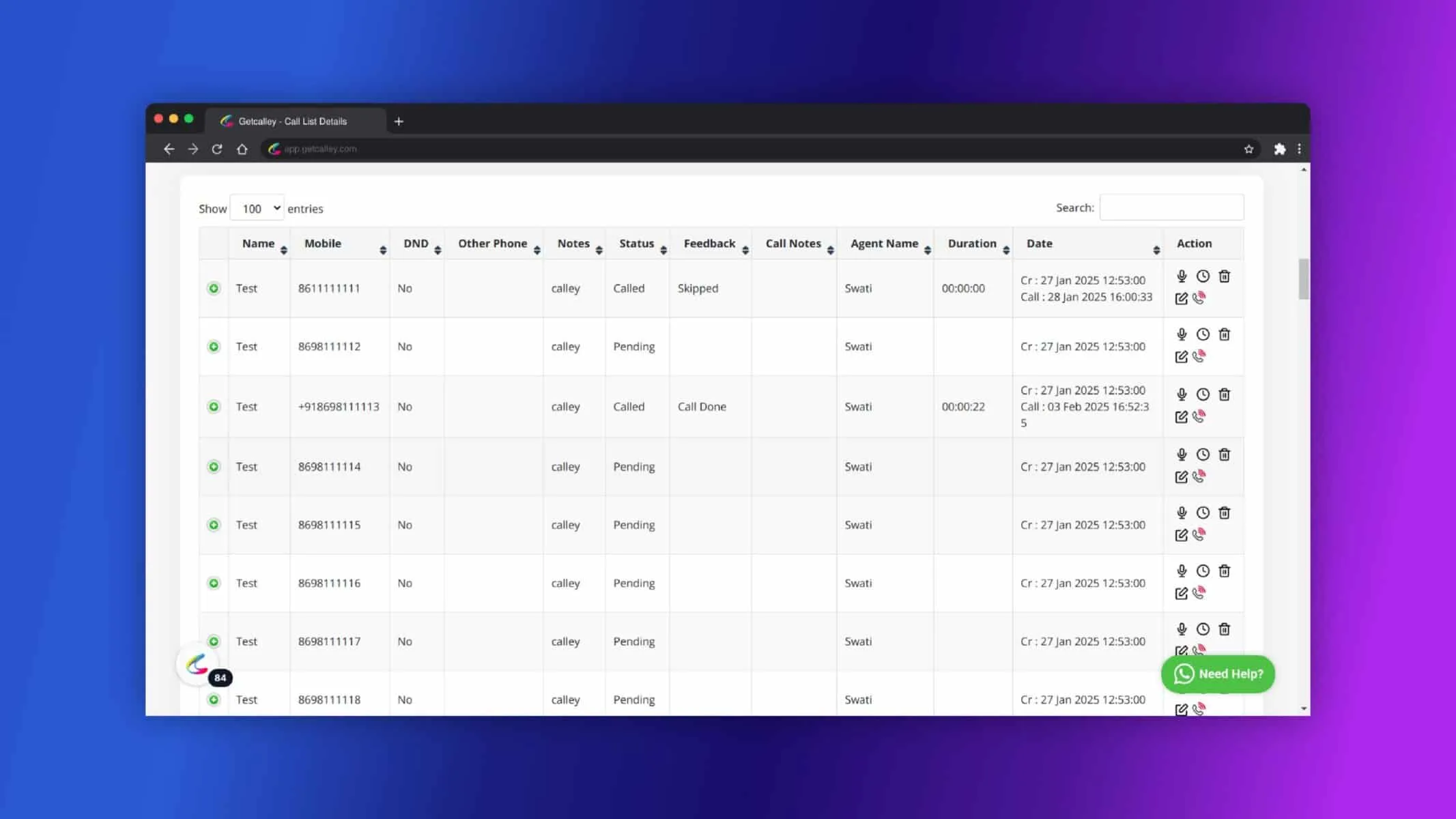
Now you can see the reporting of the number you called.
Why WhatsApp Messaging is a Game-Changer for Your Business
Sending WhatsApp messages via Calley offers several benefits for businesses:
- Improved Customer Engagement: WhatsApp is a widely used platform, helping businesses connect with customers faster and more effectively.
- Streamlined Communication: Pre-configured templates save time and ensure consistent messaging.
- Increased Conversion Rates: Personalized and timely messages can boost customer interaction and conversions.
- Efficient Bulk Messaging: Send messages to multiple customers quickly, ideal for marketing campaigns and reminders.
- Cost-Effective: WhatsApp messaging is often cheaper than other traditional methods, especially for international outreach.
- Brand Consistency: Templates help businesses maintain a professional and consistent tone, building trust with customers.
Sending WhatsApp messages in Calley is a simple and effective way to reach your contacts using pre-configured message templates. By following the steps above to create templates and send messages from the Mobile or Desktop App, you can streamline your communication and enhance your engagement with customers or clients.
If you need any further assistance, feel free to check out our support resources or contact us for help!
Checkout here > Pricing Plans for Calley Auto Dialer App
Link to > Full Feature List of Calley AutoDialer
Do you want to Subscribe to a Free Auto Dialer with a limit of 25 calls per day?
We know you will have questions.
We would love to answer all your questions to get you started with Autodialing using The Calley Auto Dialer app.