
How to Start Autodialing Using iPhone
AUTO-DIALER FOR IPHONE
(CALLEY IPHONE AUTODIALER APP)
As a business owner, you know how time-consuming manual dialing can be. But what if you could automate your outbound calls and free up more time to focus on closing deals? With auto-dialing on iPhone, you can.
In this article, we'll show you how to quickly set up the Calley Auto Dialer app using an iPhone. We will walk you through the quick setup process using a Calley PRO account. The same flow works on Calley Personal - Free for Life, which uses Standard Import with a limit of 50 numbers. It sets up a Call Center on your mobile phone, and you can manage the Calling List.
- 1.1. Auto-dialer for iphone(Calley iPhone Autodialer App)
- 1.1.1.1. What is Autodialing?
- 1.2.1.2. So why choose Calley iPhone Autodialer App?
- 1.3.1.3. What sets Calley Auto dialer apart?
- 1.4.1.4. Who Can Benefit from Autodialing?
- 1.5.1.5. Step-by-Step Guide
- 1.5.1.1.5.1. Step 1: Set Up Your Calley Account
- 1.5.2.1.5.2. Step 2: Create your Calley account on Computer
- 1.5.3.1.5.3. Step 3: Install the Calley App on Your iPhone
- 1.6.1.6. Benefits of Autodialing on iPhone
- 1.7.1.7. Boost Your Productivity with Calley Autodialer App on iPhone
- 1.8.1.8. WE KNOW YOU WILL HAVE QUESTIONS.
WHAT IS AUTODIALING?
Auto dialing is a feature that allows you to automatically dial numbers from a list, eliminating the need for manual dialing. This feature is especially useful for businesses that make a high volume of outbound calls.
SO WHY CHOOSE CALLEY IPHONE AUTODIALER APP?
Calley Auto-dialer is the perfect solution for businesses of all sizes. With its user-friendly interface, seamless integration with your existing CRM, and robust features, Calley makes it easy to get started with auto dialing on iPhone.
WHAT SETS CALLEY AUTO DIALER APART?
- ✓Easy setup and integration
- ✓User-friendly interface
- ✓Robust features, including automated dialing, call tracking, and analytics
- ✓Seamless integration with your existing CRM
- ✓Scalable solution for businesses of all sizes
You can do the following to Automate your Outbound Calling Workflow in a Calley Personal Plan.
- ✓Create a List to call automatically, this list is created on the secure Web Panel using a CSV file.
- ✓Download the Calley Mobile App and install them on your phone.
- ✓Call the numbers automatically to speak to the leads rather than dialing them.
WHO CAN BENEFIT FROM AUTODIALING?
Our auto-dialing solution is designed to help businesses like yours boost productivity and streamline outbound calling workflows.
We serve:
- ✓Business owners seeking to optimize sales teams
- ✓NBFCs and financial institutions looking to enhance customer outreach
- ✓SMEs aiming to amplify sales performance
- ✓Outbound sales companies and inside sales agents seeking to close more deals
- ✓Call centers and event marketing companies wanting to maximize efficiency
If you're ready to ditch manual dialing and focus on driving sales growth, our auto-dialing solution is the perfect fit.
STEP-BY-STEP GUIDE
Step 1: Set Up Your Calley Account
To begin, you'll need:
- ✓A Mobile Phone - iOS to make calls.
- ✓A laptop or desktop to upload and manage your contact lists.
- ✓An active internet connection.
Step 2: Create Your Calley Account On Computer
In this guide, we will discuss how you can quickly set up a Calley PRO Account in the Web Panel using Power Import. Follow the screens below in order.
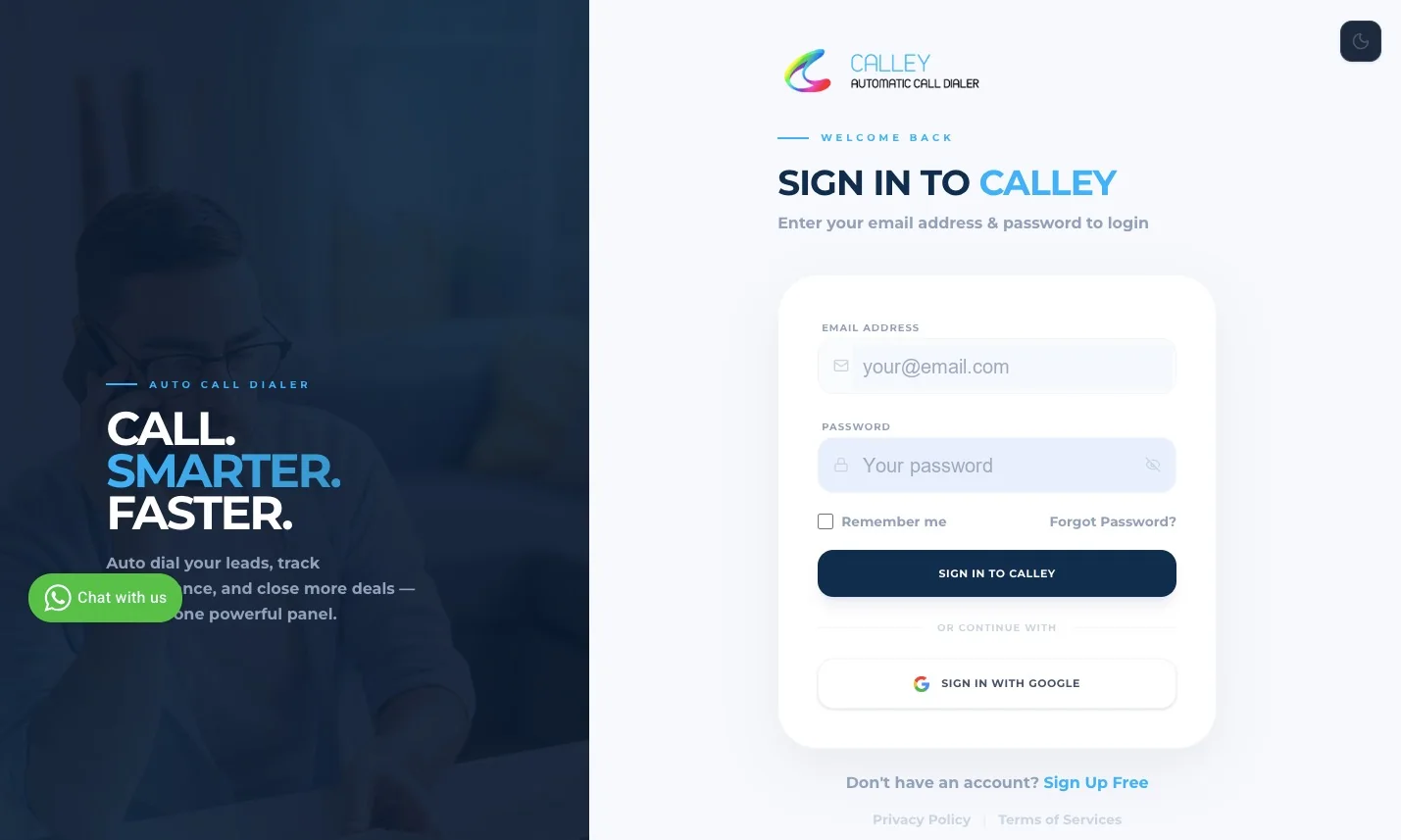
✓Log in to the Web Panel using a valid Email and Password.
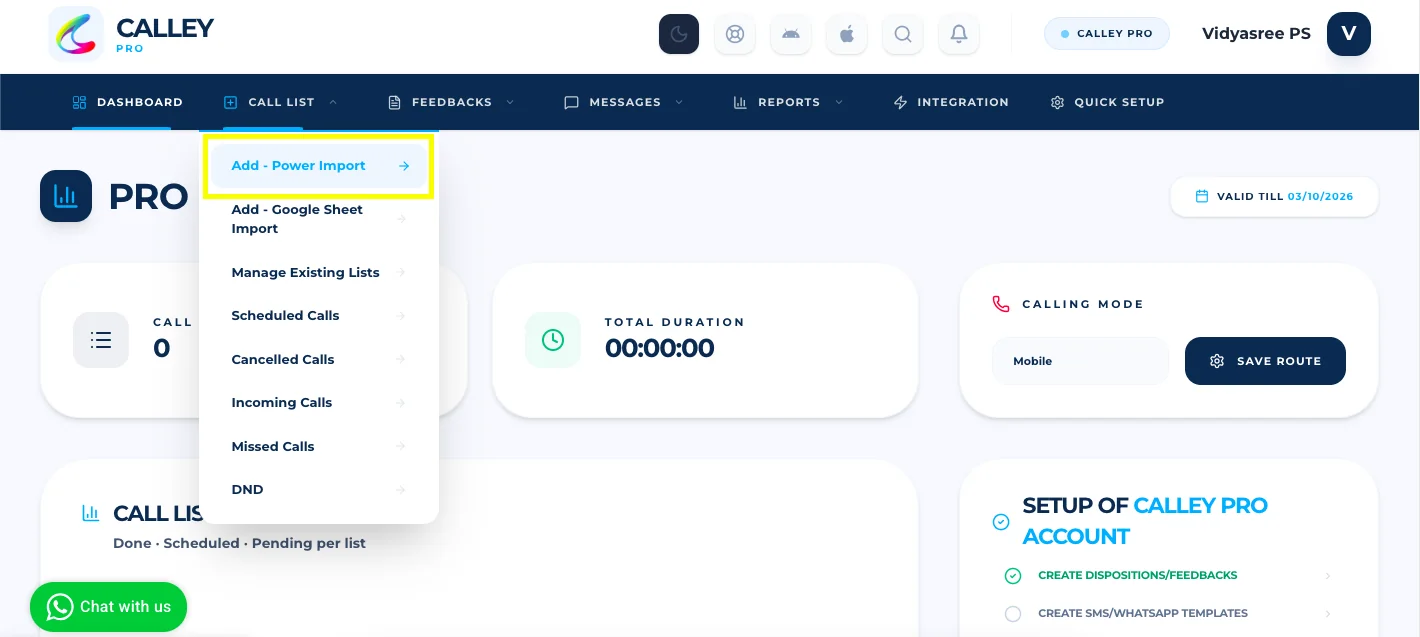
✓Once you log in to the panel you are taken to the Dashboard. To start using Calley you need to add a Calling List. Hover over the Call List link on the top navigation bar and click on Add - Power Import.
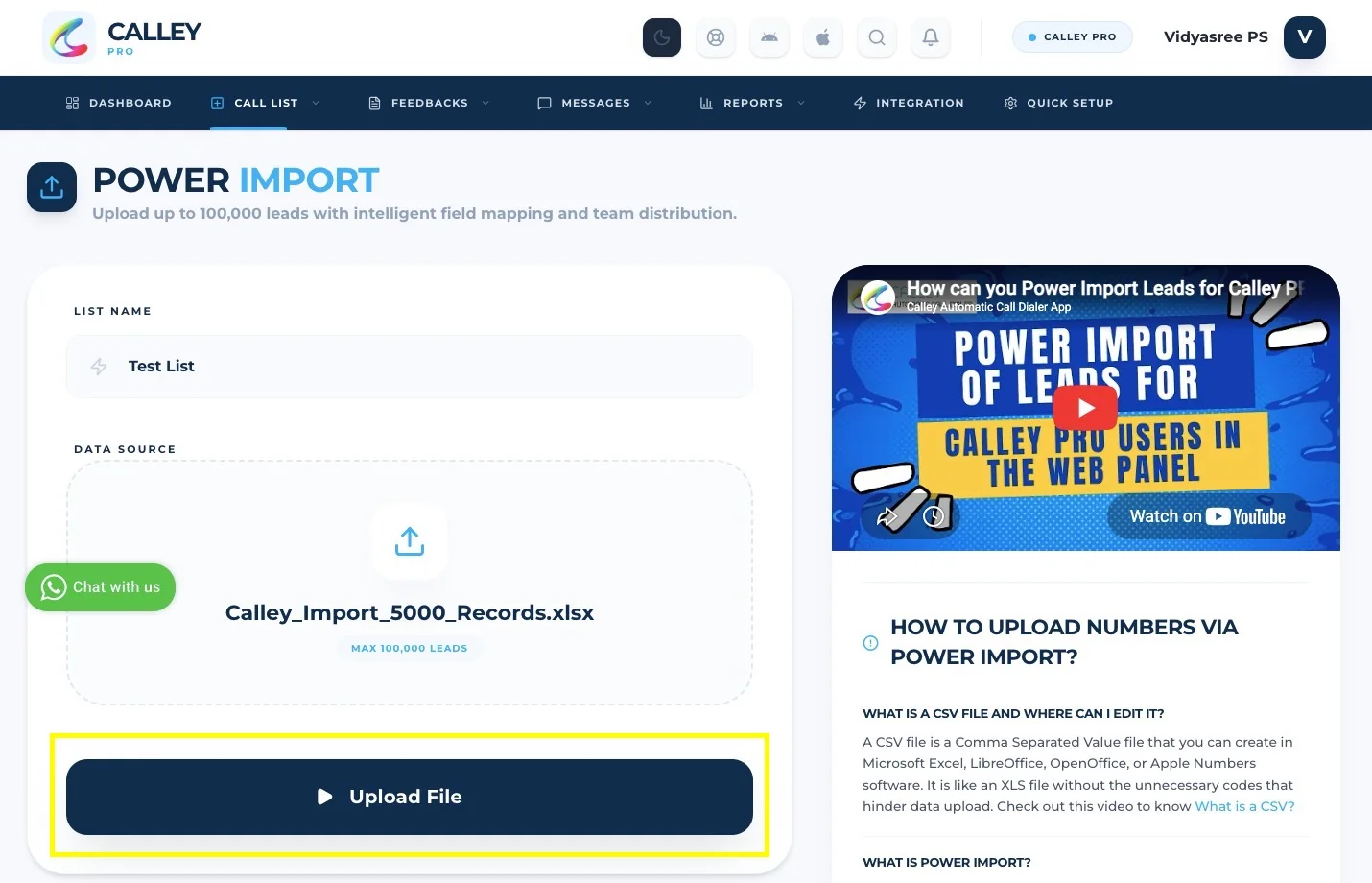
✓You are on the Calley PRO Plan, so you can use Power Import to upload up to 100,000 leads at a time. Enter the List Name, select the lead file (a CSV, XLS or XLSX file with the mandatory fields Name, Phone and Notes), and click on Upload File.
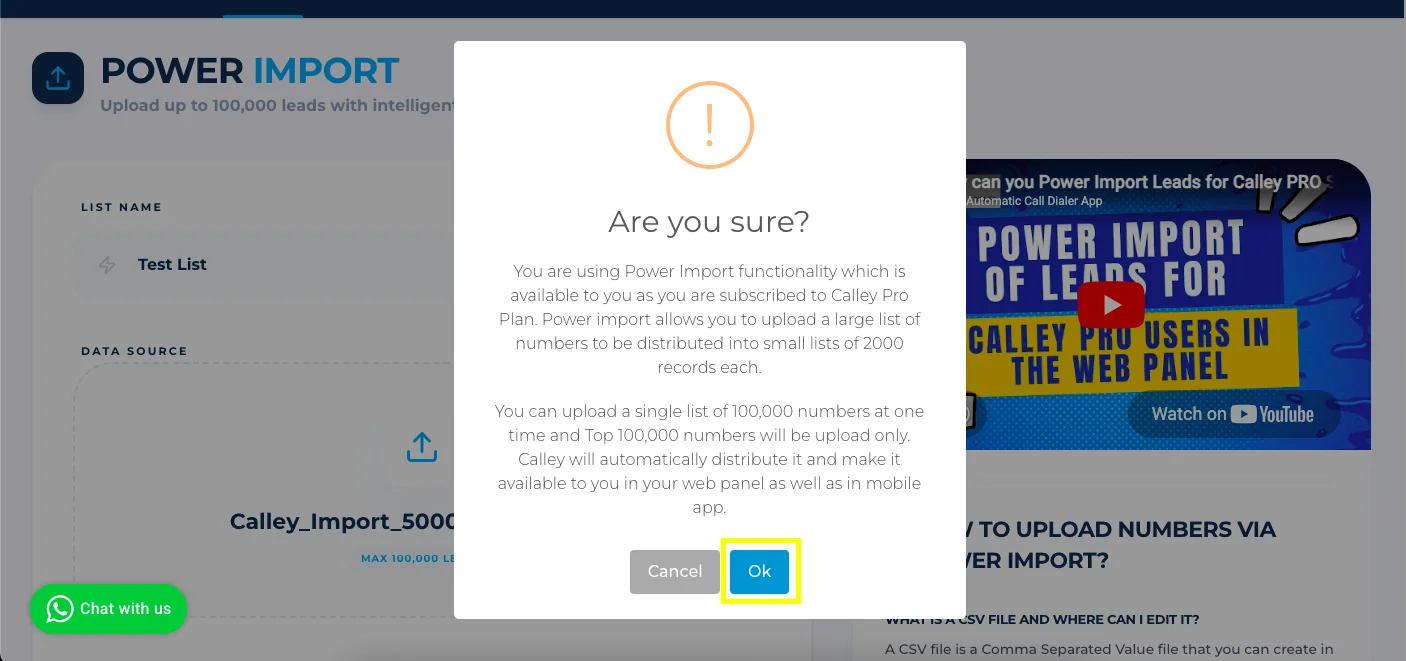
✓Calley asks you to confirm. Power Import splits a large list into smaller lists of 2000 records each and makes them available in your web panel as well as in the mobile app. Click on Ok to continue.
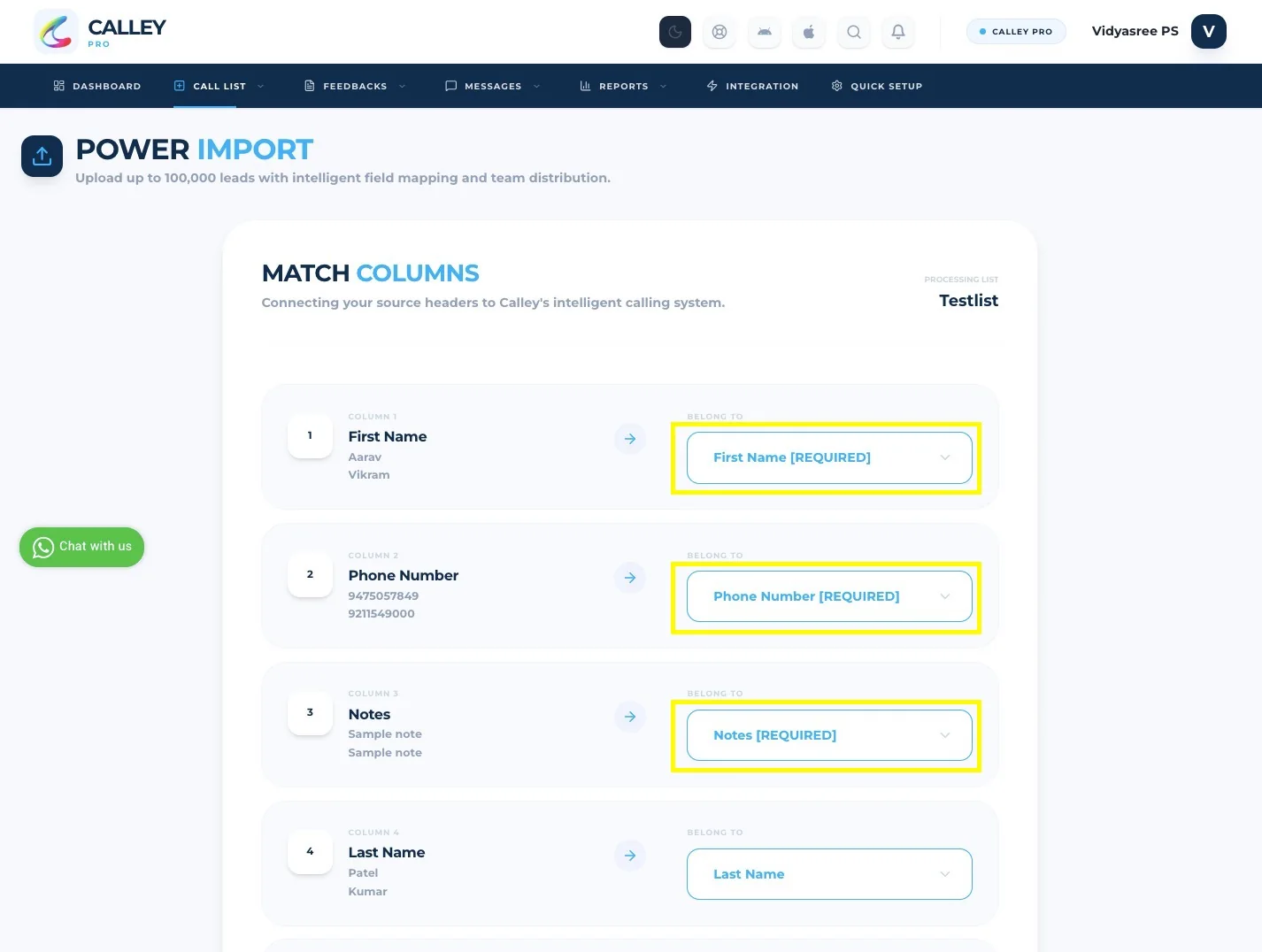
✓Match the columns in your file with the respective fields in the Calley Web Panel. First Name, Phone Number and Notes are required, and you can map the other columns, such as Last Name, or choose Skip the Column for the ones you do not need.
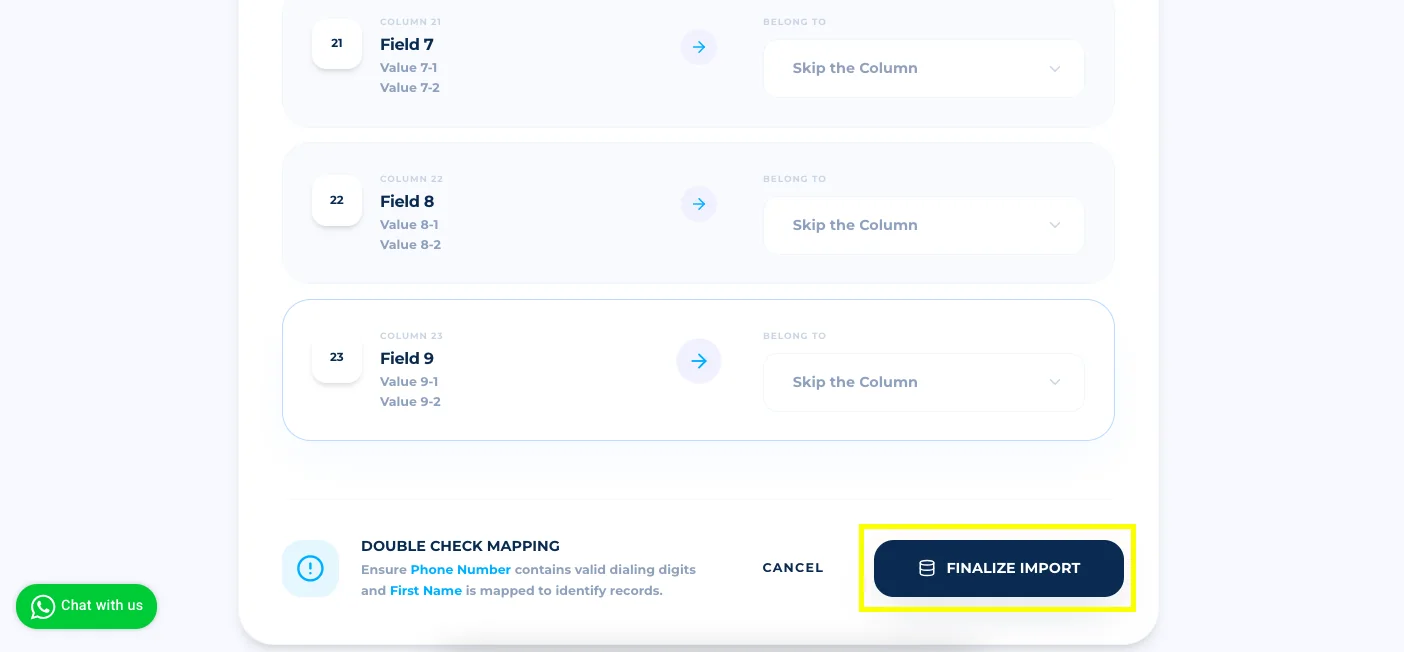
✓Scroll down, double check the mapping, and click on Finalize Import to upload your leads.
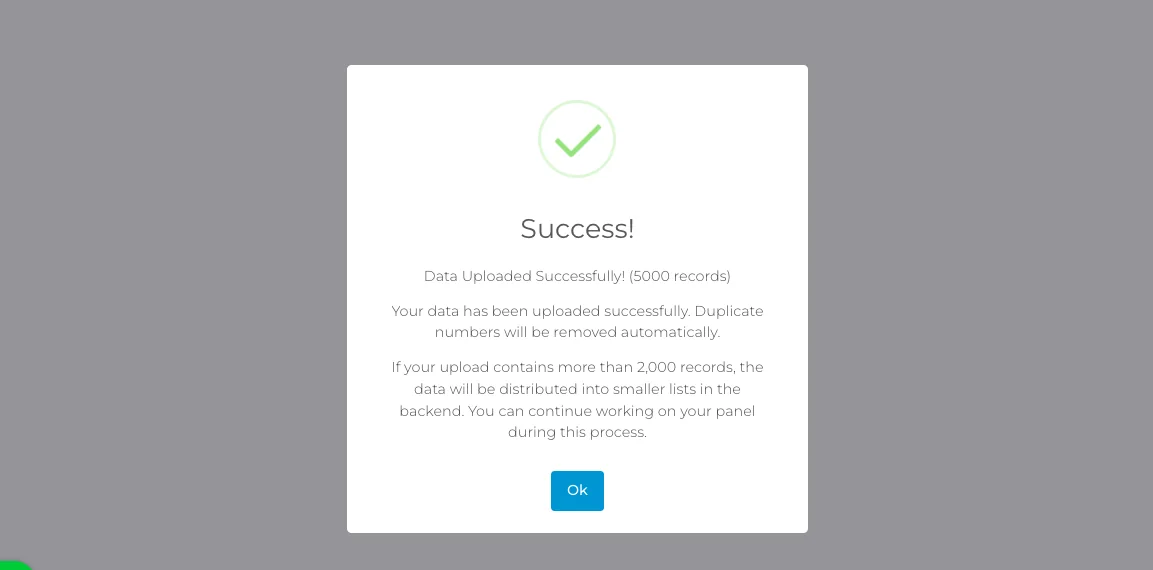
✓Once the data is uploaded you will see a Success message. Duplicate numbers are removed automatically, and if your upload contains more than 2,000 records it is distributed into smaller lists in the backend. You can continue working on your panel during this process. Click on Ok.
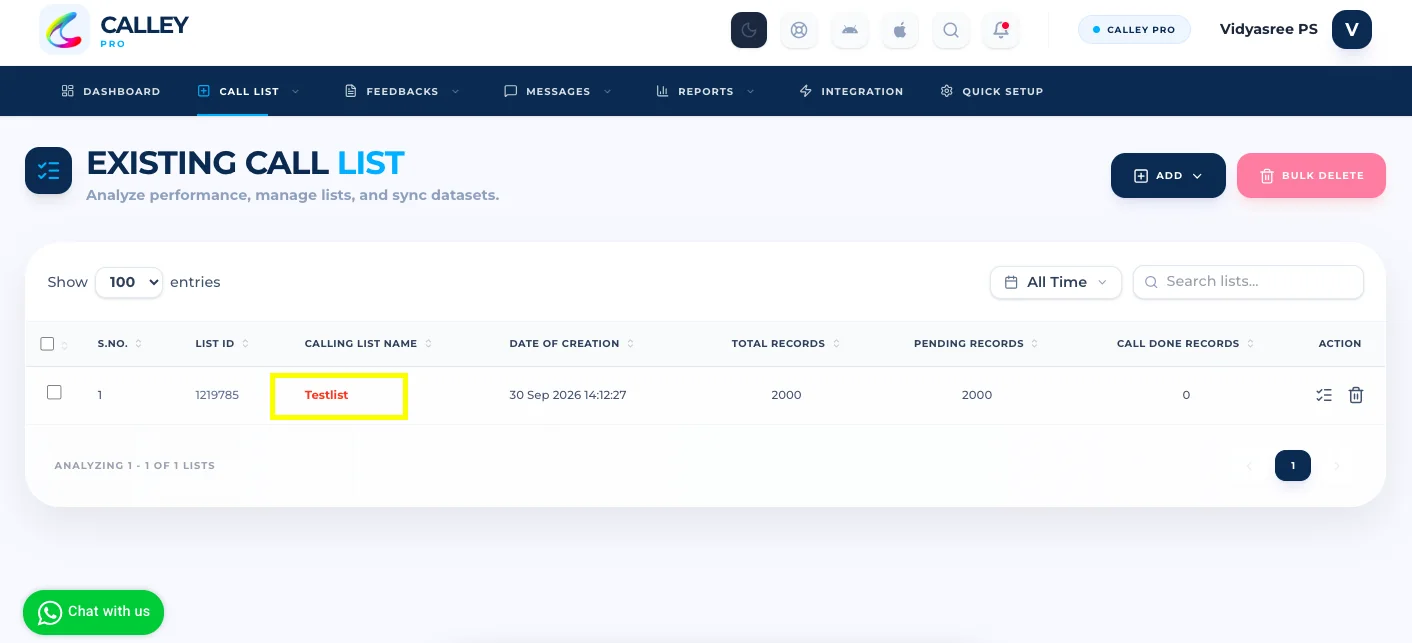
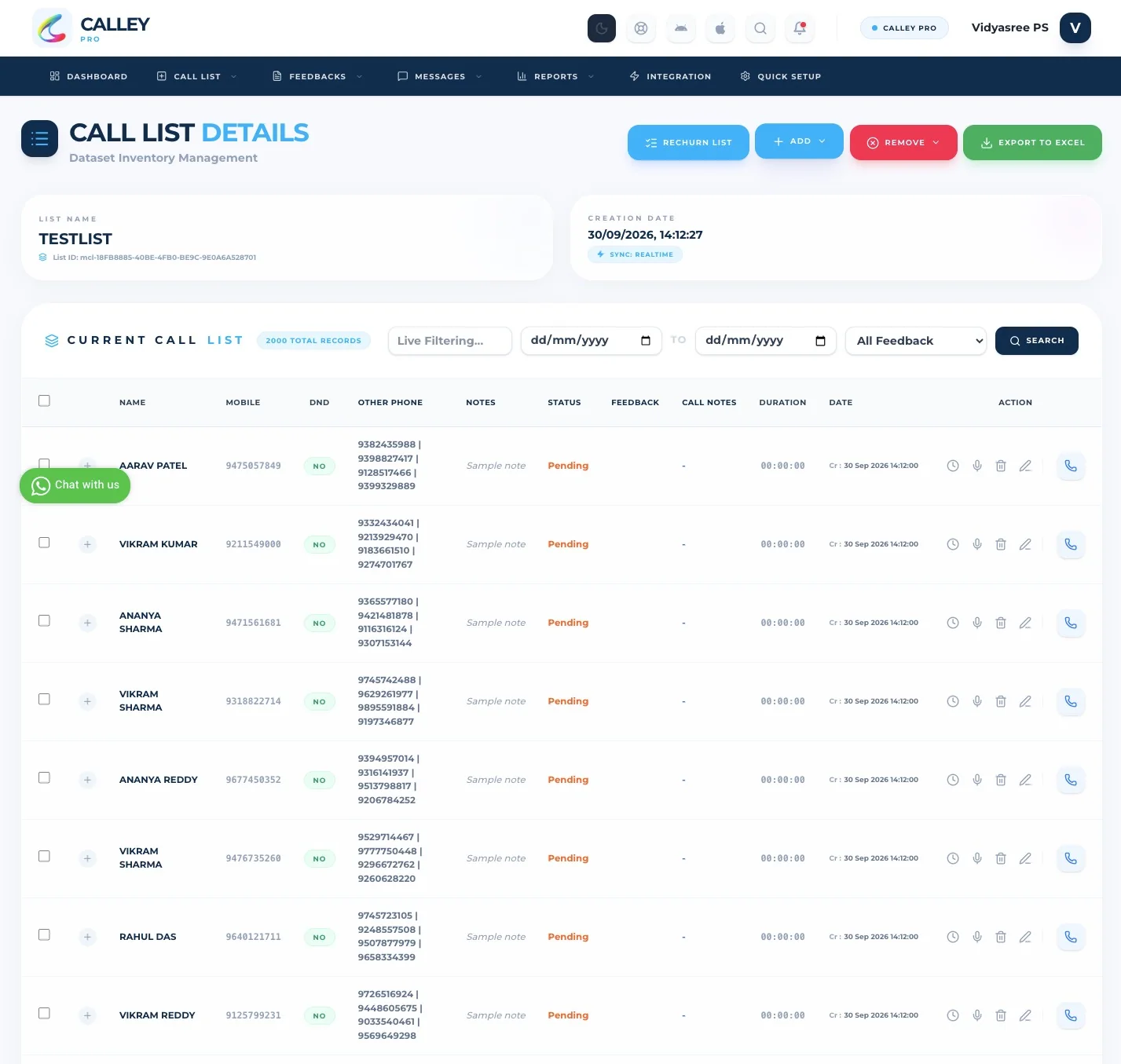
✓You will be able to see the Calling List created in the panel. This is the same list that will be available to you in the Mobile App to make calls. You can click on the list name to see details of the leads imported.
✓On this page you can see all the leads imported in the calling list you just created. Calley PRO Web Panel Setup is now done. You will now need to install the Mobile App on your iPhone to make your first call. Details of the calls you made will be updated automatically with the web panel and you can see the reporting for the calls done on this page.
Step 3: Install the Calley App on Your iPhone
Download Calley from the App Store, sign in with the same account, and your contact list syncs automatically. Follow the screens below in order.
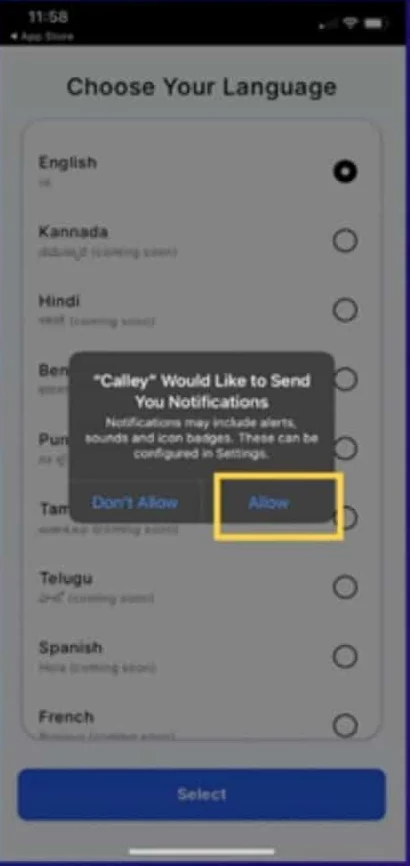
✓As you install the Calley iOS App, it will ask for permission to send notifications. Please allow the notifications to receive scheduled call reminders.
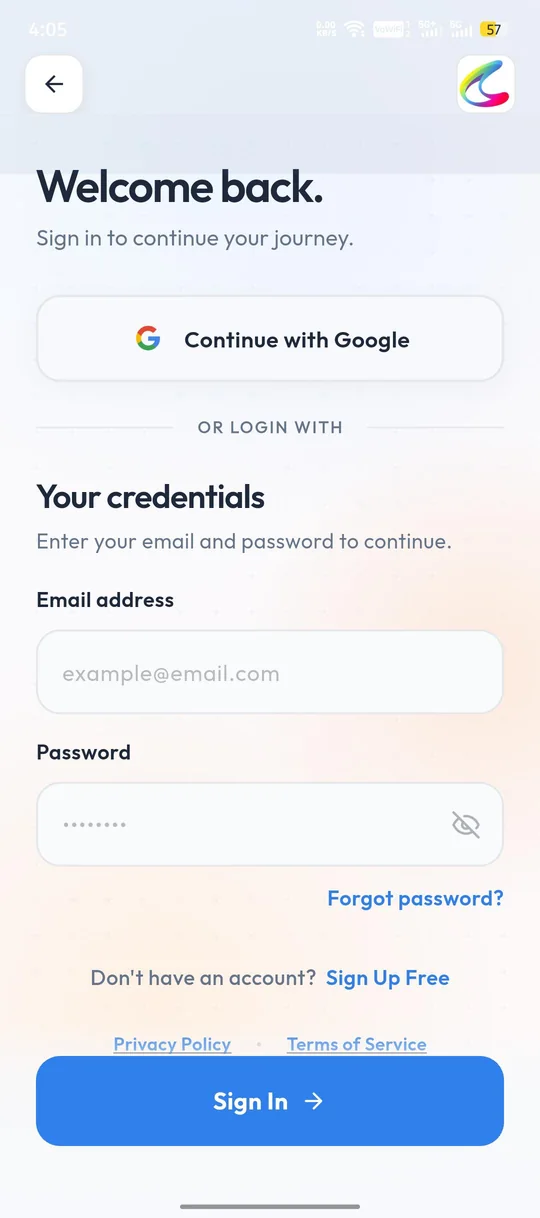
✓Now you can log in to the app with the username and password you used to create an account on the web panel.
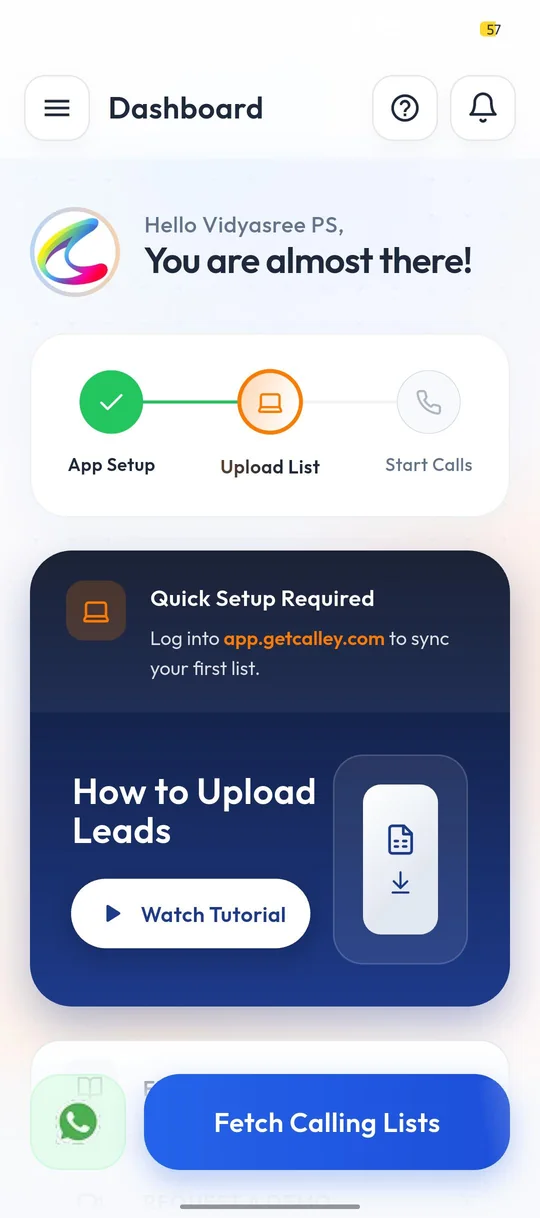
✓As you log in, you will land on the Dashboard, which shows the steps to set up the Calley Web Panel. Once you have uploaded your calling list in the web panel, click on Fetch Calling Lists.
✓The app reminds you to upload your lists on the Web Panel before you begin. Click on Yes, Let’s Go!
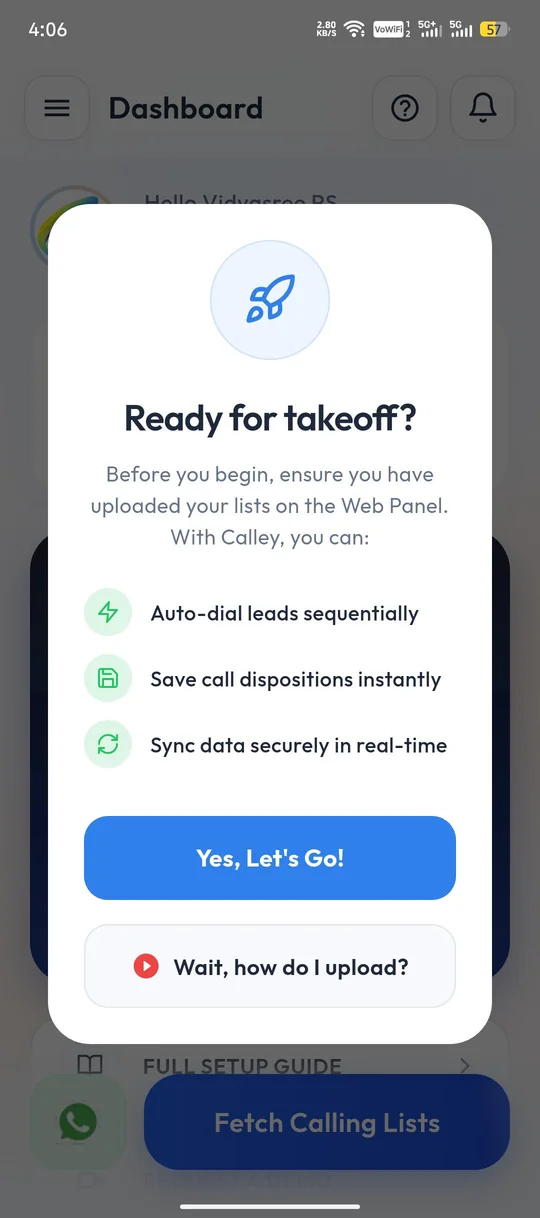
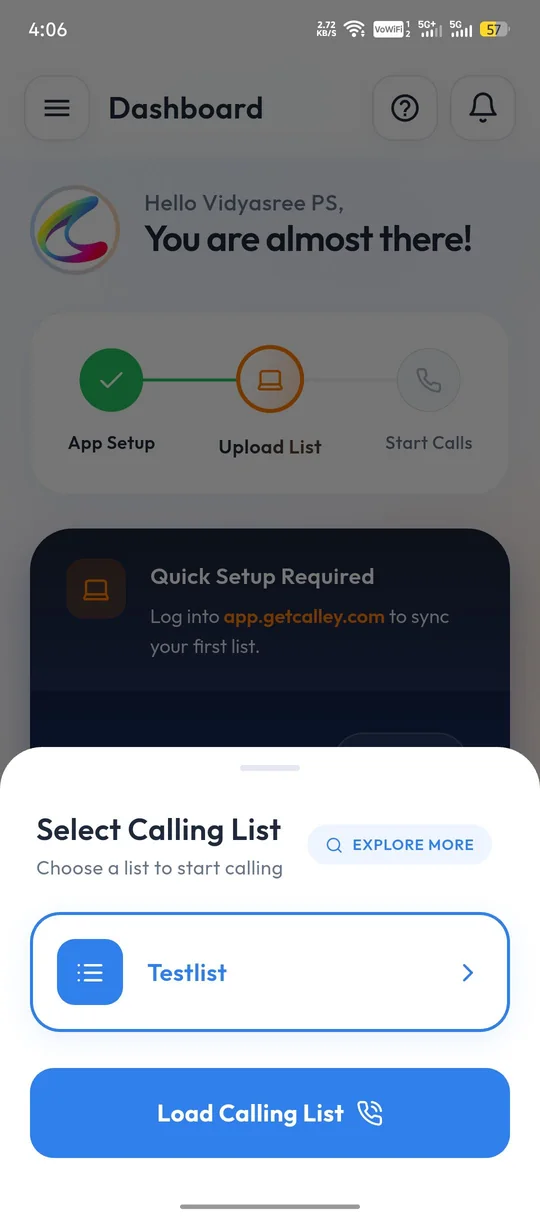
✓You can see the lists you have uploaded. Select the list you want to auto dial and click on Load Calling List.
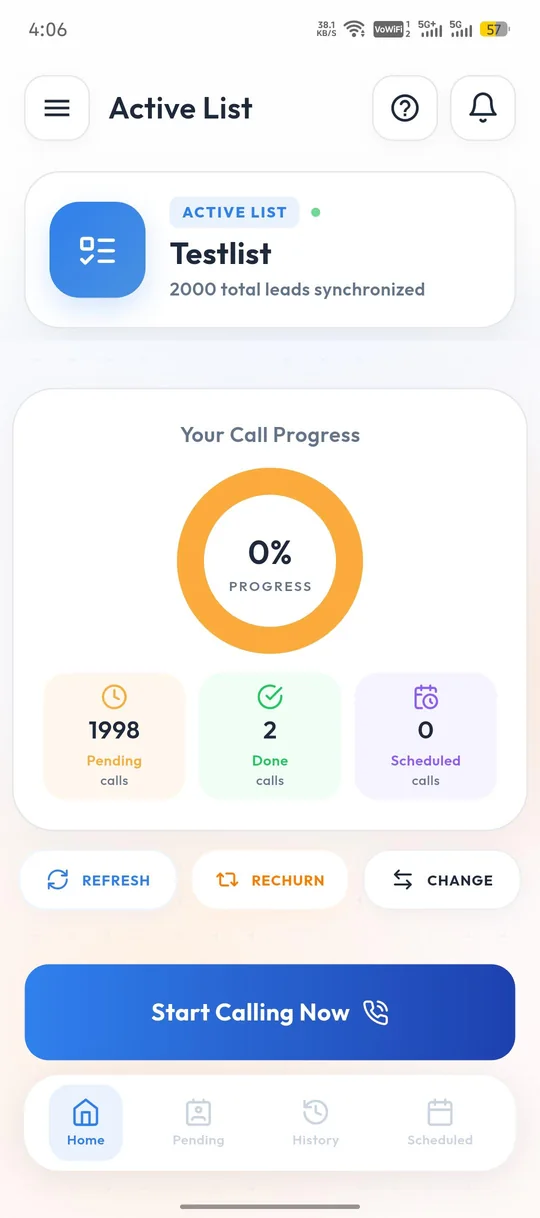
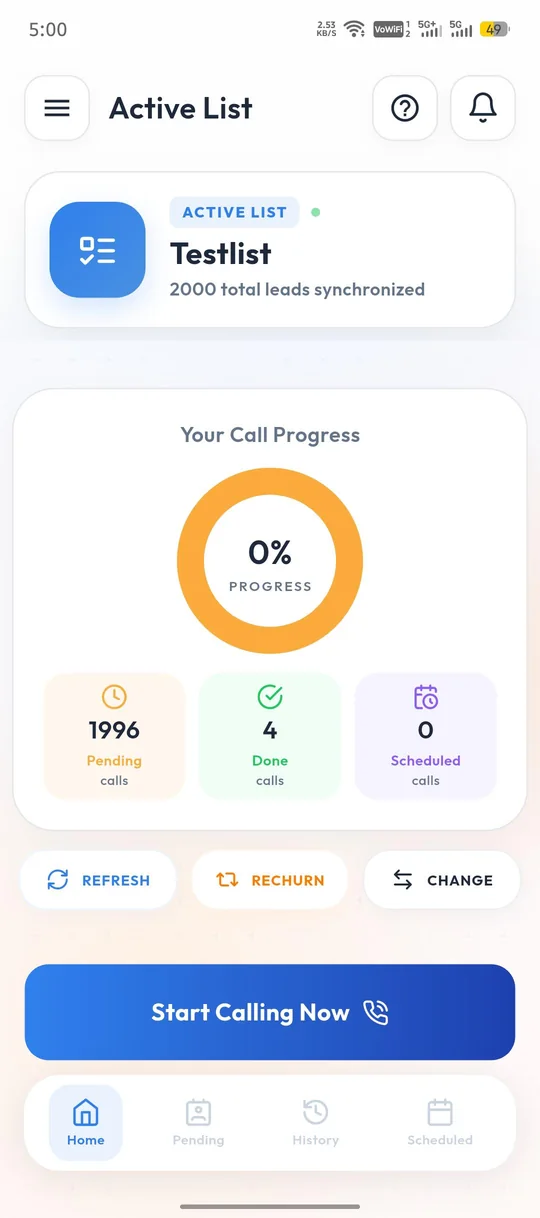
✓As the list is loaded successfully, you can see your active list and call progress on your iPhone. Start AutoDialing by clicking on the Start Calling Now button.
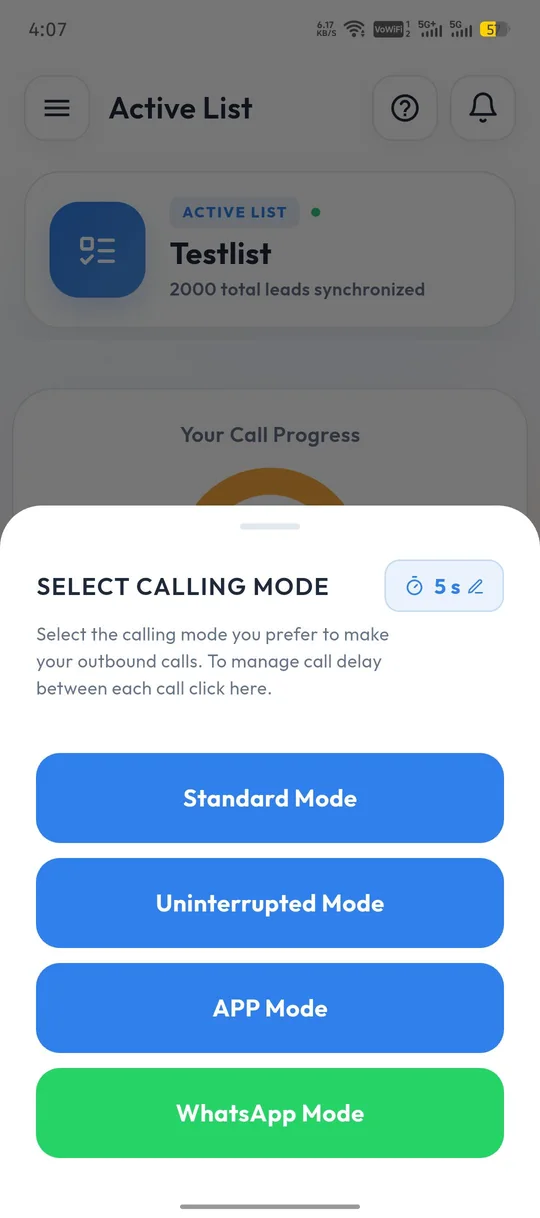
✓Calley offers different calling modes to choose from: Standard Mode, Uninterrupted Mode, App Mode and WhatsApp Mode. As you are on the Calley PRO plan you can choose any of them. You can also change the delay between each call from the timer at the top right. Select a mode to start calling.
✓As the call is triggered you can see the details of the number being called, along with the lead info. On this screen you can click on Stop to pause autodialing and the list will be paused, or click on Skip to move to the next number in the list.
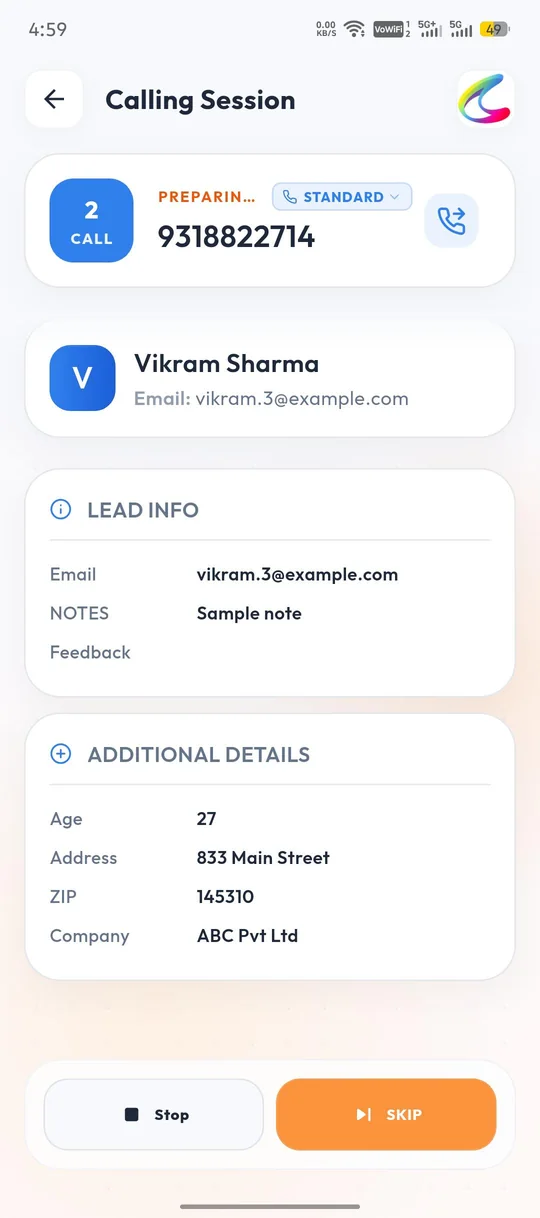
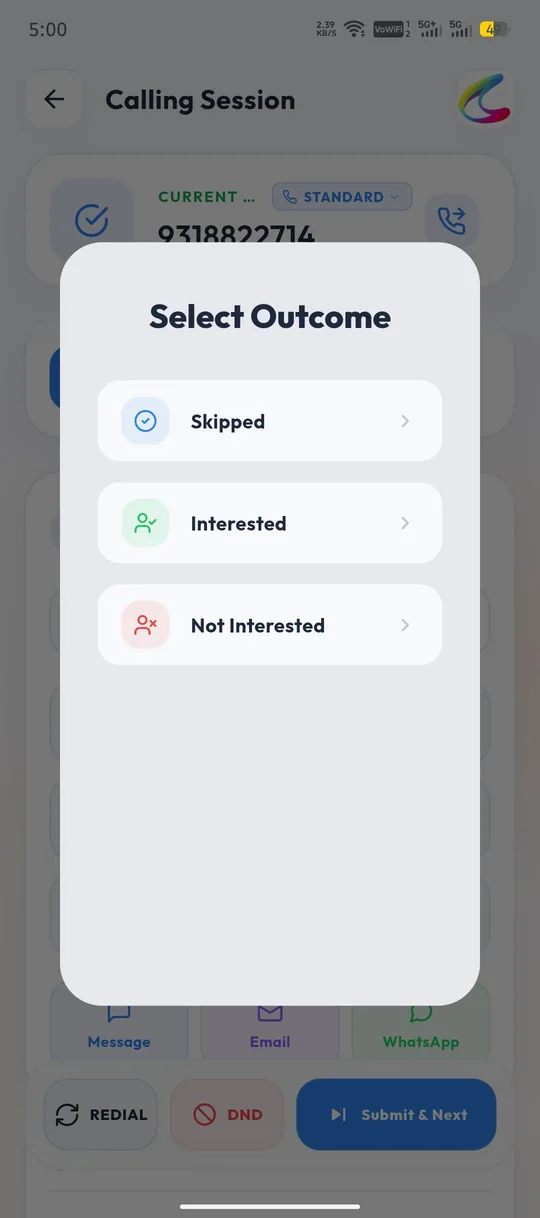
✓Once the call is finished the app will prompt you to select the call outcome (call disposition), for example Interested or Not Interested.
✓The Call Notes page gives you the following options:
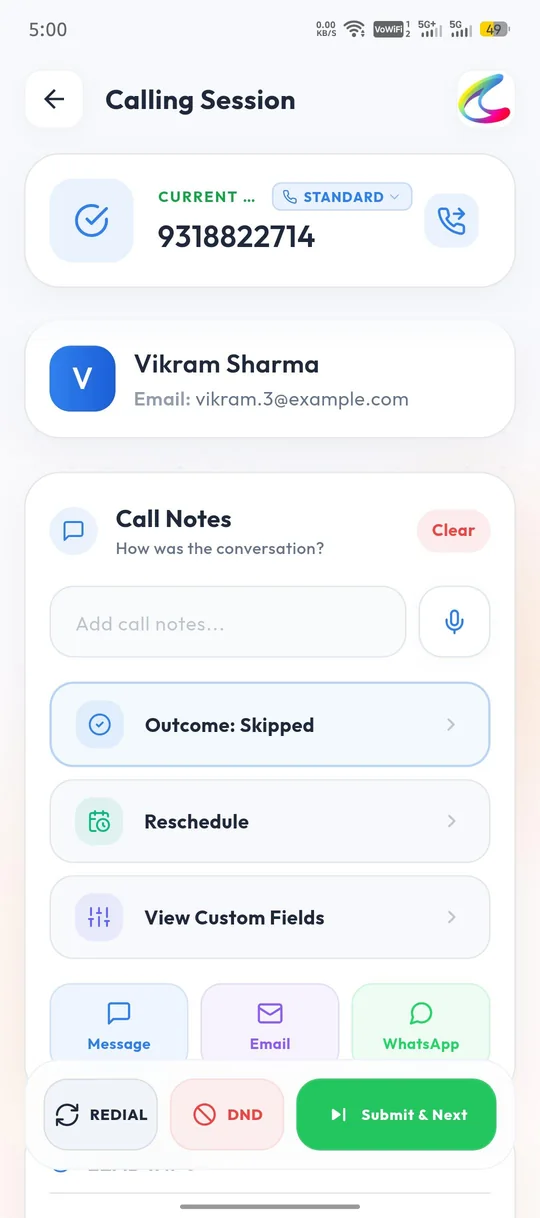
a) Call Notes - You can put notes for the call done for future reference.
b) Outcome - Select the call disposition for the call.
c) Reschedule - You can set up a schedule for calling the lead again, the app will send you a reminder.
d) View Custom Fields - See the additional details saved for the lead.
e) Message, Email and WhatsApp - Send an SMS, an email or a WhatsApp message to the lead at the end of the call using your templates.
✓Once filled you have 3 options at the bottom of the Call Notes screen:
a) Redial - It will redial the same number for you.
b) DND - It will mark the number as DND in your panel and the same will be filtered from future calls.
c) Submit & Next - It will save the notes you have filled and dial the next call for you.
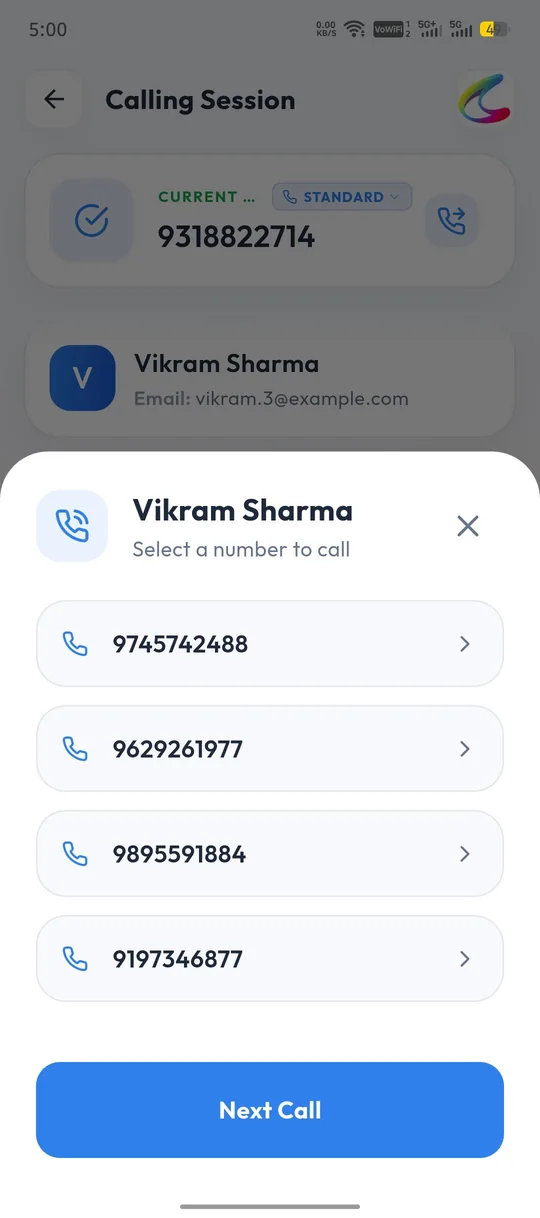
✓If a lead has more than one phone number, tap the call icon on the calling screen to choose the number you want to call, then click on Next Call.
✓You can see the dashboard for the Calls done, Pending calls and Scheduled Calls.
BENEFITS OF AUTODIALING ON IPHONE
Autodialing on iPhone offers several benefits, including:
- ✓Increased productivity: Autodialing saves you time and effort by eliminating the need for manual dialing.
- ✓Improved efficiency: Autodialing allows you to make more calls in less time, improving your overall efficiency.
- ✓Enhanced customer experience: Autodialing enables you to connect with your customers faster, improving their overall experience.
BOOST YOUR PRODUCTIVITY WITH CALLEY AUTODIALER APP ON IPHONE
Autodialing on iPhone is a simple and effective way to automate your outbound calls and grow your business. By following these simple steps, you can start autodialing on your iPhone today. Download the Calley Autodialer app now and start closing more deals!
Sign up for a free trial of Calley Auto dialer today and experience the power of autodialing on iPhone for yourself. With Calley, you can boost your productivity, streamline your sales workflow, and drive growth for your business.
Checkout our Pricing Plans for Calley Auto Dialer App.
Find out, Full Feature List of Calley AutoDialer.
Click on the link if you want to Subscribe to a Free Auto Dialer with a limit of 25 calls per day?
We know you will have questions.
We would love to answer all your questions to get you started with Auto dialing using The Calley Auto Dialer app.