
How to Start Autodialing Using Your Android Phone
Android Autodialing using Calley (Android Autodialer app)
Making countless calls manually can be exhausting and time-consuming. What if you could automate the entire process and focus on what truly matters—connecting with your leads? With the Calley Autodialer app, your Android phone transforms into a powerful calling tool that takes the hassle out of managing outbound calls. This guide will walk you through the simple steps to get started with autodialing, so even a complete beginner can follow along effortlessly. Say goodbye to dialing numbers manually and hello to smarter, faster calling!
This guide walks through getting set up on Calley Personal, the free-for-life plan, so you can turn your Android phone into a working call center and start managing your calling list right away.
- 1.1. Android Autodialing using Calley(Android Autodialer app)
- 1.1.1.1. What is Calley Autodialer App?
- 1.2.1.2. Benefits of Using Calley Autodialer App
- 1.3.1.3. Who Can Benefit from Autodialing?
- 1.4.1.4. Step-by-Step Guide
- 1.4.1.1.4.1. Step 1: Set Up Your Calley Account
- 1.4.2.1.4.2. Step 2: Create your Calley account on Computer
- 1.4.3.1.4.3. Step 3: Install the Calley App on Your Android Phone
- 1.4.4.1.4.4. Step 4: Start Autodialing
- 1.5.1.5. Why Should You Use an Android Auto dialer Like Calley?
- 1.6.1.6. Boost Your Sales with Android Autodialing
- 1.7.1.7. WE KNOW YOU WILL HAVE QUESTIONS.
WHAT IS CALLEY AUTODIALER APP?
Calley Autodialer App is a powerful tool that helps you automate your outbound calling workflow. With Calley, you can create and manage your calling lists, automate your sales calls, and track your leads in real-time.
BENEFITS OF USING CALLEY AUTODIALER APP
By using Calley Autodialer App, you can:
- ✓Increase your sales productivity by up to 300%.
- ✓Improve your sales conversion rates.
- ✓Enhance your customer engagement and experience.
- ✓Reduce manual dialing errors and save time.
WHO CAN BENEFIT FROM AUTODIALING?
Our autodialing solution is perfect for business owners, NBFCs, SMEs, financial institutions, outbound sales companies, inside sales agents, call centers, and event marketing companies looking to boost their sales productivity and streamline their outbound calling workflow. If you're tired of manual dialing and want to focus on closing more deals, our autodialing solution is for you.
Step-by-Step Guide
Step 1: Set Up Your Calley Account
To begin, you'll need:
- ✓An Android phone to make calls.
- ✓A laptop or desktop to upload and manage your contact lists.
- ✓An active internet connection.
Step 2: Create your Calley account on Computer
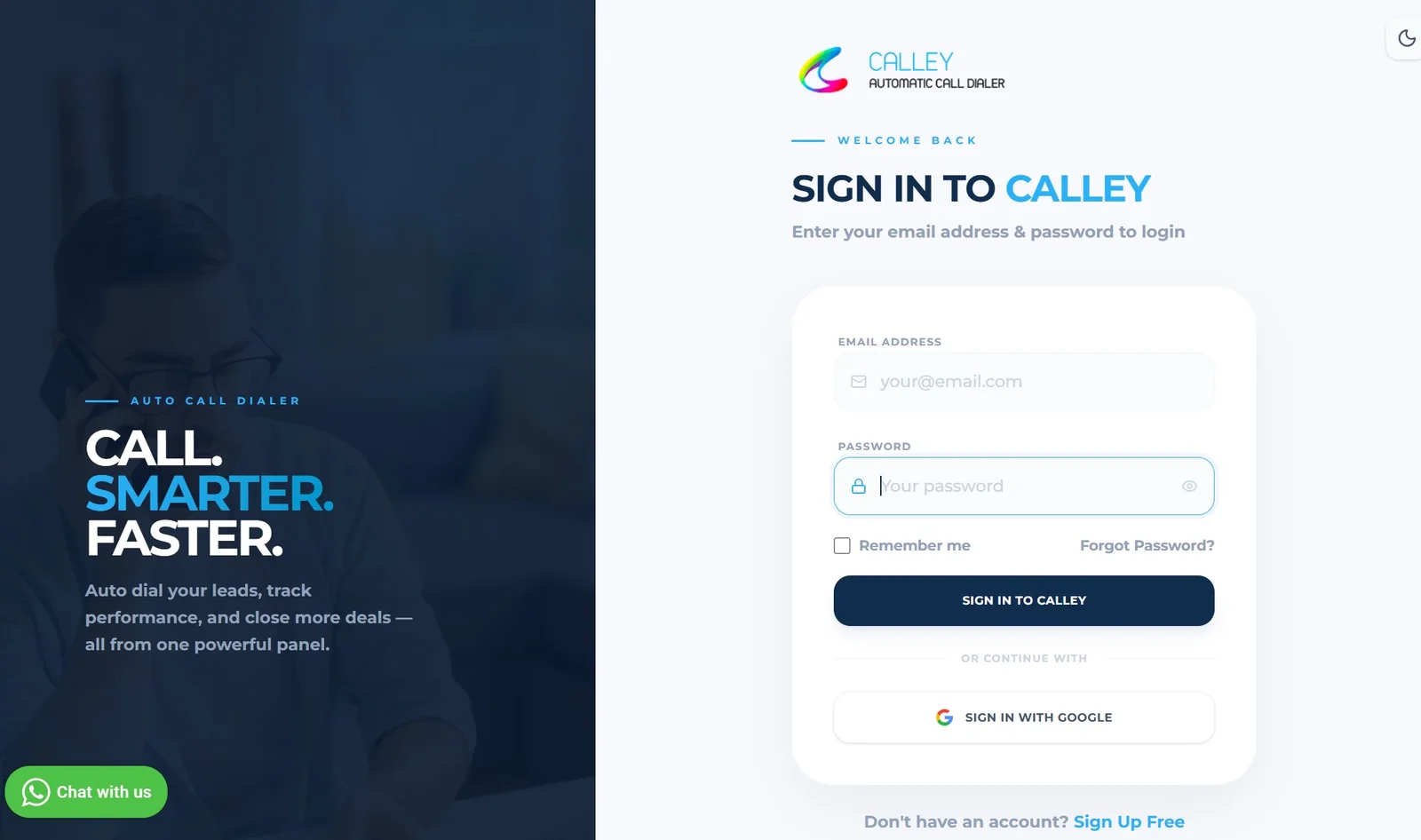
✓Go to Calley’s website and sign up for a Calley Personal account. Log in to the Calley Web Panel with your email and password.
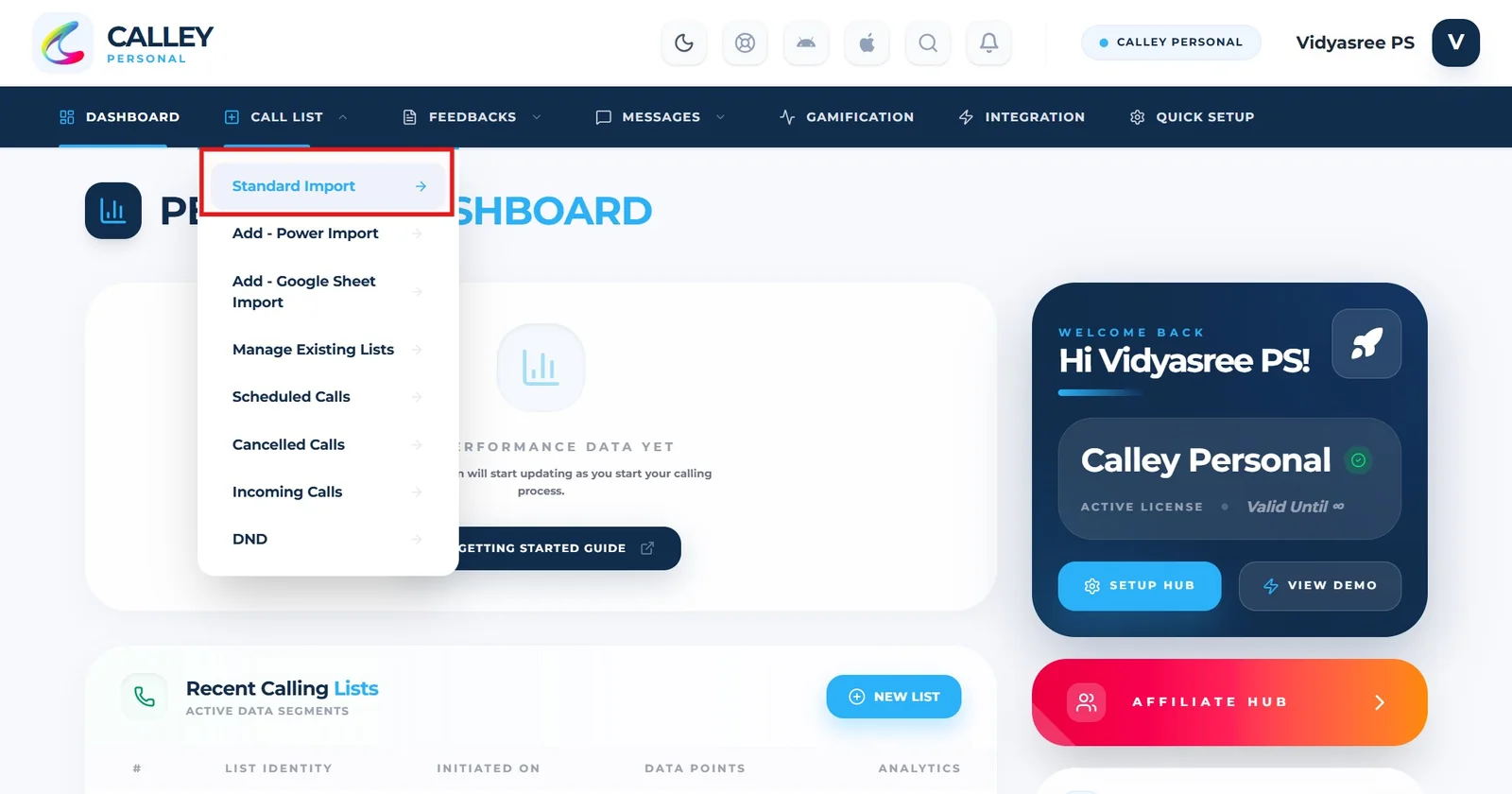
✓Hover over Call List in the web panel and select Standard Import.
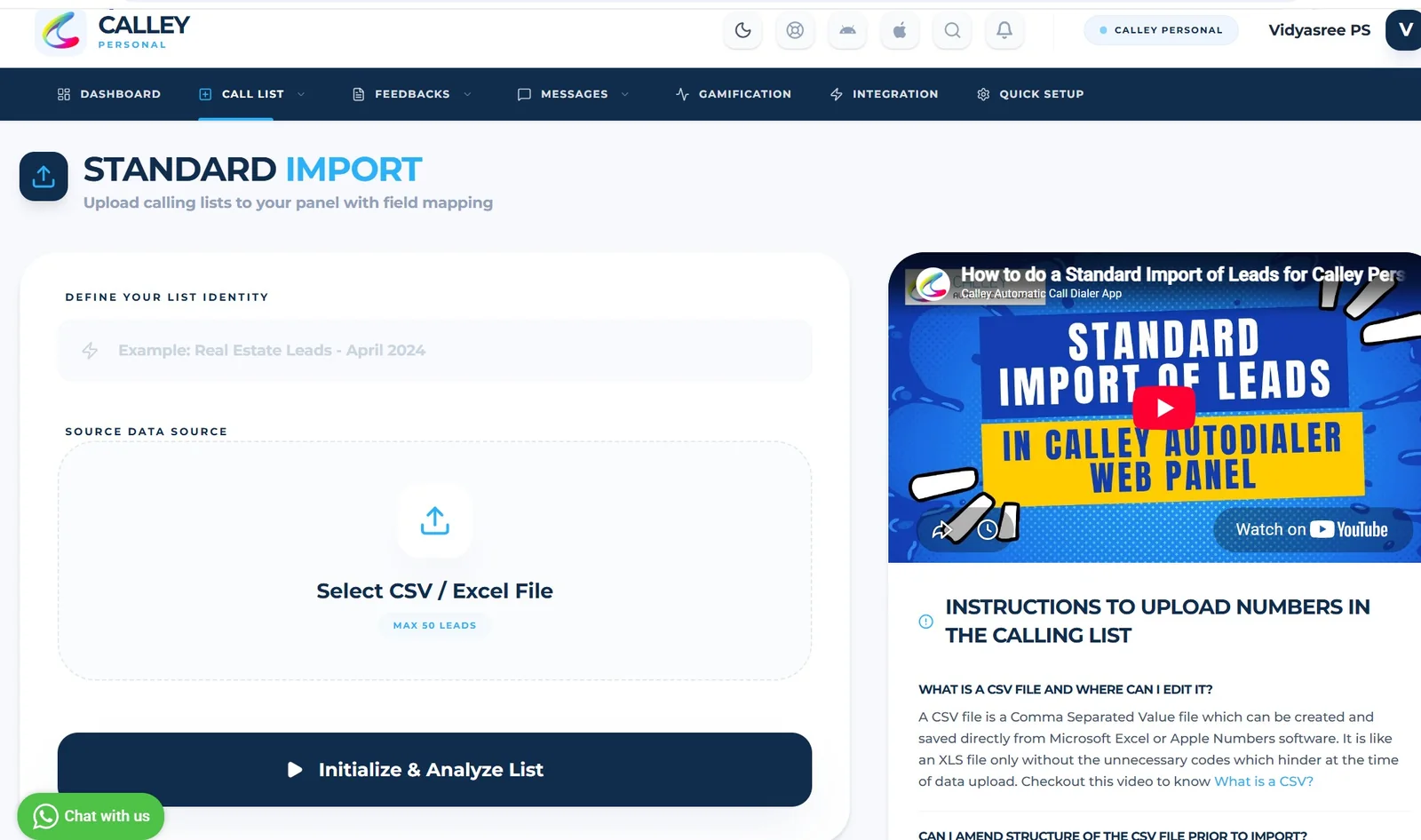
✓The Standard Import page opens. Keep your list ready in a CSV, XLS, or XLSX file with three columns: Name, Phone, and Notes. Make sure the list contains a maximum of 50 contacts for the free plan.
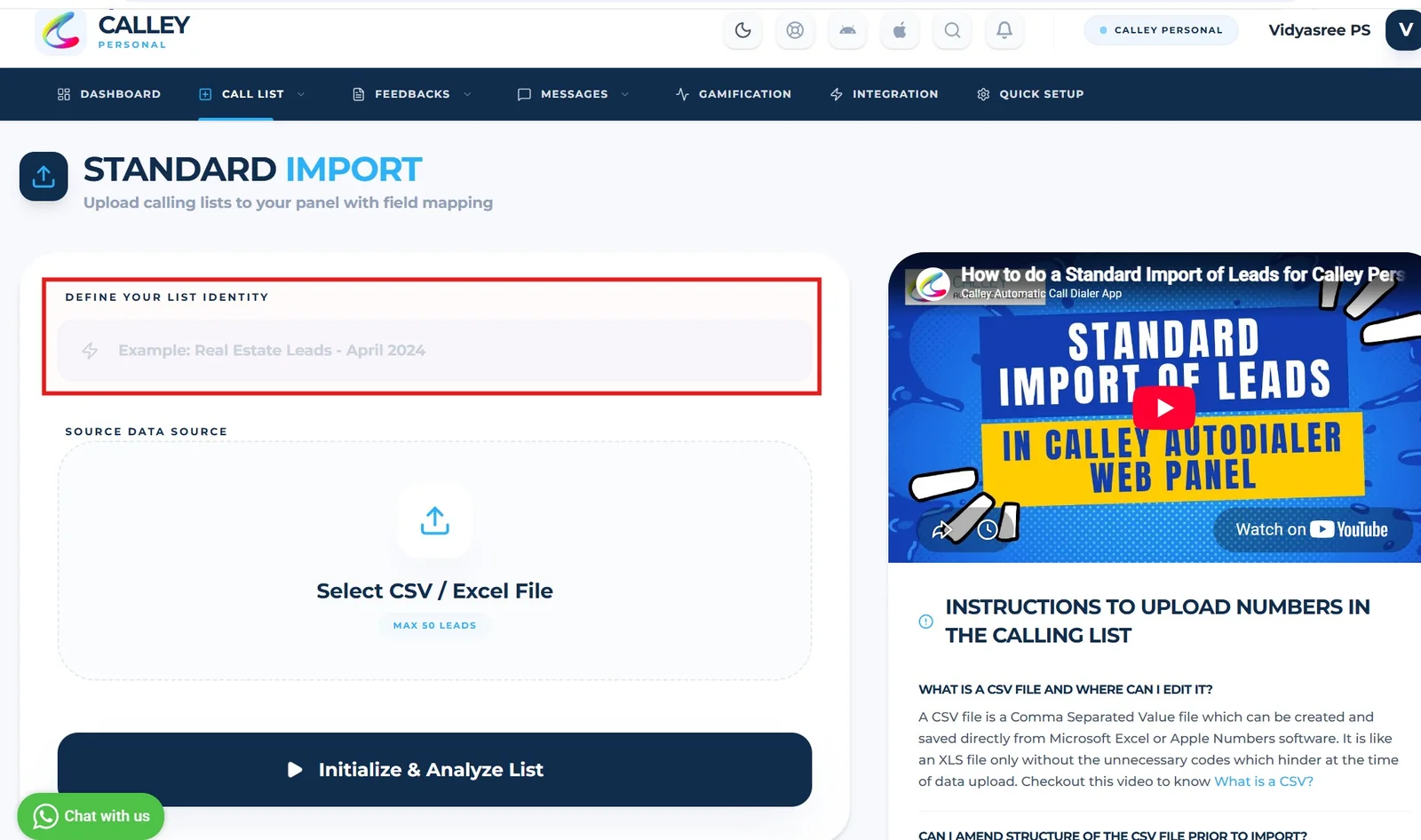
✓Enter a name for your list.
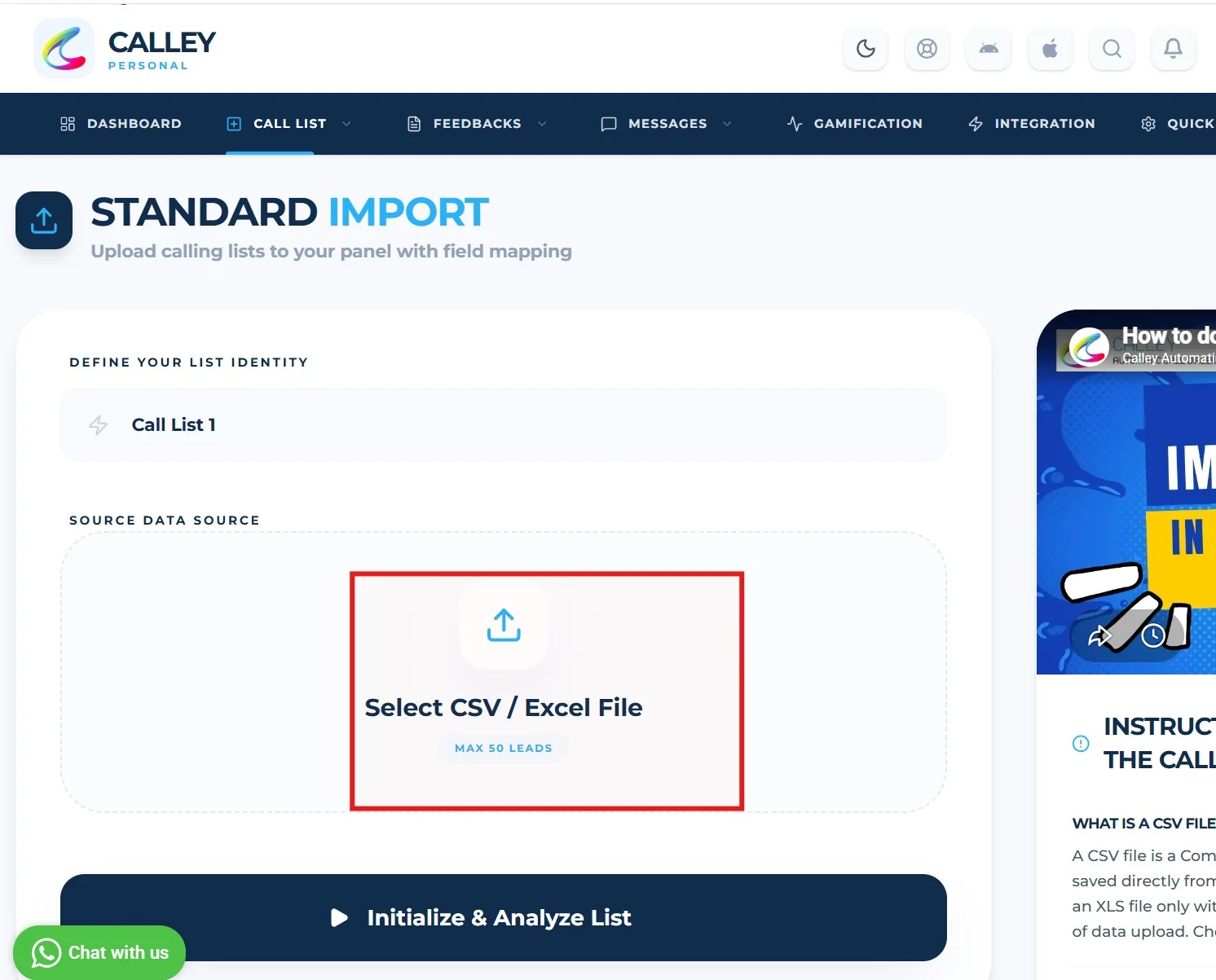
✓Click on Select CSV / Excel File and choose the lead file you want to upload. Ensure it is a CSV, XLS or an XLSX file.
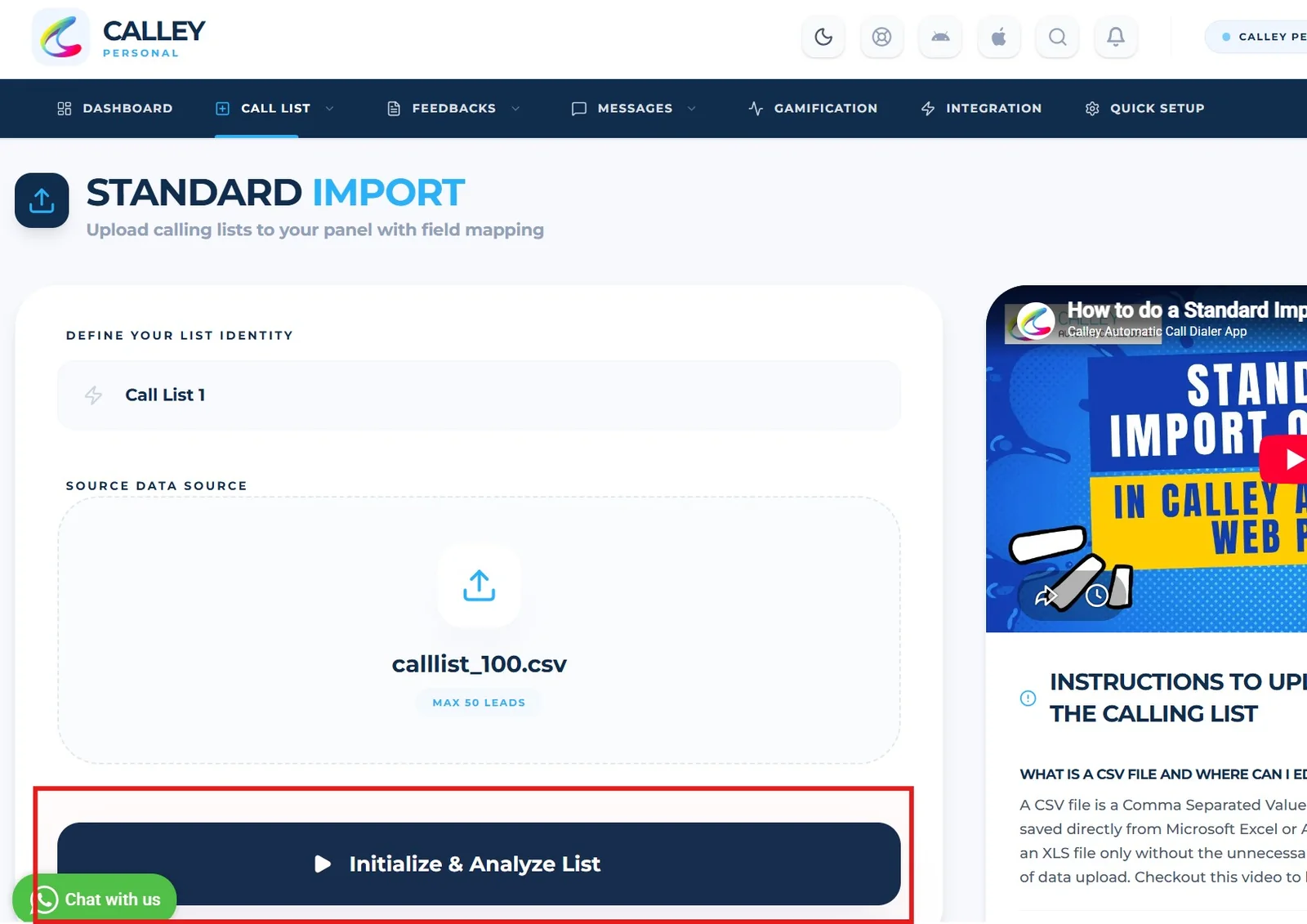
✓Once your file is selected, click on Initialize & Analyze List. Calley Personal Subscription will automatically upload the top 50 unique numbers from the selected lead file.
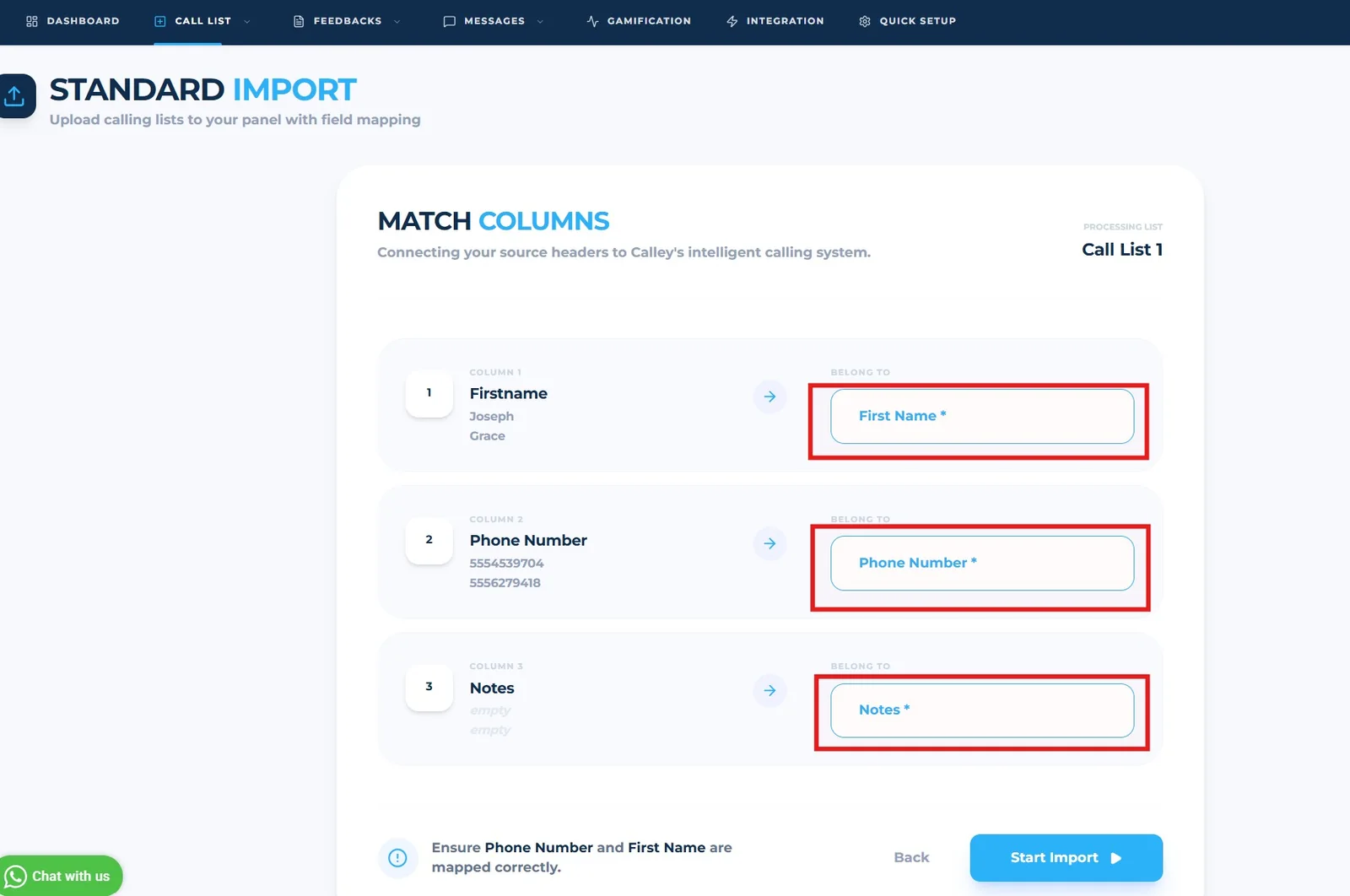
✓Map the fields in your file with the respective fields in the Calley Web Panel. Since you are on Calley Personal you can only map three fields: First Name, Phone Number and Notes. Mapping of all fields is mandatory.
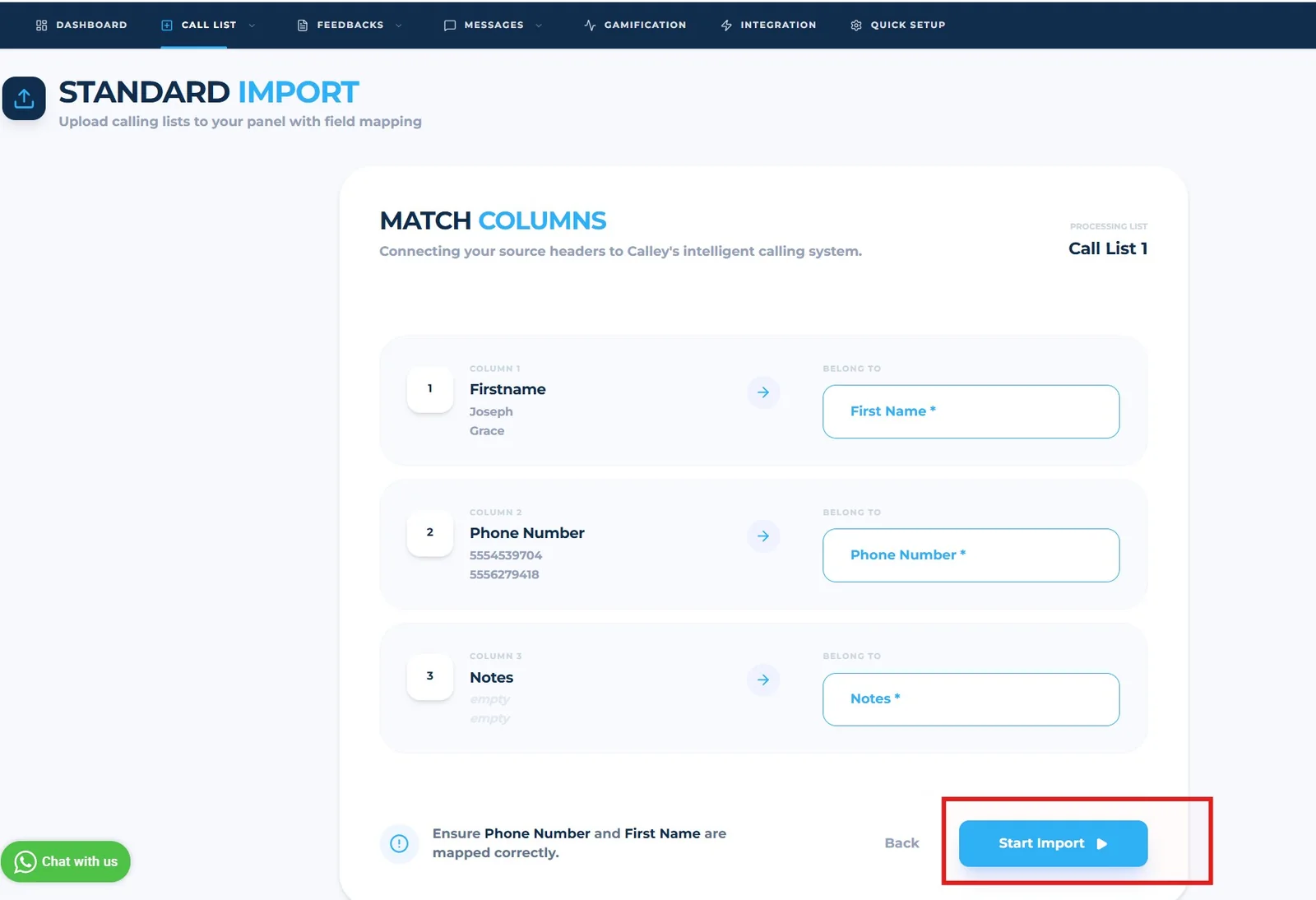
✓Once you have mapped these fields, click on Start Import to upload your leads.
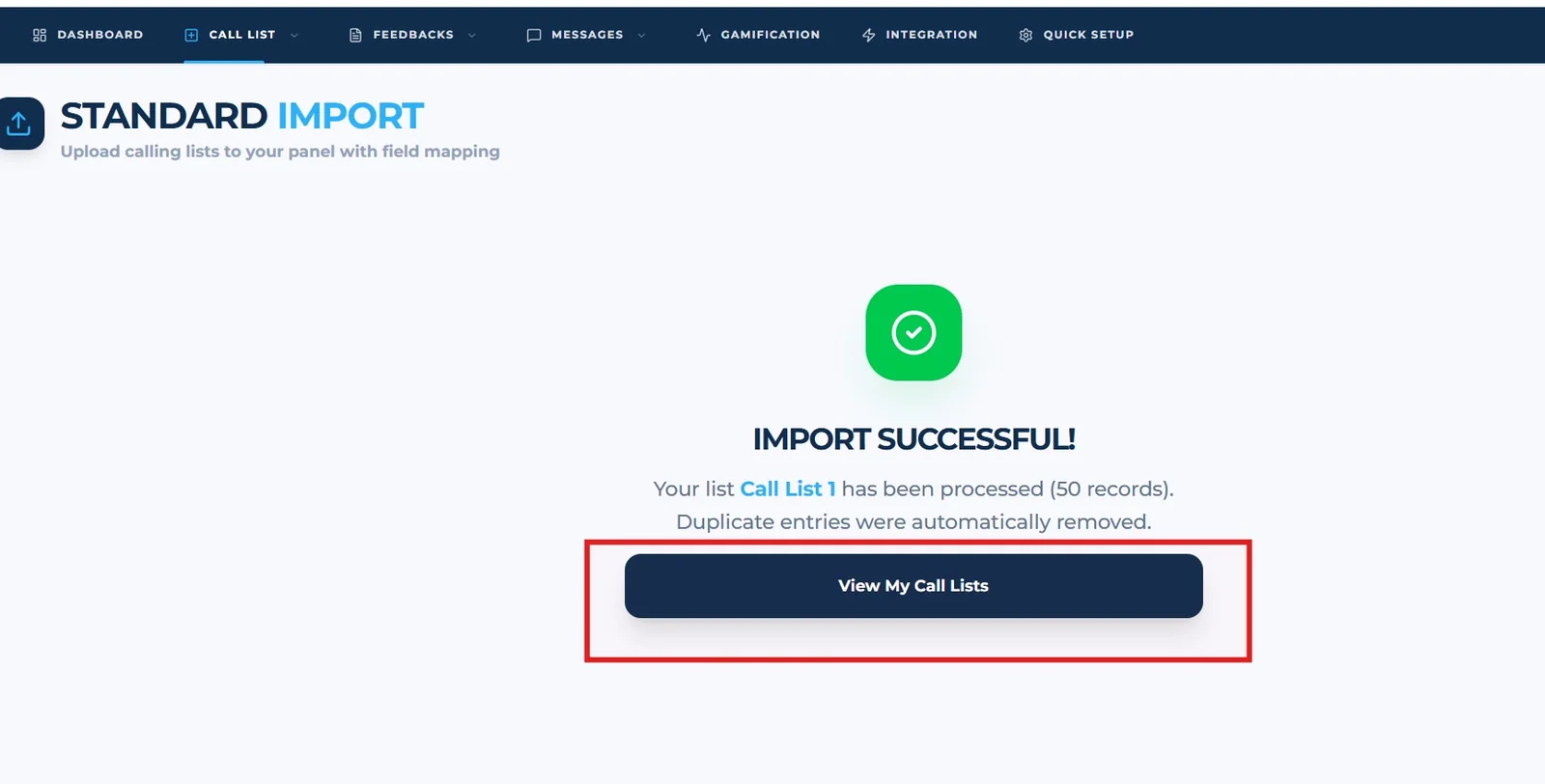
✓Once your data is imported successfully, you will see the Import Successful message. Click on View My Call Lists.
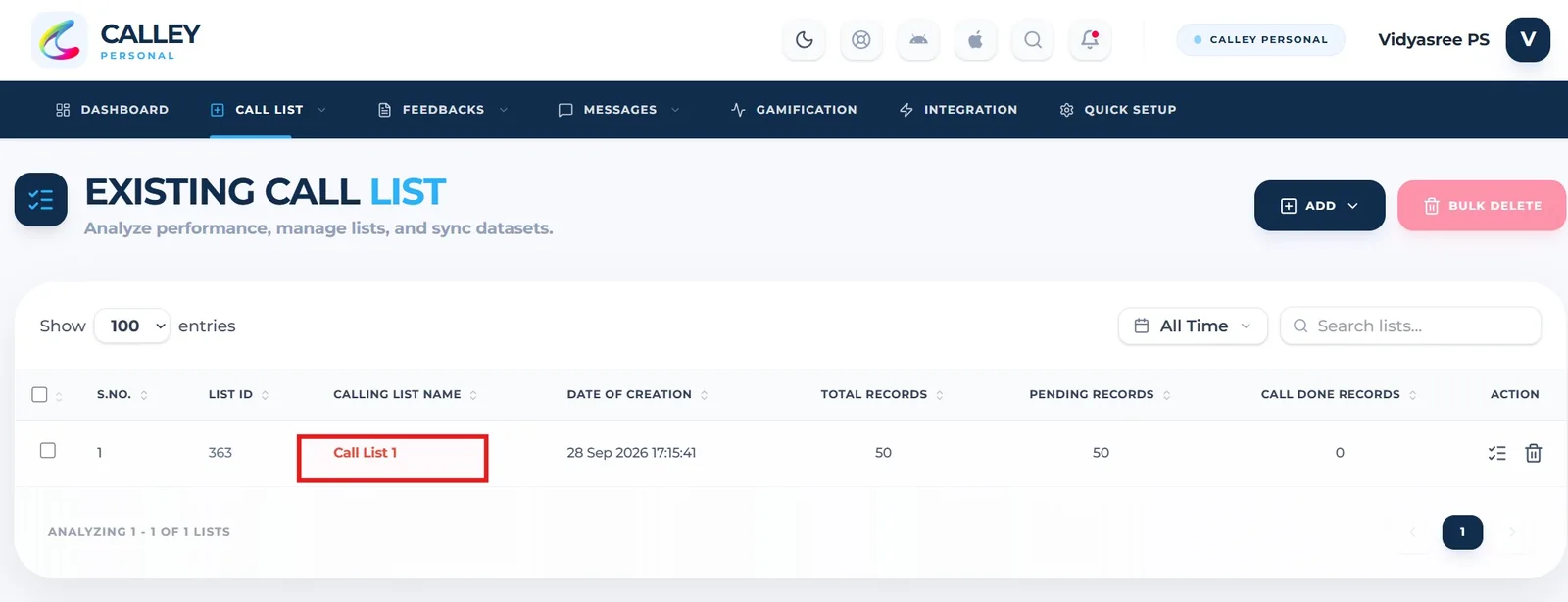
✓Here, you’ll find the newly created list, which will also be accessible in the Mobile App for making calls. To view the details of the imported leads, simply click on the list name.
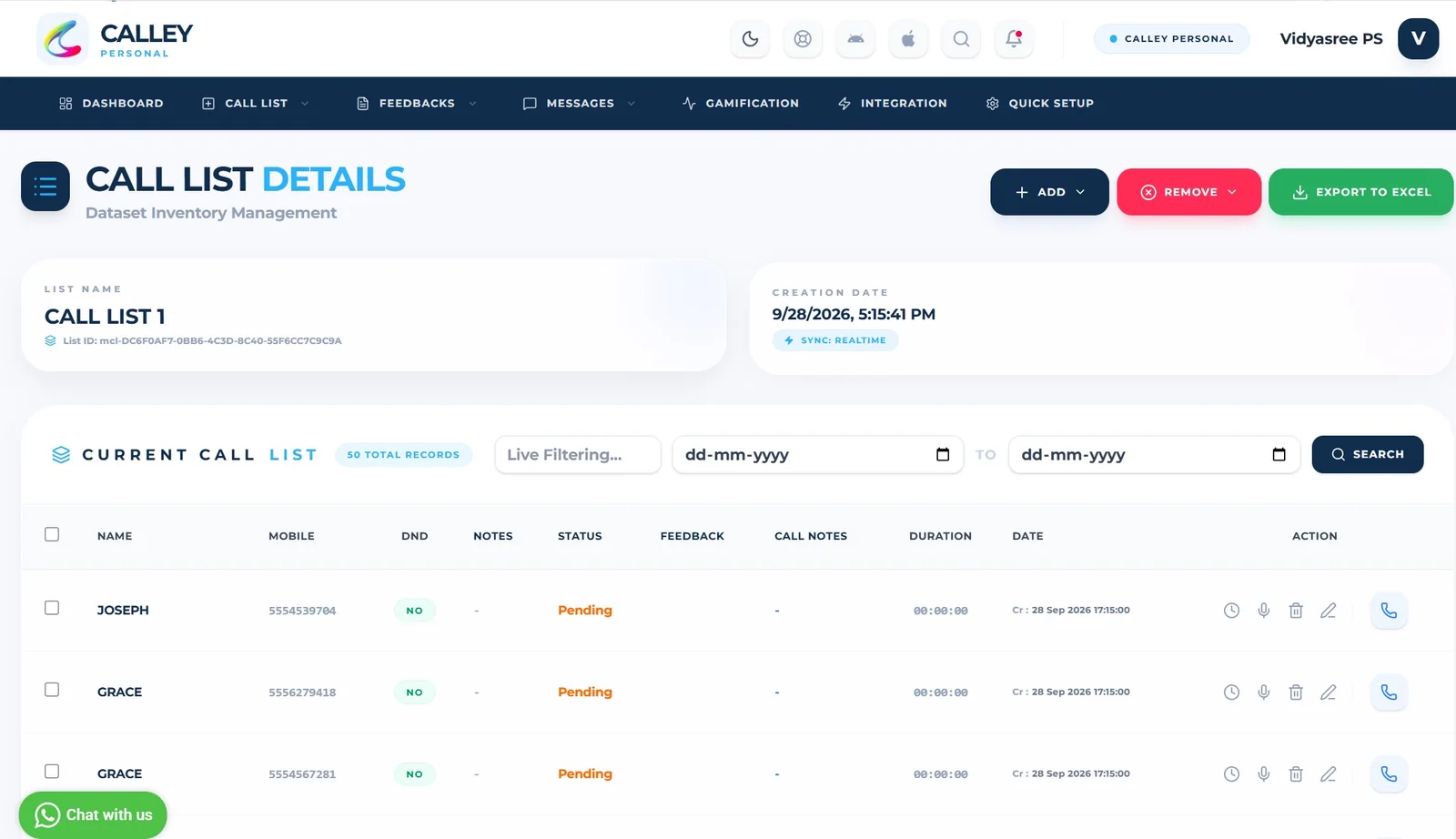
✓On this page, you’ll see a comprehensive list of all the leads imported into your newly created calling list. With this step complete, you’ve successfully set up the Calley Personal Web Panel.
To begin making calls, download and install the Calley Mobile App on your Android or iPhone device. Once installed, you'll be able to make calls and view detailed reports on your call activity. All call data will be automatically synced with the web panel, allowing you to track your progress and analyze your results.
Step 3: Install the Calley App on Your Android Phone
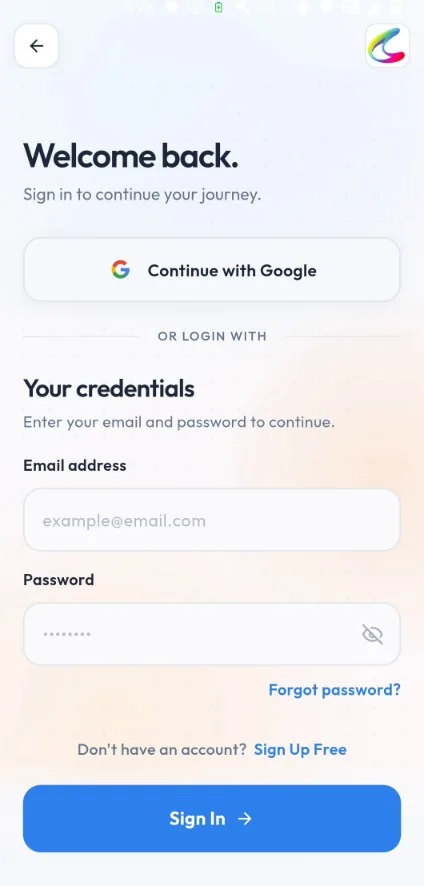
✓Download the Calley app from the Google Play Store. Log in using the same username and password as your web panel account.
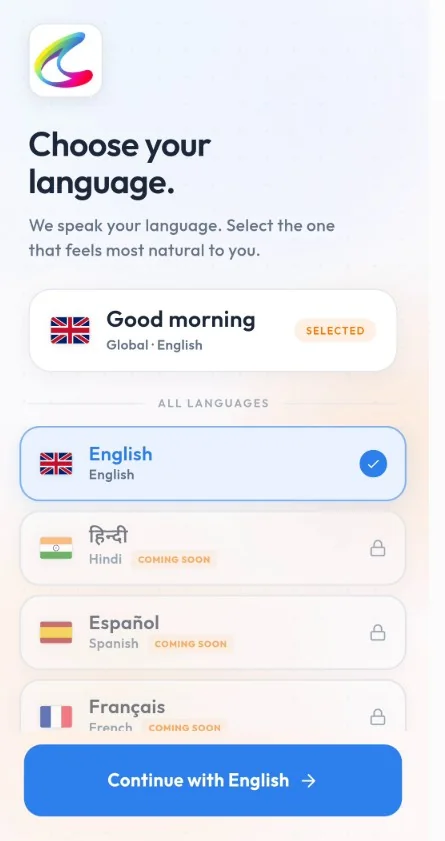
✓Choose your language and click on Continue with English.
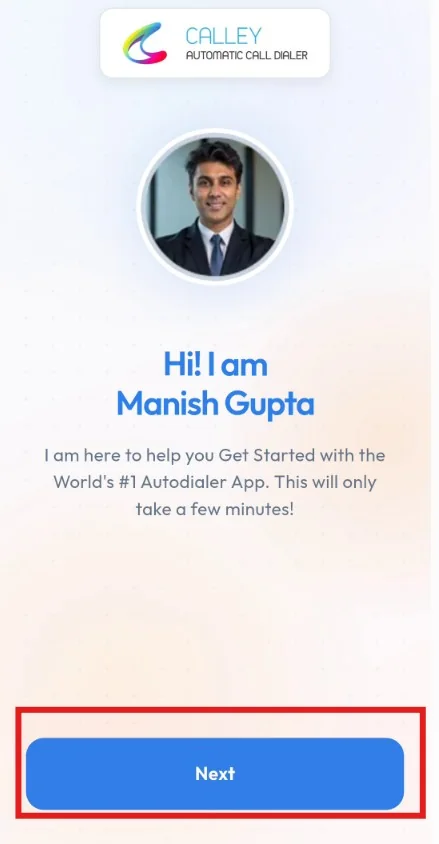
✓The app will guide you through a quick setup. Click on Next.
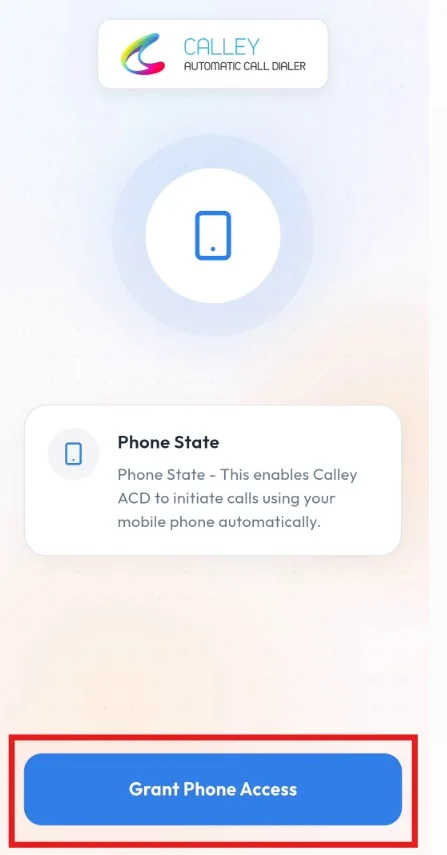
✓The app needs the Phone State permission to place calls from your mobile phone automatically. This permission is mandatory for the Calley App to function on your Android Phone. Click on Grant Phone Access.
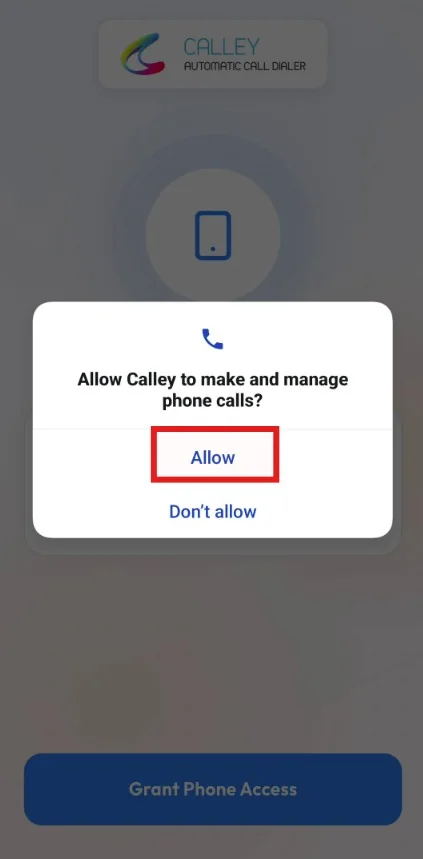
✓Allow Calley to make and manage phone calls by clicking on Allow.
Step 4: Start Autodialing
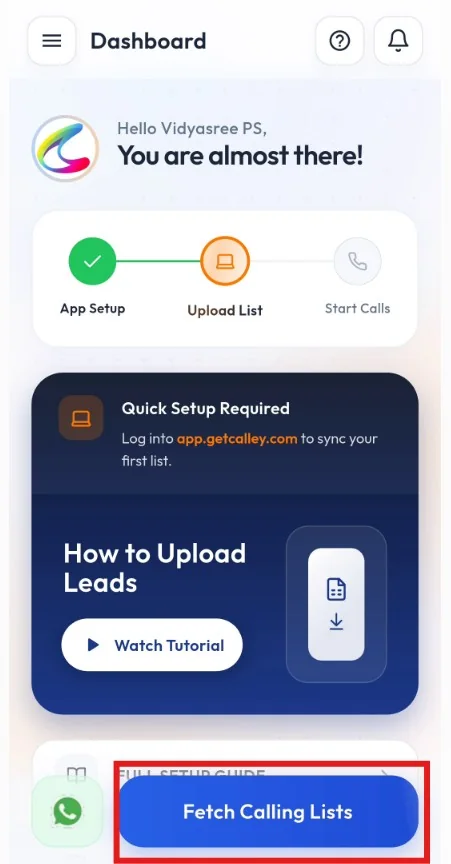
✓On the Dashboard you can see the steps to set up the Calley Web Panel. Once your list is uploaded in the web panel, click on Fetch Calling Lists.
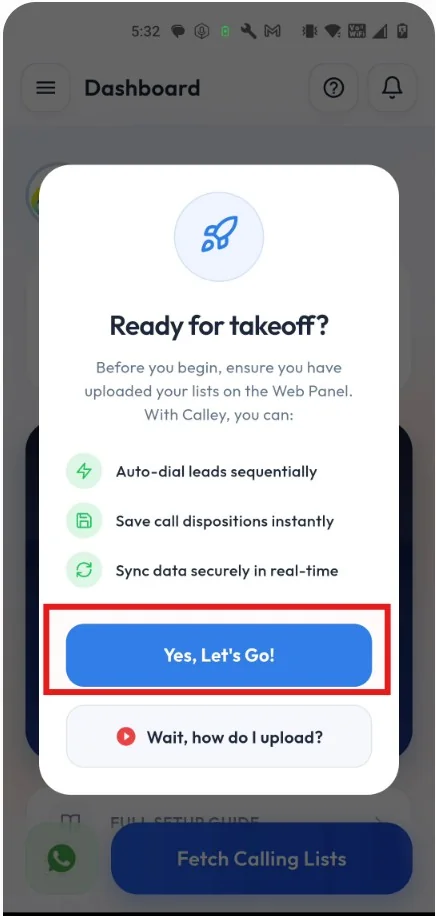
✓The app reminds you to upload your lists on the Web Panel before you begin. Click on Yes, Let’s Go!
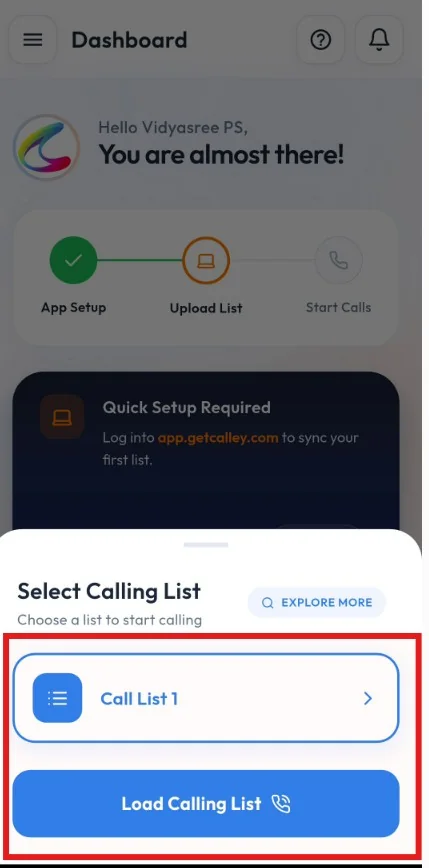
✓You can see the lists you have uploaded; select the list you want to auto dial and click on Load Calling List.
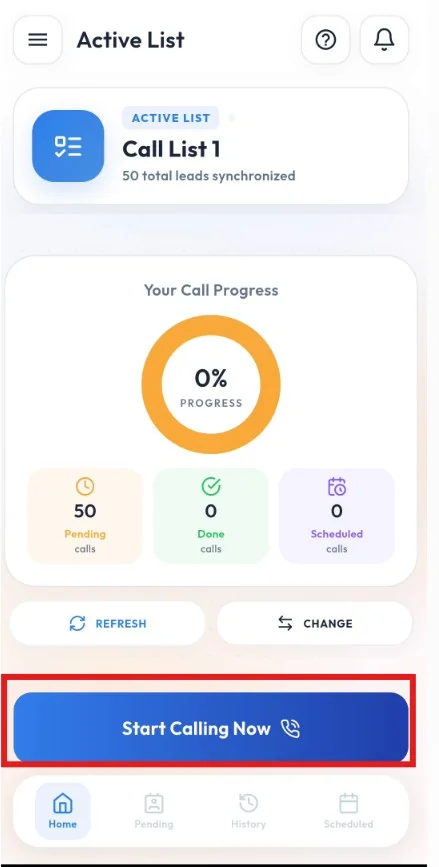
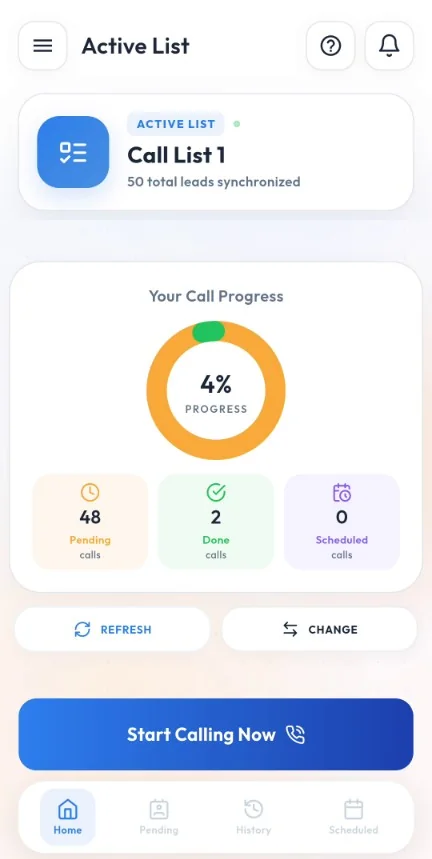
✓As the list is loaded successfully, you can see your active list and call progress on your Android phone. Start AutoDialing by clicking on the Start Calling Now button.
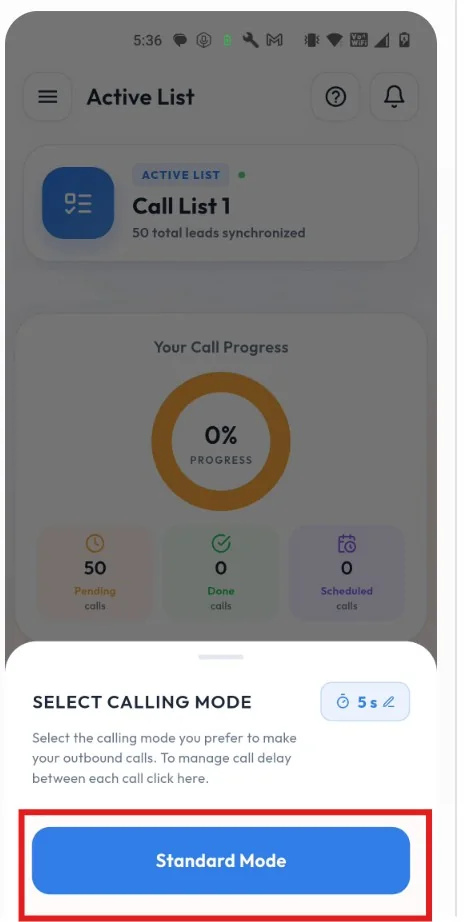
✓Calley offers you different calling modes to choose from when making calls from an Android mobile phone. They are Standard Mode, Uninterrupted Mode, App Mode, and WhatsApp Mode. As you are on Calley Personal you only have access to Standard Mode. Click on Standard Mode.
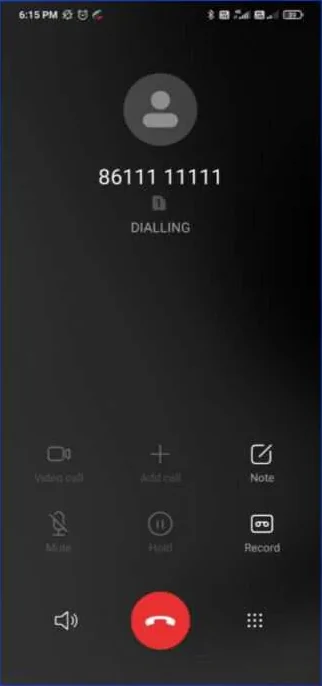
✓The respective phone number is called from the Mobile Sim Card.
✓Once the call is finished the app will prompt you to the Call Notes page which gives you following options:
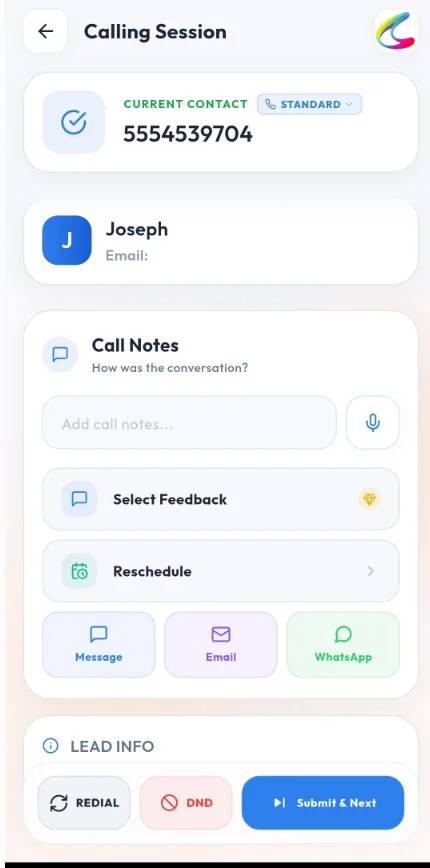
a) Call Notes - You can put notes for the call done for future reference.
b) Select Feedback - Here you can select for Call Dispositions (This feature is not available in Calley Personal).
c) Reschedule - You can set up a schedule for calling the lead again, the app will send you a reminder.
d) Message, Email and WhatsApp - You can send an SMS, an email or a WhatsApp message to the lead at the end of the call (These features are not available in Calley Personal).
✓Once filled you have 3 options at the bottom of the Call Notes screen:
a) Redial - It will redial the same number for you.
b) DND - It will mark the number as DND in your panel and the same will be filtered from future calls.
c) Submit & Next - It will save the notes you have filled and dial the next call for you.
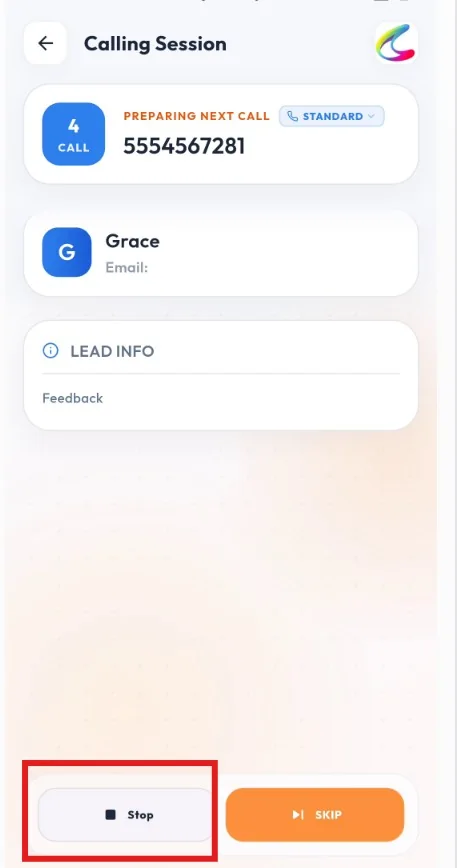
✓Calley will prepare the next number on the list. In case you want to pause autodialing, you can click on Stop and the list will be paused. You can also click on Skip to move to the next number.
✓You can see the dashboard for the Calls done, Pending calls and Scheduled Calls.
WHY SHOULD YOU USE AN ANDROID AUTO DIALER LIKE CALLEY?
Using an Android autodialer like Calley makes calling easier and faster. It helps you:
- ✓Save Time: Calley dials numbers for you, so you can call more people in less time.
- ✓Stay Organized: It keeps your call lists and notes in one place, making your work simple.
- ✓Work Smarter: With features like call scheduling and feedback, you can focus on talking to people instead of managing tasks.
Calley helps you do more in less time, making your work smoother and helping your business grow.
BOOST YOUR SALES WITH ANDROID AUTODIALING
Setting up the Calley Autodialer app is simple, efficient, and a game-changer for business owners looking to streamline their calling process. Whether you’re reaching out to potential customers or following up with leads, this tool empowers you to do it all with ease.
Don’t wait! Get started today and experience the convenience of autodialing. If you need any help, feel free to reach out to Calley Support.
Checkout our Pricing Plans for Calley Auto Dialer App.
Find out, Full Feature List of Calley AutoDialer.
Click on the link if you want to Subscribe to a Free Auto Dialer with a limit of 25 calls per day?
WE KNOW YOU WILL HAVE QUESTIONS.
We would love to answer all your questions to get you started with Auto dialing using The Calley Auto Dialer app.