
How to Rechurn a List in Calley Teams?
Managing leads efficiently is crucial for the success of any calling campaign. Calley Teams provides the Rechurn List feature, which allows Team Admins to reorganize and optimize calling lists based on feedback and call notes. This guide will walk you through the rechurning process and the options available, helping you get the most out of your calling campaigns.
- 1.How to Rechurn a List in Calley Teams?
- 1.1.What is Rechurning?
- 1.2.How to Rechurn a List in Calley Teams
- 1.3.Rechurn Selected Leads to a New List and Assign to Agents
- 1.4.Rechurn Selected Leads in the Same List and Change Agent Assignment
- 1.5.Rechurn Selected Leads in the Same List Without Changing Agent Assignment
- 1.6.Rechurn Selected Leads to a New List with Call Notes from the Old List
- 1.7.Benefits of Rechurning
- 2.WE KNOW YOU WILL HAVE QUESTIONS.
What is Rechurning?
Rechurning involves filtering and reorganizing your calling lists to focus on leads that require follow-up. It’s a way to ensure better engagement and higher conversion rates by working on leads based on specific feedback or call notes.
How to Rechurn a List in Calley Teams
Rechurn Selected Leads to a New List and Assign to Agents
This feature in Calley allows you to rechurn leads into a new list based on selected feedback. It helps segregate leads to better target specific segments, ensuring a more focused approach.
Open the Calling List you want to Rechurn.
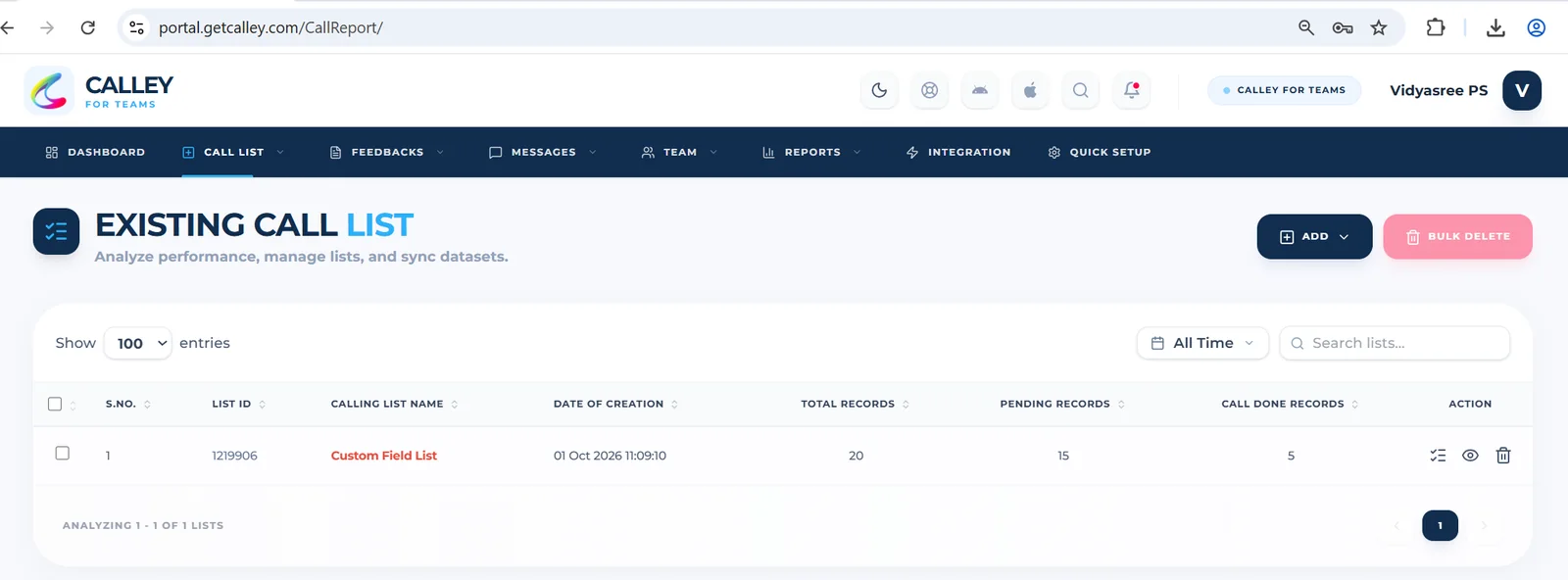
Click on the Rechurn List Button.
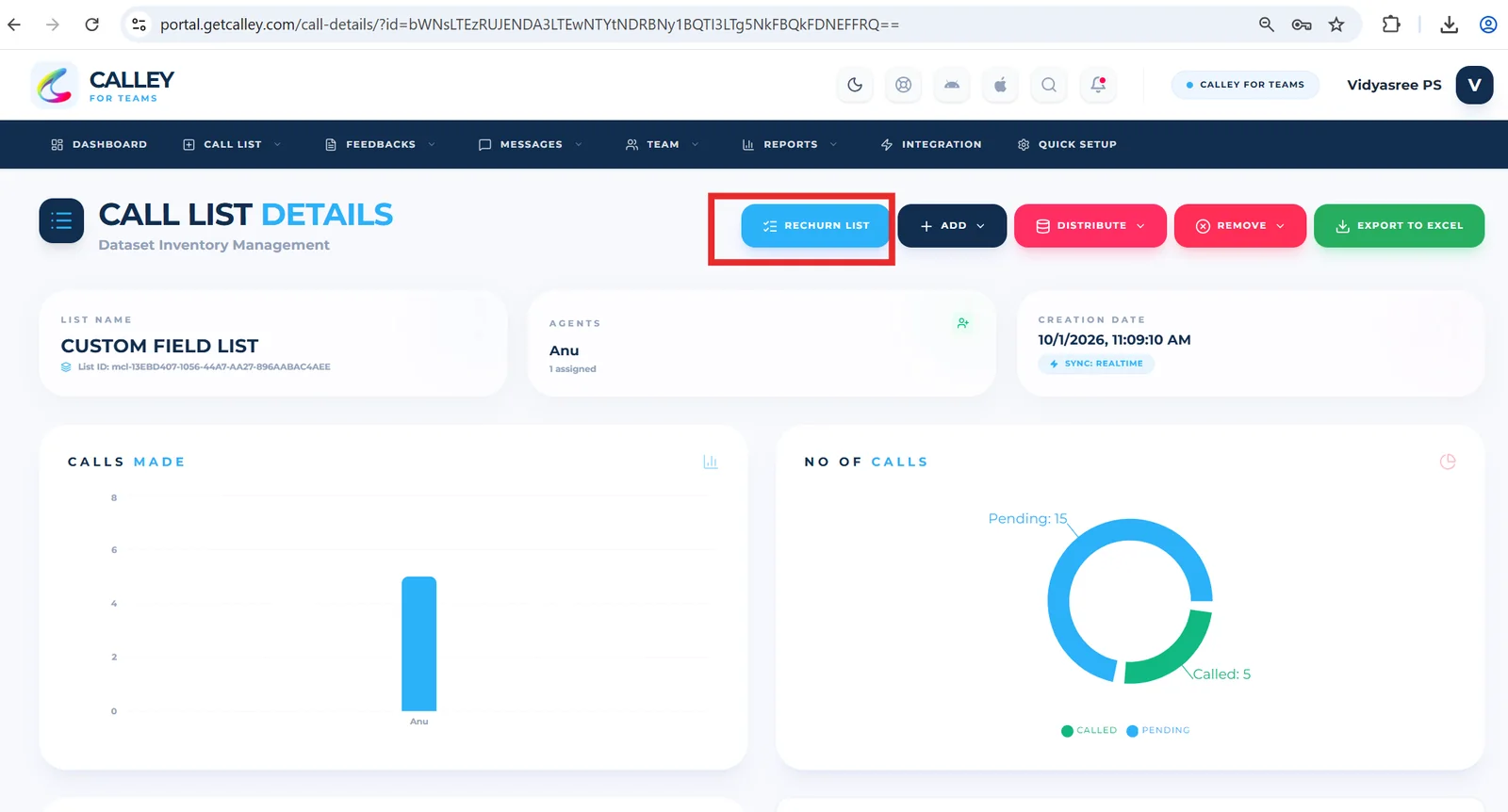
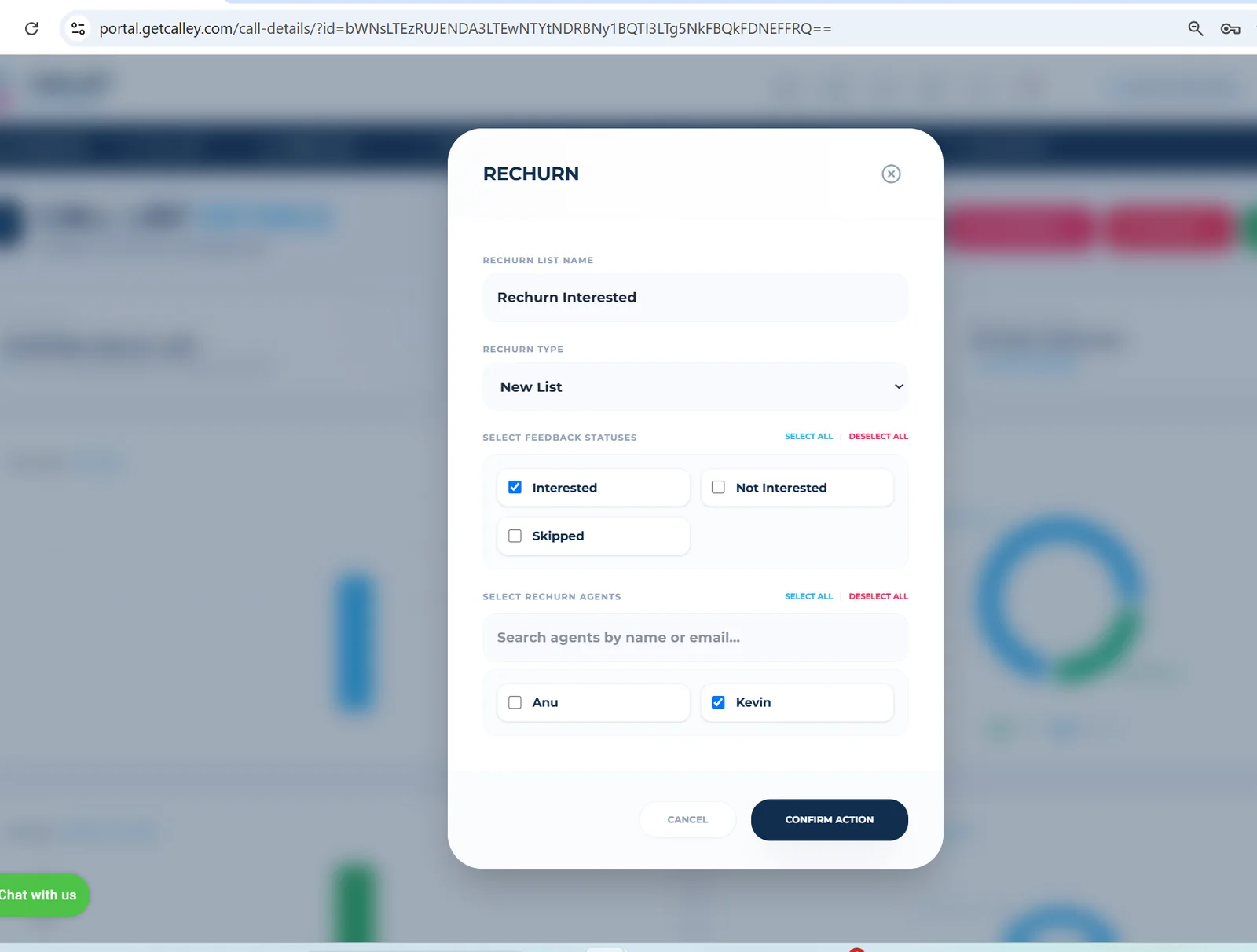
Select the appropriate Feedback, choose Rechurn Type as New List, enter a List Name, and select the agents for assignment. Click Confirm Action.
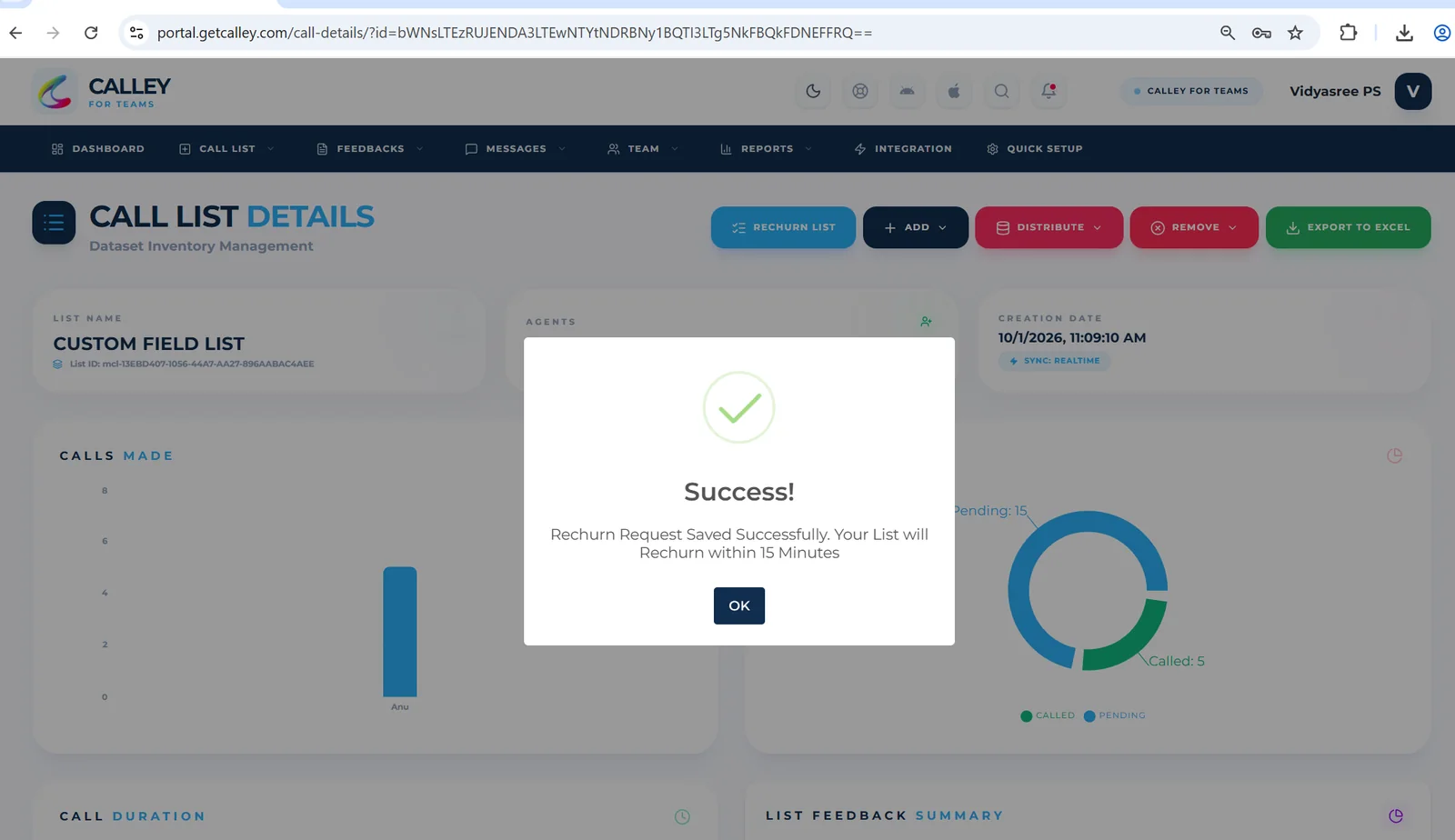
Click OK and wait approximately 15 minutes for the list to be processed.
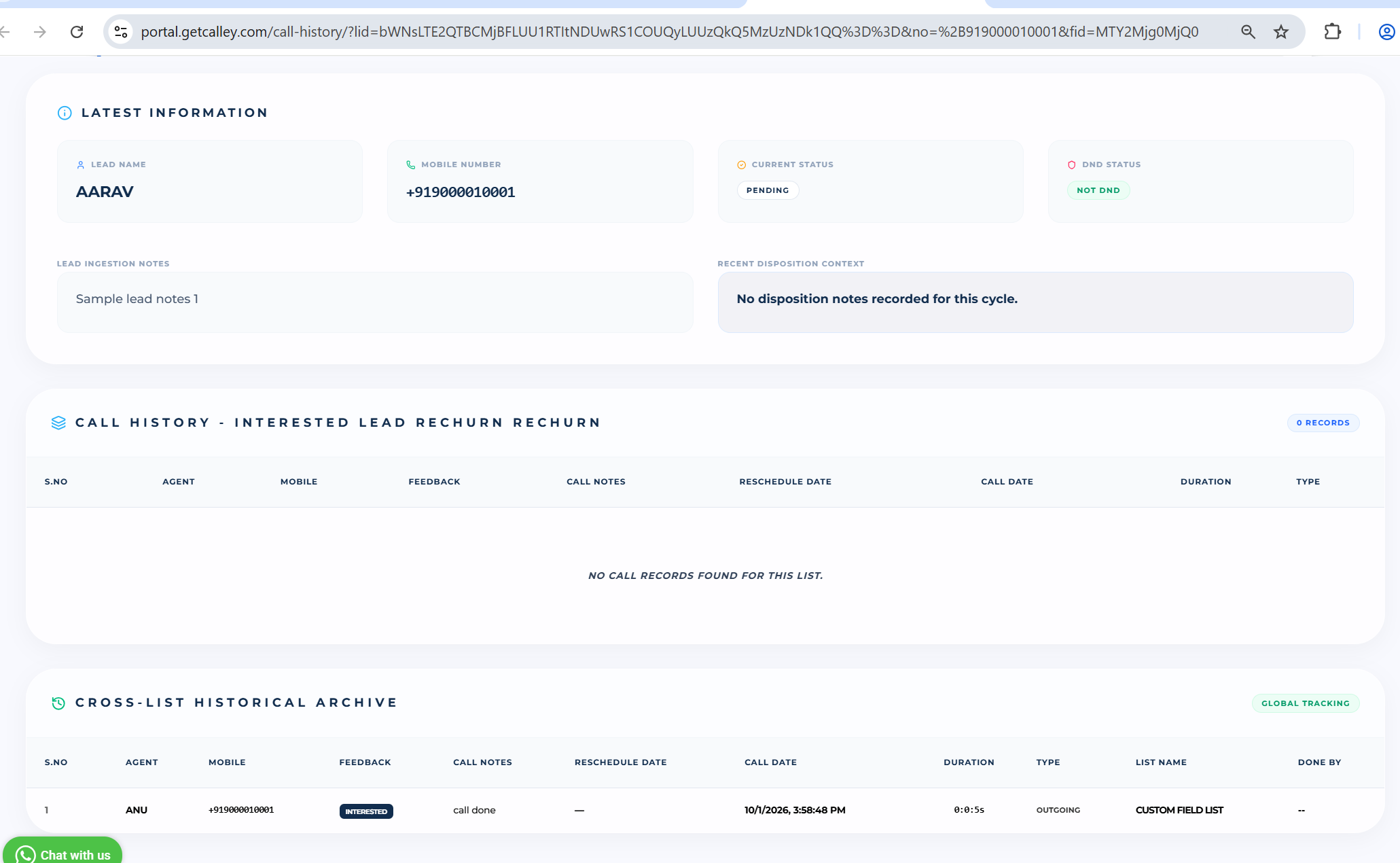
Leads rechurned to New List. Open the new list to verify that all selected feedback leads have been successfully rechurned. All selected feedback leads are rechurned.
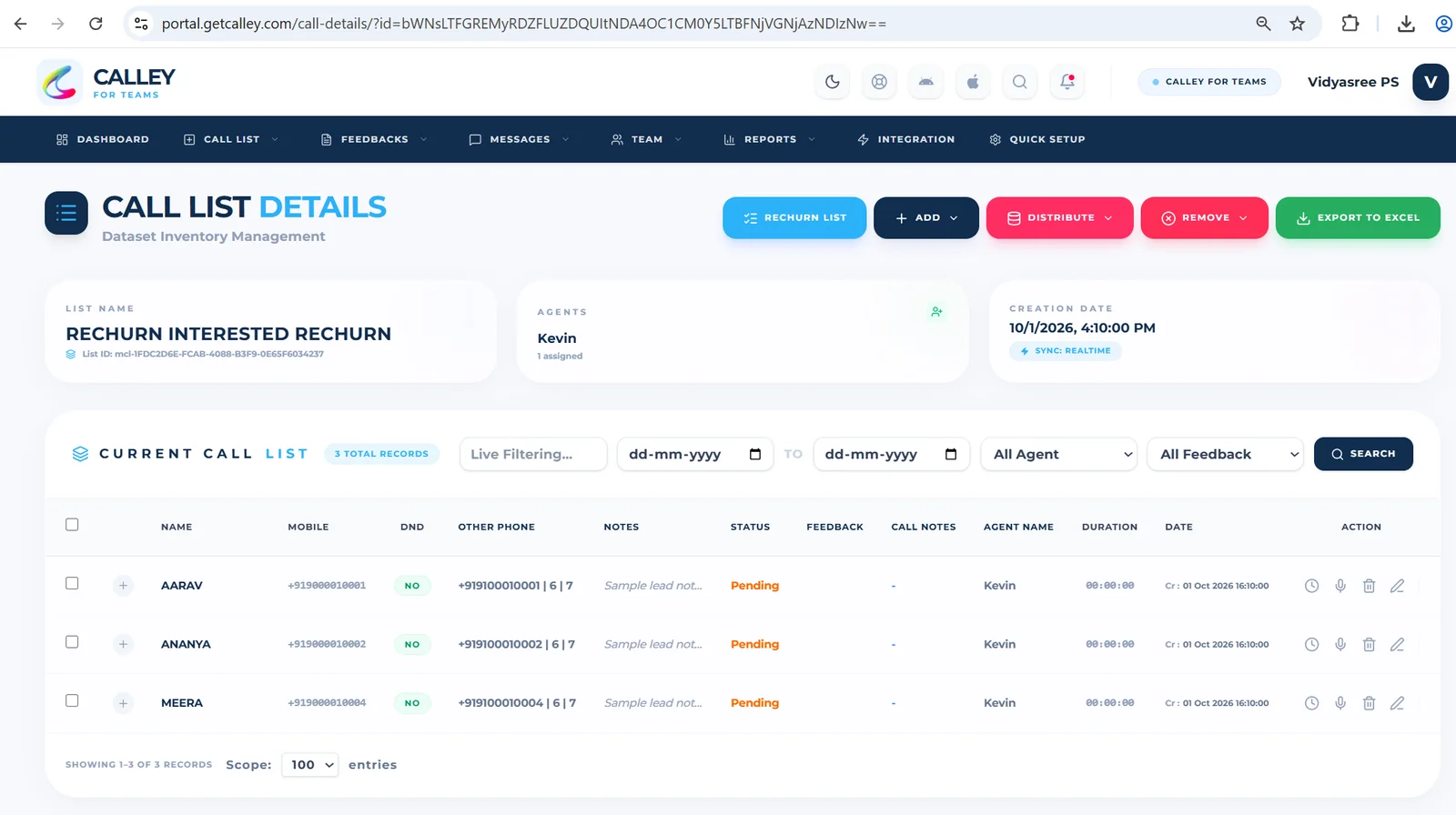
To check call history for a specific lead, click the History button associated with it and you can see the Call History.
Rechurn Selected Leads in the Same List and Change Agent Assignment
This feature in Calley allows you to rechurn leads within the same list based on selected feedback. It helps segregate leads to better target specific segments, ensuring a more focused approach.
Open the Calling List you want to Rechurn. Before Rechurning the List you can see the Leads which are in Called status with updated feedback.
Click on the Rechurn List Button.
Select the appropriate Feedback, choose Rechurn Type as Same List Rechurn, select Change Assignment, and assign the leads to the desired agents. Click Confirm Action.
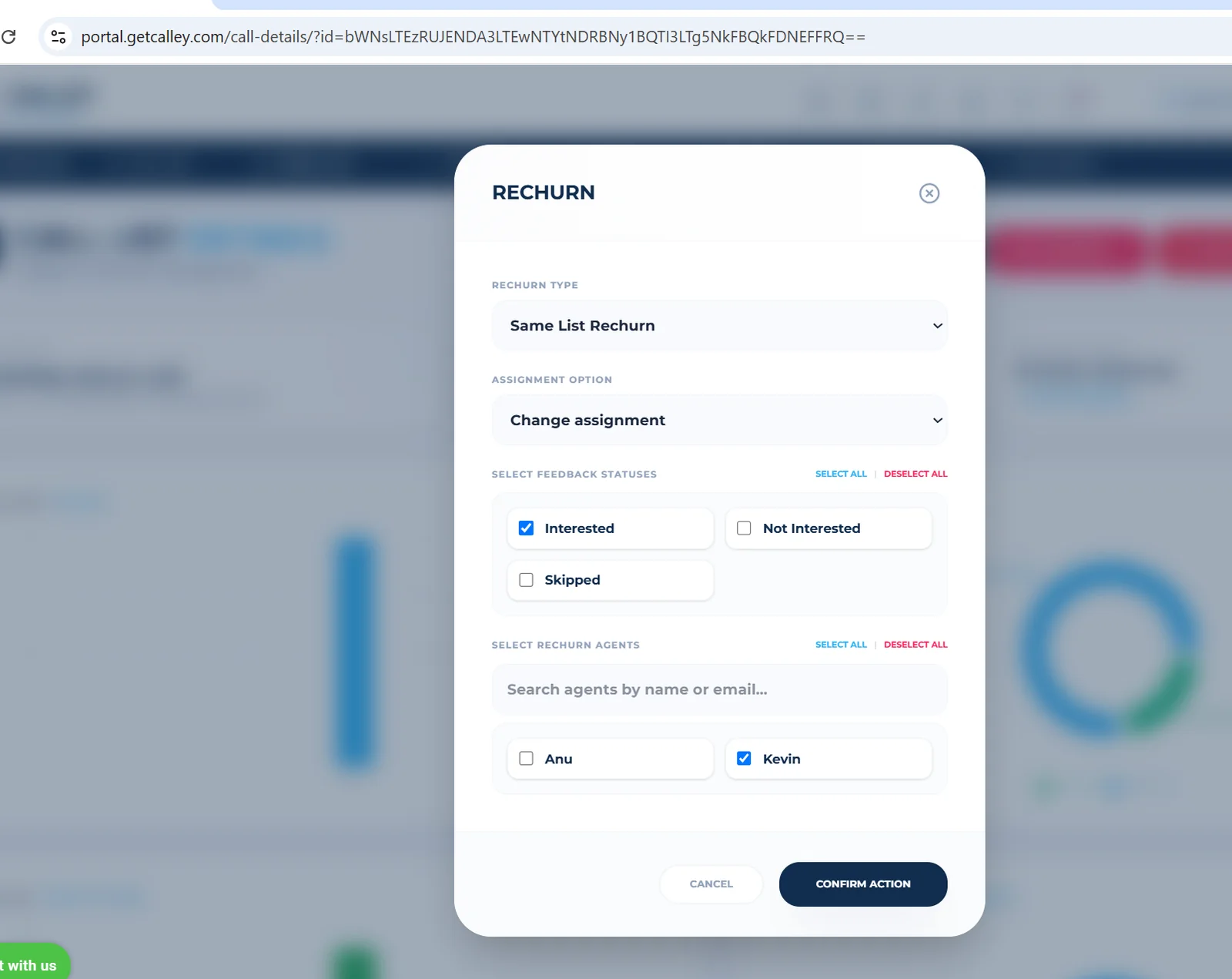
Click OK and wait approximately 15 minutes for the list to be processed.
The leads will be rechurned into the same list, the Call Status will change to Pending, and the agent assignment will be updated accordingly.
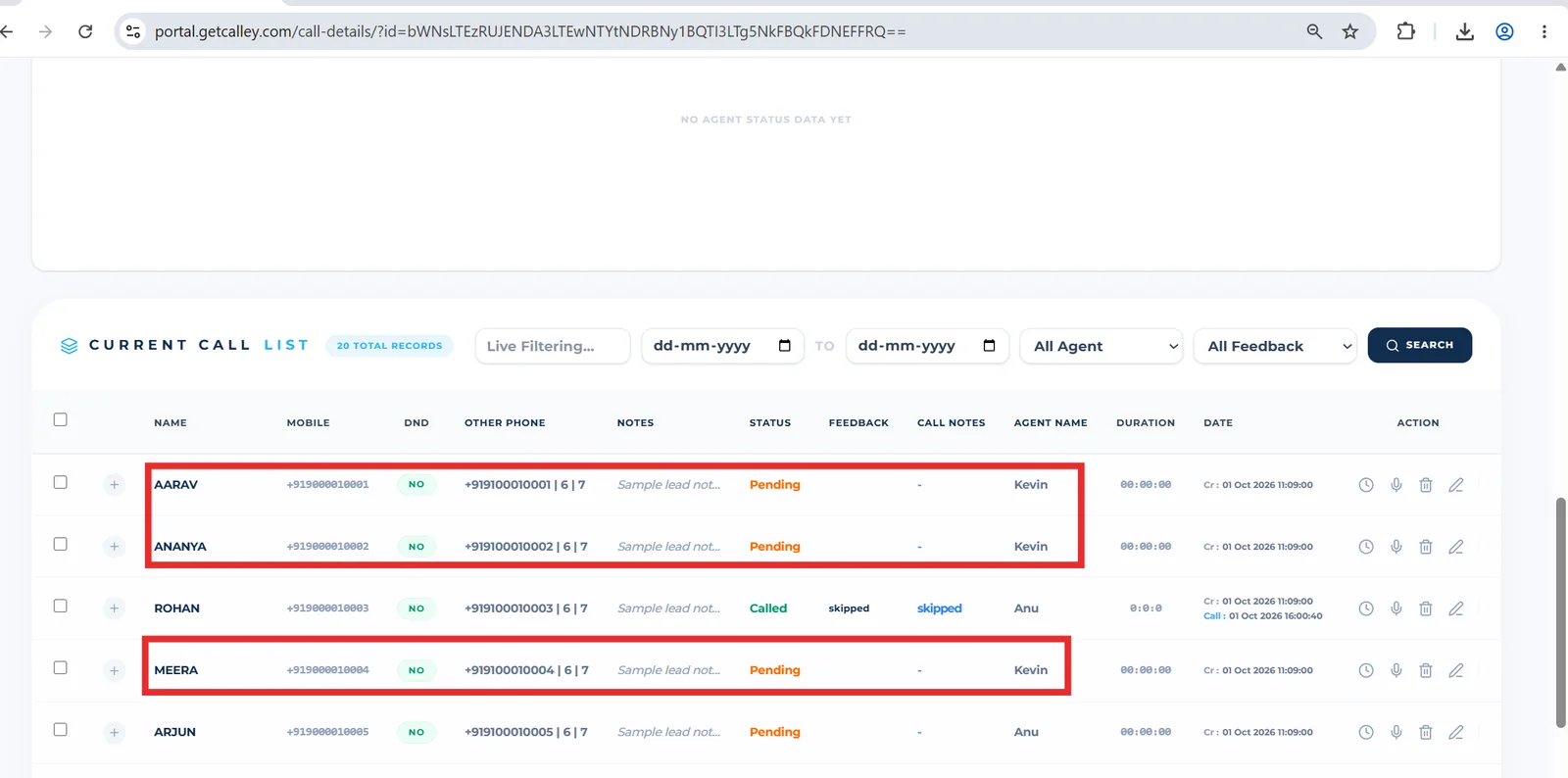
Rechurn Selected Leads in the Same List Without Changing Agent Assignment
Use this option to work on selected leads within the same list while keeping the agent assignments unchanged.
Open the Calling List you want to Rechurn. Before Rechurning the List you can see the Leads which are in Called status with updated feedback.
Click on the Rechurn List Button.
Select the appropriate Feedback, choose Rechurn Type as Same List Rechurn and select Do not change assignment. Click Confirm Action.
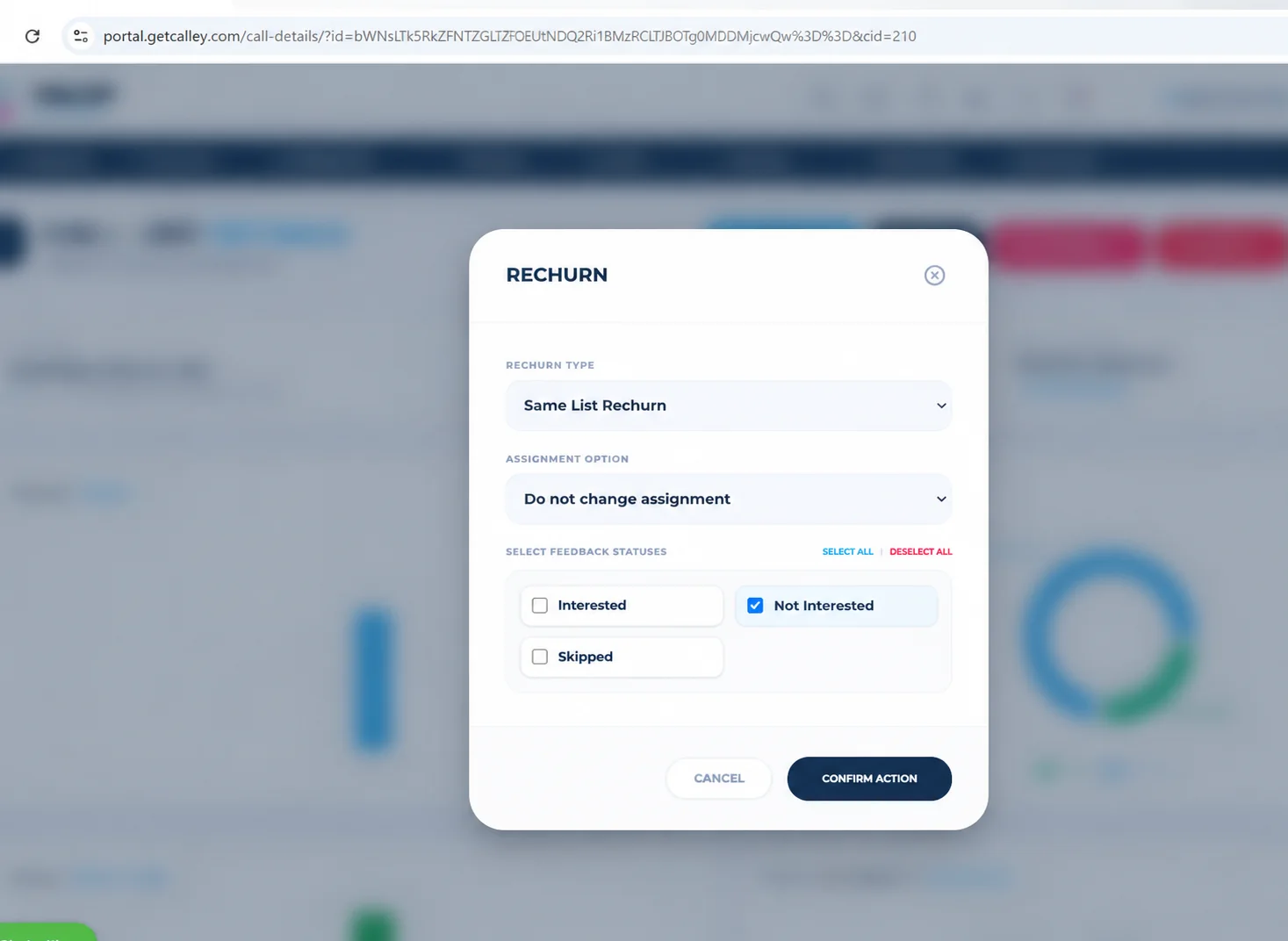
Click OK and wait approximately 15 minutes for the list to be processed.
The leads will be rechurned into the same list, the Call Status will change to Pending.
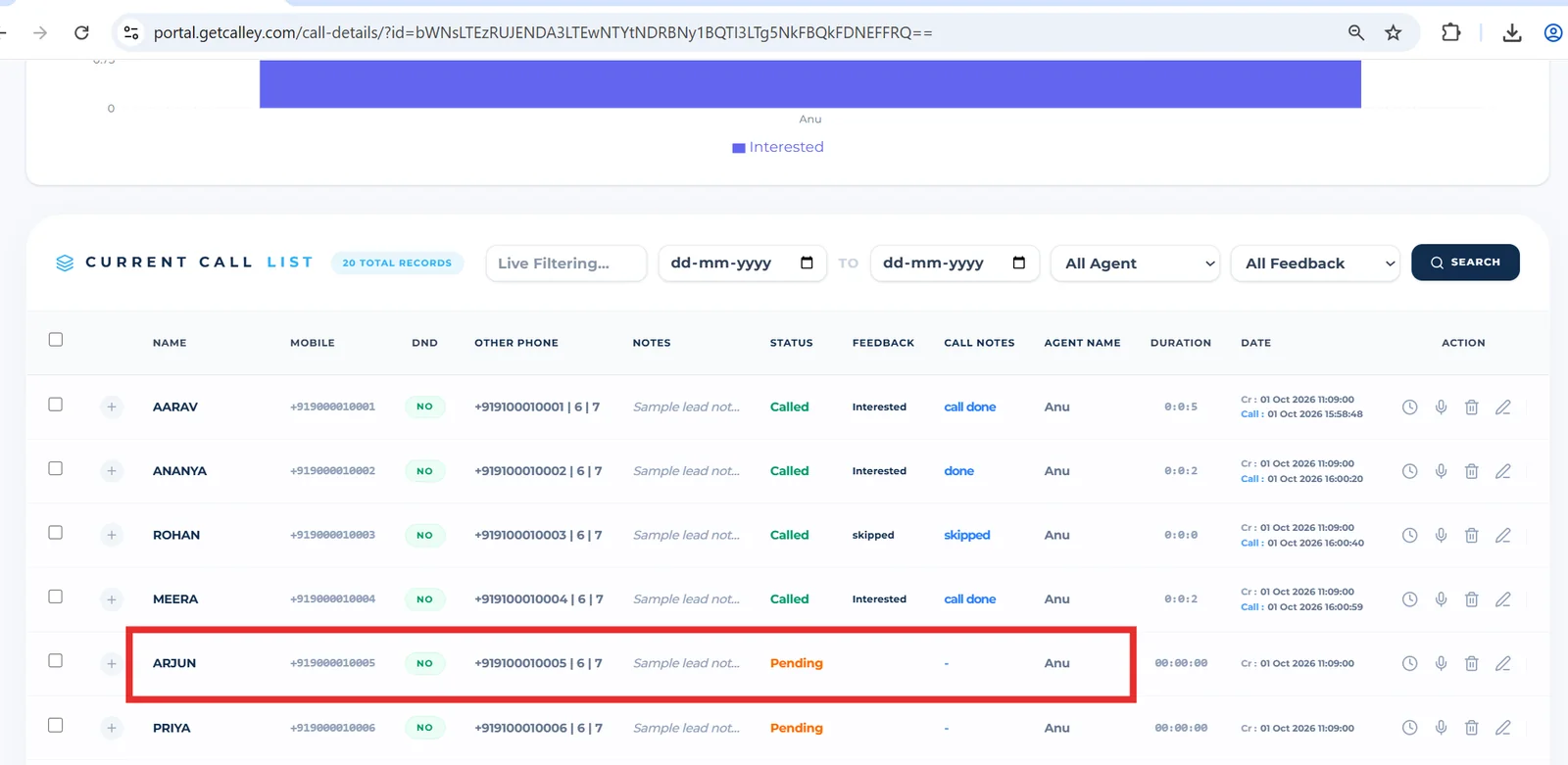
Rechurn Selected Leads to a New List with Call Notes from the Old List
This method creates a new list from selected leads while retaining call notes from the old list. It’s useful when historical data is essential for follow-up.
Open the Calling List you want to Rechurn.
Click on the Rechurn List Button.
Select the appropriate Feedback, choose Rechurn Type as Take Old Call notes to New List and select agents you want to assign. Click Confirm Action.
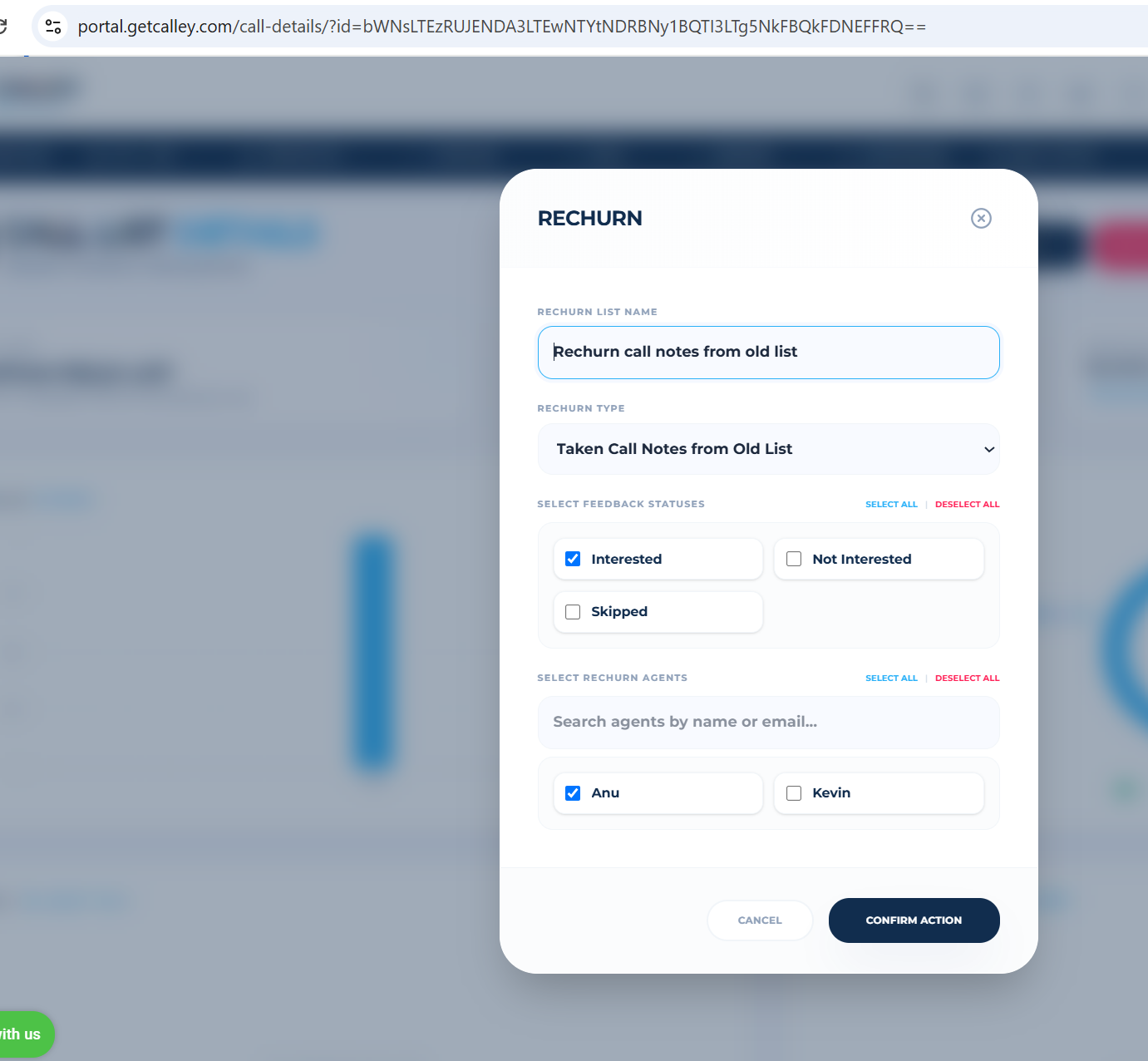
Click OK and wait approximately 15 minutes for the list to be processed.
Leads rechurned to New List. Open the new list to verify that all selected feedback leads have been successfully rechurned. All selected feedback leads are rechurned with Old Call notes.
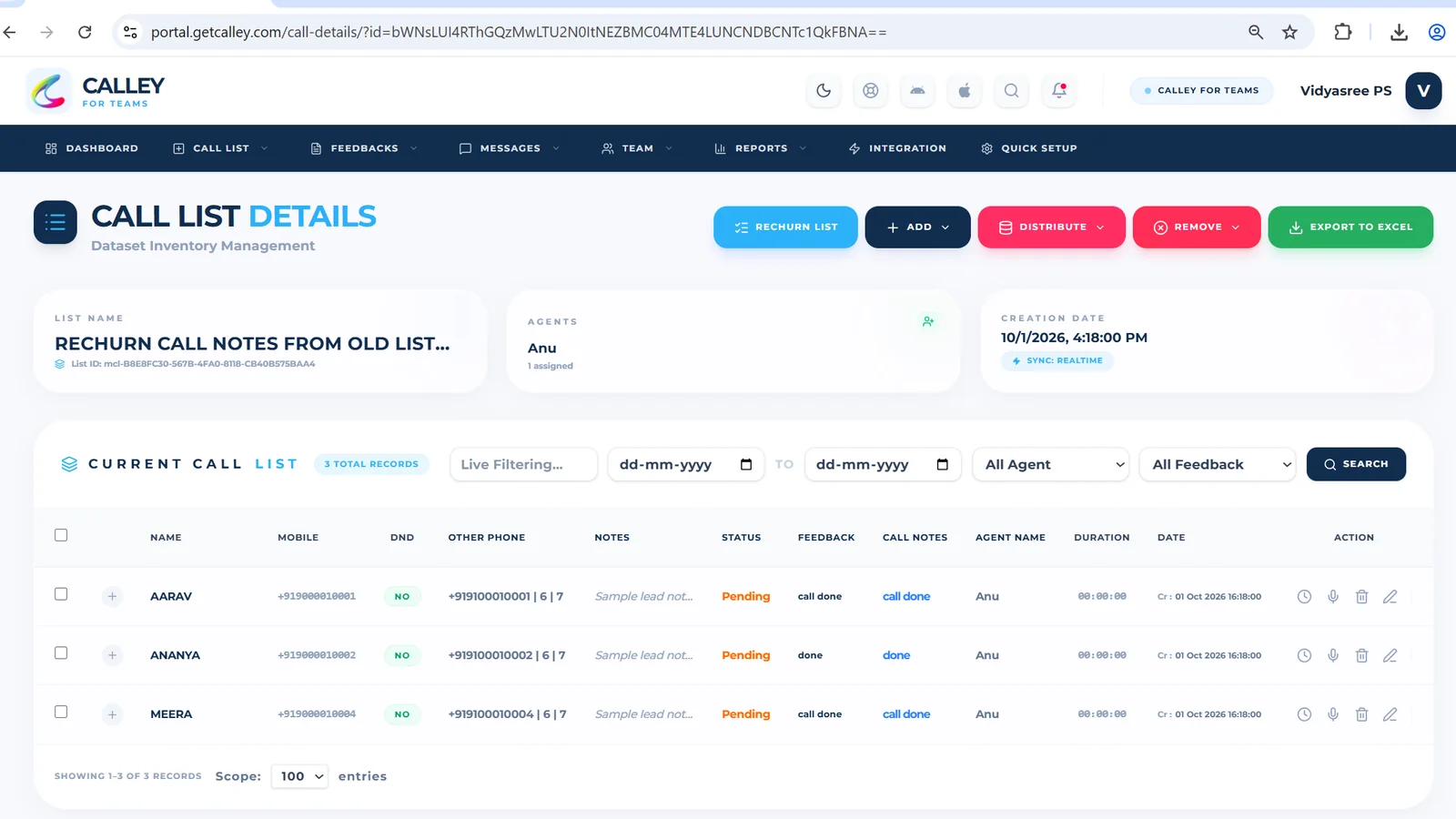
To check call history for a specific lead, click the History button associated with it and you can see the Call History.
Benefits of Rechurning
- Better Lead Management: Focus on leads that require attention based on their feedback or dispositions.
- Improved Conversion Rates: Engage with leads who have shown interest or need follow-up.
- Efficient Resource Allocation: Assign leads to the agents best suited to handle them.
The Rechurn List feature in Calley Teams is a powerful tool to manage your calling lists more effectively. By using this feature, you can ensure that your team focuses on the right leads, optimizes their follow-ups, and improves overall campaign performance. Start leveraging rechurning today to enhance your productivity and achieve greater success in your calling campaigns.
Checkout here > Pricing Plans for Calley Auto Dialer App
Link to > Full Feature List of Calley AutoDialer
Do you want to Subscribe to a Free Auto Dialer with a limit of 25 calls per day?
We know you will have questions.
We would love to answer all your questions to get you started with Autodialing using The Calley Auto Dialer app.