
Sending Email via SMTP on Calley Pro
Sending Email via SMTP on Calley Pro
Calley allows you to send emails seamlessly using your SMTP profile. This feature helps you integrate your email service provider, create personalized email templates, and send emails directly through the platform. Sending emails via SMTP in Calley Pro enhances your communication workflow by allowing you to send personalized follow-up emails directly after calls. This feature supports seamless integration of email templates and ensures efficient lead engagement through both the browser and mobile app.
Here’s how you can get started:
Setting Up the SMTP Profile
1. Log in to Calley Pro Panel.
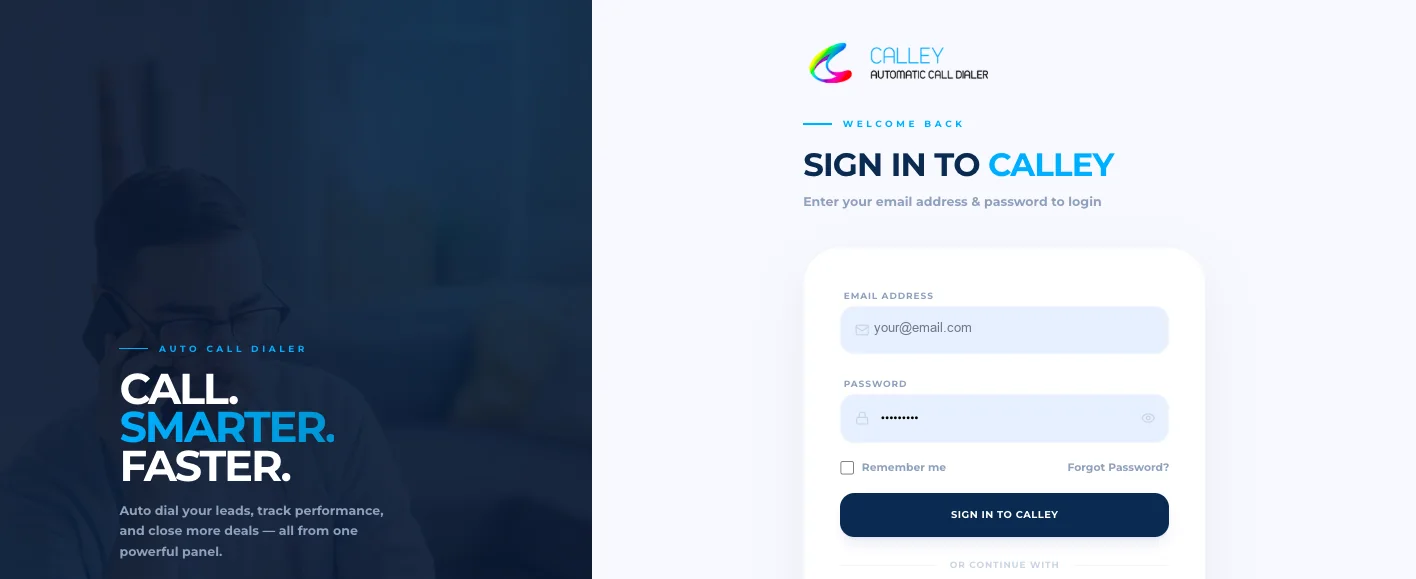
2. As you login redirect to Calley Pro Dashboard, to start with SMTP profile Setup go to Messages > Email > Profile Setup
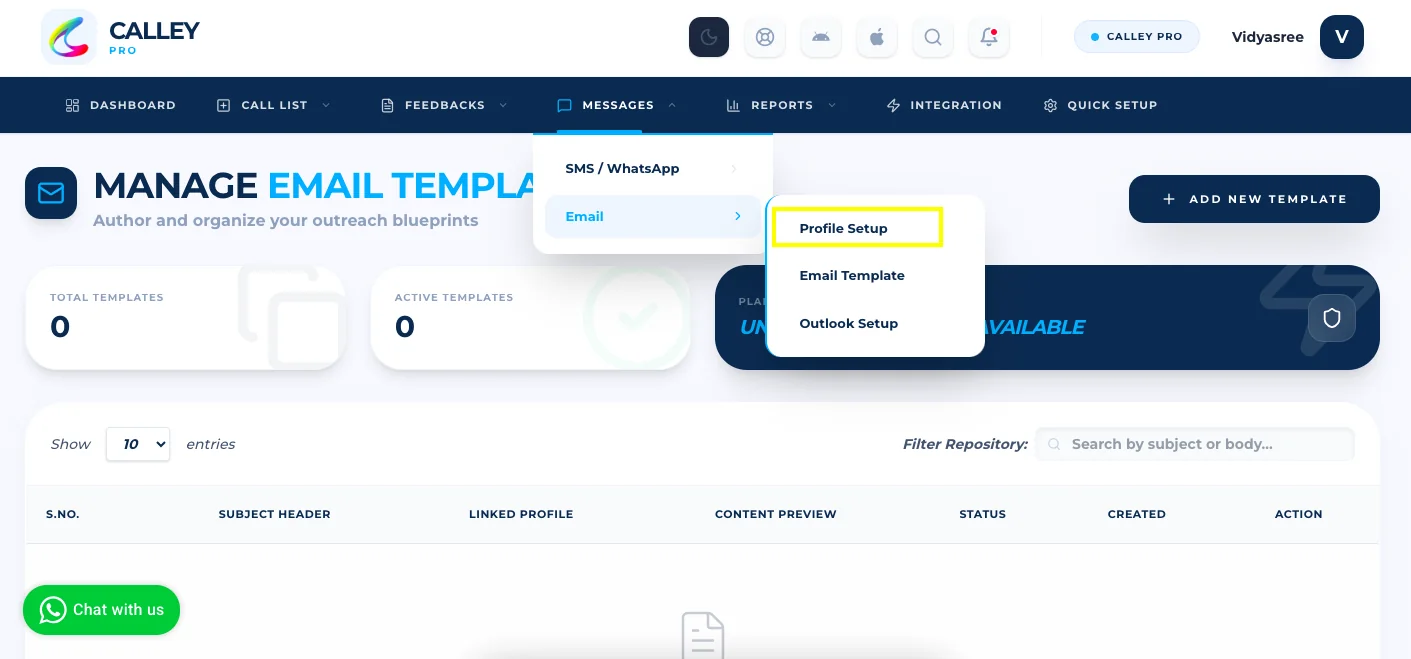
3. Click on Add New button.
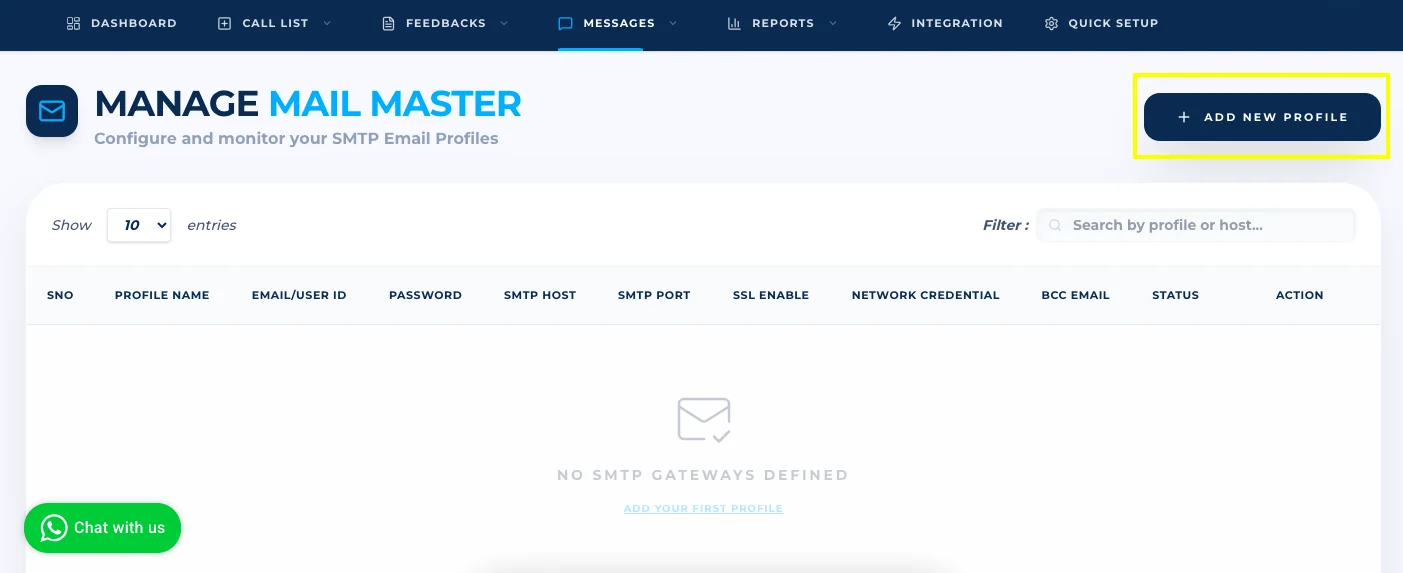
4. Fill in the required fields
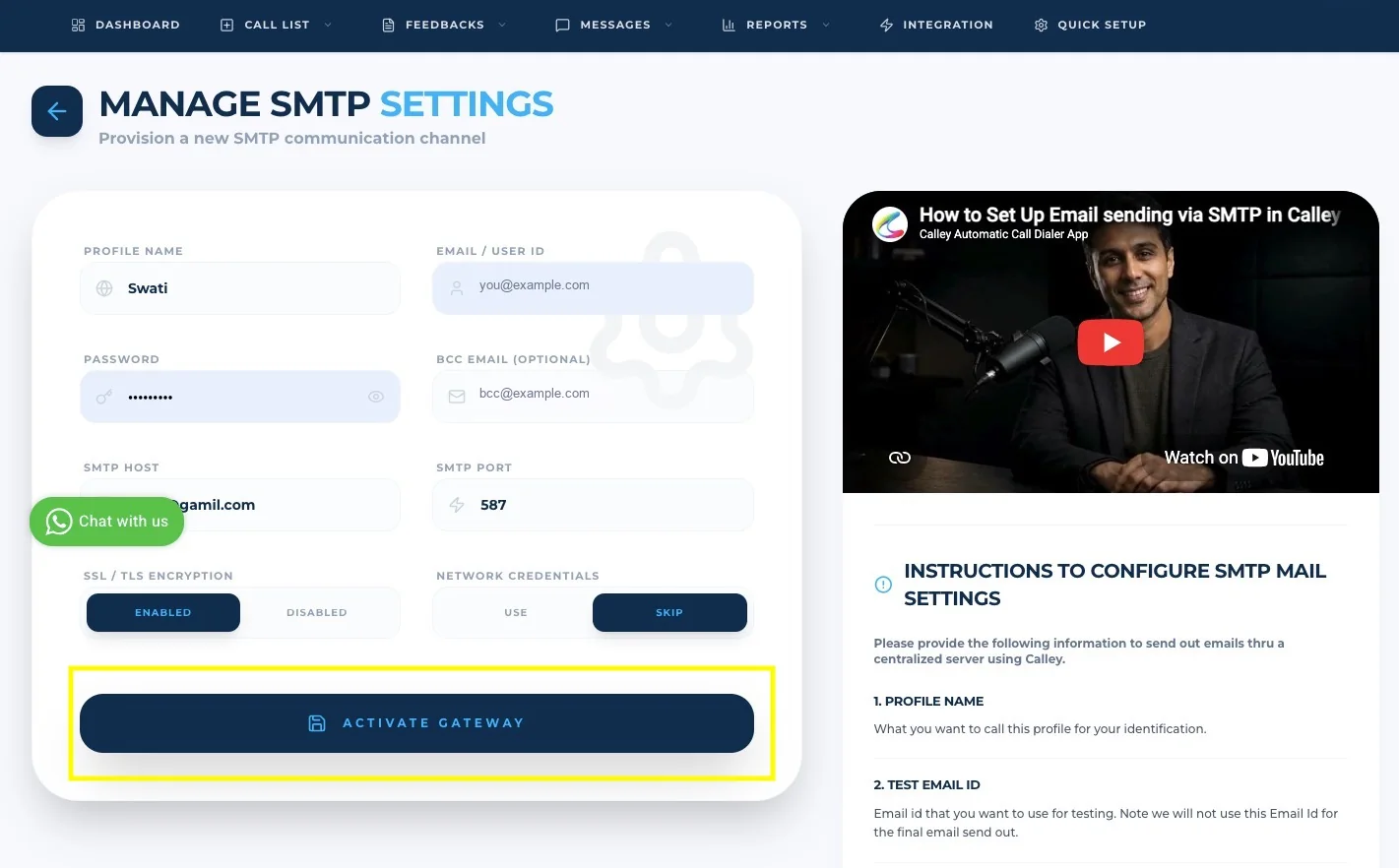
5. Click Submit to store your SMTP profile.
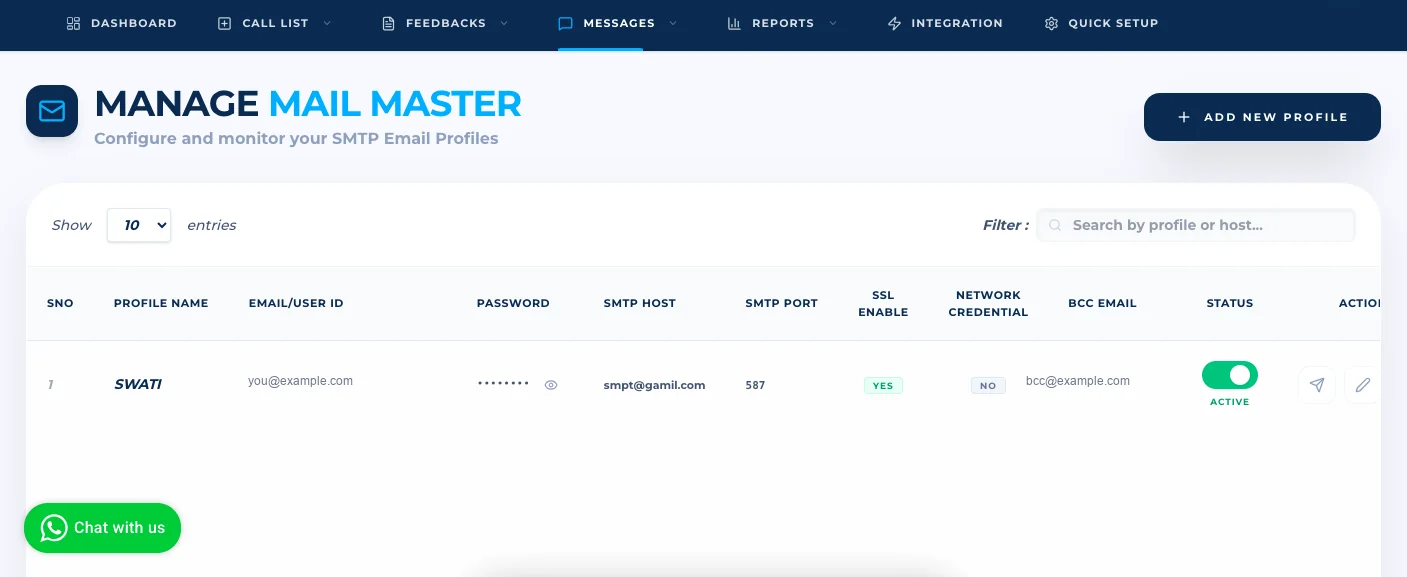
6. After saving, click on Test Connection to ensure the SMTP profile is configured correctly.
Creating an Email Template
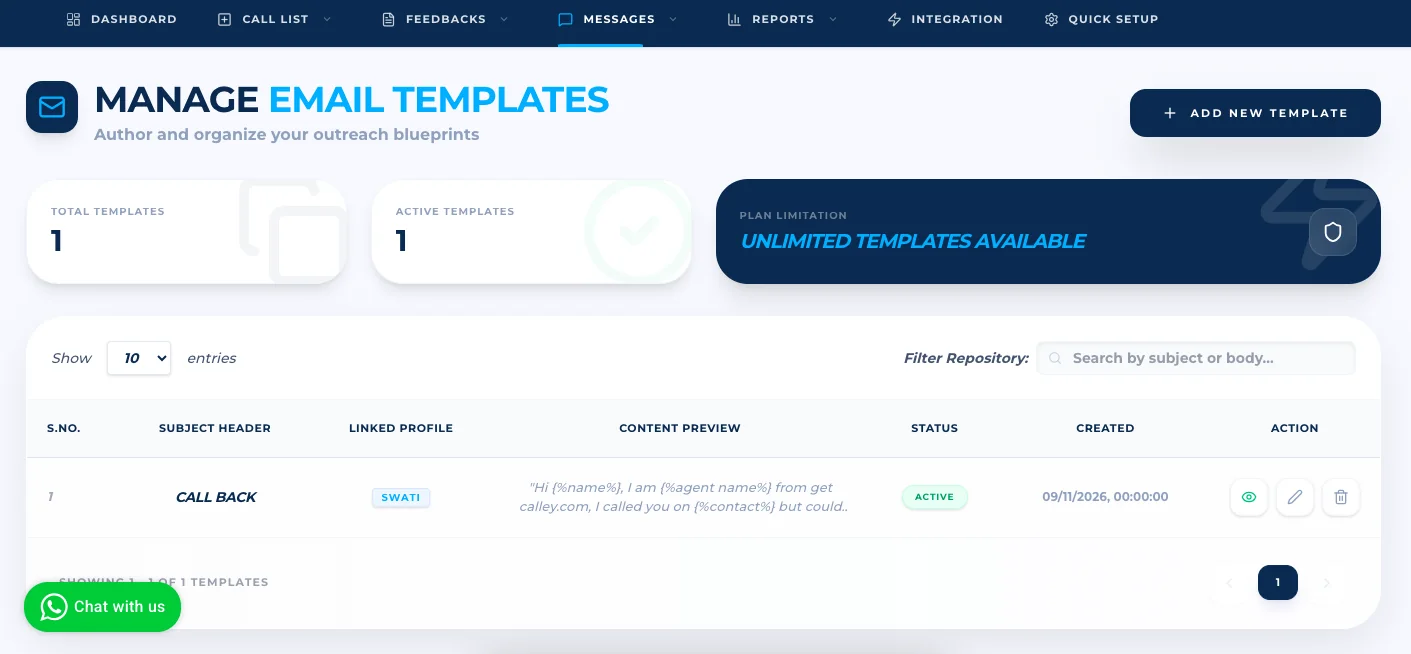
1. Once the SMTP Profile is created, Go to Messages > Email > Email Templates.
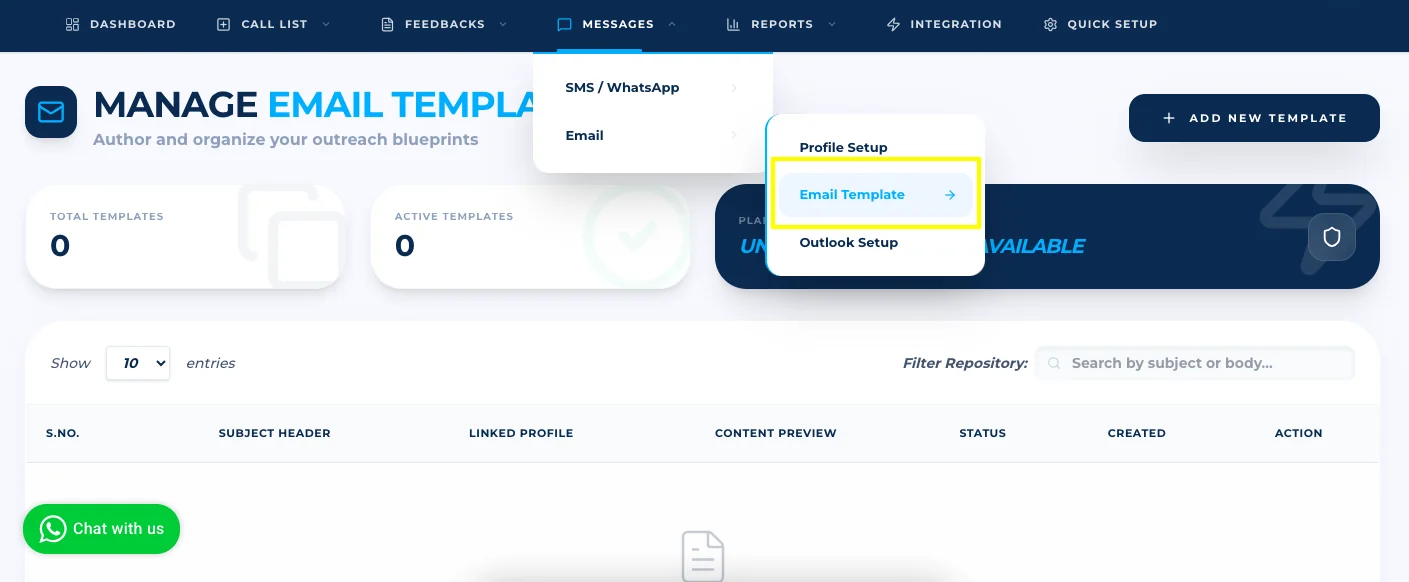
2. Click Add New.
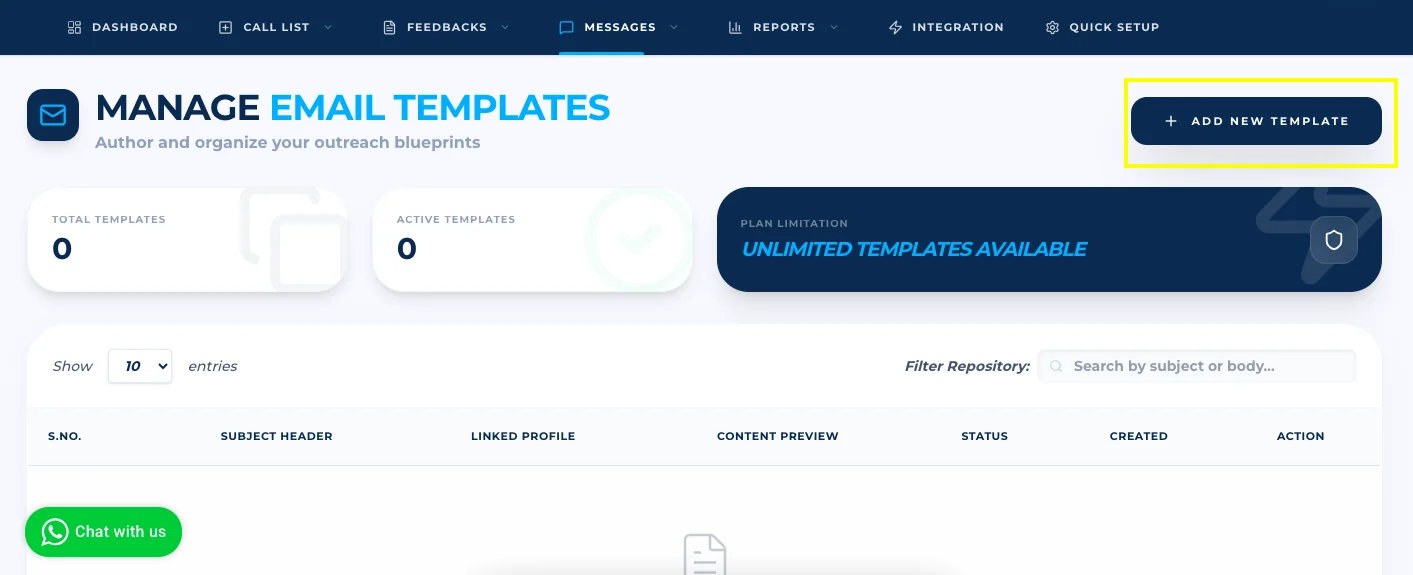
3. Provide required details.
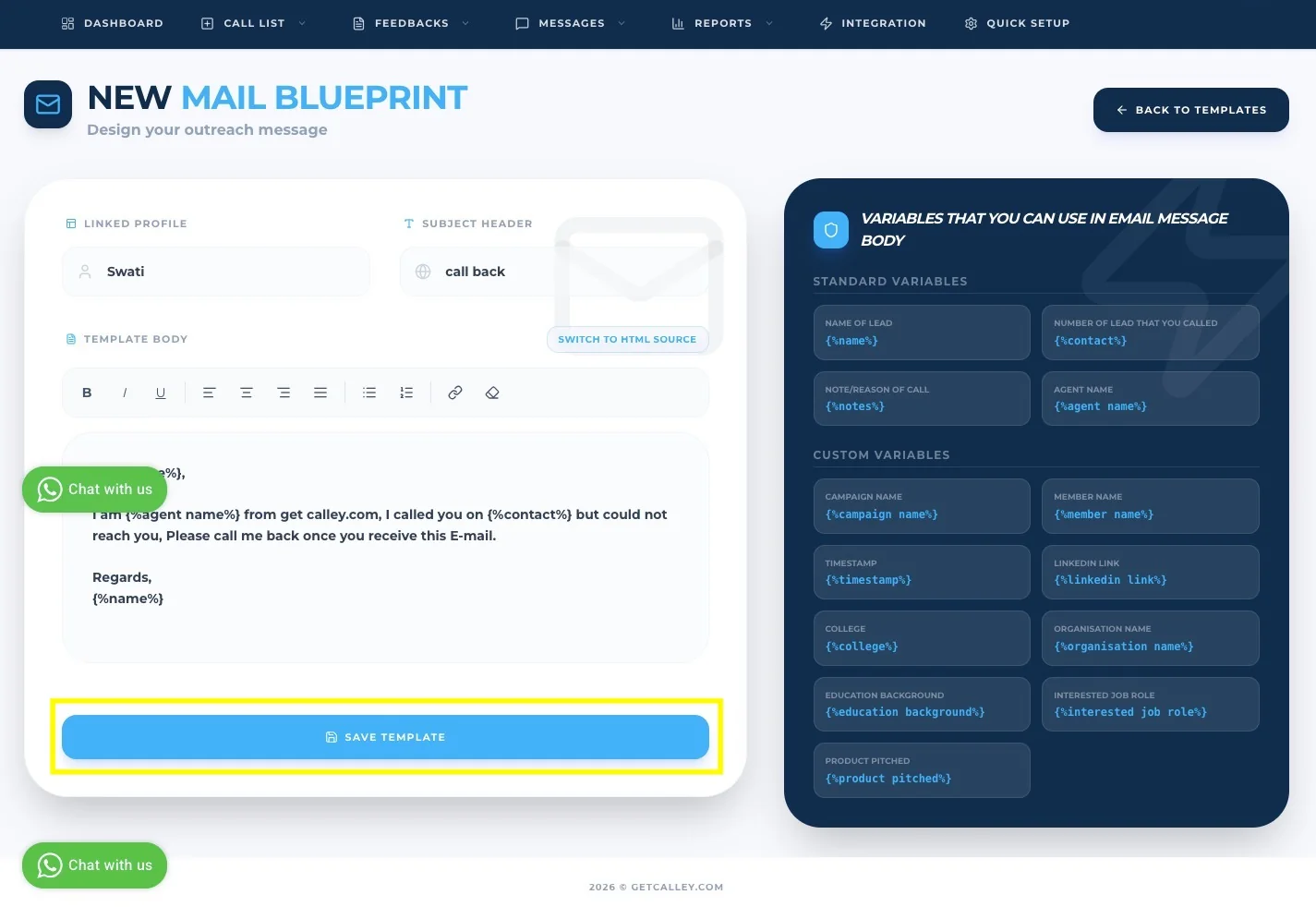
- ✓Select Profile.
- ✓Enter the Subject Line for the email.
- ✓Design the email content using the text editor. You can include variables like {%name%}, {%contact%}, {%notes%}, {%agent name%} for personalization.
4. Click Save to store your template.
5. Email Template Created Successfully.
Sending Emails from the Call from Browser Page
1. Prerequisite: Ensure the call list includes an email ID for each contact. Emails cannot be sent for numbers without a valid email address.
2. Once the call is done then update the feedback on the Call from Browser page.
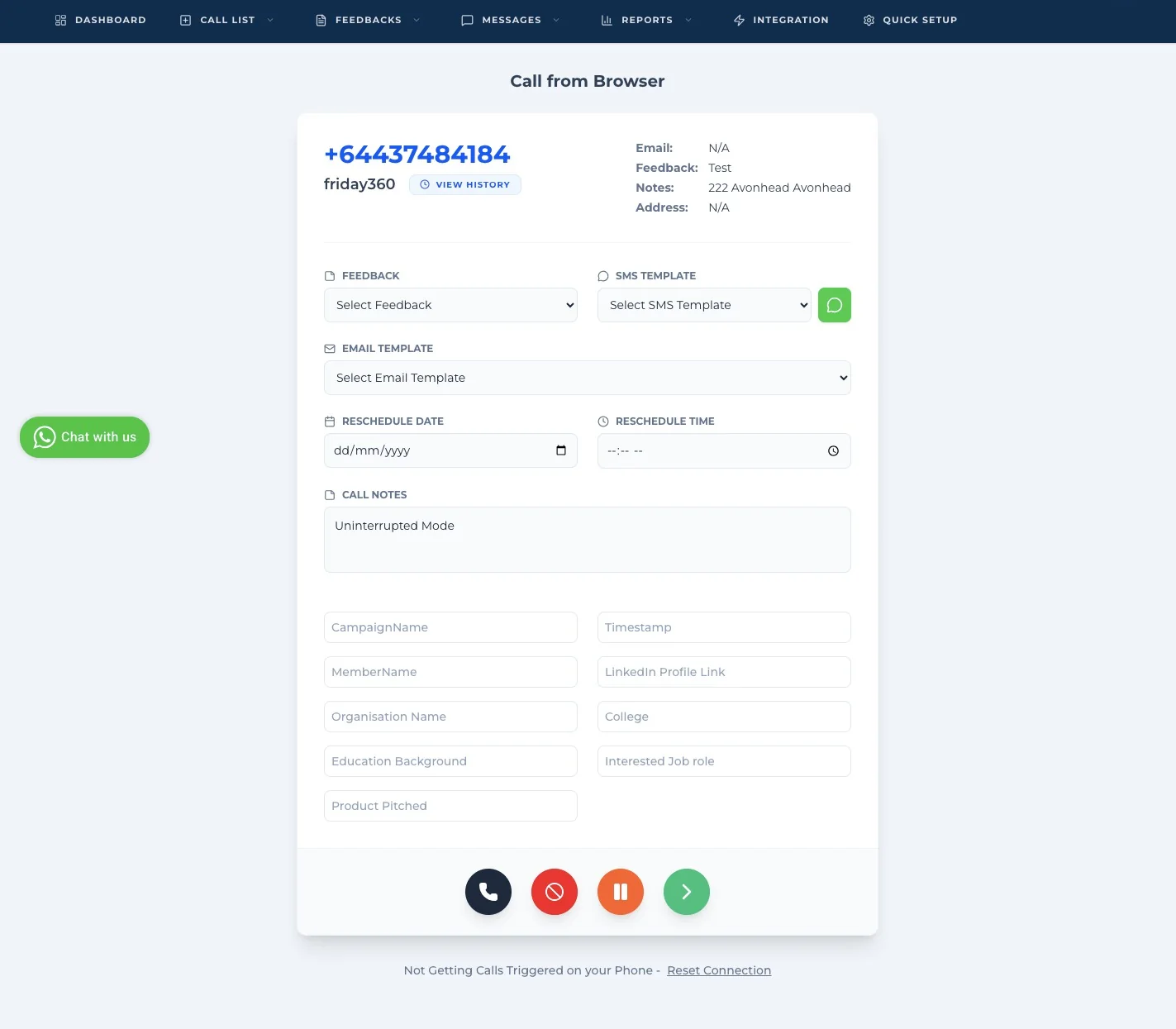
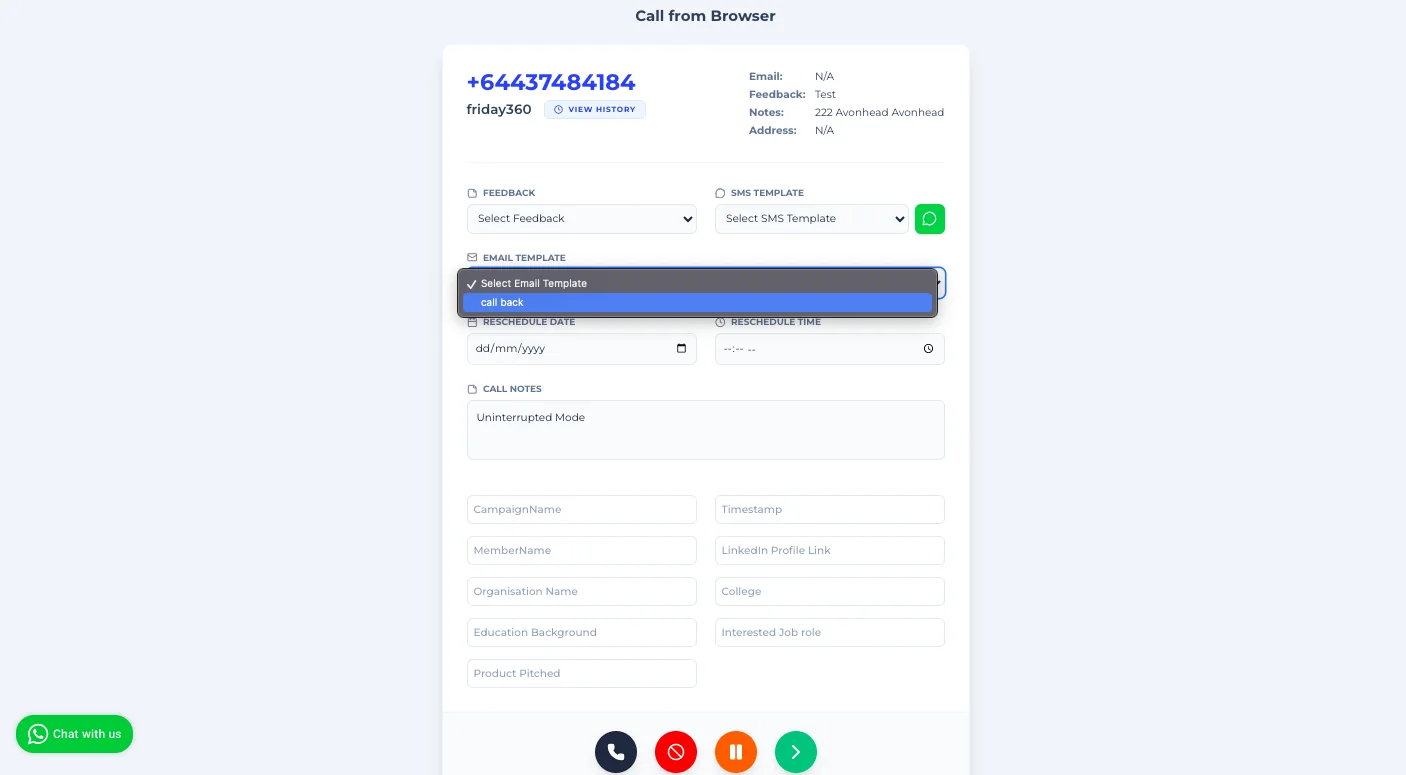
3. To send the Email, Select the desired email template from the dropdown menu.
4. Click on Save and Pause send the Email and Pause the session else Click on Next Call button to send the email and moves to the next contact in the list.
Sending Emails from the Call from Browser Page
1. Prerequisite: Ensure the call list includes an email ID for each contact. Emails cannot be sent for numbers without a valid email address.
2. After completing a call, On the mobile app post-call feedback page will appear.
3. To send the Email, tap the Email button.
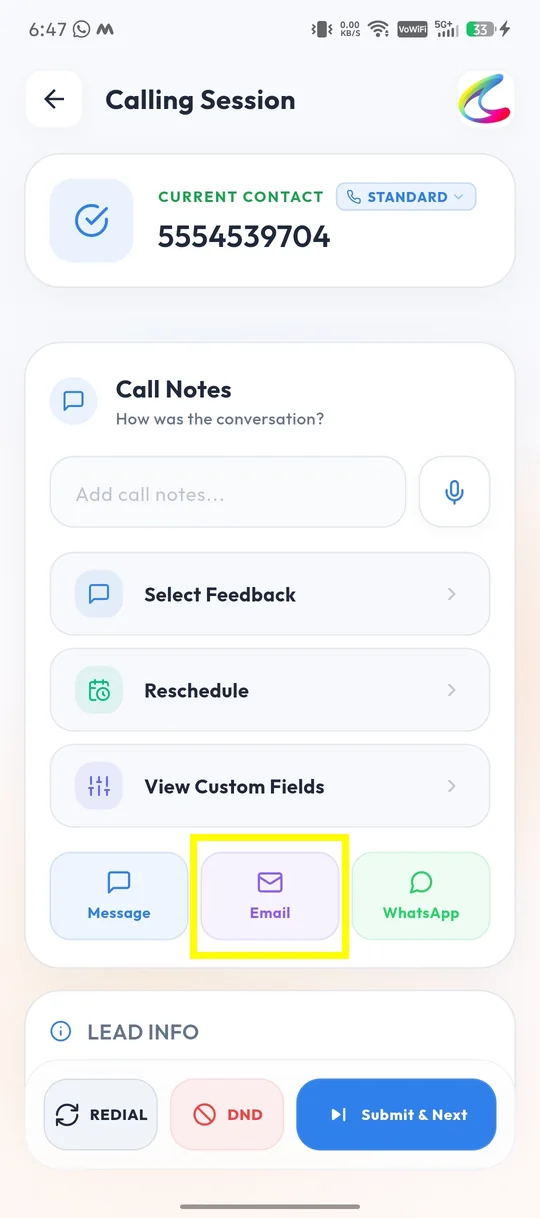
4. The Send Email window opens with the available email templates. Select the template you want to send and choose how to send it (for example, Calley Server API).
5. Click Continue to send the email.
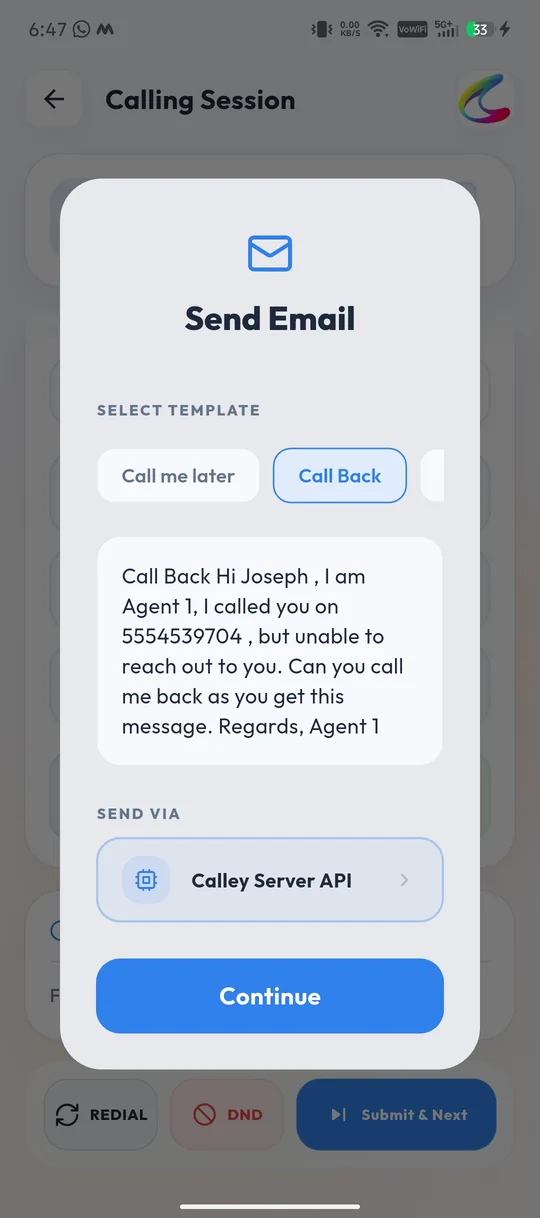
6. Email sent successfully.
7. Click on Submit & Next to move to the next contact in the list.
Using Calley’s SMTP email feature, you can simplify your follow-up process and maintain consistent communication with your leads. Whether on the browser or mobile app, sending emails has never been easier, helping you save time and boost productivity.