
How to Sync Call Feedback with Google Sheet in Calley?
Calley makes it super easy to save and manage your call data by syncing it directly with Google Sheets. This feature automatically saves all feedback and call details selected by your agents into a Google Sheet, so you can stay organized without extra effort. Here’s how to use it:
- 1.How to Sync Call Feedback with Google Sheet in Calley?
- 1.1.What is Google Sheet Sync?
- 1.2.Who Can Use Google Sheet Sync?
- 1.3.Why Use Google Sheet Sync?
- 1.4.How to Set Up Google Sheet Sync
- 1.5.How to Find the Synced Google Sheet
- 1.6.Benefits of Google Sheet Sync
- 1.7.Quick Tips
- 2.WE KNOW YOU WILL HAVE QUESTIONS.
What is Google Sheet Sync?
Google Sheet Sync in Calley lets you save all your call feedback and reports automatically in a Google Sheet. This way, you don’t have to update or store call details manually. Everything is saved in your Google Drive and can be accessed anytime.
Who Can Use Google Sheet Sync?
Calley offers three subscription plans: Calley Personal, Calley Pro, and Calley Teams.
- Calley Pro and Calley Teams Users: Only users with Pro or Teams subscriptions can access the Google Sheet Sync feature.
- Calley Teams Specifics: In Calley Teams, only the Team Admin can access this feature to save the feedback or call dispositions selected by agents into the Google Sheet. Agents do not have direct access to this functionality.
Why Use Google Sheet Sync?
- Stay Organized: All call details and feedback are saved in one place.
- Automatic Updates: You don’t need to manually update reports—they sync on their own.
- Easy Sharing: You can share the synced Google Sheet with your team for better collaboration.
How to Set Up Google Sheet Sync
Follow these simple steps to set up Google Sheet Sync in Calley:
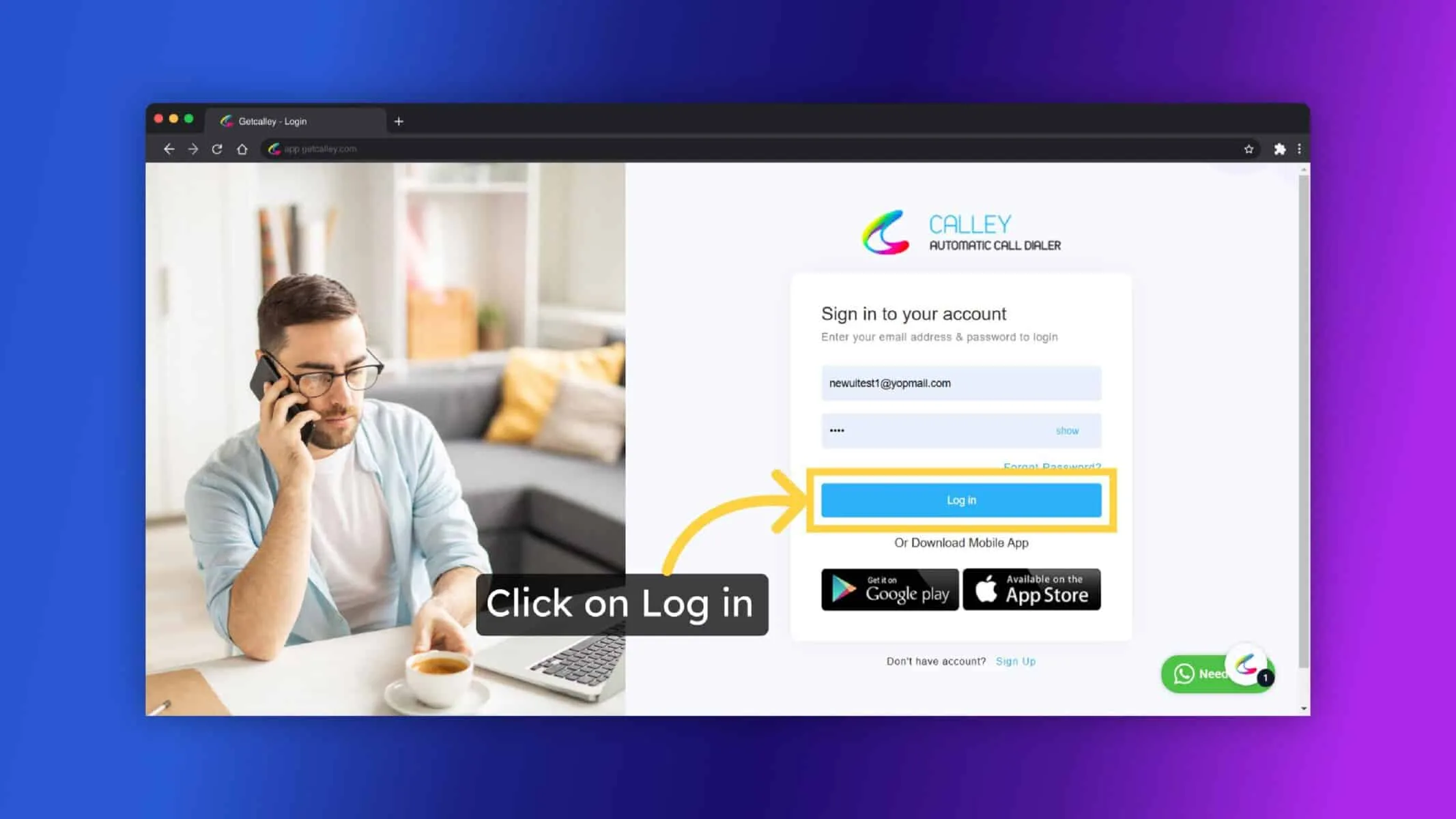
Login to Calley Web panel.
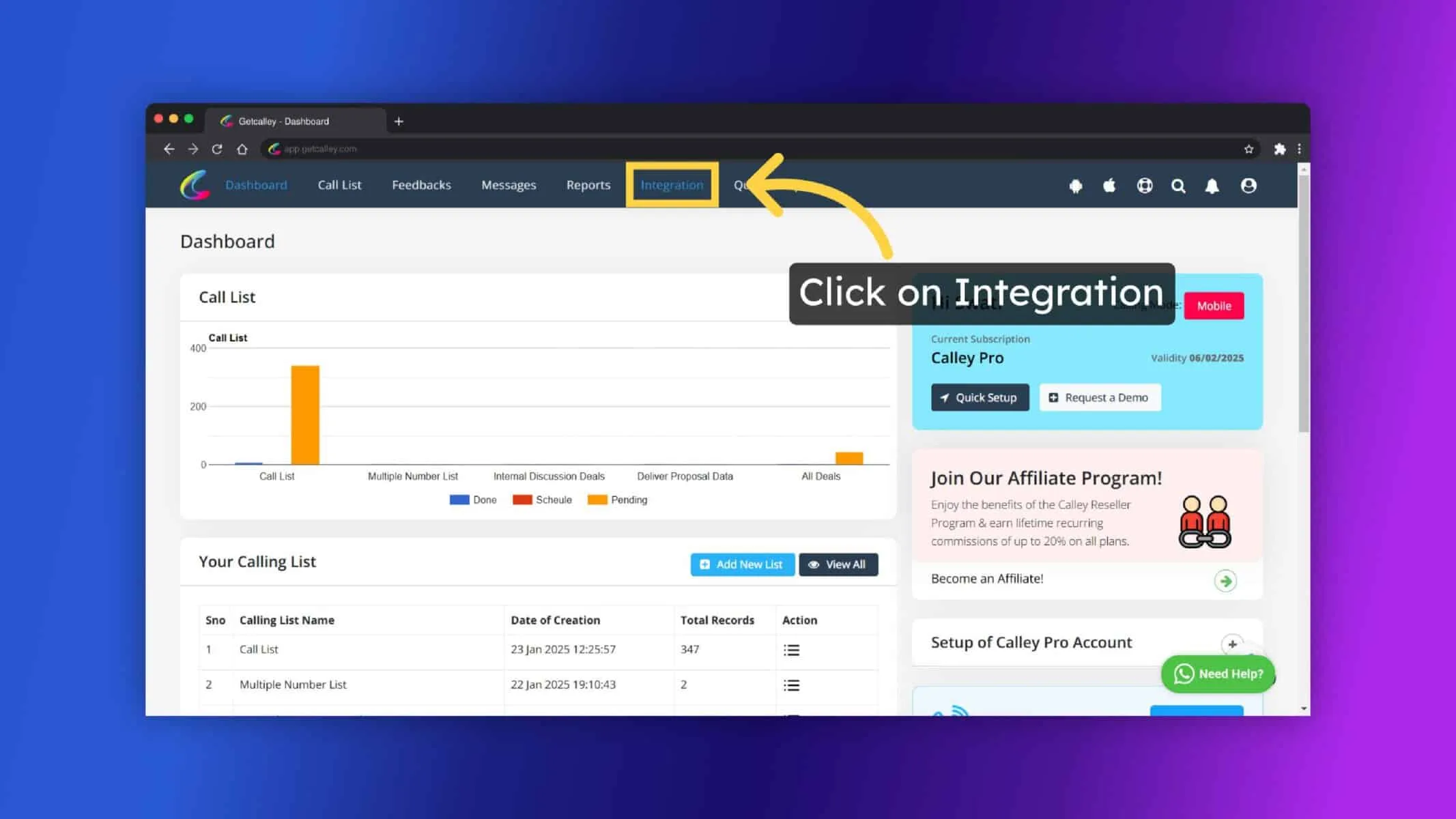
As you Login you are redirected to the dashboard, click on the "Integrations".
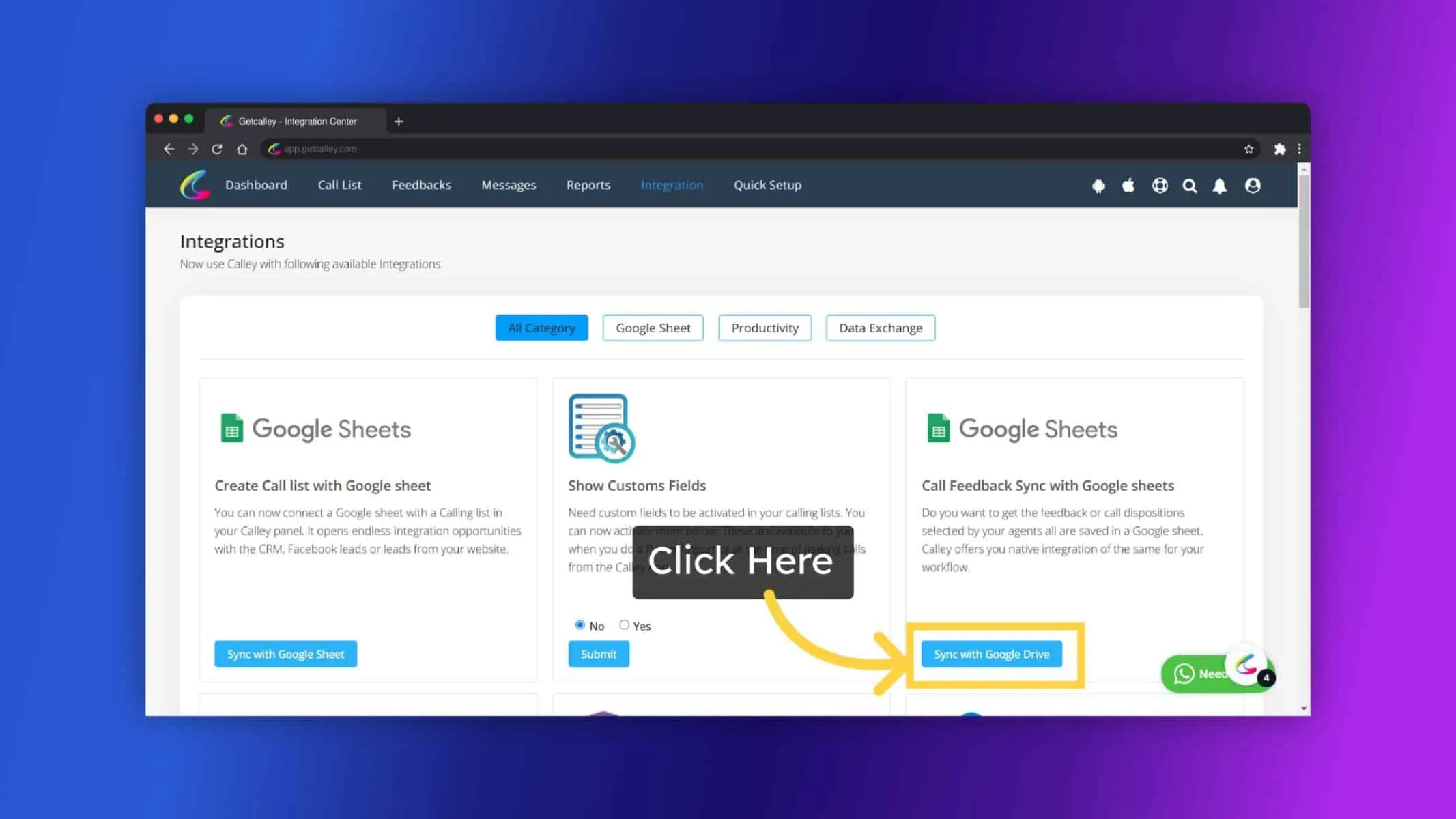
There is a section called Call Feedback Sync with Google sheets. Click on Sync with google drive button.
Sign in to your Google account (the one where you want to save your call data).
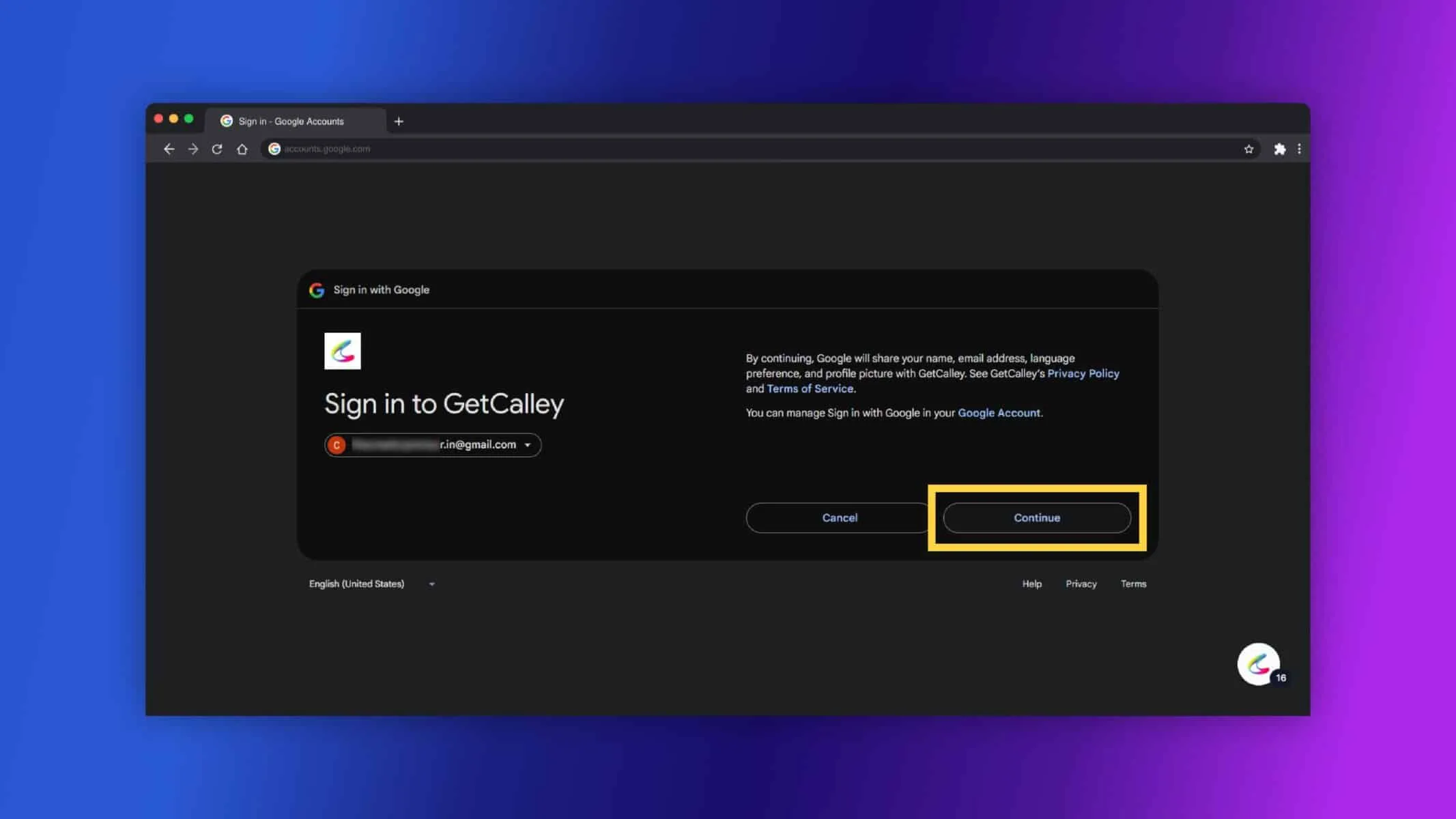
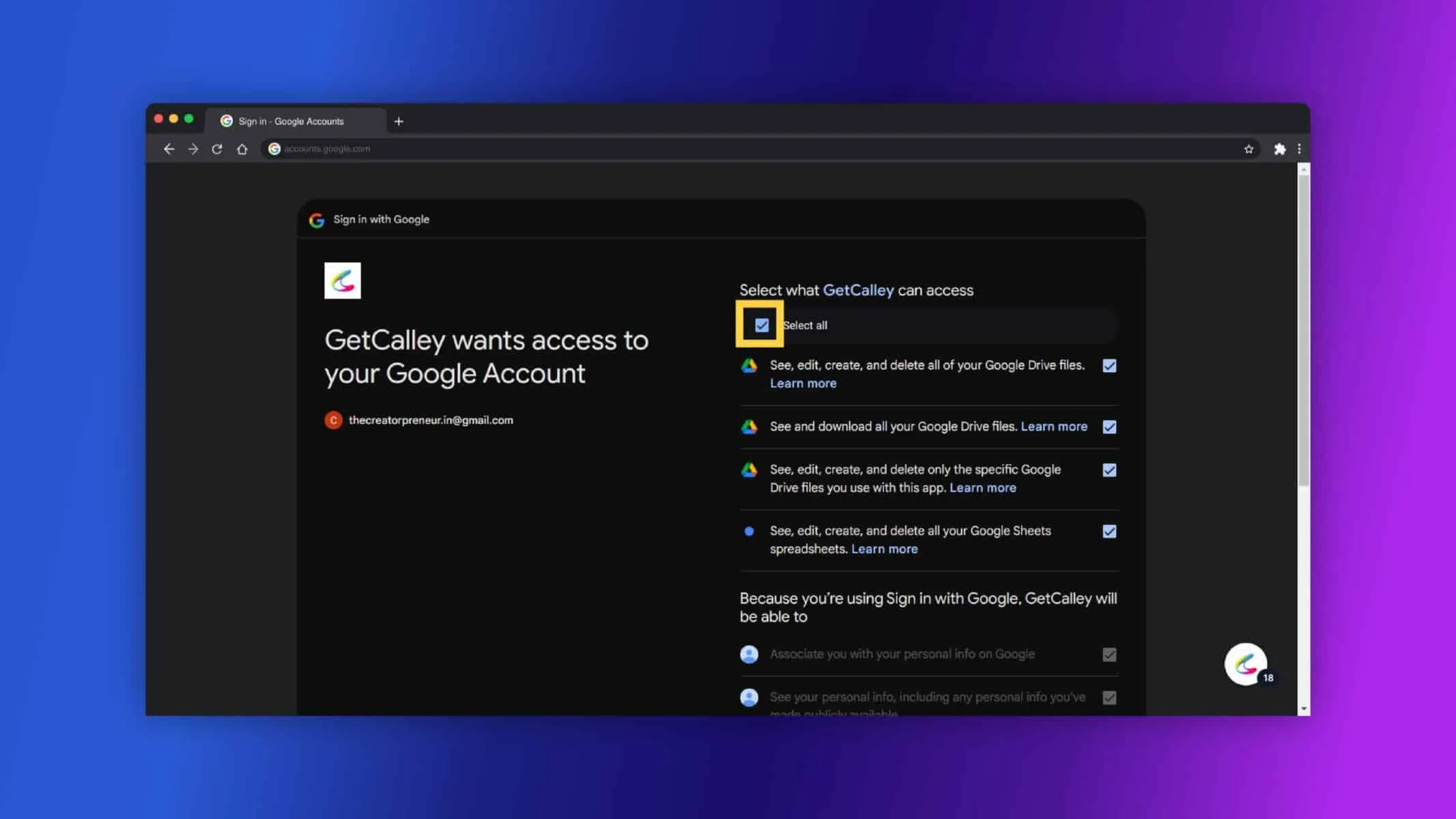
Give permission to Calley to access your Google Drive.
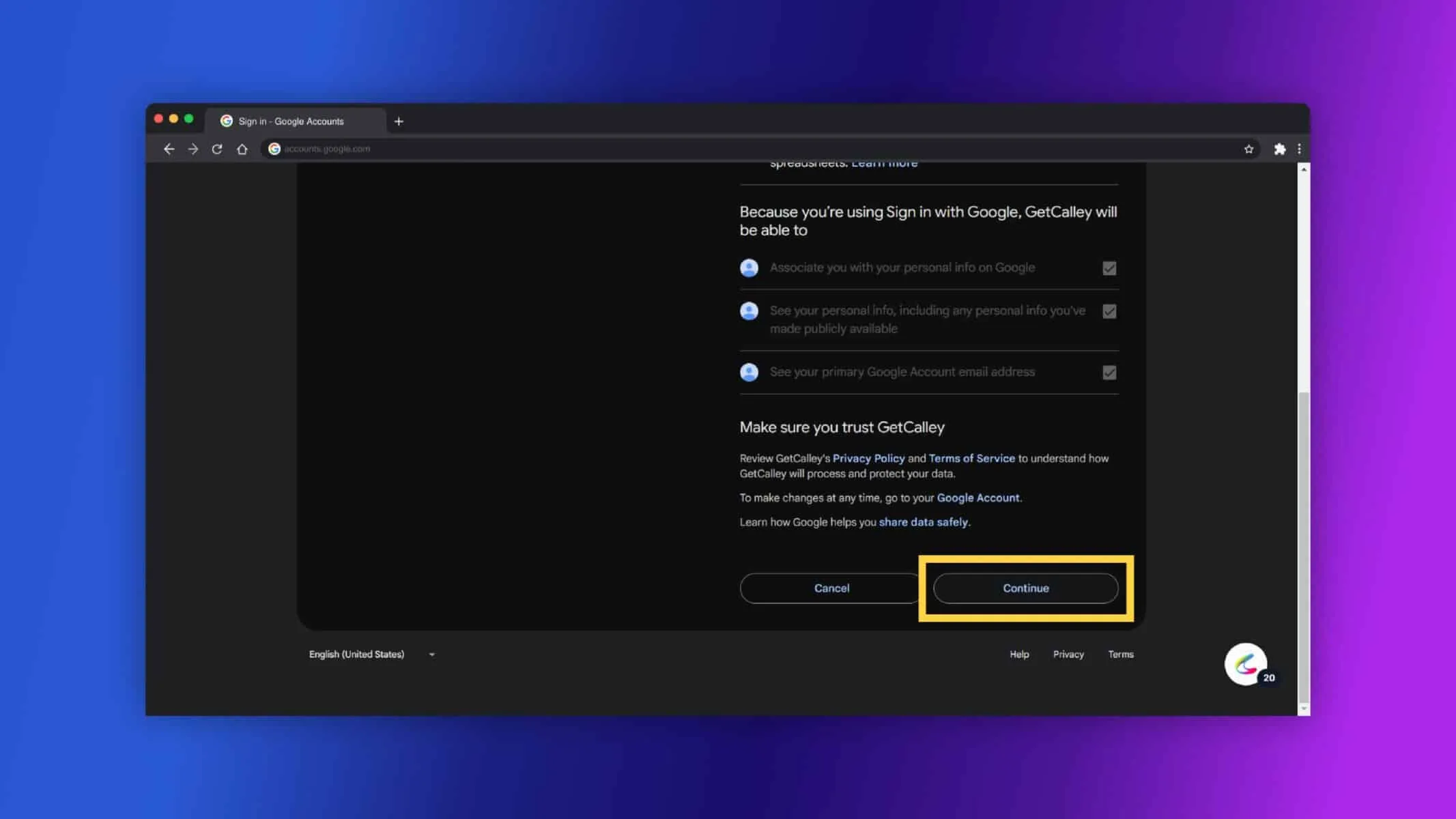
Click on continue.
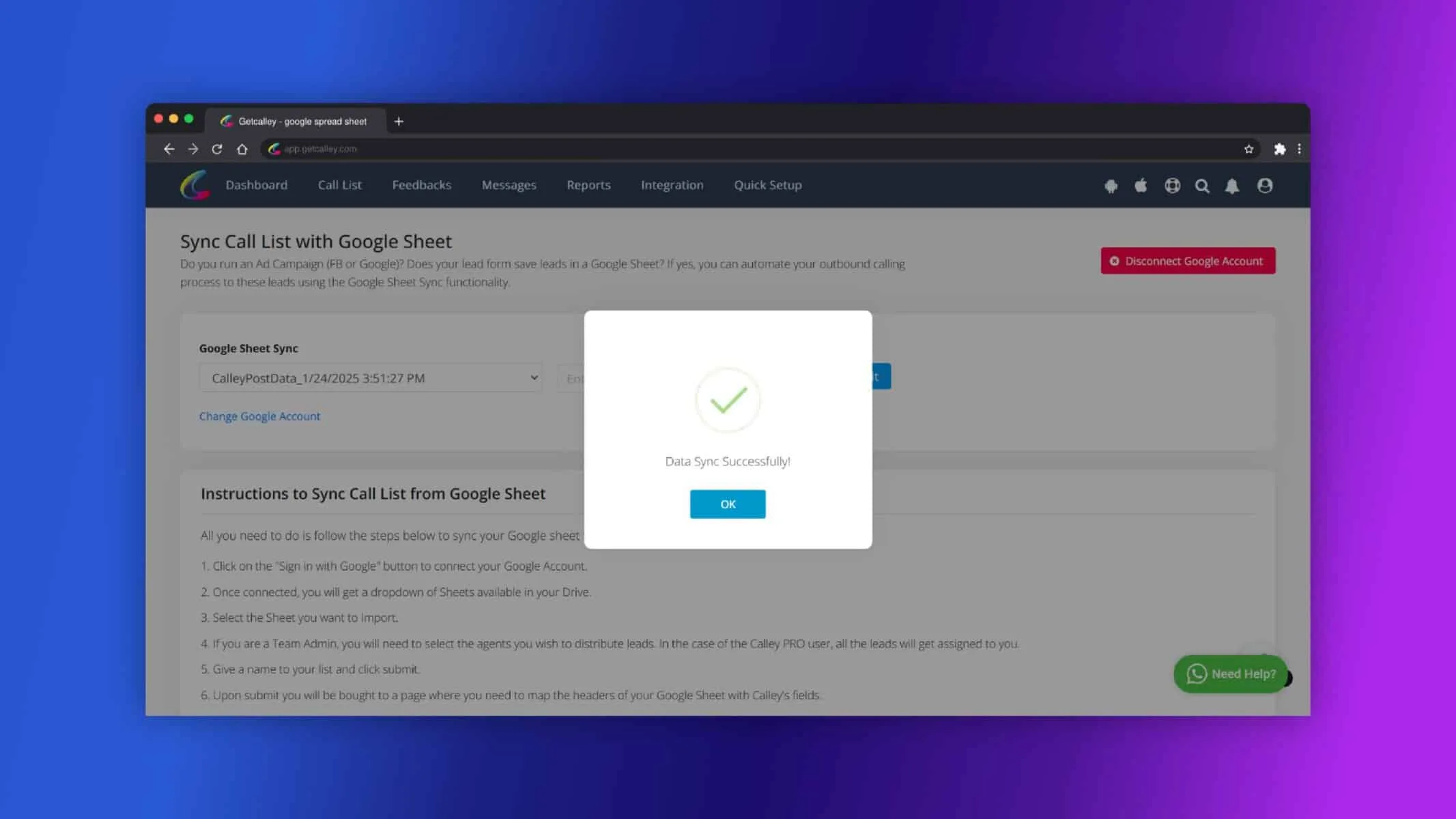
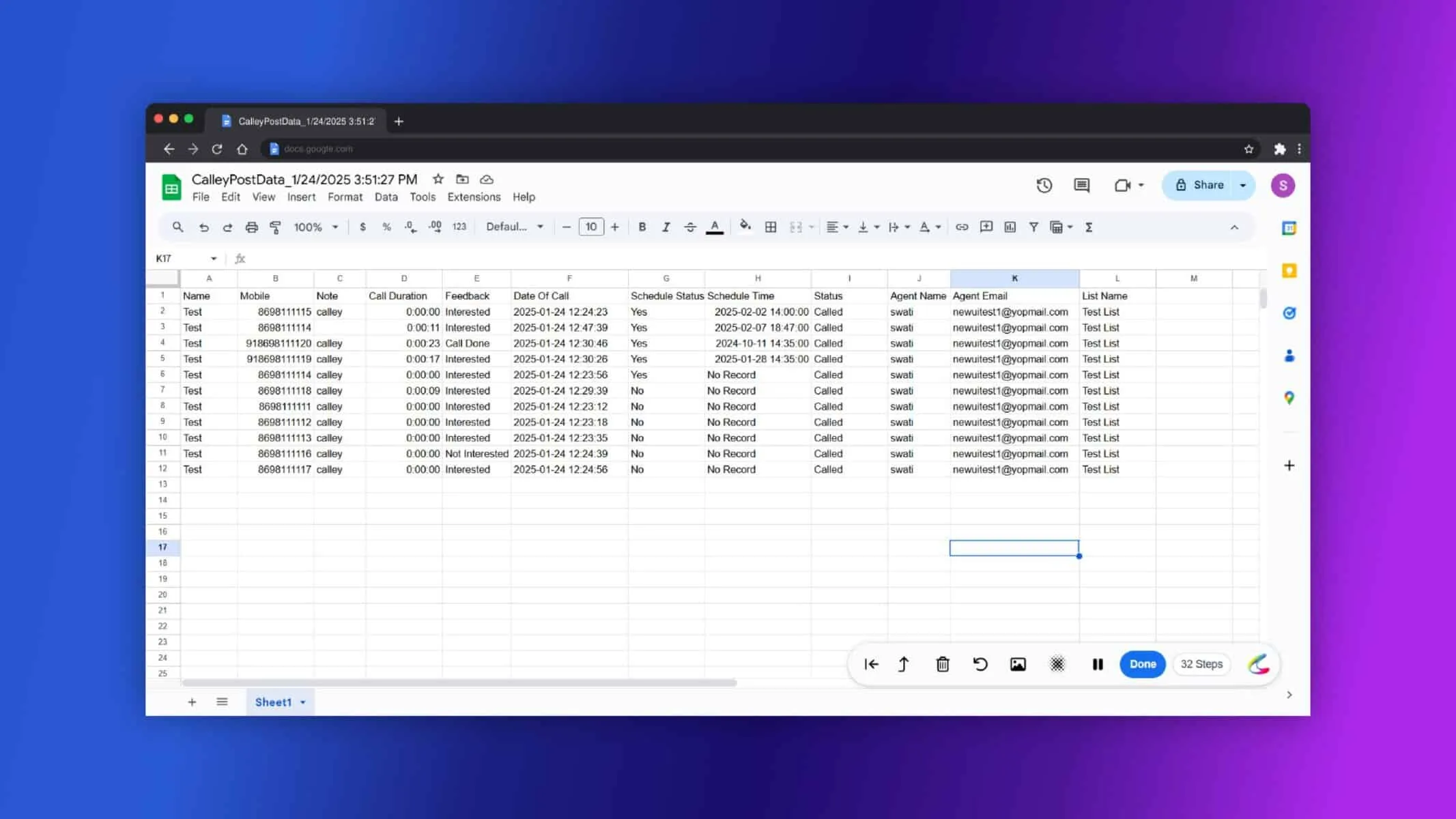
After connecting, Calley will create a Google Sheet in your Google Drive. This sheet will automatically store all your call feedback and dispositions. Click on Ok.
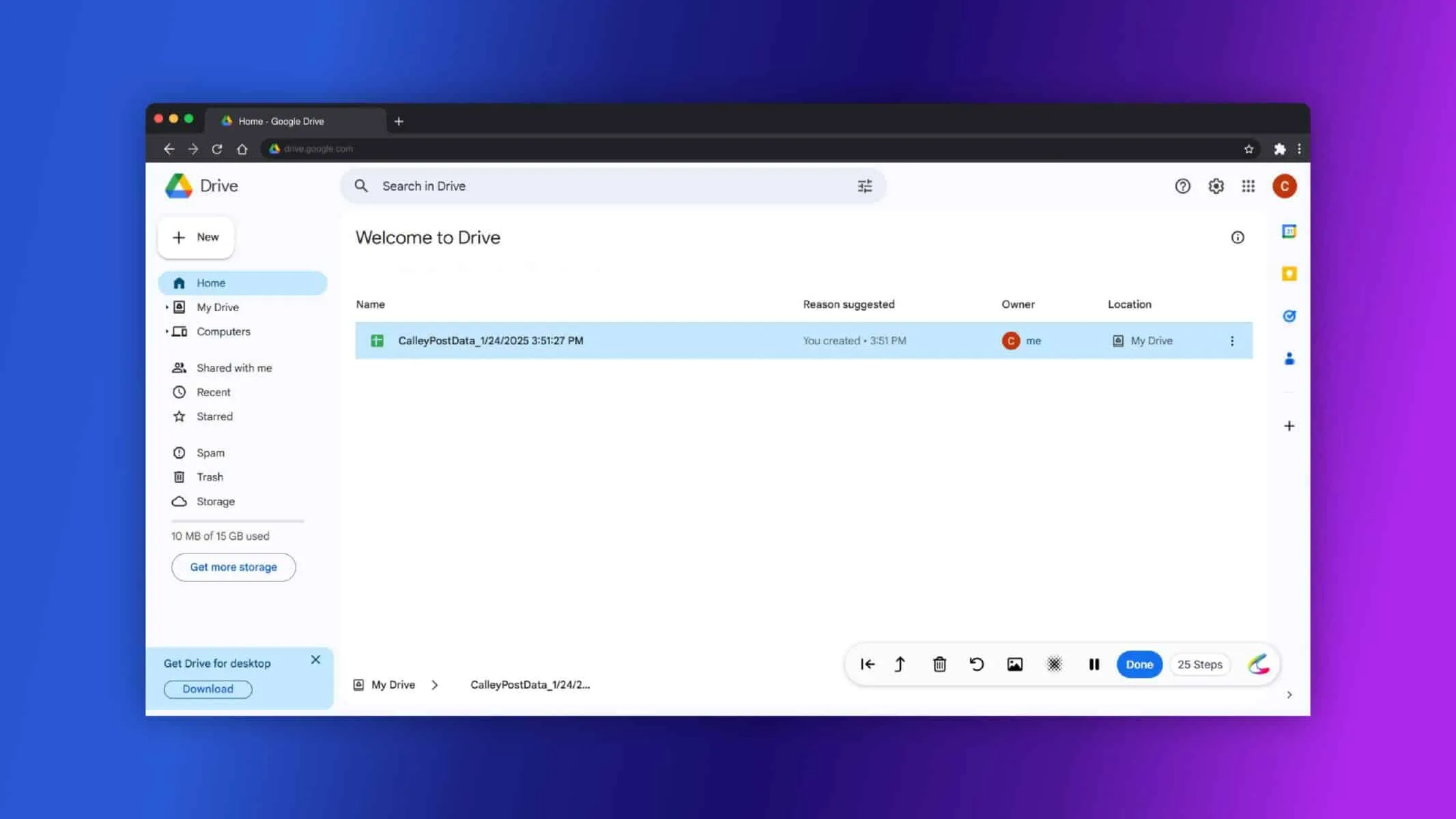
You can see the List created on Google Drive.
Once set up, all your call reports will sync to the Google Sheet in real time.
How to Find the Synced Google Sheet
- Open your Google Drive.
- Look for the file or folder created by Calley (it may be named “Calley Reports” or something similar).
- Open the sheet to view all your call feedback and agent reports.
Benefits of Google Sheet Sync
- Save Time: No more manual updates or searching for call data.
- Keep Data Safe: All your call reports are securely stored in your Google Drive.
- Track Performance: Use Google Sheets to analyze or track your calls easily.
Quick Tips
- Ensure your internet connection is stable for smooth syncing.
- Keep your Google Drive organized so it’s easy to find the synced sheet.
- Review your sheet regularly to monitor your team’s performance.
Calley’s Google Sheet Sync feature is a simple yet powerful tool that saves you time and keeps your call data organized. By following these easy steps, you can set up this integration and have all your call feedback saved automatically. Whether you’re an individual user or part of a team, this feature helps you stay productive and focused.
Checkout here > Pricing Plans for Calley Auto Dialer App
Link to > Full Feature List of Calley AutoDialer
Do you want to Subscribe to a Free Auto Dialer with a limit of 25 calls per day?
We know you will have questions.
We would love to answer all your questions to get you started with Autodialing using The Calley Auto Dialer app.