
Sending Email via SMTP on Calley Pro
Calley Pro users can send emails seamlessly via SMTP (Simple Mail Transfer Protocol), allowing them to integrate their preferred email service provider. This feature is particularly useful for sending personalized follow-ups, appointment confirmations, and marketing emails directly from the Calley platform. Instead of switching between different tools, you can automate email communication effortlessly. In this guide, we’ll walk you through the setup process, template creation, and how to send emails via SMTP from both the web panel and mobile app.
Here’s how you can get started:
Full Setup Video
Setting Up the SMTP Profile
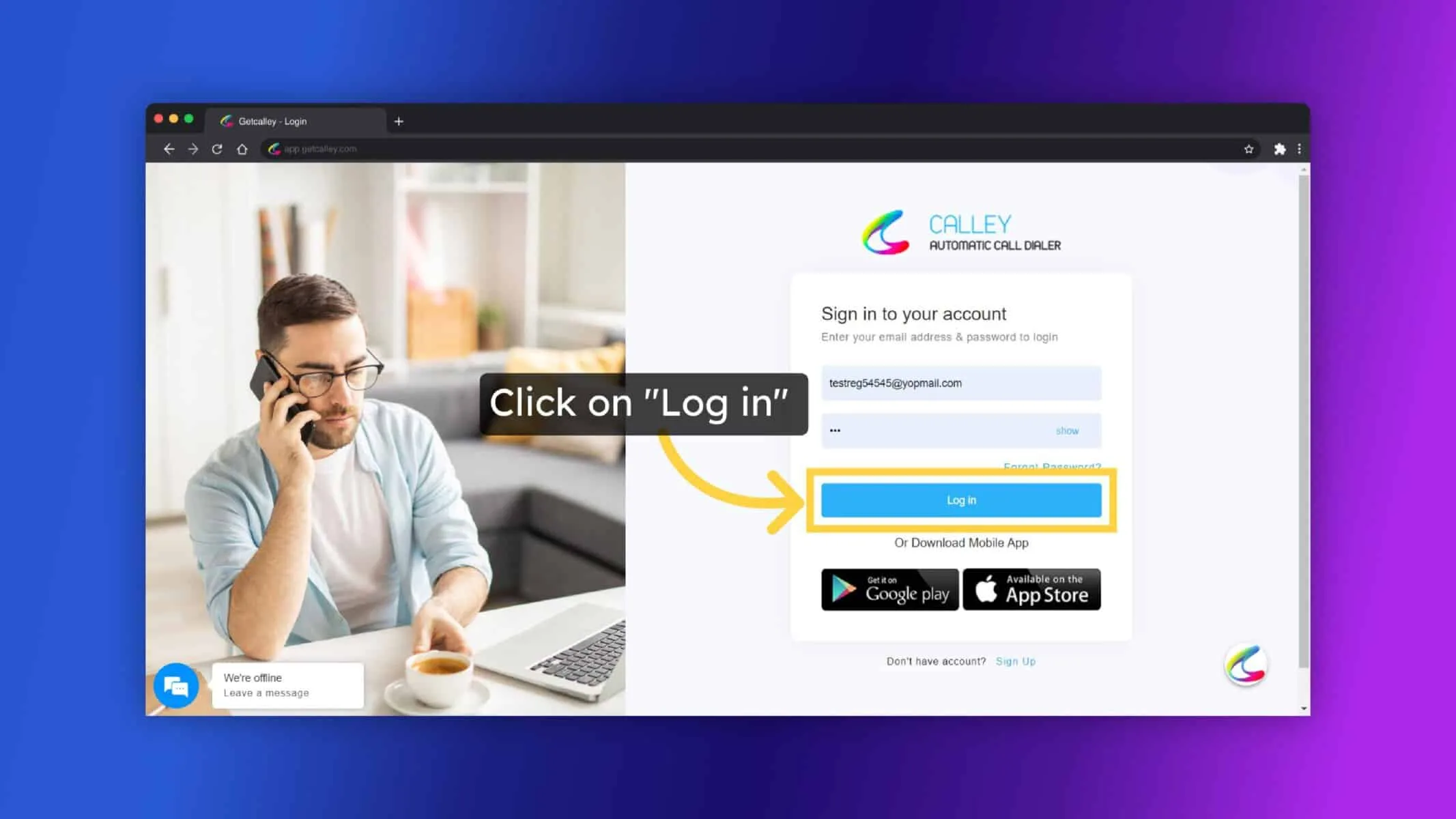
Log in to Calley Pro Panel.
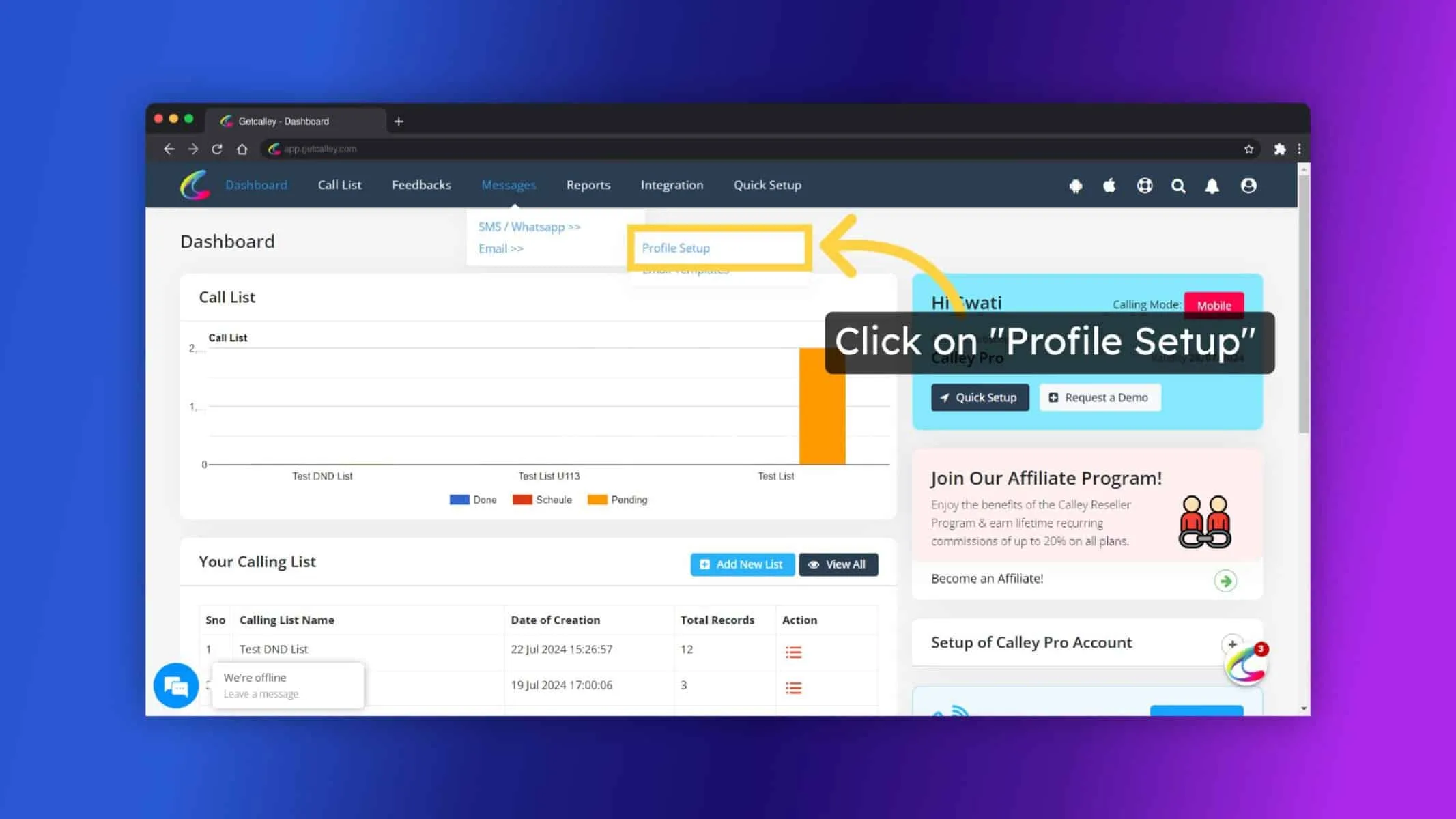
As you login redirect to Calley Pro Dashboard, to start with SMTP profile Setup go to Messages > Email > Profile Setup
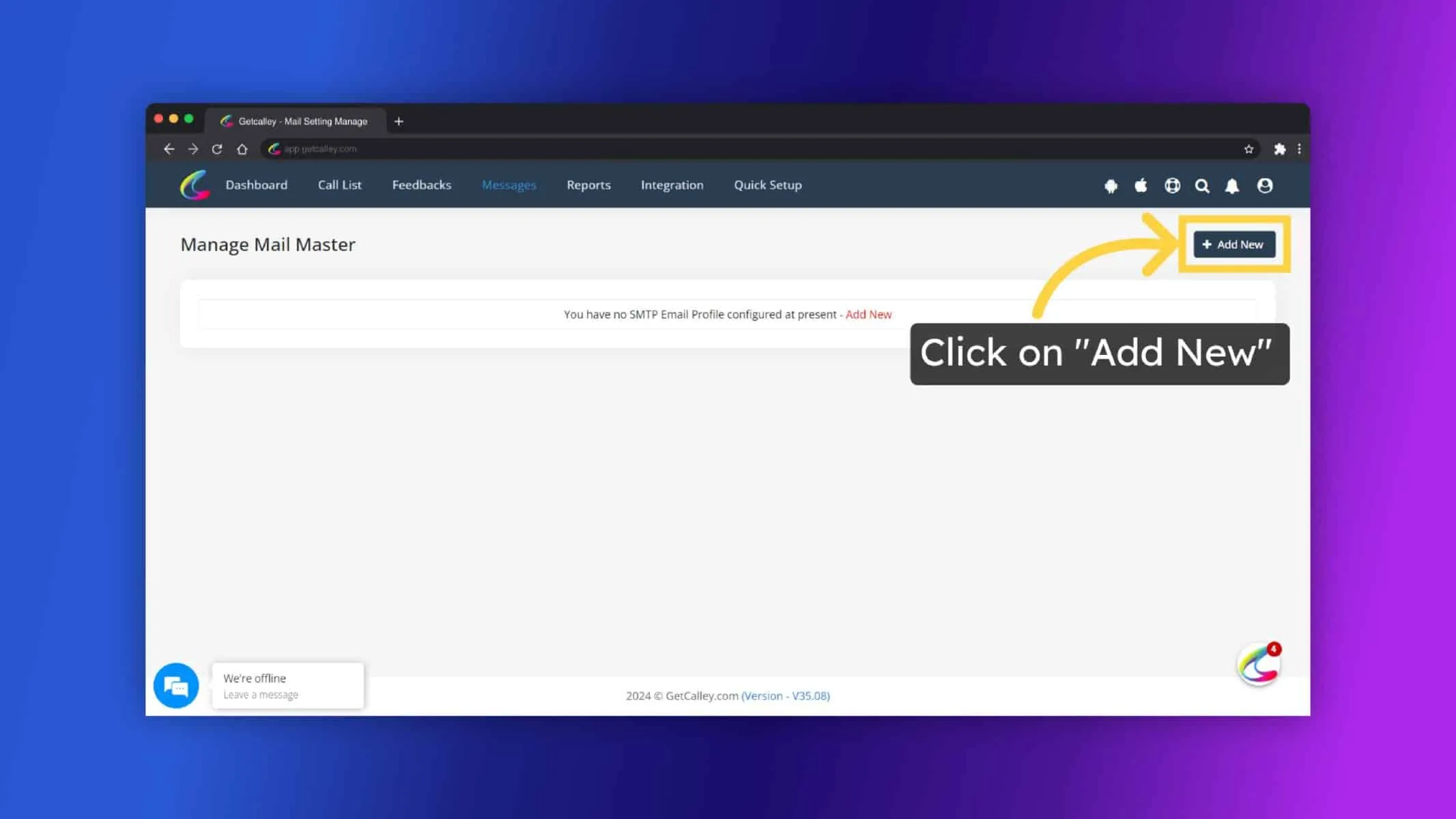
Click on Add New button.
Fill in the required fields
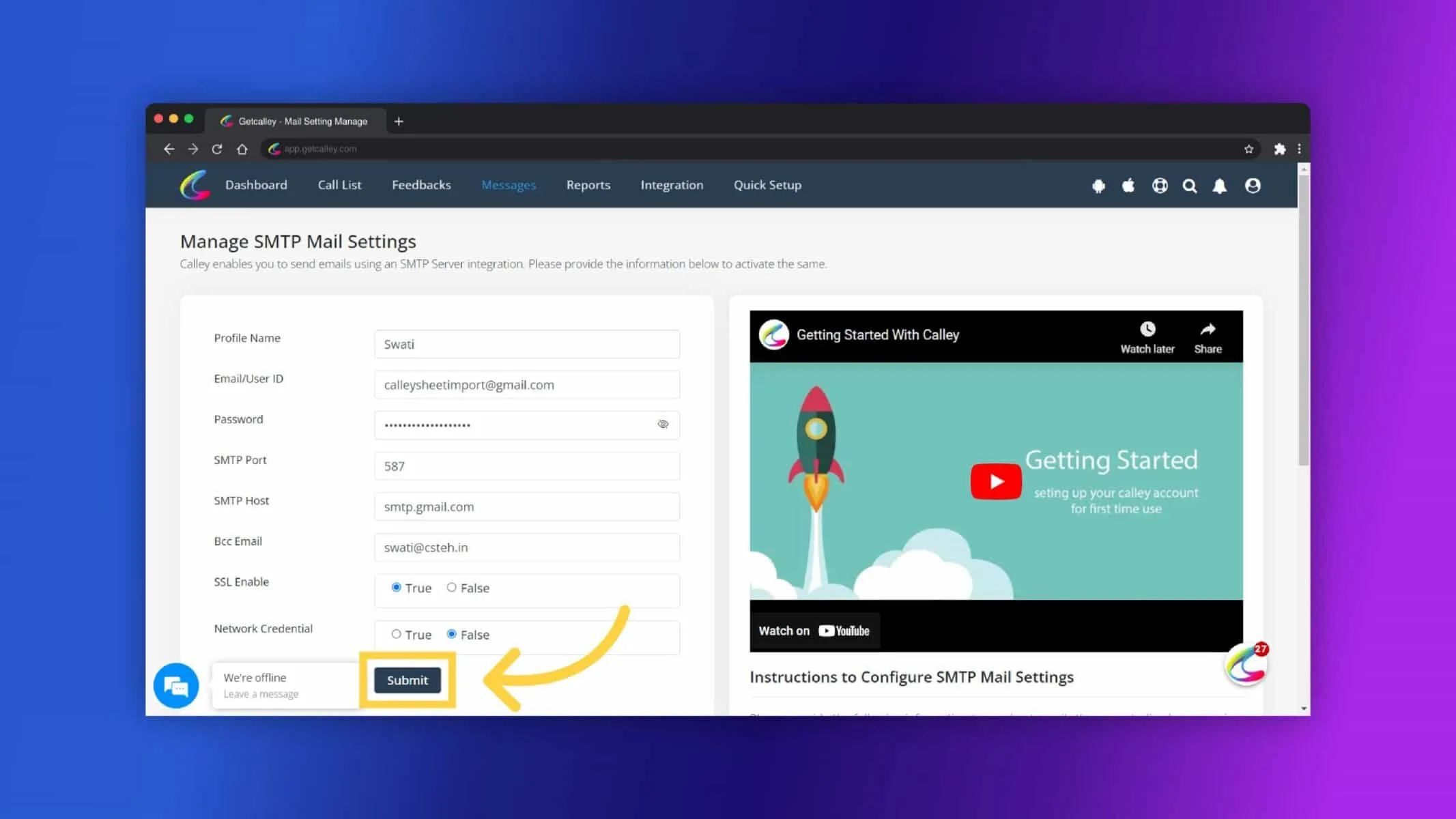
Click Submit to store your SMTP profile.
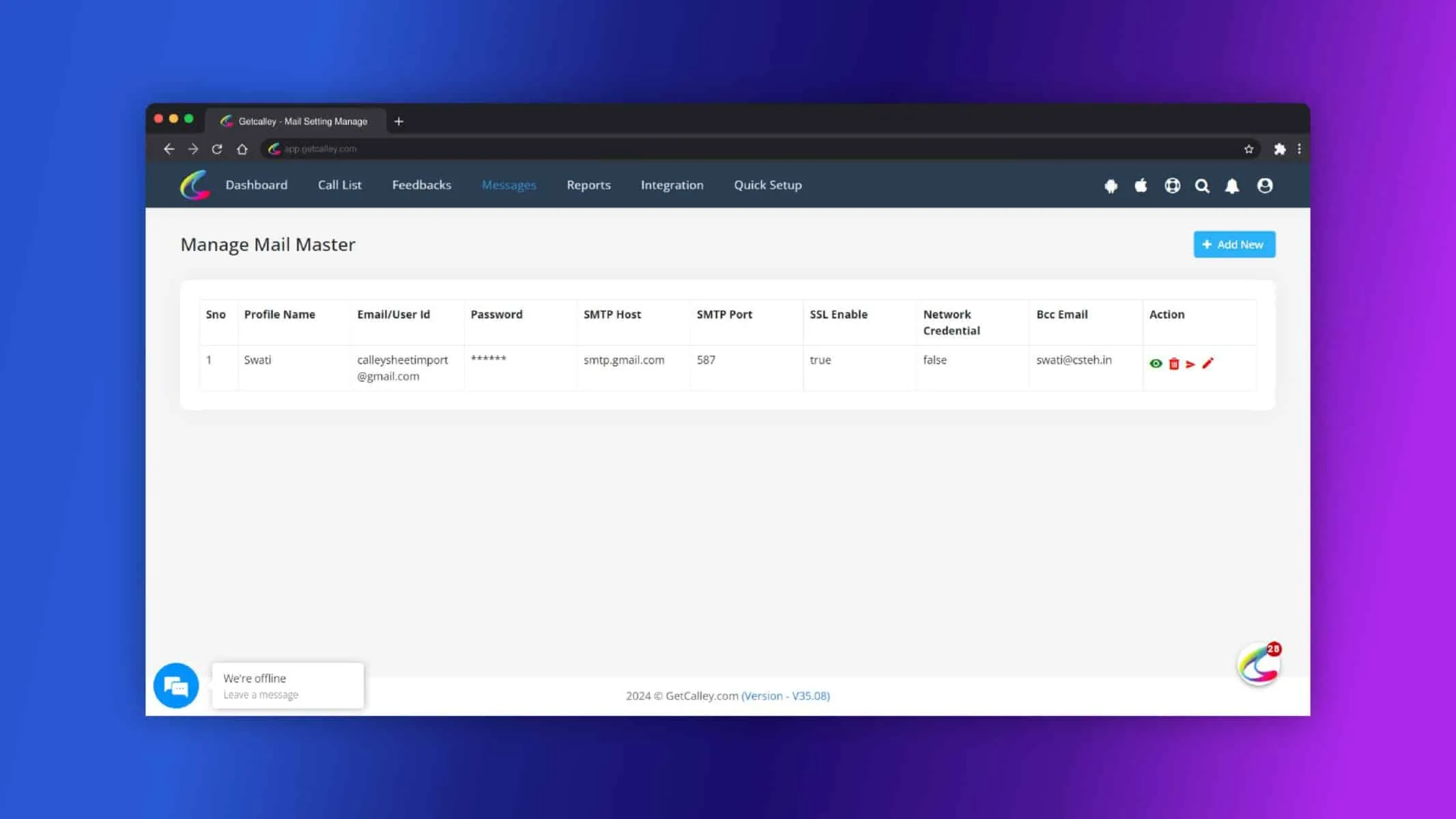
After saving, click on Test Connection to ensure the SMTP profile is configured correctly.
Creating an Email Template
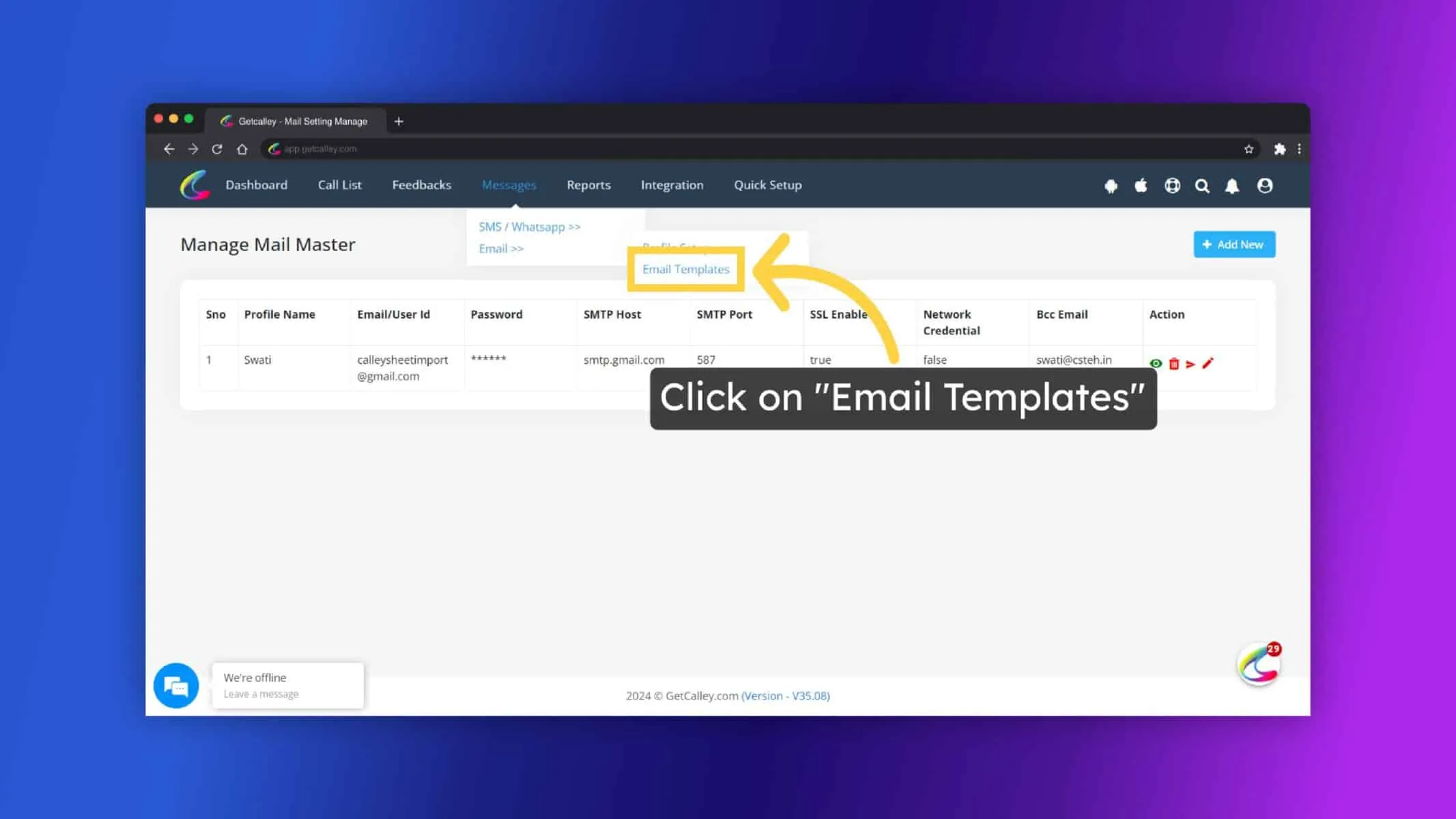
Once the SMTP Profile is created, Go to Messages > Email > Email Templates.
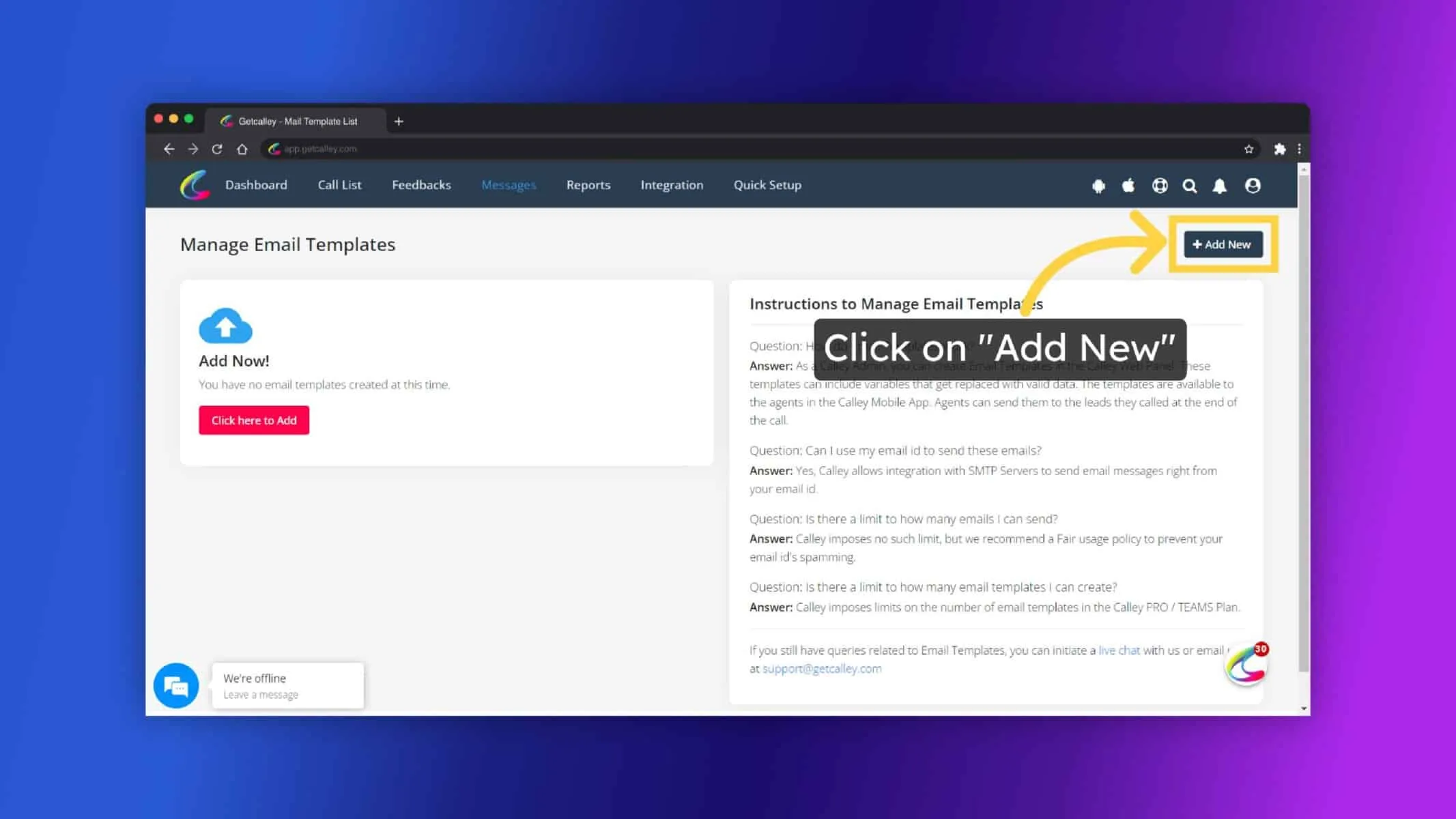
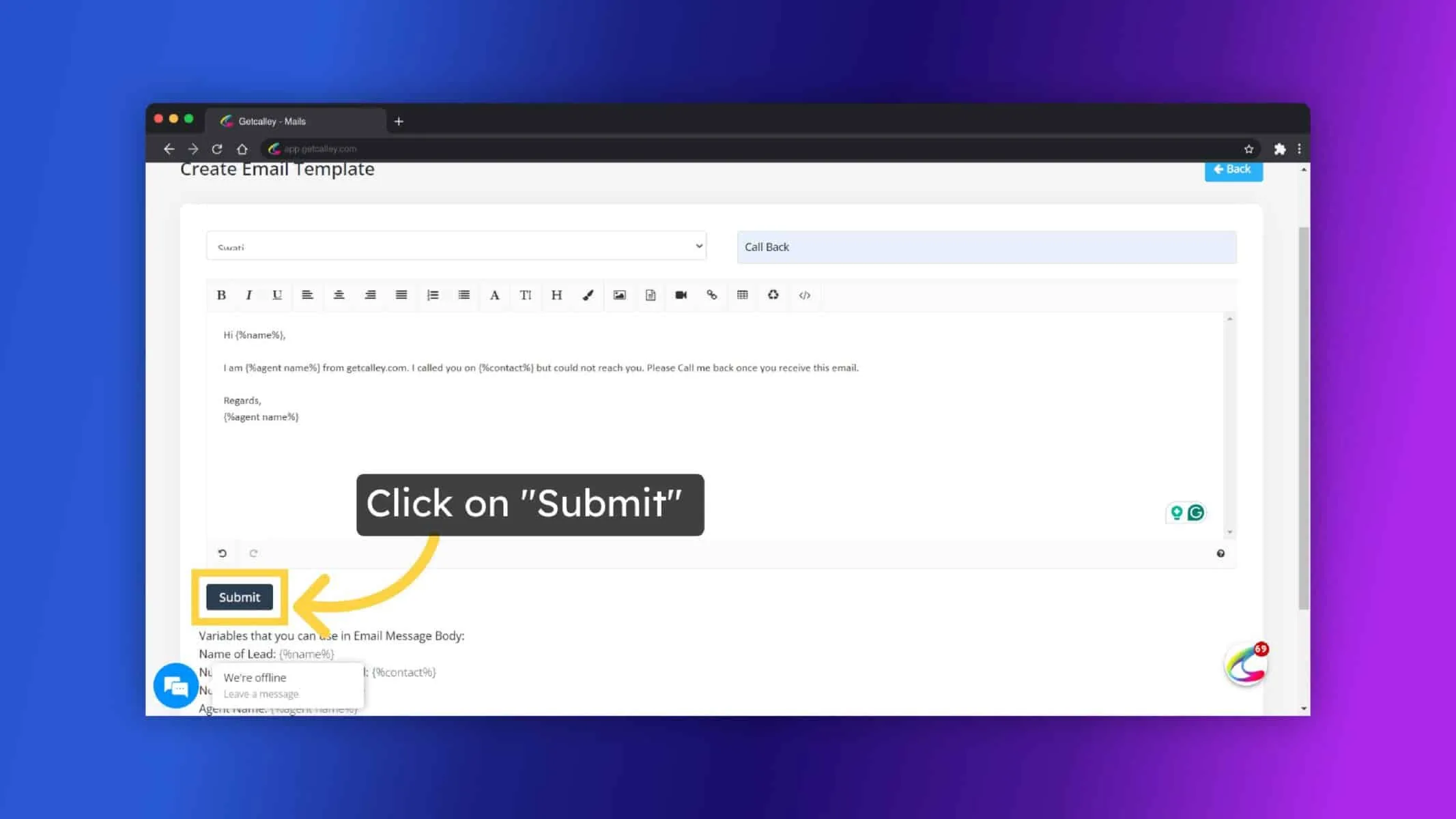
Click Add New.
Provide required details.
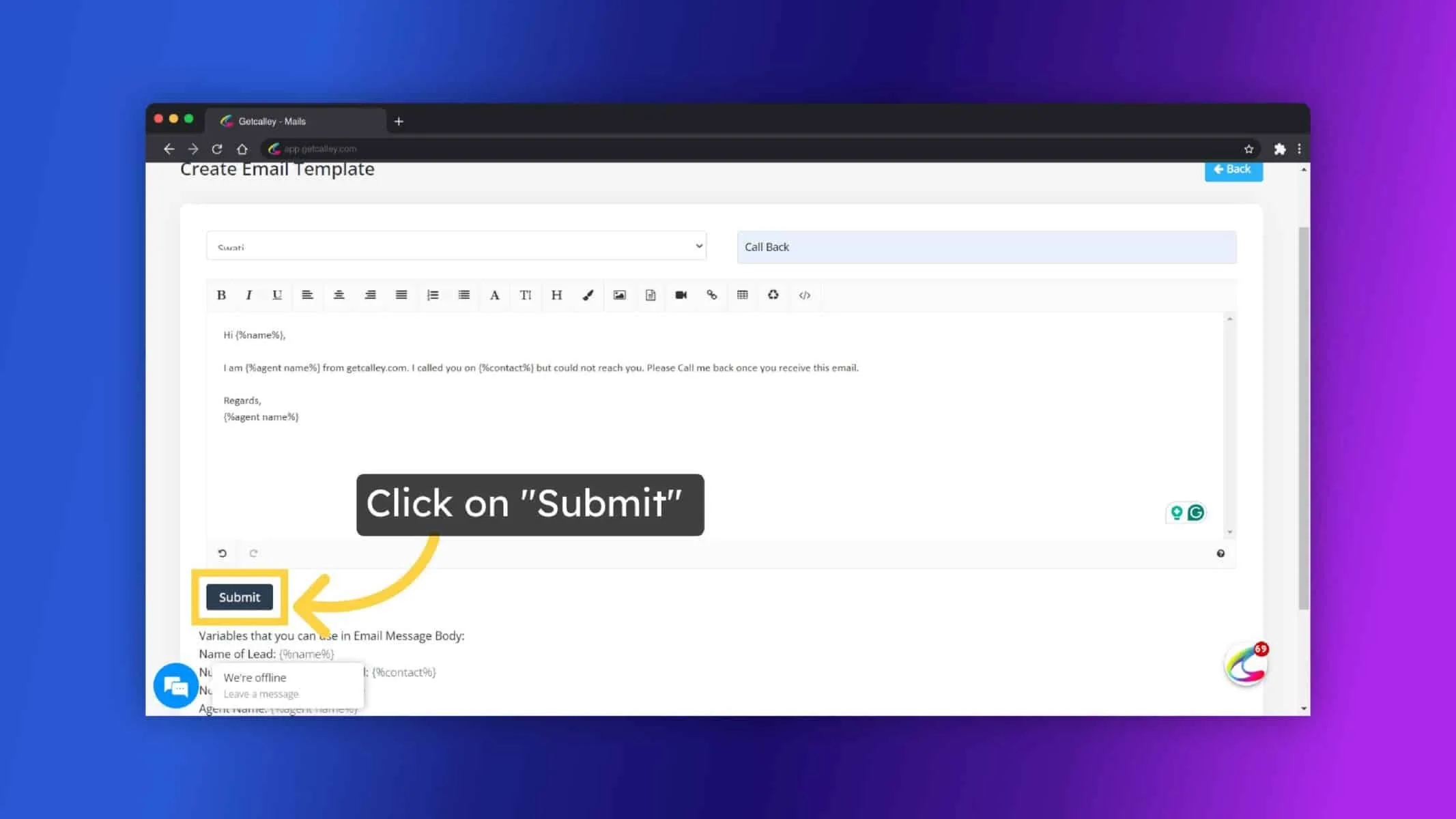
- Select Profile.
- Enter the Subject Line for the email.
- Design the email content using the text editor. You can include variables like {%name%}, {%contact%}, {%notes%}, {%agent name%} for personalization.
- Click Save to store your template.
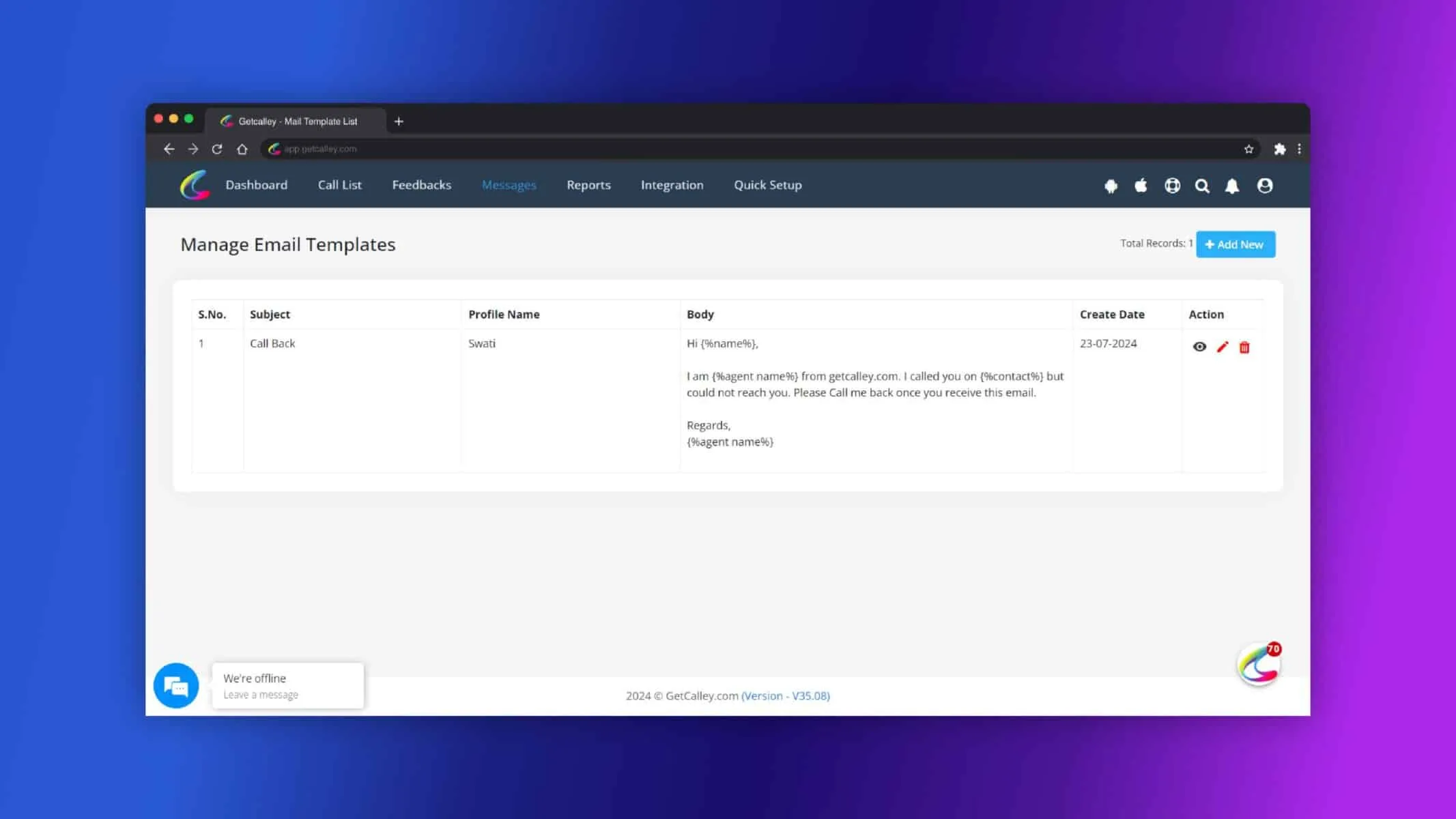
Email Template Created Successfully.
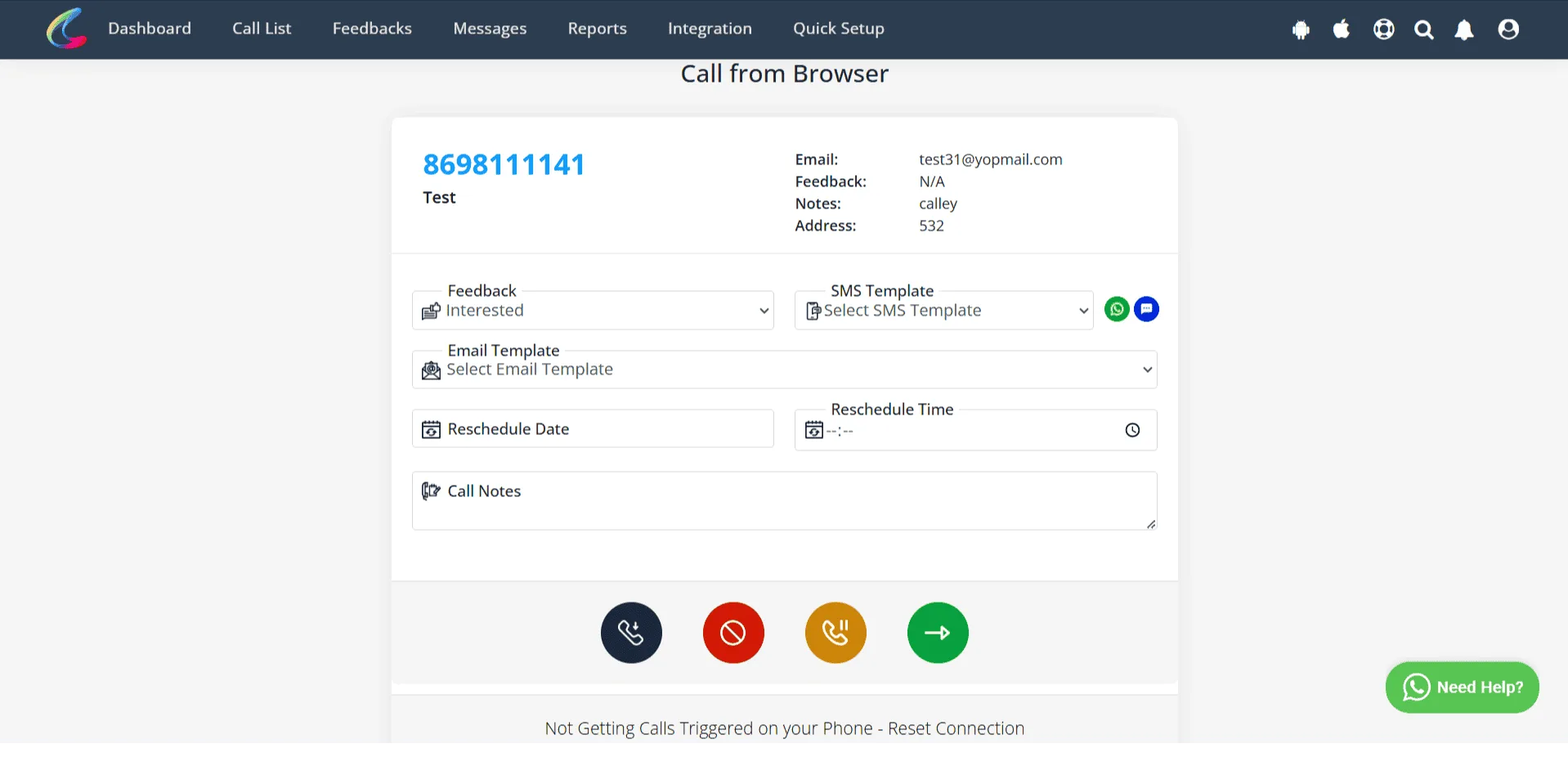
Sending Emails from the Call from Browser Page
- Prerequisite: Ensure the call list includes an email ID for each contact. Emails cannot be sent for numbers without a valid email address.
- Once the call is done then update the feedback on the Call from Browser page.
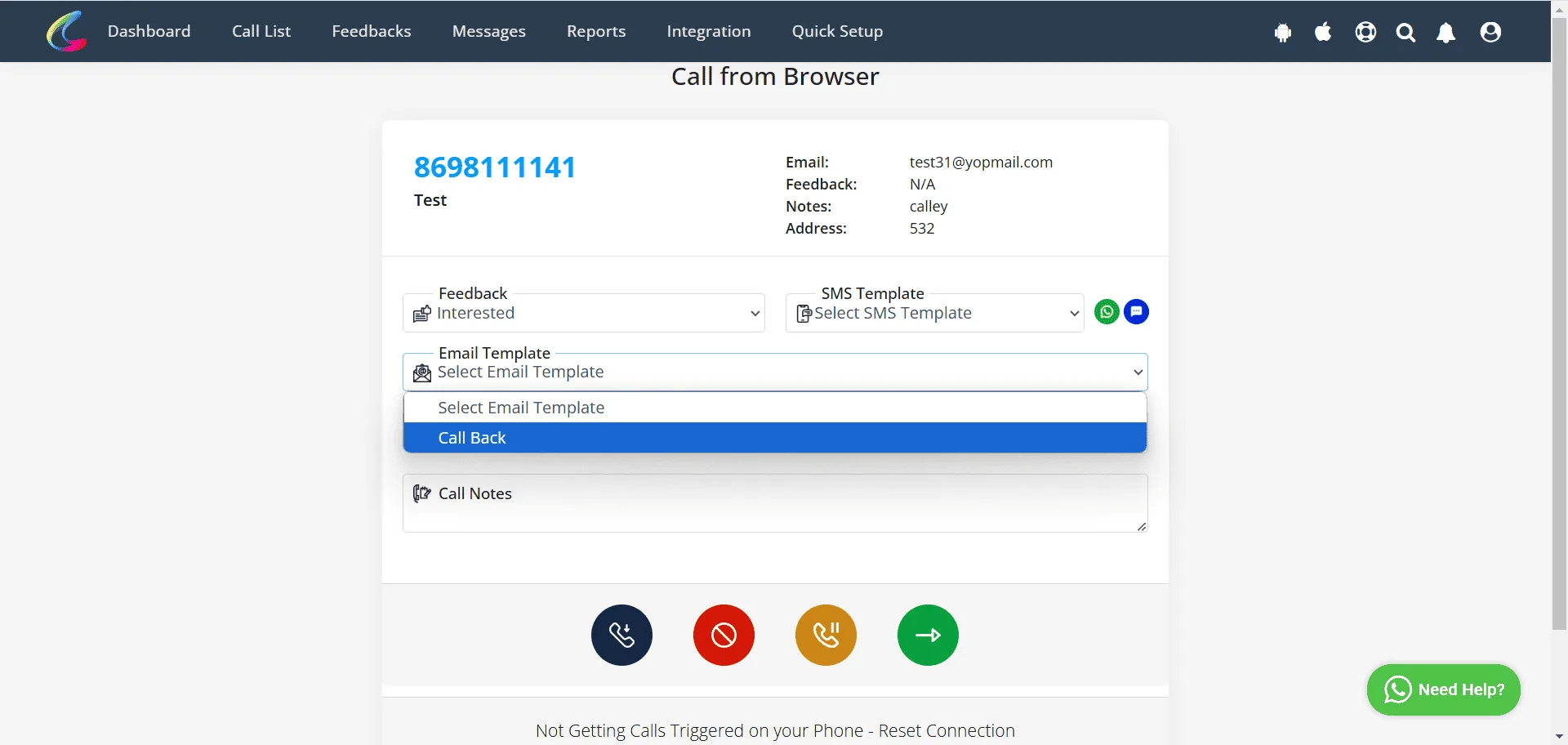
To send the Email, Select the desired email template from the dropdown menu.
Click on Save and Pause send the Email and Pause the session else Click on Next Call button to send the email and moves to the next contact in the list.
Sending Emails from the Calley Mobile App
- Prerequisite: Ensure the call list includes an email ID for each contact. Emails cannot be sent for numbers without a valid email address.
- After completing a call, On the mobile app post-call feedback page will appear.
- To send the Email, Select the desired email template from the dropdown menu.
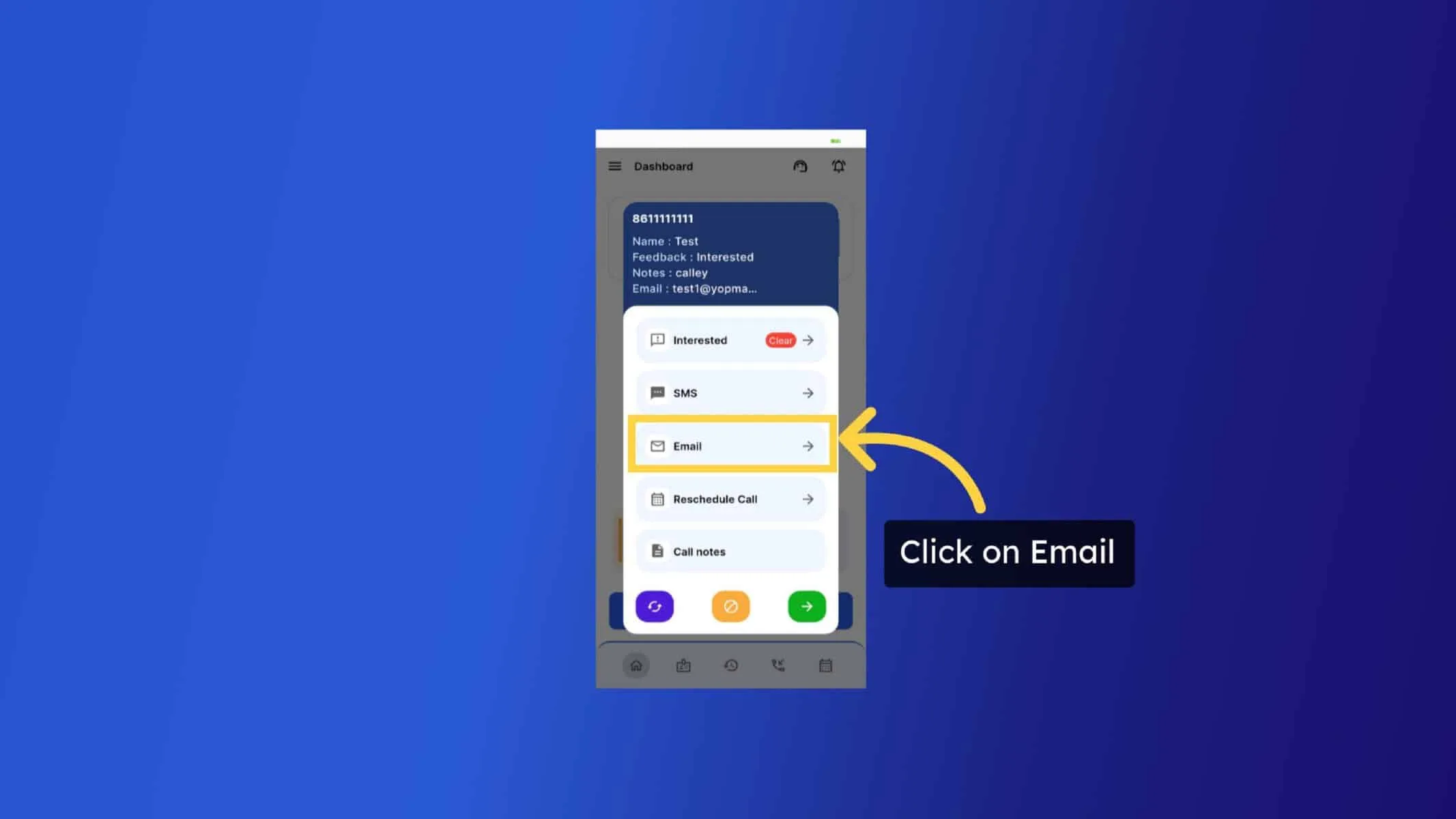
- You’ll see the available email templates, each with a corresponding Send Email button.
- Click the Send Email button of the Template you want to sent.
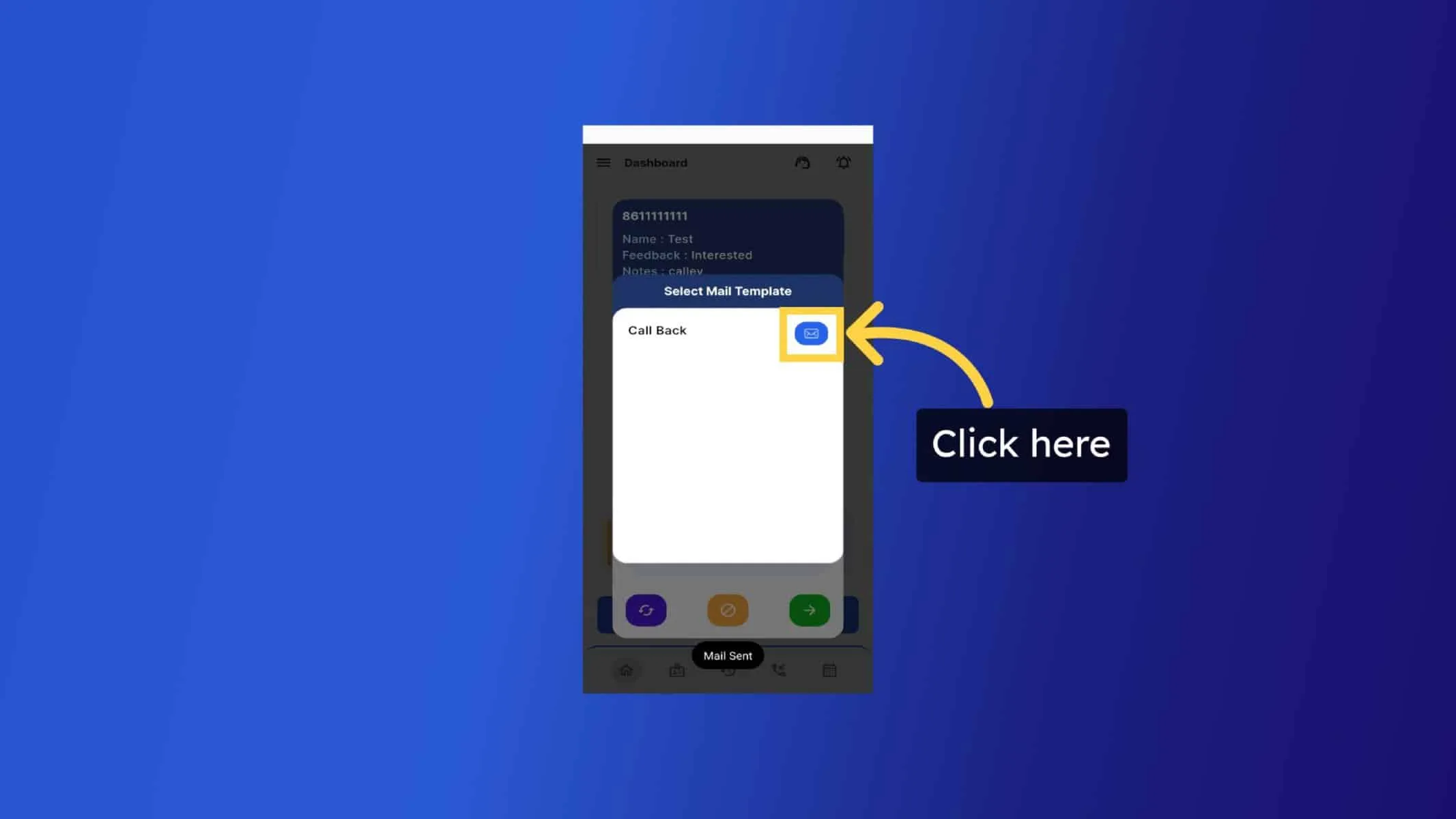
- Email sent successfully.
- Click on Save and Pause to Pause the session else Click on Next Call button to moves to the next contact in the list.
How This Feature Helps Your Business
- Professional Communication – Send emails from your own business email, building trust.
- Easy Follow-ups – Automate emails to stay connected with leads.
- Better Engagement – Personalize messages for higher response rates.
- Saves Time – No need to switch between email platforms.
- Boosts Sales – Timely emails increase conversions.
- Organized & Trackable – Manage all sent emails in one place.
With Calley’s SMTP email integration, you can streamline follow-ups, enhance customer engagement, and ensure consistent communication with your leads. Whether you’re using the web panel or mobile app, sending emails has never been easier. This feature helps save time, improve productivity, and boost sales conversions by ensuring timely and professional communication. Set up your SMTP profile today and start sending emails effortlessly!
Checkout here > Pricing Plans for Calley Auto Dialer App
Link to > Full Feature List of Calley AutoDialer
Do you want to Subscribe to a Free Auto Dialer with a limit of 25 calls per day?
We know you will have questions.
We would love to answer all your questions to get you started with Autodialing using The Calley Auto Dialer app.