
Salesforce CRM Auto DiAler
Calley now integrates with Salesforce CRM!
Automate your work flows with Calley Autodialer App. Share Leads and Contacts seamlessly between Salesforce CRM and Calley Auto Dialer Panels.





How does Calley integrations with Salesforce CRM works converts it to a Salesforce CRM Auto Dialer App?
Connect Calley to Salesforce CRM

Login to Salesforce CRM

Start Calling
Create Workflows for Salesforce CRM Integration with Calley
Check out the steps below on how you can activate your Salesforce CRM integration with Calley Auto Calling App in Minutes. You can sync Leads & Contacts from Salesforce CRM to Calley Panels and Calls done information with Salesforce CRM automatically.
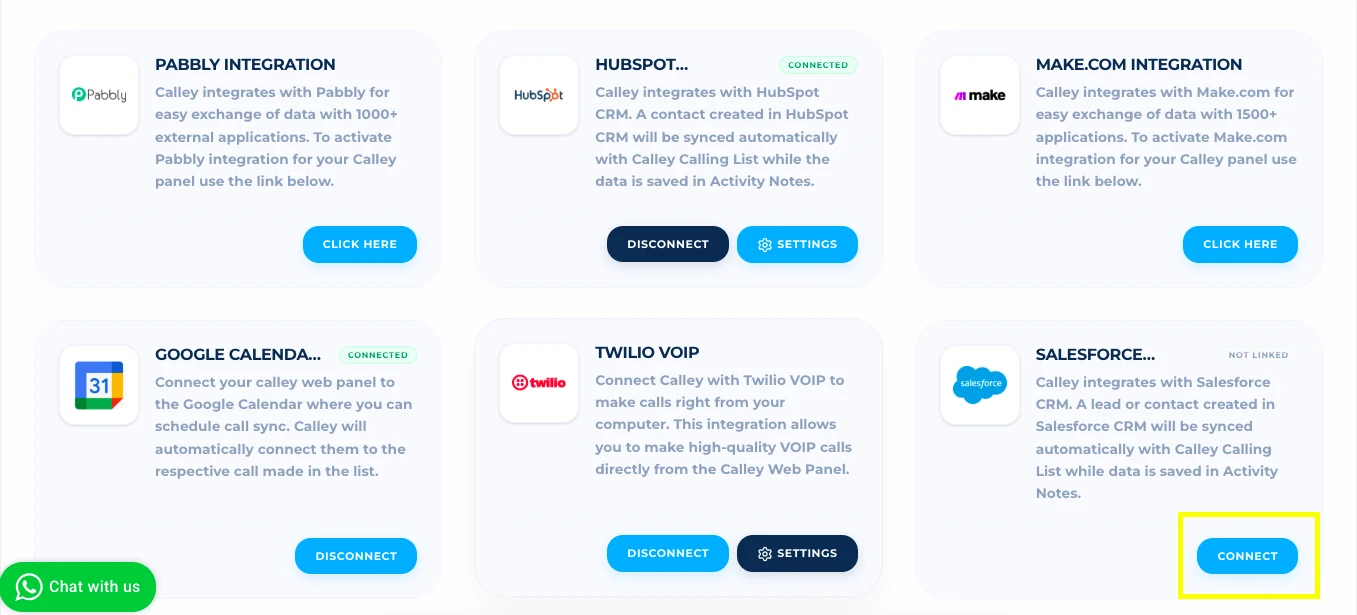
Login to Calley Web Panel. Go to integration section, there is Salesforce Integration block click on connect.
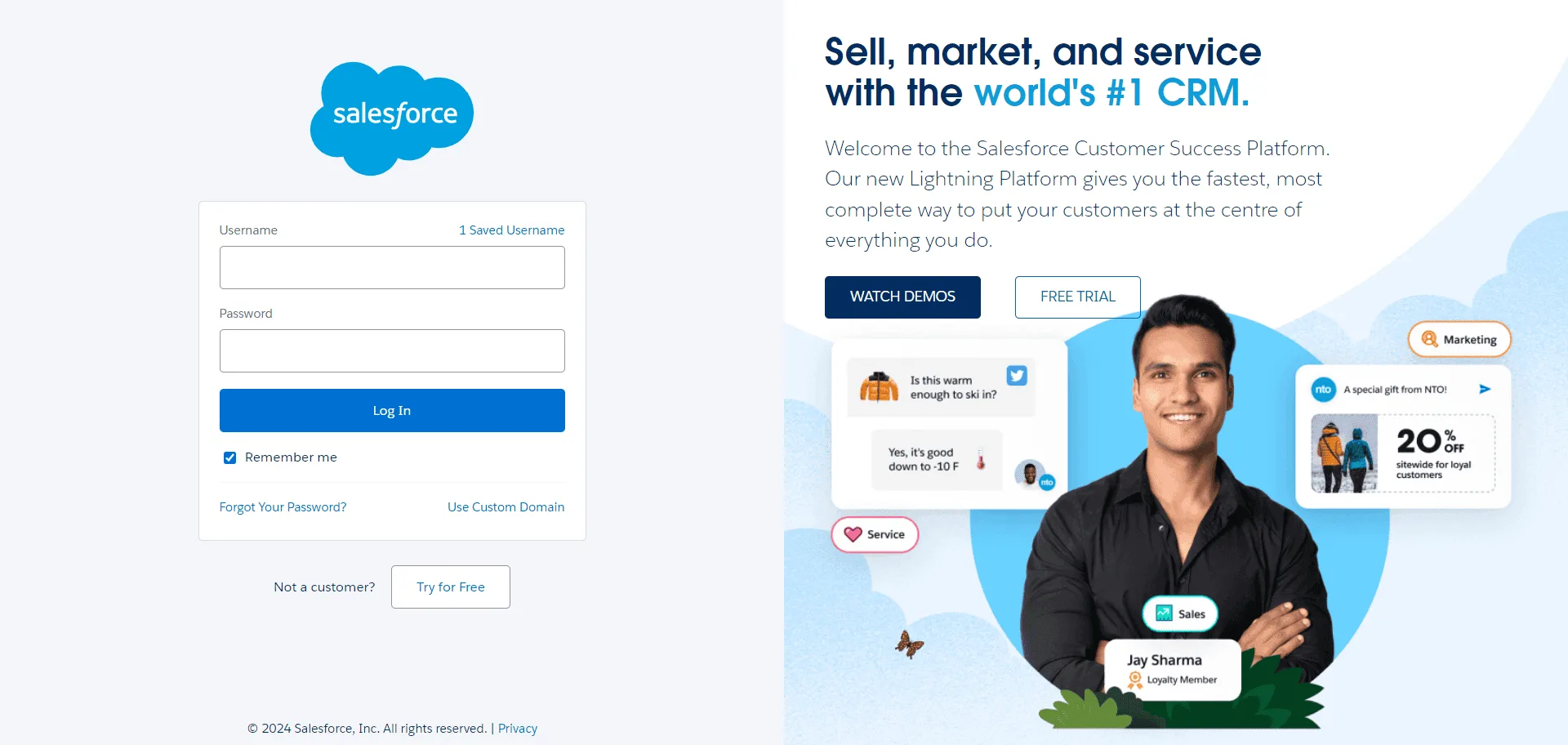
As you click on connect, it asks for login to Salesforce CRM
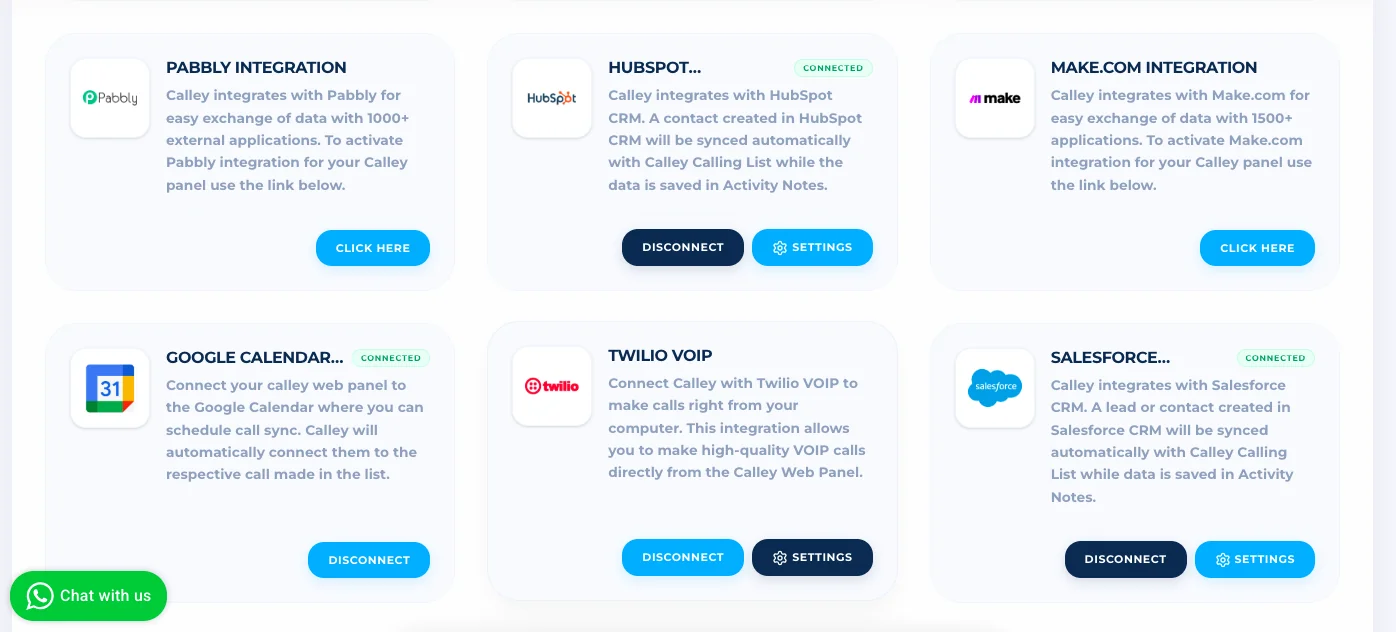
Now you are connected to the Salesforce CRM.
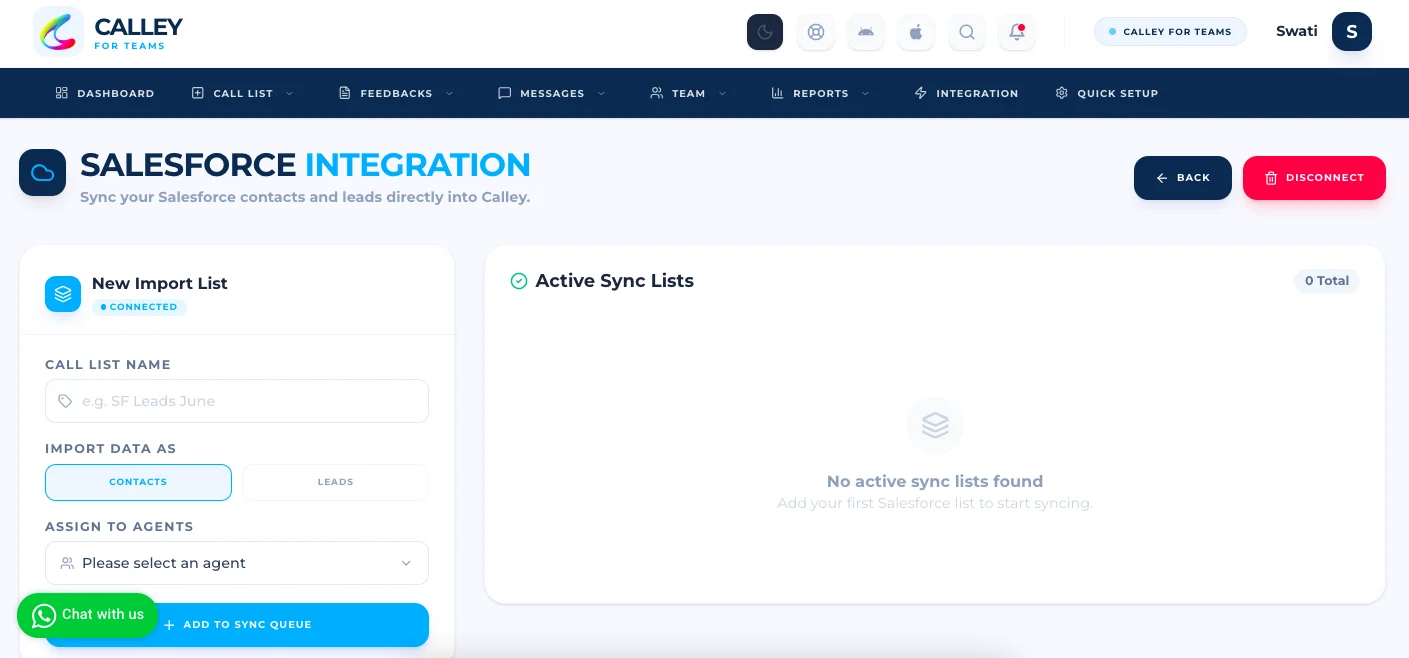
Click on Settings Page.
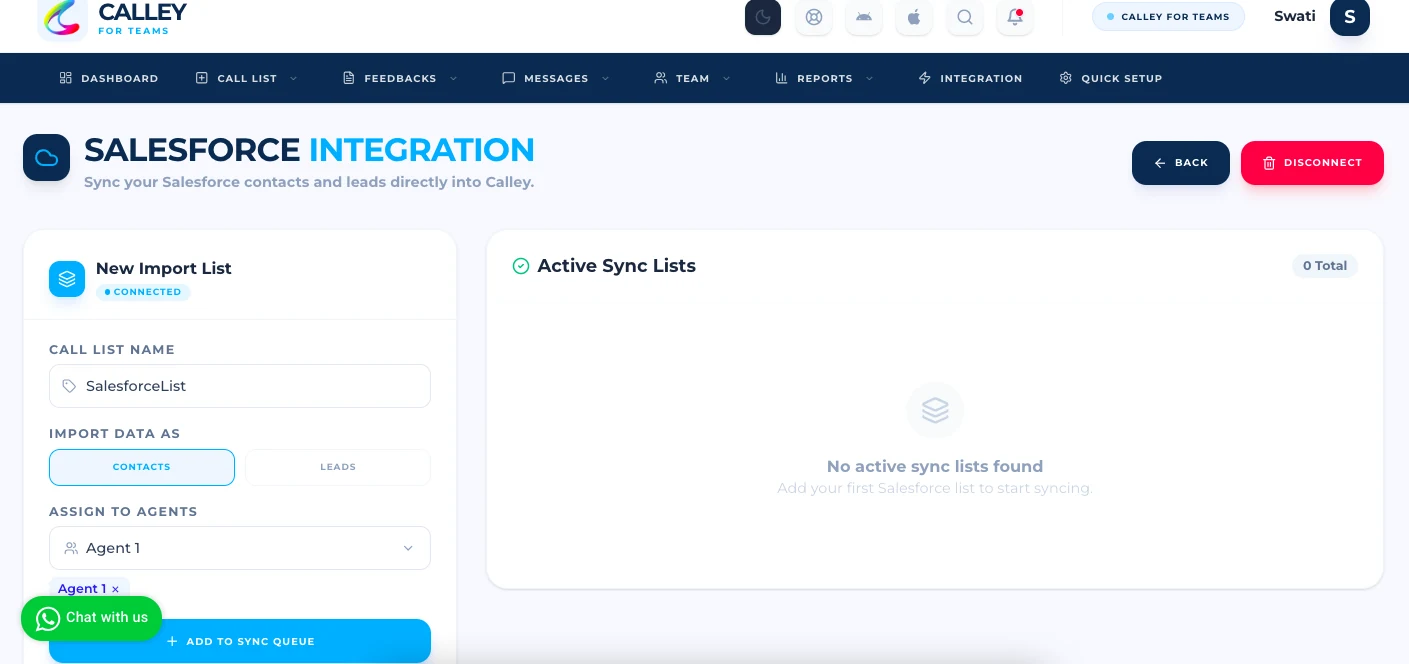
To import from Salesforce CRM, choose Contacts or Leads as the import type, give the list name, assign agents and click on Add to Sync Queue.
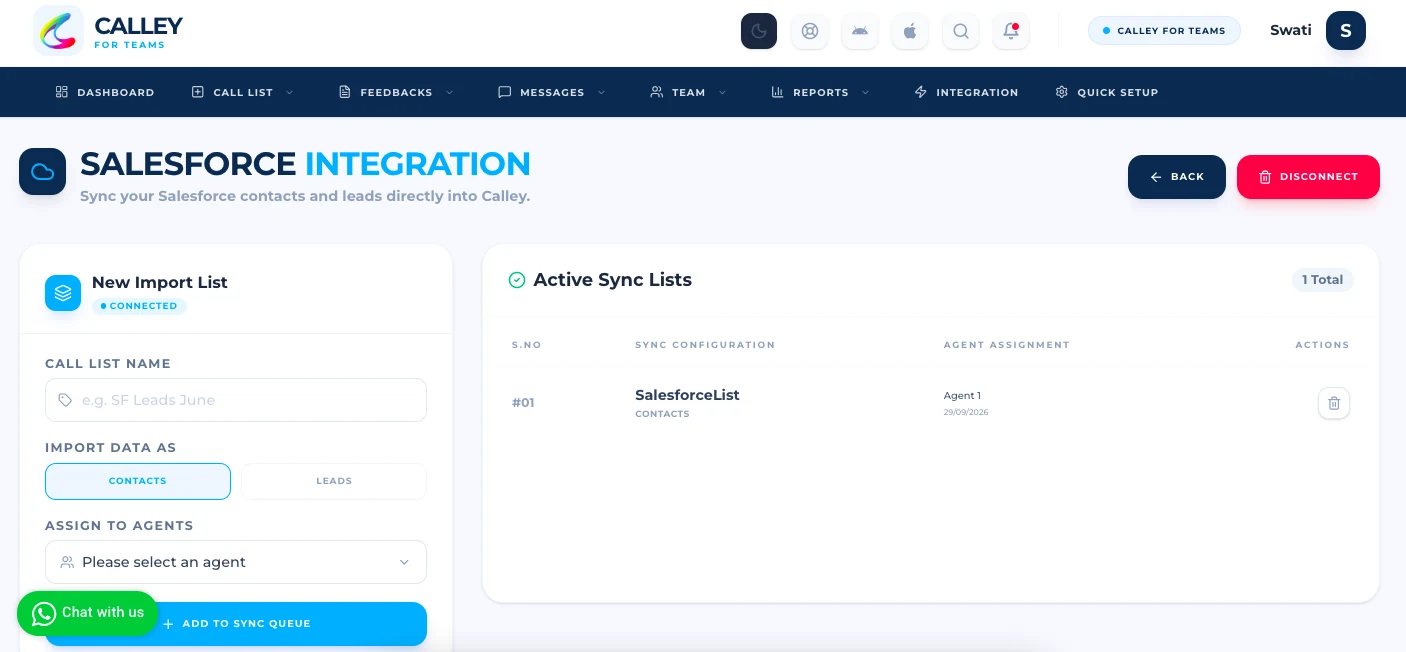
The list appears under Active Sync Lists. Repeat for the other import type if you need both Leads and Contacts.
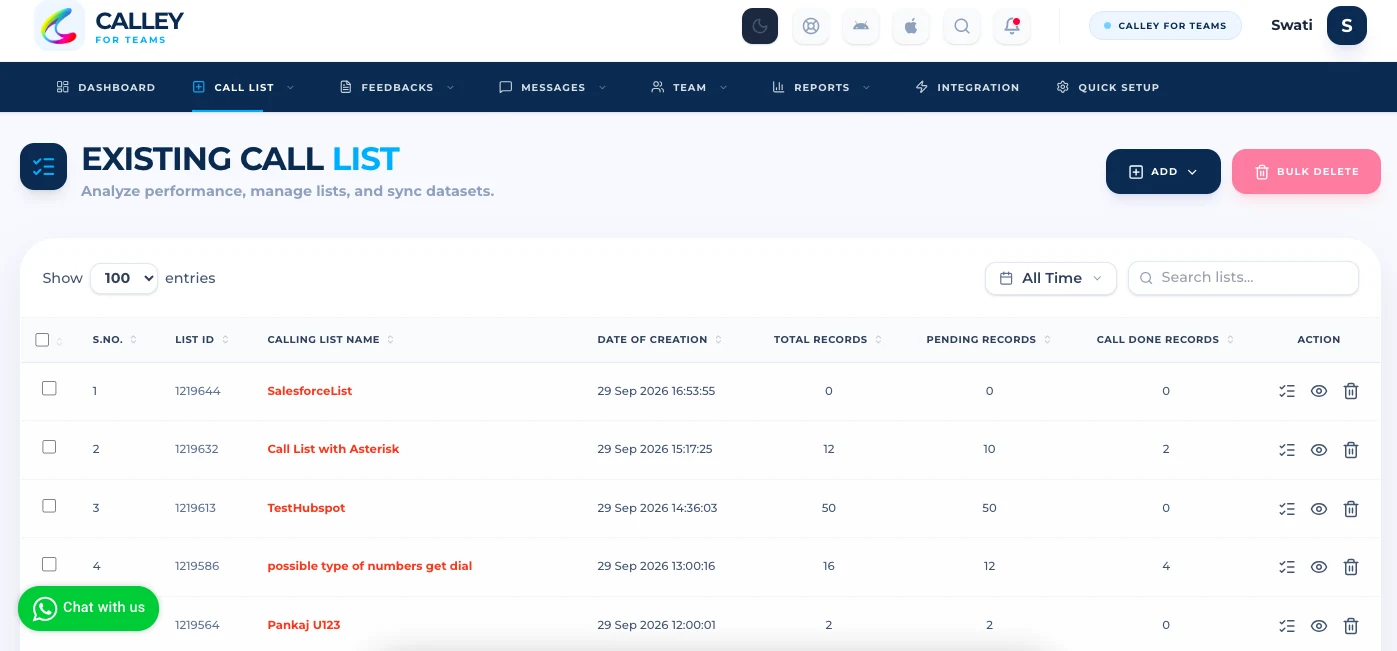
As the lists are created wait(1hr) until the data import from Salesforce CRM to Calley Panel. You will get an email for this.
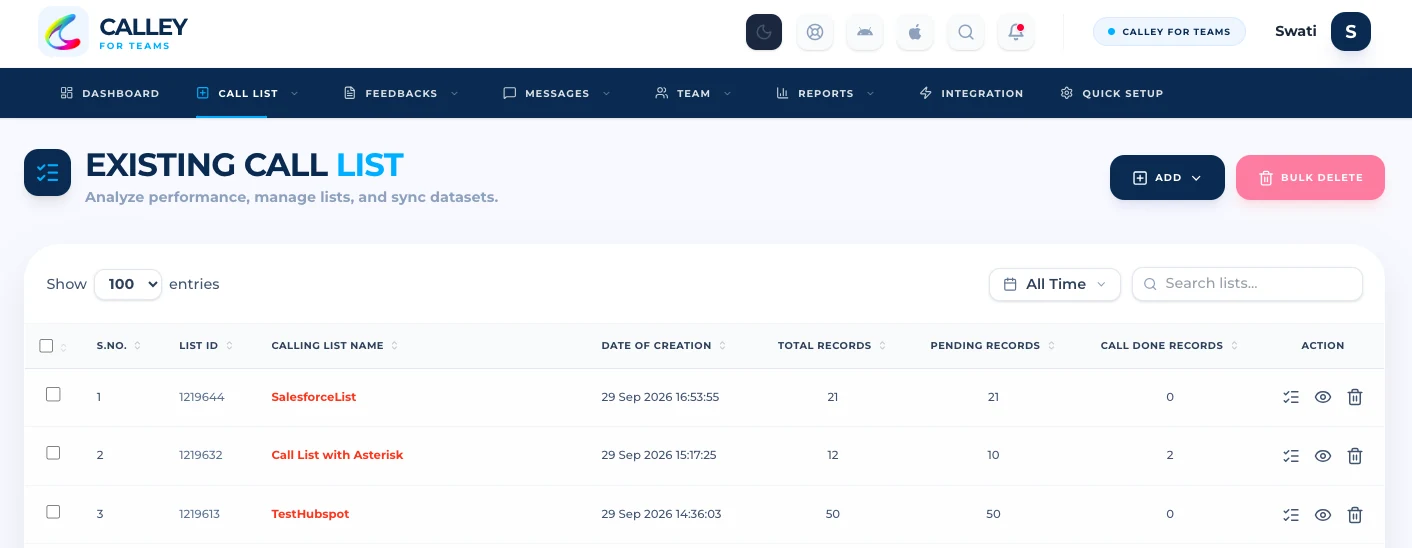
As the data imported from Salesforce CRM to Calley, the total records show up in your calling list.
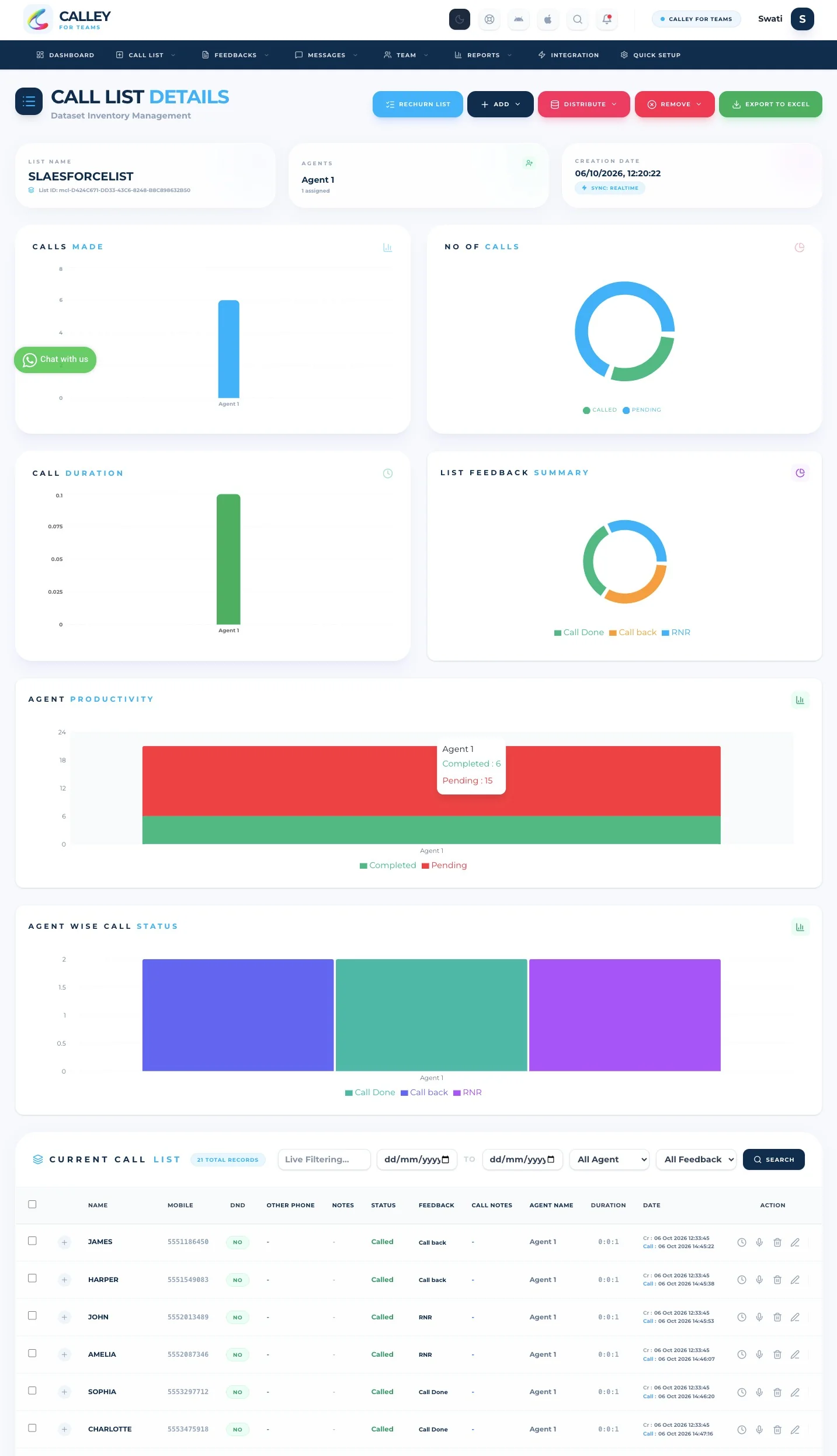
Open the list to see the imported records, then start making calls from the Calley.
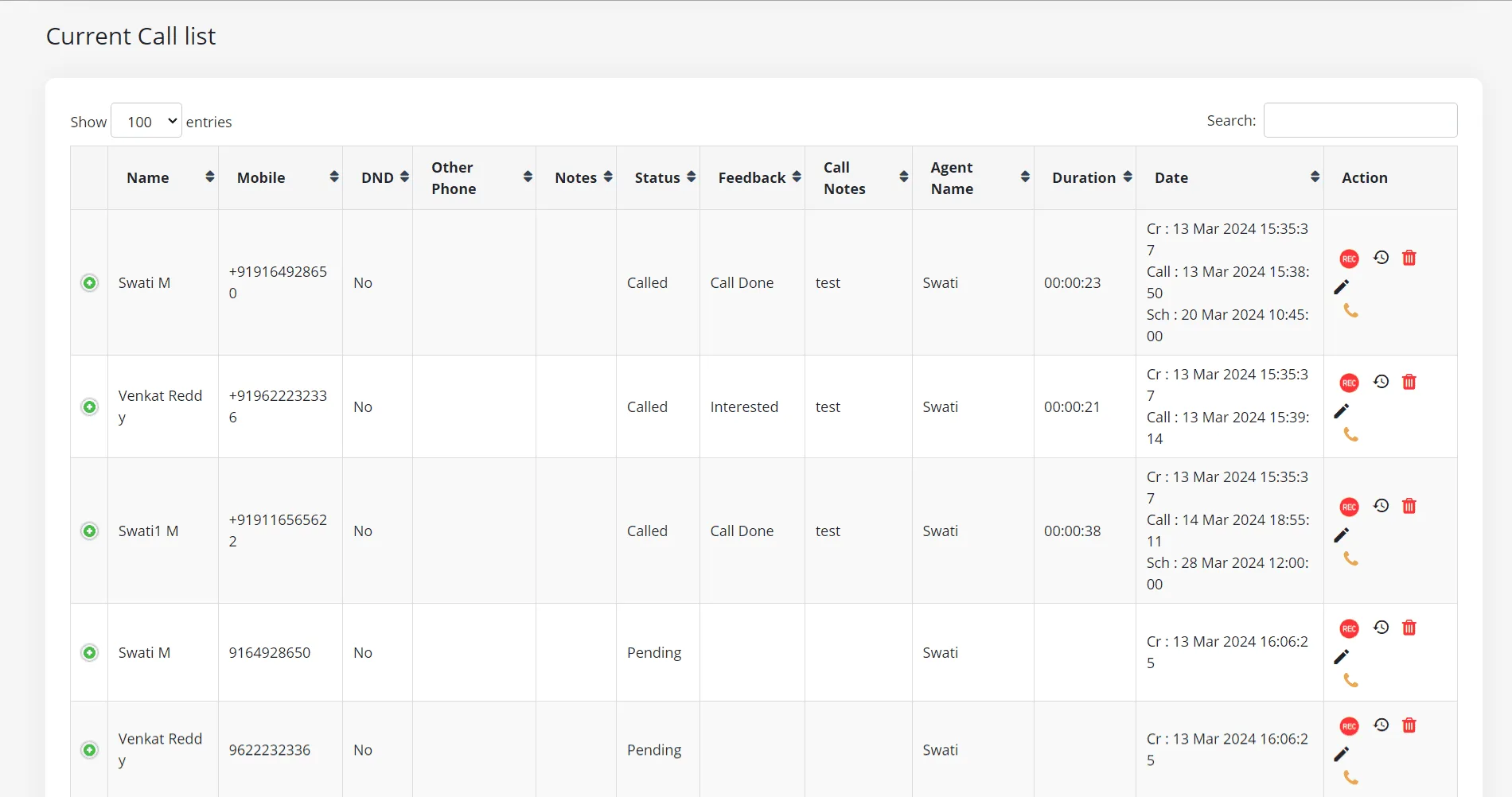
After Making Call wait for activity update on Salesforce CRM
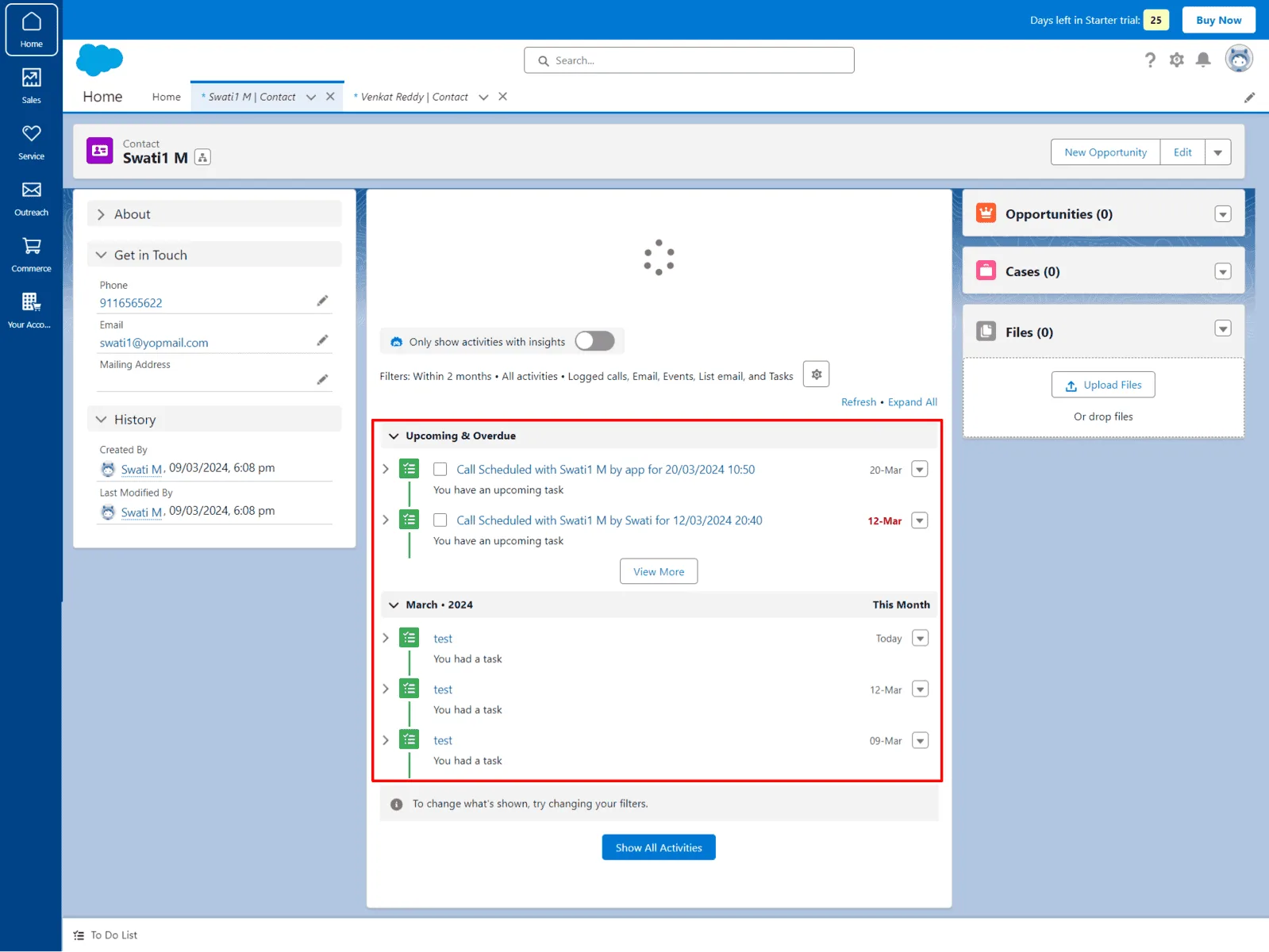
As call activity updated on Salesforce, we can see the tasks created for feature call schedule.
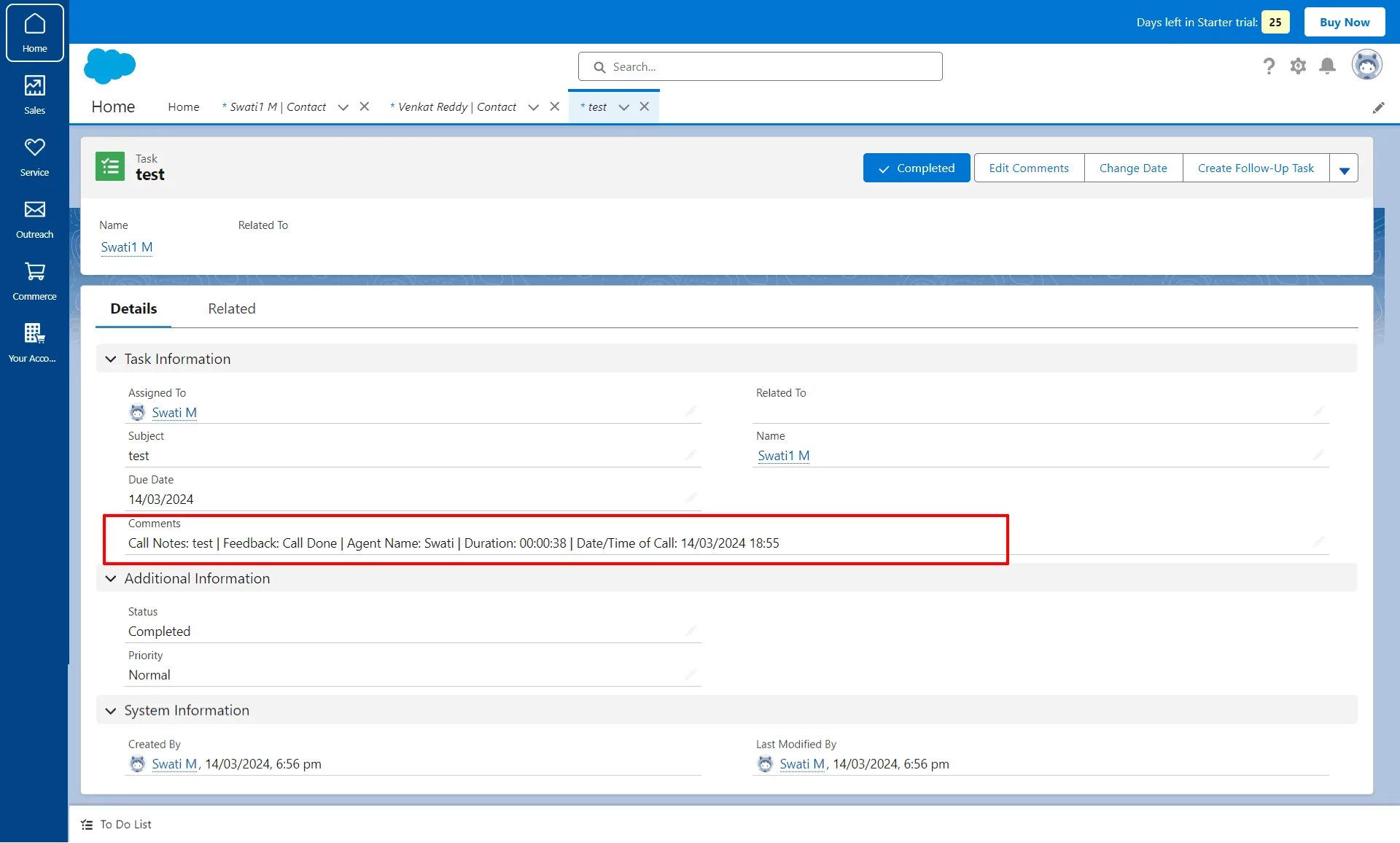
For each task call date, duration, feedback and call notes updated.
This is just one of the example that you can automate using Calley and Salesforce CRM Integration.

Calley Automatic Dialer allows you to do more than just calling?
With Salesforce Integration you can now exchange and automate your calling process with the leading CRM, Mailing, Lead Generation and many more apps.
A simple No-Code wizard with Salesforce allows you to add new leads as well as update calling data for those leads to your CRM with the need of a Manual intervention.
Save yourself from the hassles of manual dialing.