
CALLEY make.com integration
Calley now integrates with Make.com!
Calley can be connected to 5,000+ other web services with Make.com. In minutes, you can set up automated connections called Zaps to automate your day-to-day tasks and save time.




How does Calley integrations with Make.com works?

Popular ways to use Calley workflows
Find out how you can quickly integrate Calley Auto Dialer with CRMs such as Zoho CRM, HubSpot, and many more using the pre-made examples below.

Create a New Contact in Calley List when a New row is added to HubSpot
HubSpot + Calley Auto Dialer
Create a New Contact in Calley List when a New row is added to Google Sheet
Google Sheets Integrations + Calley Auto Dialer
Create a New Contact in Calley List when a New Lead is received in Zoho CRM
Zoho CRM + Calley Auto Dialer
Create a New Contact in Calley List when a New Form is filled in Kommo CRM
Kommo CRM + Calley Auto Dialer
Create a New Contact in Calley List when a New Form filled in Pipedrive
Pipedrive + Calley Auto Dialer
and many more...
Create Custom Workflows
Do you feel adventurous? Custom workflows can also be built to meet your specific needs. You will really be able to show off your superpowers here.
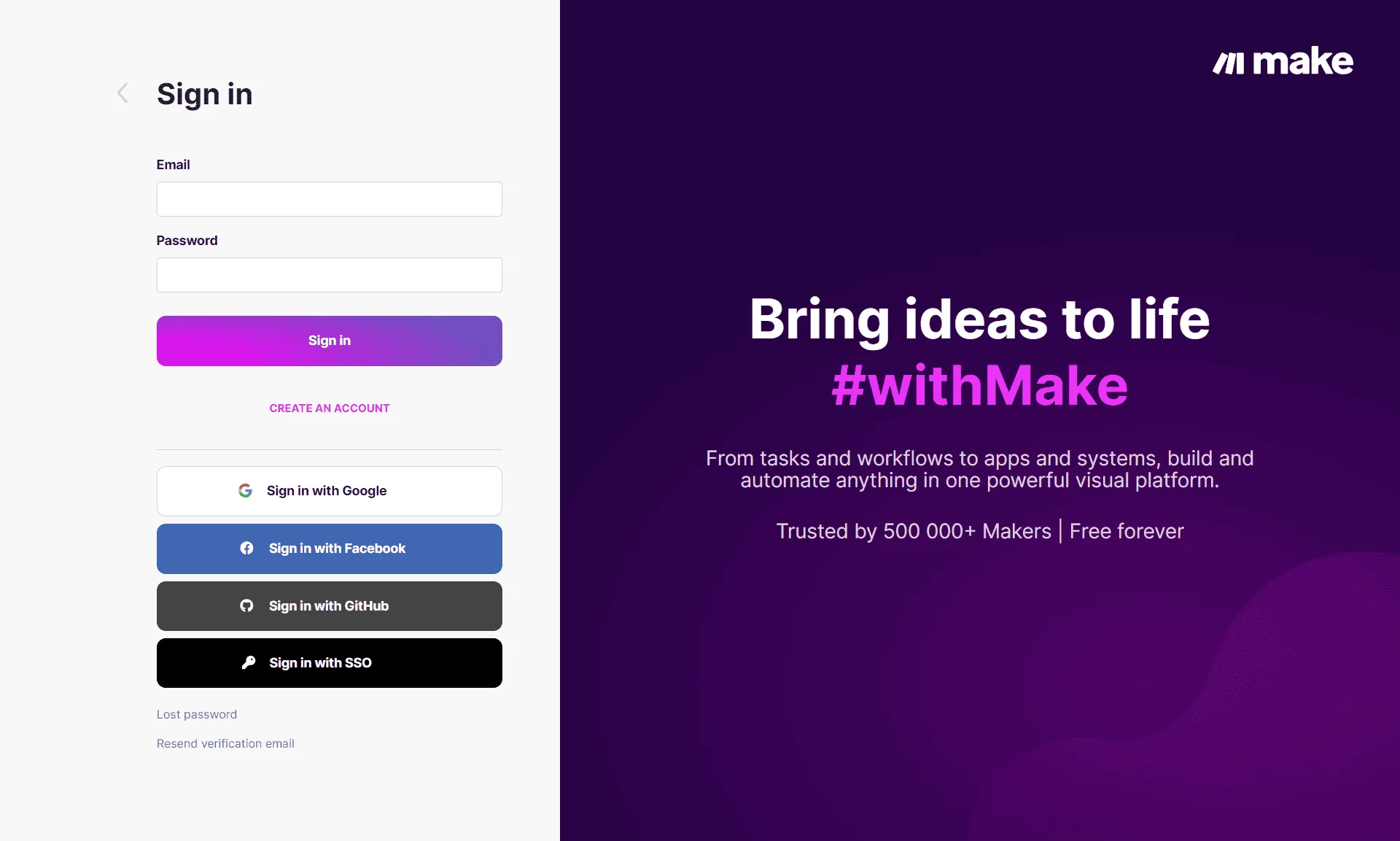
Login to make.com
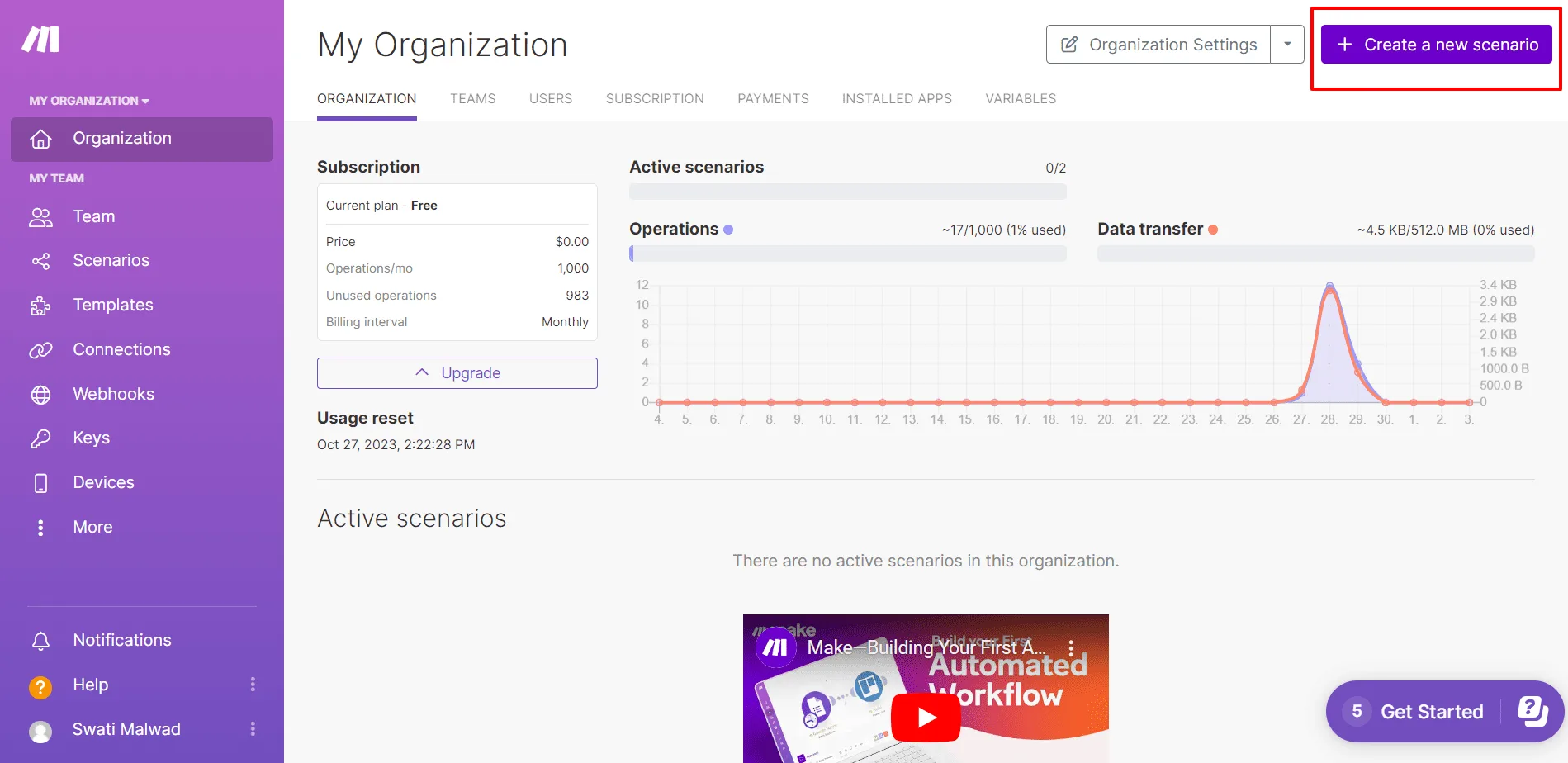
Click on create a new scenario.
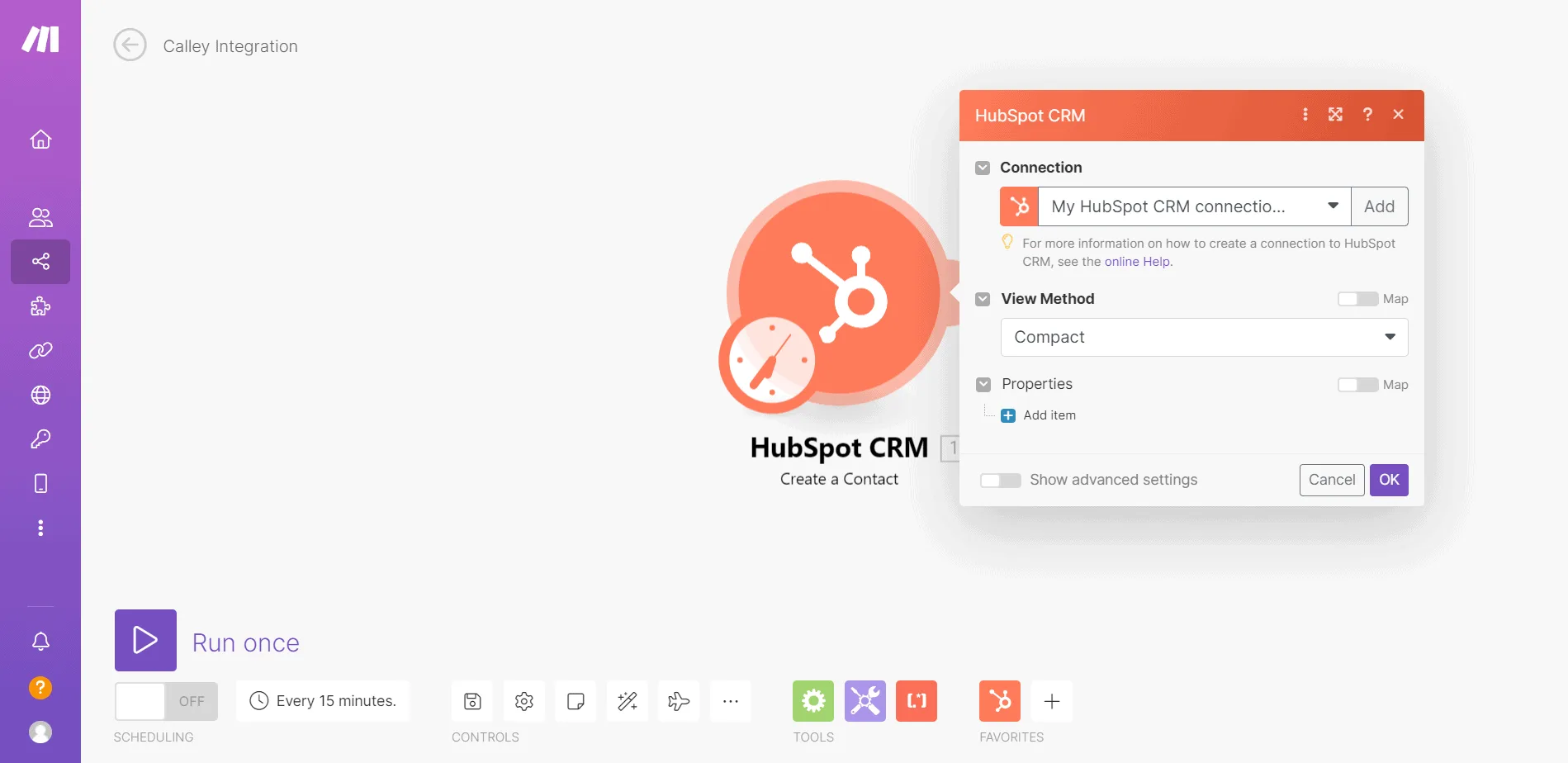
Select the HubSpot as a trigger and select the create contact.
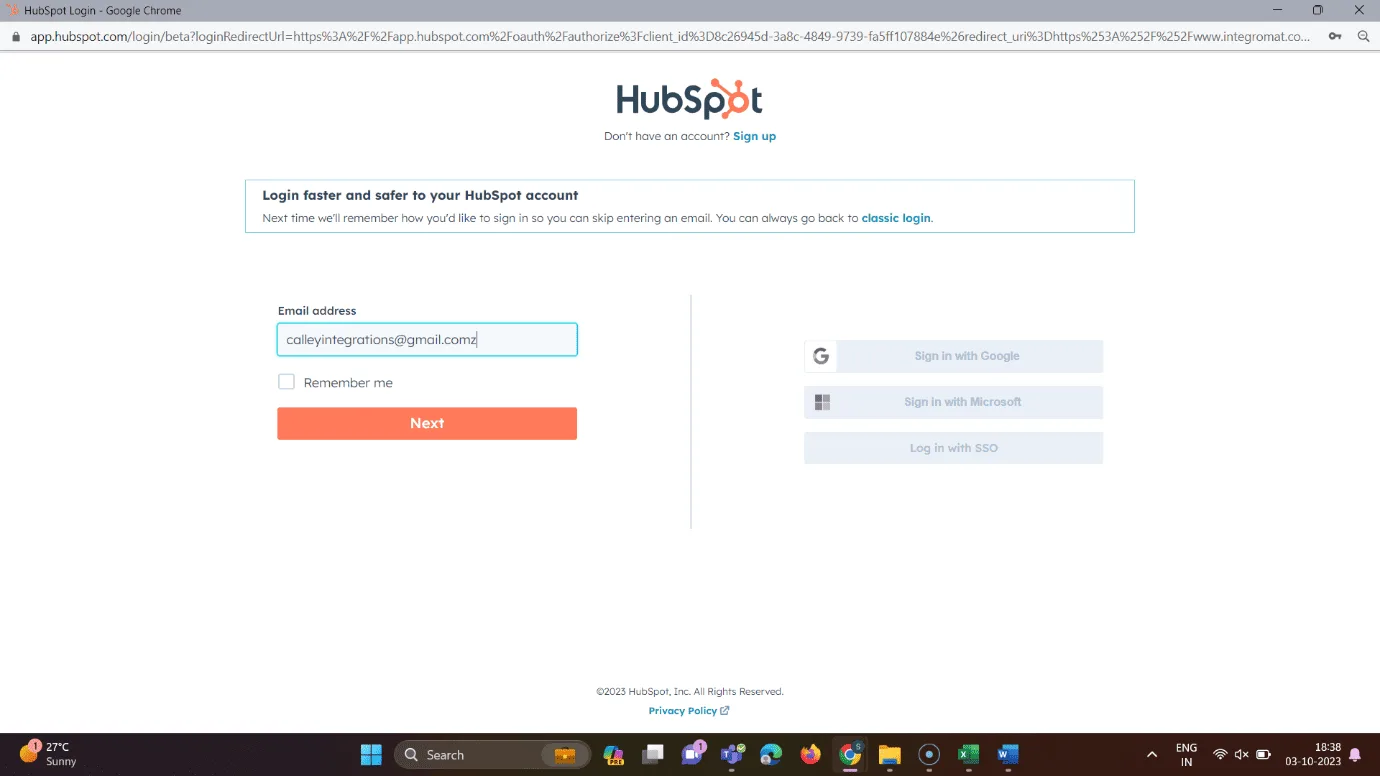
Click on add button to connect make.com with HubSpot CRM. Add a login credential and connect to hubspot.
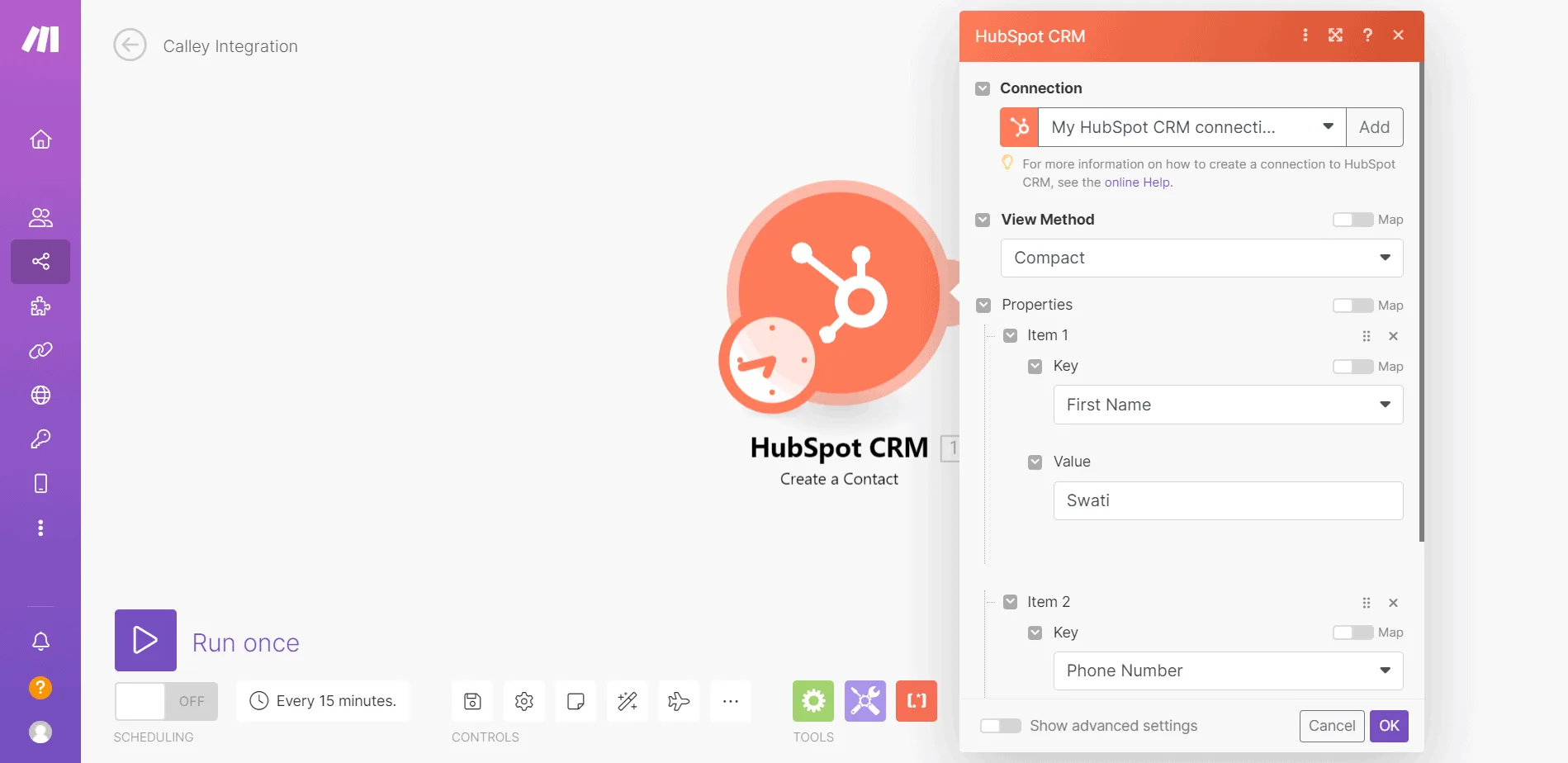
Create a contact by adding Key values for each item and click on ok
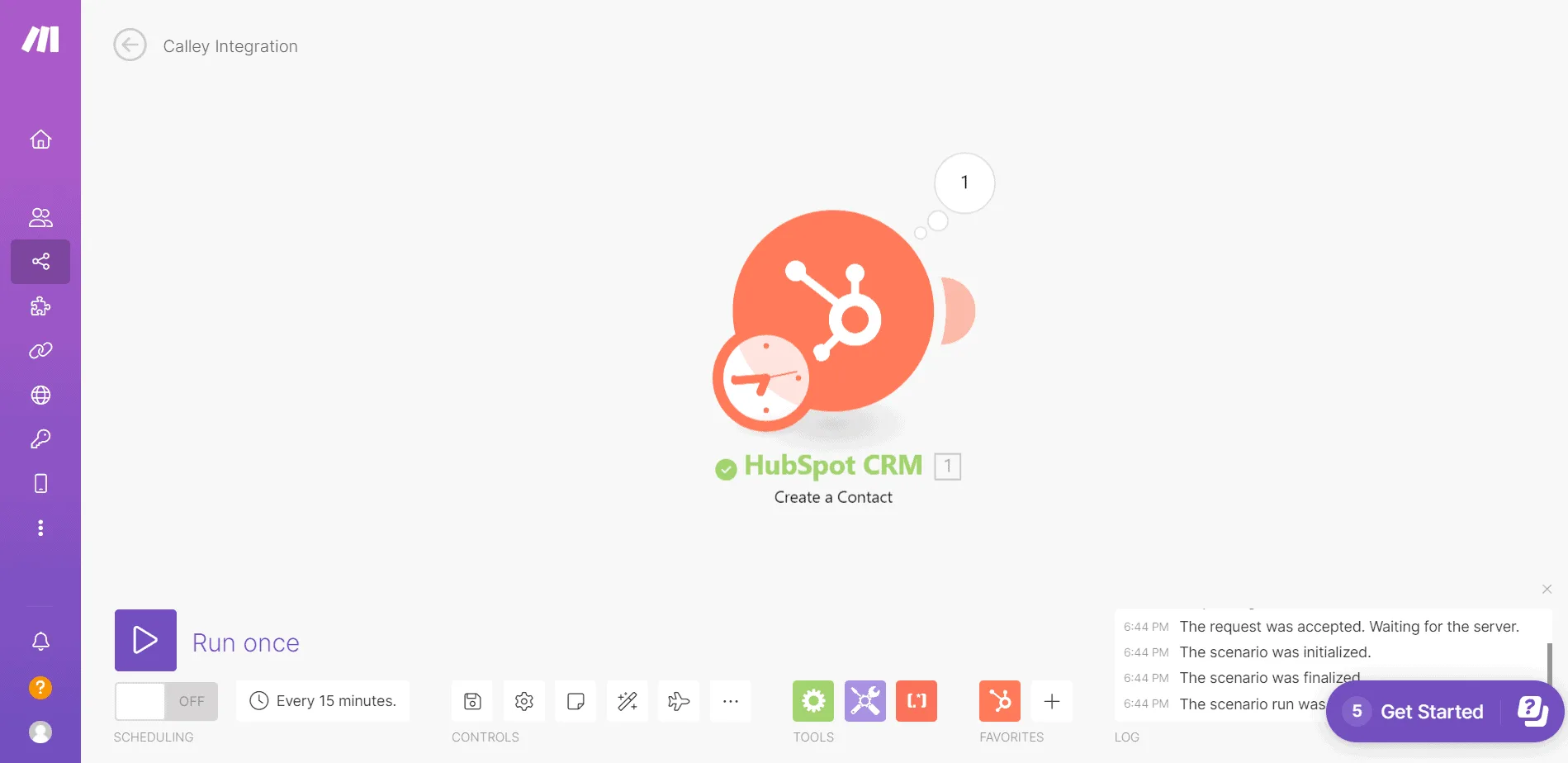
Run the scenario once
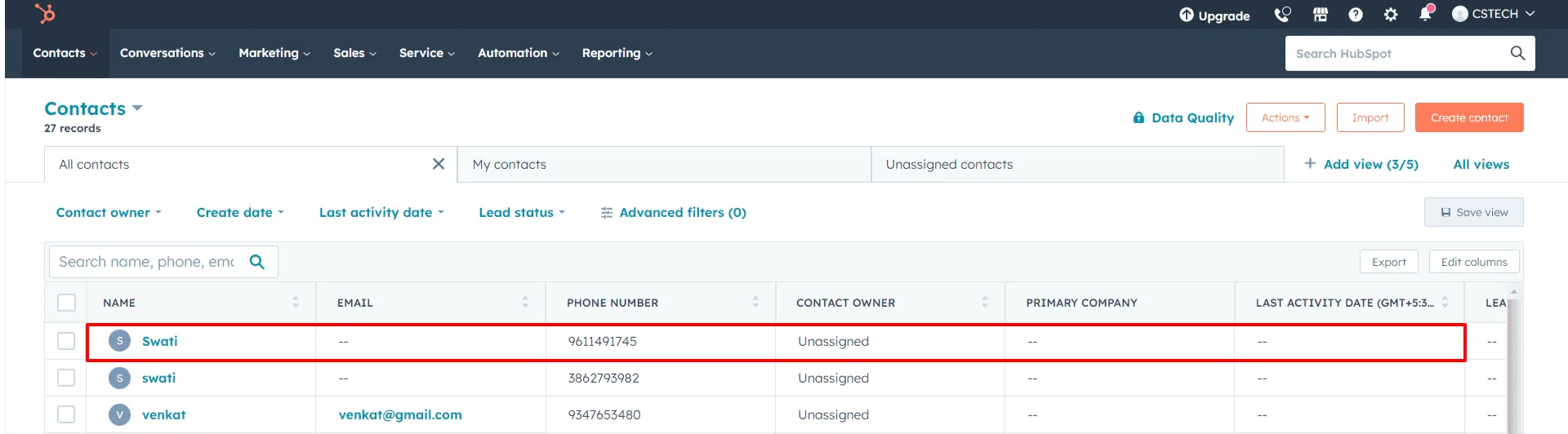
Once the scenario run successfully, check the contact is created or not on HubSpot Panel.
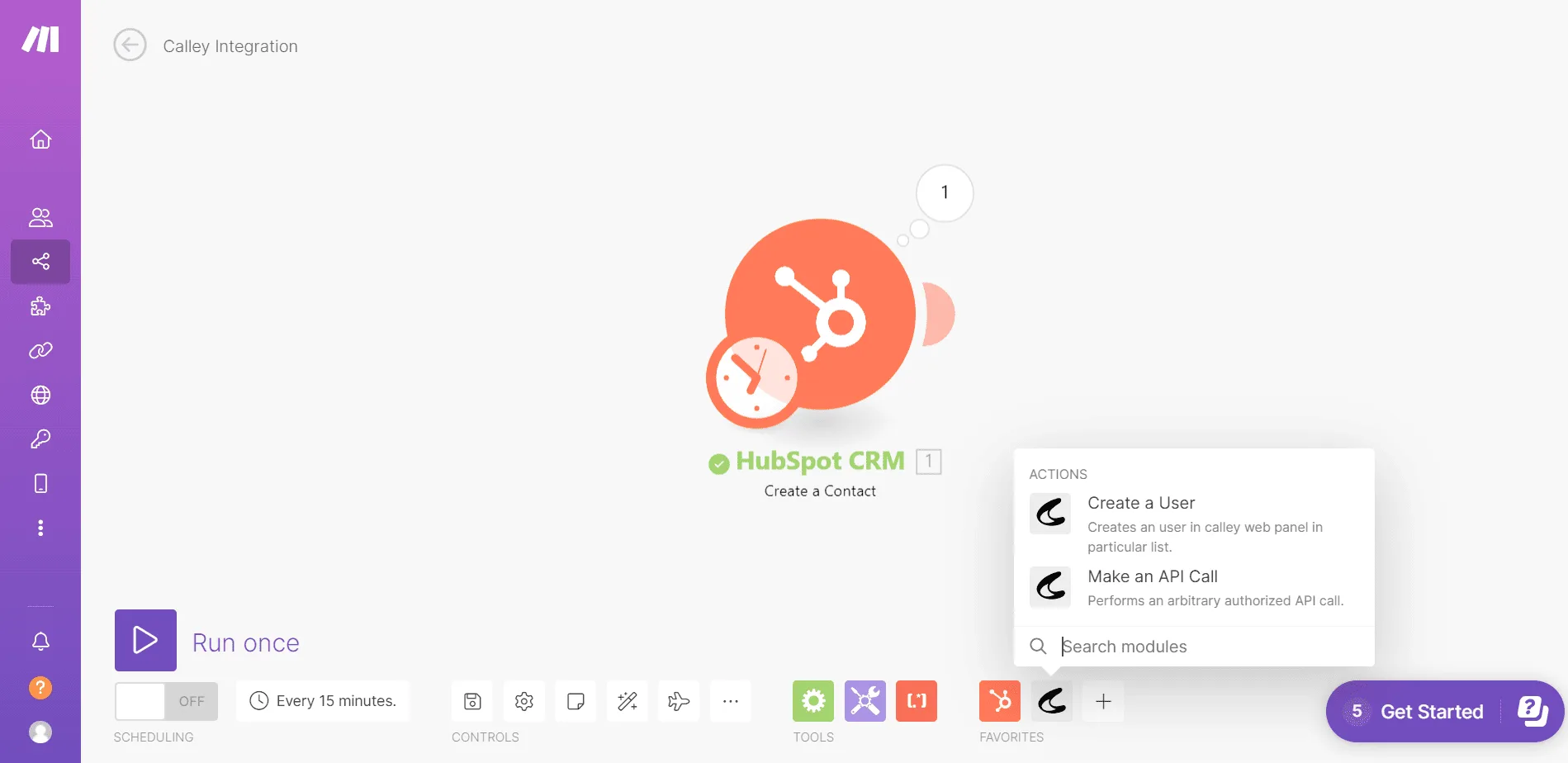
Now on make.com select the action as Calley and select Create a User.
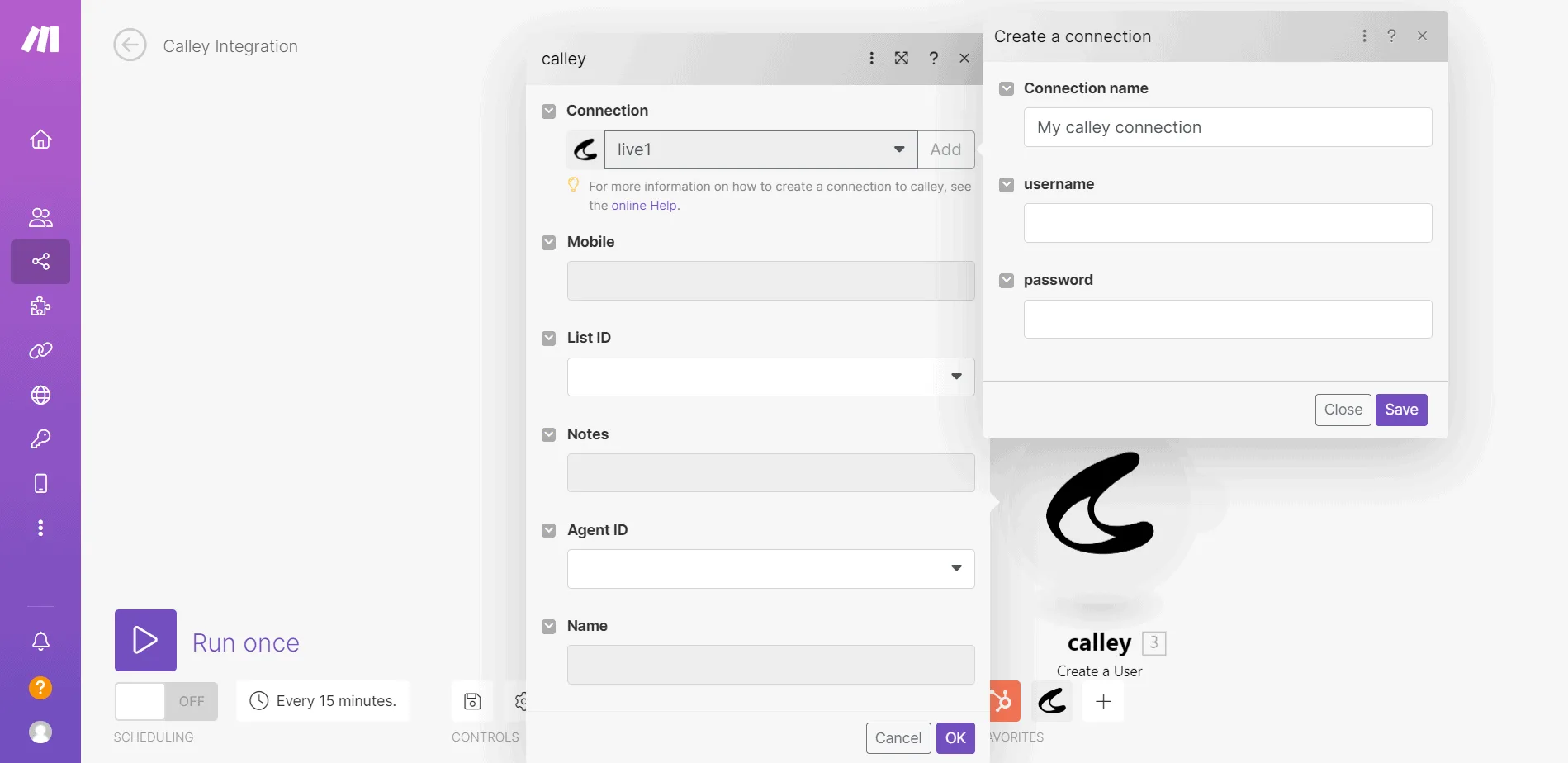
After selection action, connect make.com to calley by adding Calley account login details
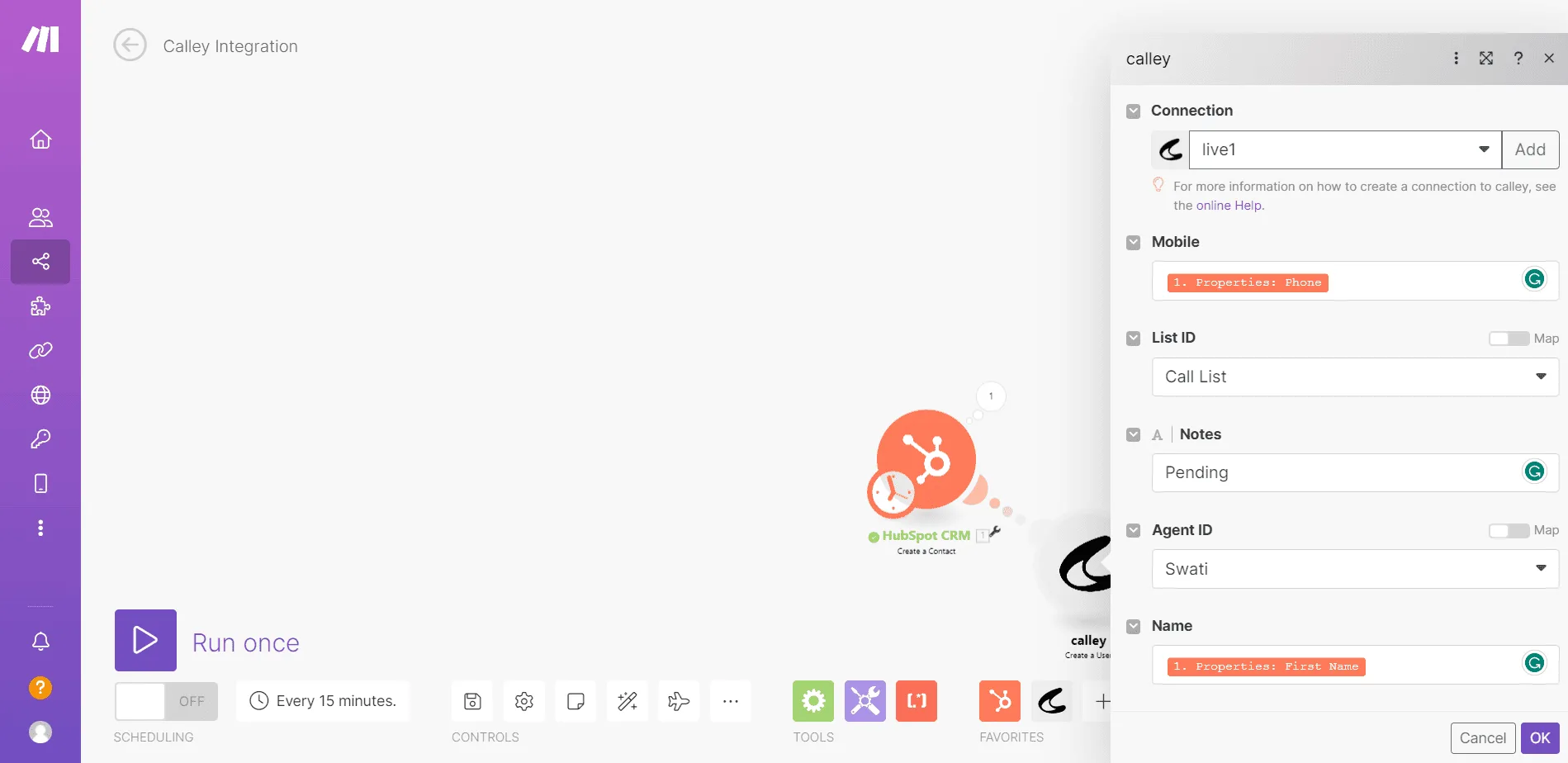
Map the fields and click on ok.
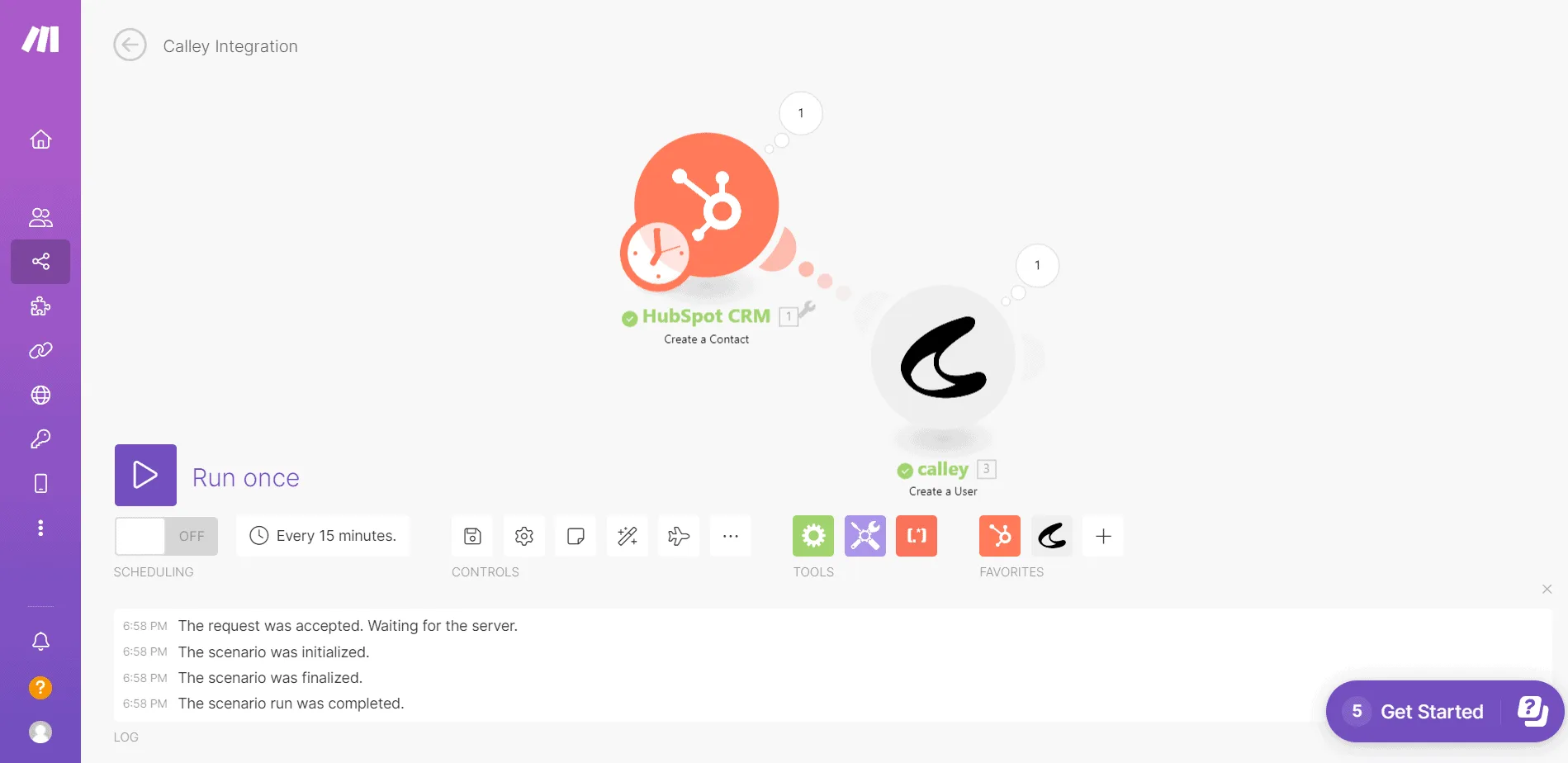
Now run the scenario once.
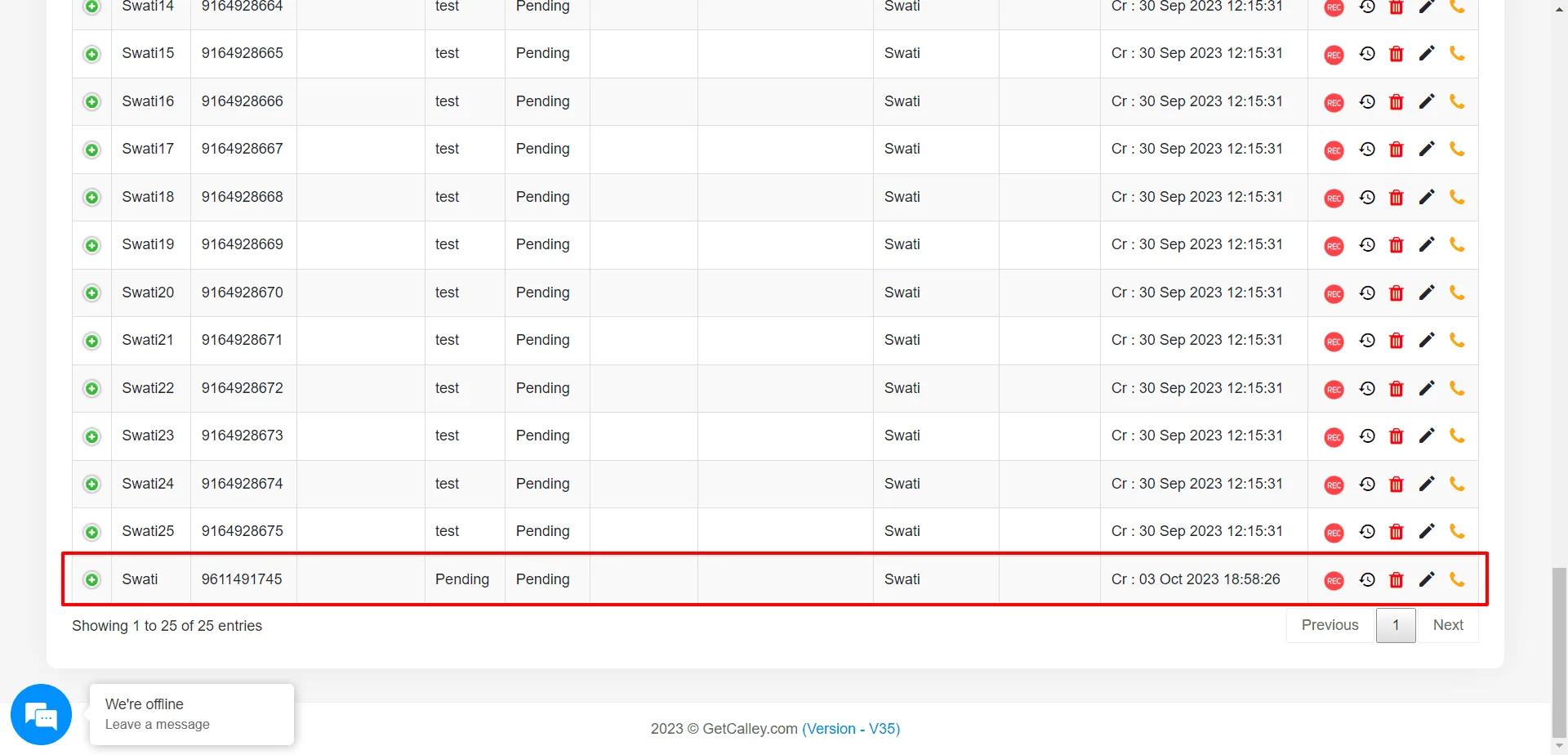
After Running the scenario, login to calley webpanel and check the contact is added or not.
This is just one of the example that you can automate using Calley and Make.com Integration.

Calley Automatic Dialer allows you to do more than just calling?
With Make.com Integration you can now exchange and automate your calling process with the leading CRM, Mailing, Lead Generation and many more apps.
A simple No-Code wizard with Make.com allows you to add new leads as well as update calling data for those leads to your CRM with the need of a Manual intervention.
Save yourself from the hassles of manual dialing.